General Turn On or Off Expand Folder in Navigation Pane of File Explorer in Windows 11


Navigation_pane_banner.webp

This tutorial will show you how to turn on or off automatically expand to current folder in the navigation pane of File Explorer for your account in Windows 11.

The navigation pane is the far left pane in File Explorer used to find files, folders, and drives on your PC or network.

When you have a folder or drive open in File Explorer (Win+E), you can press the Ctrl + Shift + E keys to expand the current folder or drive in the navigation pane on demand.

You can turn on Expand to current folder to have the navigation pane automatically expand to the current folder or drive as you open them in File Explorer.


Contents

  • Option One: Turn On or Off Automatically "Expand to current folder" in Navigation Pane in File Explorer
  • Option Two: Turn On or Off Automatically "Expand to current folder" in Navigation Pane in Folder Options
  • Option Three: Turn On or Off Automatically 'Expand to current folder" in Navigation Pane using REG file
  • Option Four: Turn On or Off Automatically 'Expand to current folder" in Navigation Pane in Registry Editor


Option One

Turn On or Off Automatically "Expand to current folder" in Navigation Pane in File Explorer


1 Open File Explorer (Win+E).

2 Right click or press and hold on an empty area inside the navigation pane, and click/tap on Expand to current folder to toggle it on (checked) or off (unchecked - default). (see screenshot below)

Expand_to_current_folder.png


Option Two

Turn On or Off Automatically "Expand to current folder" in Navigation Pane in Folder Options


1 Open Folder Options.

2 Click/tap on the View tab. (see screenshot below)

3 Under the Navigation pane section, check (on) or uncheck (off - default) Expand to open folder for what you want.

4 Click/tap on OK.

Expand_to_current_folder_Folder_Options.png


Option Three

Turn On or Off Automatically 'Expand to current folder" in Navigation Pane using REG file


This option will not work when Administrator protection is turned on.


1 Do step 2 (on) or step 3 (off) below for what you want.

2 Turn On Automatically 'Expand to current folder" in Navigation Pane

A) Click/tap on the Download button below to download the file below, and go to step 4 below.​

Turn_On_Expand_to_current_folder_in_navigation_pane_for_current_user.reg


(Content of REG file for reference)
Code:
Windows Registry Editor Version 5.00

[HKEY_CURRENT_USER\Software\Microsoft\Windows\CurrentVersion\Explorer\Advanced]
"NavPaneExpandToCurrentFolder"=dword:00000001

3 Turn Off Automatically 'Expand to current folder" in Navigation Pane

This is the default setting.


A) Click/tap on the Download button below to download the file below, and go to step 4 below.​

Turn_Off_Expand_to_current_folder_in_navigation_pane_for_current_user.reg


(Content of REG file for reference)
Code:
Windows Registry Editor Version 5.00

[HKEY_CURRENT_USER\Software\Microsoft\Windows\CurrentVersion\Explorer\Advanced]
"NavPaneExpandToCurrentFolder"=dword:00000000

4 Save the REG file to your desktop.

5 If you have Smart App Control turned on, you will need to unblock the downloaded REG file.

6 Double click/tap on the downloaded REG file to merge it.

7 When prompted, click/tap on Run, Yes (UAC), Yes, and OK to approve the merge.

8 Either restart explorer process, sign out and sign in, or restart the computer to apply.

9 You can now delete the downloaded REG file if you like.


Option Four

Turn On or Off Automatically 'Expand to current folder" in Navigation Pane in Registry Editor


1 Open Registry Editor (regedit.exe).

2 Navigate to the key location below in the left pane of Registry Editor. (see screenshot below step 3)

HKEY_USERS\<SID>\Software\Microsoft\Windows\CurrentVersion\Explorer\Advanced

Substitute <SID> in the key path above with the actual SID for the account you want to apply this to.

For example:
HKEY_USERS\S-1-5-21-2498639629-3946114050-4100787084-1001\Software\Microsoft\Windows\CurrentVersion\Explorer\Advanced


3 In the right pane of the Advanced key, double click/tap on the NavPaneExpandToCurrentFolder DWORD to modify it. (see screenshot below)

NavPaneExpandToCurrentFolder-1.webp

4 Enter 0 (off - default) or 1 (on) for what you want, and click/tap on OK. (see screenshot below)

NavPaneExpandToCurrentFolder-2.webp

5 Either restart explorer process, sign out and sign in, or restart the computer to apply.

6 You can now close Registry Editor if you like.


That's it,
Shawn Brink


Attachments

Last edited:
Too bad that the automatic expansion does not work anymore with Quick access folders if used in Explorer
 

My Computer My Computer

At a glance

Windows 11
OS
Windows 11
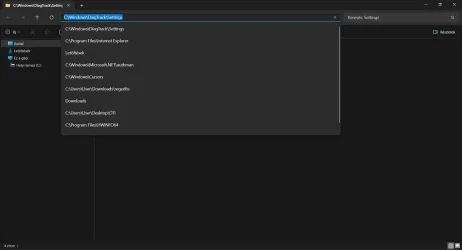
I want to solve a similar issue. When I create a shortcut for a folder and open it from the desktop, the folder opens correctly, and its root is displayed in the top navigation bar.

However, in the left navigation pane, the folder tree doesn’t appear until I select the root in the top navigation bar and press Enter. After that, the navigation pane shows the folder tree properly.

Is there any way to fix this so that when I open a folder shortcut, it automatically displays the folder tree in the navigation pane?

When i open the shortcut properties and hit manually the "Open File Location" its working properly automatically expand the navigation tree pane.
 

Attachments

  • 1ms.webp
    1ms.webp
    22.2 KB · Views: 73
  • 2ms.webp
    2ms.webp
    36.3 KB · Views: 74

My Computer My Computer

At a glance

Windows 11
OS
Windows 11
Computer type
PC/Desktop
SOLUTION i come up with.

1. Right-Click the Shortcut > Properties.
2. In the Target field, replace it with: explorer.exe /select,"C:\Path\To\Your\Folder"
3. Apply the changes.
 

My Computer My Computer

At a glance

Windows 11
OS
Windows 11
Computer type
PC/Desktop
Tutorial updated to add option four. :alien:
 

My Computers My Computers

  • At a glance

    Windows 11 Pro for WorkstationsIntel i7-8700K 5 GHz64 GB (4x16GB) G.SKILL TridentZ RGB DDR4 3600...ASUS ROG-STRIX-GTX1080TI-O11G-GAMING (11GB GD...
    OS
    Windows 11 Pro for Workstations
    Computer type
    PC/Desktop
    Manufacturer/Model
    Custom self build
    CPU
    Intel i7-8700K 5 GHz
    Motherboard
    ASUS ROG Maximus XI Formula Z390
    Memory
    64 GB (4x16GB) G.SKILL TridentZ RGB DDR4 3600 MHz (F4-3600C18D-32GTZR)
    Graphics Card(s)
    ASUS ROG-STRIX-GTX1080TI-O11G-GAMING (11GB GDDR5X)
    Sound Card
    Integrated Digital Audio (S/PDIF)
    Monitor(s) Displays
    2 x Samsung Odyssey G75 27"
    Screen Resolution
    2560x1440
    Hard Drives
    1TB Samsung 990 PRO M.2,
    4TB Samsung 990 PRO M.2,
    TerraMaster F8 SSD Plus NAS
    PSU
    Seasonic Prime Titanium 850W
    Case
    Thermaltake Core P3 wall mounted
    Cooling
    Corsair Hydro H115i
    Keyboard
    Amazon Basics Wired Full Keyboard MD005
    Mouse
    Logitech MX Master 4
    Internet Speed
    2 Gbps Download and 100 Mbps Upload
    Browser
    Chrome and Edge
    Antivirus
    Microsoft Defender
    Other Info
    Logitech Z625 speaker system,
    Logitech BRIO 4K Pro webcam,
    HP Color LaserJet Pro MFP M477fdn,
    CyberPower CP1500PFCLCD
    Galaxy S23 Plus phone
  • At a glance

    Windows 11 ProSnapdragon X Elite (12 core) 3.42 GHz16 GB LPDDR5x-7467 MHz
    Operating System
    Windows 11 Pro
    Computer type
    Laptop
    Manufacturer/Model
    Surface Laptop 7 Copilot+ PC
    CPU
    Snapdragon X Elite (12 core) 3.42 GHz
    Memory
    16 GB LPDDR5x-7467 MHz
    Monitor(s) Displays
    15" HDR
    Screen Resolution
    2496 x 1664
    Hard Drives
    1 TB SSD
    Internet Speed
    Wi-Fi 7 and Bluetooth 5.4
    Browser
    Chrome and Edge
    Antivirus
    Microsoft Defender
WOW! Thx so much Brink!
 

My Computer My Computer

At a glance

Windows 11
OS
Windows 11
Computer type
PC/Desktop

My Computers My Computers

  • At a glance

    Windows 11 Pro for WorkstationsIntel i7-8700K 5 GHz64 GB (4x16GB) G.SKILL TridentZ RGB DDR4 3600...ASUS ROG-STRIX-GTX1080TI-O11G-GAMING (11GB GD...
    OS
    Windows 11 Pro for Workstations
    Computer type
    PC/Desktop
    Manufacturer/Model
    Custom self build
    CPU
    Intel i7-8700K 5 GHz
    Motherboard
    ASUS ROG Maximus XI Formula Z390
    Memory
    64 GB (4x16GB) G.SKILL TridentZ RGB DDR4 3600 MHz (F4-3600C18D-32GTZR)
    Graphics Card(s)
    ASUS ROG-STRIX-GTX1080TI-O11G-GAMING (11GB GDDR5X)
    Sound Card
    Integrated Digital Audio (S/PDIF)
    Monitor(s) Displays
    2 x Samsung Odyssey G75 27"
    Screen Resolution
    2560x1440
    Hard Drives
    1TB Samsung 990 PRO M.2,
    4TB Samsung 990 PRO M.2,
    TerraMaster F8 SSD Plus NAS
    PSU
    Seasonic Prime Titanium 850W
    Case
    Thermaltake Core P3 wall mounted
    Cooling
    Corsair Hydro H115i
    Keyboard
    Amazon Basics Wired Full Keyboard MD005
    Mouse
    Logitech MX Master 4
    Internet Speed
    2 Gbps Download and 100 Mbps Upload
    Browser
    Chrome and Edge
    Antivirus
    Microsoft Defender
    Other Info
    Logitech Z625 speaker system,
    Logitech BRIO 4K Pro webcam,
    HP Color LaserJet Pro MFP M477fdn,
    CyberPower CP1500PFCLCD
    Galaxy S23 Plus phone
  • At a glance

    Windows 11 ProSnapdragon X Elite (12 core) 3.42 GHz16 GB LPDDR5x-7467 MHz
    Operating System
    Windows 11 Pro
    Computer type
    Laptop
    Manufacturer/Model
    Surface Laptop 7 Copilot+ PC
    CPU
    Snapdragon X Elite (12 core) 3.42 GHz
    Memory
    16 GB LPDDR5x-7467 MHz
    Monitor(s) Displays
    15" HDR
    Screen Resolution
    2496 x 1664
    Hard Drives
    1 TB SSD
    Internet Speed
    Wi-Fi 7 and Bluetooth 5.4
    Browser
    Chrome and Edge
    Antivirus
    Microsoft Defender
That is strange timing... I was getting aggravated just the other day.. Thanks
 

My Computer My Computer

At a glance

windows 11AMD Ryzen 9 Granite Ridge 4nm Technology32.0GB Dual-Channel @ 2999MHz (36-44-44-96)VX2753 SERIES (1920x1080@60Hz) 4095MB NVIDIA ...
OS
windows 11
Computer type
PC/Desktop
Manufacturer/Model
home
CPU
AMD Ryzen 9 Granite Ridge 4nm Technology
Motherboard
ASUSTeK COMPUTER INC. ROG STRIX X870E-E GAMING WIFI Rev 1.xx
Memory
32.0GB Dual-Channel @ 2999MHz (36-44-44-96)
Graphics Card(s)
VX2753 SERIES (1920x1080@60Hz) 4095MB NVIDIA GeForce GTX 970 (EVGA)
Sound Card
NVIDIA High Definition Audio
Monitor(s) Displays
AOC u2879g6
Screen Resolution
Current Resolution 3840x2160
Hard Drives
7452GB Western Digital WDC WD80EFZX-68UW8N0 (SATA ) 31 °C
7452GB Seagate ST8000VN004-3CP101 (SATA ) 29 °C
223GB INTEL SSDSC2CW240A3 (SATA (SSD))
223GB INTEL SSDSC2CW240A (SATA (SSD))
476GB Samsung SSD 950 PRO 512GB (Unknown (SSD))
1863GB Western Digital WDC WD20EARS-00MVWB0 (SATA ) 25 °C
931GB Seagate ST31000528AS (SATA ) 27 °C
11176GB Seagate ST12000VN0007-2GS116 (SATA ) 30 °C
PSU
850
Internet Speed
1100
Unfortunately, this does not work for "special" folders, like "Downloads", "Music", "Pictures" (and everything under them), when such folders are entered through Quick access pane link or a shortcut.

On the one hand, I understand the rationale behind this: these special folders are usually located in fairly deep special parts of the tree, so exposing the whole thing in the Navigation pane would be counterproductive. On the other hand, the current implementation is problematic, since one might have quite an extended hierarchy of folders under "Music" or "Pictures", and one might prefer Navigation pane to automatically show, expand to and follow the location in that tree. Currently it does not work.

P.S. Enabling "Show all folders" makes File Explorer to follow hierarchy in such folders. But for some reason it disables Quick access pane... Why?
 

My Computer My Computer

At a glance

Windows 11 ProIntel(R) Core(TM) i7-5930K CPU @ 3.50GHzNVIDIA GeForce GTX 970
OS
Windows 11 Pro
Computer type
PC/Desktop
CPU
Intel(R) Core(TM) i7-5930K CPU @ 3.50GHz
Motherboard
EVGA X99 Micro
Graphics Card(s)
NVIDIA GeForce GTX 970
Unfortunately, this does not work for "special" folders, like "Downloads", "Music", "Pictures" (and everything under them), when such folders are entered through Quick access pane link or a shortcut.

On the one hand, I understand the rationale behind this: these special folders are usually located in fairly deep special parts of the tree, so exposing the whole thing in the Navigation pane would be counterproductive. On the other hand, the current implementation is problematic, since one might have quite an extended hierarchy of folders under "Music" or "Pictures", and one might prefer Navigation pane to automatically show, expand to and follow the location in that tree. Currently it does not work.

P.S. Enabling "Show all folders" makes File Explorer to follow hierarchy in such folders. But for some reason it disables Quick access pane... Why?

Hello mate, :alien:

The folders pinned to Quick Access are still in the navigation pane when using "Show all folders", but you'll have to expand open "Home" to see them instead.
 

My Computers My Computers

  • At a glance

    Windows 11 Pro for WorkstationsIntel i7-8700K 5 GHz64 GB (4x16GB) G.SKILL TridentZ RGB DDR4 3600...ASUS ROG-STRIX-GTX1080TI-O11G-GAMING (11GB GD...
    OS
    Windows 11 Pro for Workstations
    Computer type
    PC/Desktop
    Manufacturer/Model
    Custom self build
    CPU
    Intel i7-8700K 5 GHz
    Motherboard
    ASUS ROG Maximus XI Formula Z390
    Memory
    64 GB (4x16GB) G.SKILL TridentZ RGB DDR4 3600 MHz (F4-3600C18D-32GTZR)
    Graphics Card(s)
    ASUS ROG-STRIX-GTX1080TI-O11G-GAMING (11GB GDDR5X)
    Sound Card
    Integrated Digital Audio (S/PDIF)
    Monitor(s) Displays
    2 x Samsung Odyssey G75 27"
    Screen Resolution
    2560x1440
    Hard Drives
    1TB Samsung 990 PRO M.2,
    4TB Samsung 990 PRO M.2,
    TerraMaster F8 SSD Plus NAS
    PSU
    Seasonic Prime Titanium 850W
    Case
    Thermaltake Core P3 wall mounted
    Cooling
    Corsair Hydro H115i
    Keyboard
    Amazon Basics Wired Full Keyboard MD005
    Mouse
    Logitech MX Master 4
    Internet Speed
    2 Gbps Download and 100 Mbps Upload
    Browser
    Chrome and Edge
    Antivirus
    Microsoft Defender
    Other Info
    Logitech Z625 speaker system,
    Logitech BRIO 4K Pro webcam,
    HP Color LaserJet Pro MFP M477fdn,
    CyberPower CP1500PFCLCD
    Galaxy S23 Plus phone
  • At a glance

    Windows 11 ProSnapdragon X Elite (12 core) 3.42 GHz16 GB LPDDR5x-7467 MHz
    Operating System
    Windows 11 Pro
    Computer type
    Laptop
    Manufacturer/Model
    Surface Laptop 7 Copilot+ PC
    CPU
    Snapdragon X Elite (12 core) 3.42 GHz
    Memory
    16 GB LPDDR5x-7467 MHz
    Monitor(s) Displays
    15" HDR
    Screen Resolution
    2496 x 1664
    Hard Drives
    1 TB SSD
    Internet Speed
    Wi-Fi 7 and Bluetooth 5.4
    Browser
    Chrome and Edge
    Antivirus
    Microsoft Defender
The folders pinned to Quick Access are still in the navigation pane when using "Show all folders", but you'll have to expand open "Home" to see them instead.
Yeah... they are there. Still, would be nice to have the option to keep them displayed in a dedicated persistent pane, so that they don't scroll out of view with the rest of the tree.
 

My Computer My Computer

At a glance

Windows 11 ProIntel(R) Core(TM) i7-5930K CPU @ 3.50GHzNVIDIA GeForce GTX 970
OS
Windows 11 Pro
Computer type
PC/Desktop
CPU
Intel(R) Core(TM) i7-5930K CPU @ 3.50GHz
Motherboard
EVGA X99 Micro
Graphics Card(s)
NVIDIA GeForce GTX 970
Yeah... they are there. Still, would be nice to have the option to keep them displayed in a dedicated persistent pane, so that they don't scroll out of view with the rest of the tree.

Agreed. Pros and cons of using "Show all folders". :(
 

My Computers My Computers

  • At a glance

    Windows 11 Pro for WorkstationsIntel i7-8700K 5 GHz64 GB (4x16GB) G.SKILL TridentZ RGB DDR4 3600...ASUS ROG-STRIX-GTX1080TI-O11G-GAMING (11GB GD...
    OS
    Windows 11 Pro for Workstations
    Computer type
    PC/Desktop
    Manufacturer/Model
    Custom self build
    CPU
    Intel i7-8700K 5 GHz
    Motherboard
    ASUS ROG Maximus XI Formula Z390
    Memory
    64 GB (4x16GB) G.SKILL TridentZ RGB DDR4 3600 MHz (F4-3600C18D-32GTZR)
    Graphics Card(s)
    ASUS ROG-STRIX-GTX1080TI-O11G-GAMING (11GB GDDR5X)
    Sound Card
    Integrated Digital Audio (S/PDIF)
    Monitor(s) Displays
    2 x Samsung Odyssey G75 27"
    Screen Resolution
    2560x1440
    Hard Drives
    1TB Samsung 990 PRO M.2,
    4TB Samsung 990 PRO M.2,
    TerraMaster F8 SSD Plus NAS
    PSU
    Seasonic Prime Titanium 850W
    Case
    Thermaltake Core P3 wall mounted
    Cooling
    Corsair Hydro H115i
    Keyboard
    Amazon Basics Wired Full Keyboard MD005
    Mouse
    Logitech MX Master 4
    Internet Speed
    2 Gbps Download and 100 Mbps Upload
    Browser
    Chrome and Edge
    Antivirus
    Microsoft Defender
    Other Info
    Logitech Z625 speaker system,
    Logitech BRIO 4K Pro webcam,
    HP Color LaserJet Pro MFP M477fdn,
    CyberPower CP1500PFCLCD
    Galaxy S23 Plus phone
  • At a glance

    Windows 11 ProSnapdragon X Elite (12 core) 3.42 GHz16 GB LPDDR5x-7467 MHz
    Operating System
    Windows 11 Pro
    Computer type
    Laptop
    Manufacturer/Model
    Surface Laptop 7 Copilot+ PC
    CPU
    Snapdragon X Elite (12 core) 3.42 GHz
    Memory
    16 GB LPDDR5x-7467 MHz
    Monitor(s) Displays
    15" HDR
    Screen Resolution
    2496 x 1664
    Hard Drives
    1 TB SSD
    Internet Speed
    Wi-Fi 7 and Bluetooth 5.4
    Browser
    Chrome and Edge
    Antivirus
    Microsoft Defender

Latest Support Threads

Back
Top Bottom