This tutorial will show you how to turn on or off OneDrive folder backup and sync for your Microsoft account across all your Windows 10 and Windows 11 devices you sign in with the same Microsoft account.
You can use OneDrive to sync files and folders between your computer and the cloud, so you can get to your files from anywhere - your computer, your mobile device, and even through the OneDrive website at OneDrive.com. If you add, change, or delete a file or folder in your OneDrive folder, the file or folder is added, changed, or deleted on the OneDrive website and vice versa. You can work with your synced files directly in File Explorer and access your files even when you’re offline. Whenever you’re online, any changes that you or others make will sync automatically.
You can also back up your important folders (your Desktop, Documents, Music, Pictures, and Videos folders) on your Windows PC with OneDrive folder backup syncing, so they're protected and available on other devices.
When you select to back up a folder to OneDrive, the files in that folder (not folder) are moved to your "C:\Users\<username>\OneDrive\<same folder name>", and synced to your OneDrive on the cloud. For example: files from "C:\Users\Brink\Documents" moved to "C:\Users\Brink\OneDrive\Documents", and synced to my online OneDrive on the cloud.
Starting with Windows 11 build 22631.4974 (23H2) and build 26100.3323 (24H2), you can now snooze or turn off the “Start backup” reminder in the File Explorer address bar. This only applies if you are not already backing up your files and folder. To view this new option, right-click Start backup.
References:
Back up your folders with OneDrive | Microsoft Support
Learn how to create a OneDrive backup on your PC. Set up OneDrive PC folder backup to access, manage, stop, or fix problems with PC folder backup.
 support.microsoft.com
Sync your computer's files and folders with OneDrive | Microsoft Support
Learn how to install and use OneDrive to sync files and folders between your computer and the OneDrive cloud.
support.microsoft.com
Back up and restore with Windows Backup | Microsoft Support
Learn how to back up and restore apps, settings, files, photos, and Microsoft Edge favorites and preferences on your Windows PC using Windows Backup.
support.microsoft.com
Getting the most out of your PC backup | Microsoft Support
Learn why it's important to have a backup, and how Windows Backup can help you keep your files and settings safe.
support.microsoft.com

Windows Backup: How to Back Up Files to Transfer Between Devices | Microsoft
Explore seamless data transfer solutions between Windows PCs from Microsoft. Learn how to effortlessly transfer your data between devices with Windows Backup.
KB5032038: Overview of Windows Backup as installed in Windows 10 and Windows 11 | Microsoft Support
KB5032038: Overview of Windows Backup as installed in Windows 10 and Windows 11
support.microsoft.com
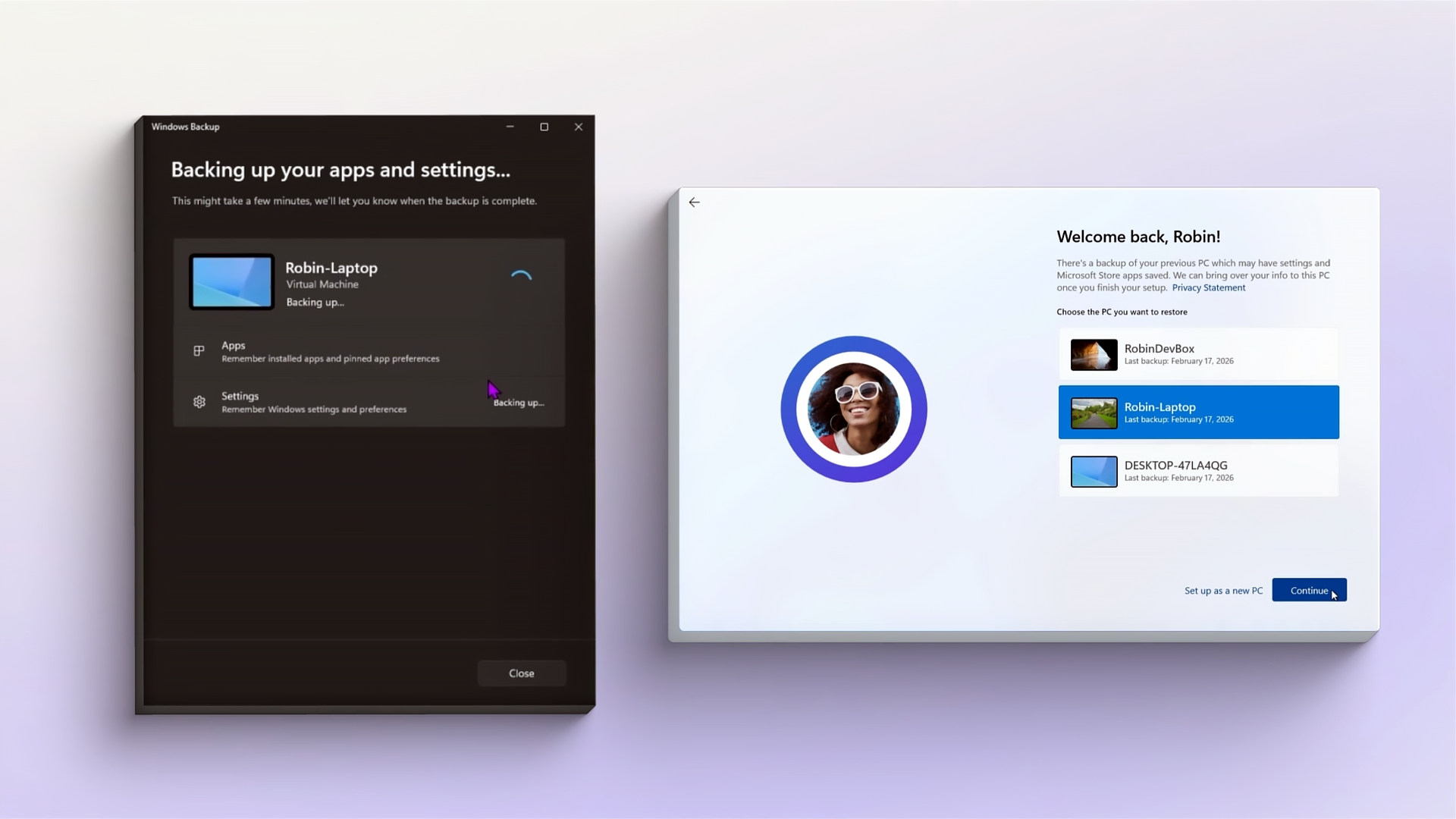
Windows settings backup becoming a new resilience baseline - Windows IT Pro Blog
A recoverable list of settings and Microsoft Store apps is becoming a baseline part of the Windows experience rather than an opt-in configuration step.
 techcommunity.microsoft.com
OneDrive Folder Backup Syncing requires OneDrive running and you signed in to OneDrive with your Microsoft account.
Contents
- Option One: Turn On or Off OneDrive Folder Backup Syncing in Settings
- Option Two: Turn On or Off OneDrive Folder Backup Syncing in OneDrive Settings
EXAMPLE: Select to restore synced OneDrive files from device during clean install with Microsoft account
1 Open Settings (Win+I).
2 Click/tap on Accounts on the left side, and click/tap on Windows backup on the right side. (see screenshot below)
Open Backup Settings
This setting is not available for work or school accounts.
3 Click/tap on Set up syncing or Manage sync settings for OneDrive folder syncing. (see screenshots below)
4 Continue at step 3 in Option Two.
1 Click/tap on the OneDrive icon on the taskbar corner, click/tap on Help & Settings (gear) icon, and click/tap on Settings. (see screenshot below)
2 Click/tap on Sync and backup on the left pane, and click/tap on Manage backup. (see screenshot below)
3 Do step 4 (on) or step 5 (off) below for what you want.
4 Turn On Folder(s) to Start Backing Up to OneDrive
A) Turn On any folder(s) you want to backup to OneDrive, and click/tap on Save changes when finished. (see screenshot below)
B) Click/tap on View sync progress to see your OneDrive backup progress. (see screenshots below)
5 Turn Off Folder(s) to Stop Backing Up to OneDrive
A) Turn Off any folder you want to stop backing up to OneDrive. (see screenshot below)
B) Perform one of the available actions: (see screenshots below)
- For the Documents, Pictures, Music, or Videos folder, click/tap on OK to confirm.
- For the Desktop folder, select (dot) This computer only, and click/tap on Continue.
C) Click/tap on OK. (see screenshots below)
D) Perform one of the following actions for what you want. (see screenshot below)
- Provide feedback, and click/tap on Submit.
- Don't provide feedback, and click/tap on Close.
E) Repeat steps 5A to 5D for any other folder(s) you want to turn off to stop backing up to OneDrive.
F) Click/tap on Close when finished.
G) When you stop backing up a folder, the files that were already backed up by OneDrive (cloud) stay in your account's OneDrive folder on your PC, and will no longer appear in the folders in your account's profile folder.
In the folder that you stopped backing up, you’ll see an icon titled Where are my files that’s a shortcut to your folders in OneDrive. To access your files, click/tap on the shortcut to open the folder in OneDrive.
If you want those files back in your device folder and not in OneDrive, move them manually from the OneDrive folder back to your device folder. Note that any new files you add to that folder on your device won't be backed up by OneDrive after you stop the backup.
To move the files, click/tap on the Where are my files shortcut to open the folder in OneDrive, then select the files that you want to move to your device folder, and drag and drop them to that location.
That's it,
Shawn Brink
Related Tutorials
- Exclude Specific File Extensions from Backing up to OneDrive in Windows 11
- Set up OneDrive in Windows 11
- Unlink Account and PC from OneDrive in Windows 11
- Turn On or Off Remember Apps for Microsoft Account Across Windows 11 Devices
- Turn On or Off Remember Preferences for Microsoft Account Across Windows 11 Devices
- Clear Cloud Synced Settings from all Windows Backup Devices for Microsoft Account
- Choose which OneDrive Folders to Sync in Windows 11
- Pause and Resume OneDrive Syncing in Windows 11
- Enable or Disable OneDrive Files On-Demand in Windows 11
- Enable or Disable OneDrive Syncing in Battery Saver Mode in Windows 11
- Enable or Disable OneDrive Syncing on Metered Network in Windows 11
- Change OneDrive Sync Upload and Download Rate in Windows 11
- Enable or Disable Notifications when OneDrive Syncing is Paused in Windows 11
- What do the OneDrive Sync Status icons mean in Windows 11
- Reset OneDrive in Windows 10 and Windows 11
- Sync Any Folder to OneDrive in Windows 11 and Windows 10
Last edited: