Solved Turning off Hibernation


Tranas

Member
Local time
11:59 AM
Posts
22
OS
Windows 11 Pro
Having issue with windows crashing when waking up from hibernation.

Since hibernation settings apparently are interrelated with 'fast startup' I want to do this right.

Windows 11 Pro version 24H2

Assistance would be appreciated.
 

My Computer My Computer

At a glance

Windows 11 Proi9-14900KCorsair DDR5 192GB 5200MHzonboard
OS
Windows 11 Pro
Computer type
PC/Desktop
Manufacturer/Model
Homebrew
CPU
i9-14900K
Motherboard
Asus Pro WS W680-ACE
Memory
Corsair DDR5 192GB 5200MHz
Graphics Card(s)
onboard
Sound Card
onboard
Monitor(s) Displays
Asus VA27U
Screen Resolution
3840 x 2160
Hard Drives
4TB Iron Wolf Pro
ST 4000NT001
Cooling
Corsair Nautilus 360

Since hibernation settings apparently are interrelated with 'fast startup' I want to do this right.
Fast Startup is a form of hibernation where just the kernel state is saved, and reloaded at startup. It's of most help if you have an HDD, with an SSD it hardly makes any difference. Fast Startup can be turned off independently in Control Panel > Power Options, doing so may help with your crash issues.


If not, then to turn off all forms of hibernation, open an admin command prompt or Terminal and type the command:
POWERCFG /HIBERNATE OFF
 

My Computers My Computers

  • At a glance

    Windows 11 HomeAMD Athlon Silver 3050U8GBRadeon Graphics
    OS
    Windows 11 Home
    Computer type
    Laptop
    Manufacturer/Model
    Acer Aspire 3 A315-23-R9VY
    CPU
    AMD Athlon Silver 3050U
    Memory
    8GB
    Graphics Card(s)
    Radeon Graphics
    Monitor(s) Displays
    laptop screen
    Screen Resolution
    1366x768 native resolution, up to 2560x1440 with Radeon Virtual Super Resolution
    Hard Drives
    1TB Samsung EVO 870 SSD (from April 2026: 250GB EVO 850)
    Internet Speed
    150 Mbps
    Browser
    Edge, Firefox
    Antivirus
    Defender
    Other Info
    fully 'Windows 11 ready' laptop. Windows 10 C: partition migrated from my old unsupported 'main machine' then upgraded to 11. A test migration ran Insider builds for 2 months. When 11 was released on 5th October 2021 it was re-imaged back to 10 and was offered the upgrade in Windows Update on 20th October. Windows Update offered the 22H2 Feature Update on 20th September 2022. It got the 23H2 Feature Update on 4th November 2023 through Windows Update, 24H2 on 3rd October 2024 through Windows Update by setting the Target Release Version for 24H2, and 25H2 on 30th September 2025 through Windows Update by setting the Target Release Version for 25H2.

    UPDATE - 11 April 2026: due to mechanical deterioration this PC has been retired from active duty. The OS with all software and files has been migrated to my System Seven in 'Other systems' to carry on as my general purpose 'main machine'.
  • At a glance

    Windows 11 ProIntel® Core™ i5-520M8GB(integrated graphics) Intel HD Graphics
    Operating System
    Windows 11 Pro
    Computer type
    Laptop
    Manufacturer/Model
    Dell Latitude E4310
    CPU
    Intel® Core™ i5-520M
    Motherboard
    0T6M8G
    Memory
    8GB
    Graphics card(s)
    (integrated graphics) Intel HD Graphics
    Screen Resolution
    1366x768
    Hard Drives
    500GB Crucial MX500 SSD
    Browser
    Firefox, Edge
    Antivirus
    Defender
    Other Info
    unsupported machine: Legacy bios, MBR, TPM 1.2, upgraded from W10 to W11 using W10/W11 hybrid install media workaround.

    In-place upgrade to 22H2 using ISO and a workaround.
    Feature Update to 23H2 by manually installing the Enablement Package.
    In-place upgrade to 24H2 using hybrid 23H2/24H2 install media.
    Upgraded to 25H2 by Enablement Package.

    Also running Insider Dev, and Canary builds and Windows 10 as native boot .vhdx.
  • My SYSTEM THREE is a Dell Latitude 5410, i7-10610U, 32GB RAM, 512GB NVMe ssd, supported device running Windows 11 Pro.

    My SYSTEM FOUR is a 2-in-1 convertible Lenovo Yoga 11e 20DA, Celeron N2930, 8GB RAM, 256GB ssd. Unsupported device: currently running Win10 Pro, plus Win11 Pro RTM and Insider Dev, Beta, and RP 24H2 as native boot vhdx.

    My SYSTEM FIVE is a Dell Latitude 3190 2-in-1, Pentium Silver N5030, 8GB RAM, 1TB NVMe ssd, supported device running Windows 11 Pro, plus Insider Beta, Dev, and Canary builds (and a few others) as a native boot .vhdx.

    My SYSTEM SIX is a Dell Latitude 5550, Core Ultra 7 165H, 64GB RAM, 1TB NVMe SSD, supported device, Windows 11 Pro 24H2, Hyper-V host machine. Updated to 25H2 on 30th September 2025.

    My SYSTEM SEVEN is a Lenovo Thinkpad T580, Intel Core i7-8650U, 16GB RAM, 512GB NVMe SSD + 2nd 512GB NVMe SSD, a supported device for Windows 11. This is my current general purpose 'main machine'. The installed Windows 11 Home from my System One has been migrated to this machine.
I turned off all hibernation and just use sleep. I have a UPS and all NVMe drives in my machine. It sleeps very quickly and wakes up in seconds, hibernation used to take 25-30 seconds to wake up.
 

My Computers My Computers

  • At a glance

    Win 11 Pro 25H2, Build 26200.8655Intel Core i5 1450064GB DDR4GeForce RTX 4060
    OS
    Win 11 Pro 25H2, Build 26200.8655
    Computer type
    PC/Desktop
    Manufacturer/Model
    Home Brew
    CPU
    Intel Core i5 14500
    Motherboard
    Gigabyte B760M G P WIFI
    Memory
    64GB DDR4
    Graphics Card(s)
    GeForce RTX 4060
    Sound Card
    Chipset Realtek
    Monitor(s) Displays
    LG 45" Ultragear, Acer 24" 1080p
    Screen Resolution
    5120x1440, 1920x1080
    Hard Drives
    Crucial P310 2TB 2280 PCIe Gen4 3D NAND NVMe M.2 SSD (O/S)
    Silicon Power 2TB US75 NVMe PCIe Gen4 M.2 2280 SSD (backup)
    Crucial BX500 2TB 3D NAND (2nd backup)
    Seagate 4TB Ironwolf, rotating HDD archive files
    External off-line backup Drives: 2 NVMe 4TB drives in external enclosures
    PSU
    Thermaltake Toughpower GF3 750W
    Case
    LIAN LI LANCOOL 216 E-ATX PC Case
    Cooling
    Lots of fans!
    Keyboard
    Microsoft Comfort Curve 2000
    Mouse
    Logitech G305
    Internet Speed
    Verizon FiOS 1GB
    Browser
    Firefox
    Antivirus
    Malware Bytes & Windows Defender Security
  • At a glance

    Win 11 Pro 25H2, Build 26200.8524Intel Core i5 1440032GB DDR5Intel 700 Embedded GPU
    Operating System
    Win 11 Pro 25H2, Build 26200.8524
    Computer type
    PC/Desktop
    Manufacturer/Model
    Home Brew
    CPU
    Intel Core i5 14400
    Motherboard
    Gigabyte B760M DS3H AX
    Memory
    32GB DDR5
    Graphics card(s)
    Intel 700 Embedded GPU
    Sound Card
    Realtek Embedded
    Monitor(s) Displays
    27" HP 1080p
    Screen Resolution
    1920x1080
    Hard Drives
    Crucial P310 2TB 2280 PCIe Gen4 eD NAND PCIe SSD
    Samsung EVO 990 2TB NVMe Gen4 SSD
    Samsung 2TB SATA SSD
    PSU
    Thermaltake Smart BM3 650W
    Case
    Okinos Micro ATX Case
    Cooling
    Fans
    Keyboard
    Microsoft Comfort Curve 2000
    Mouse
    Logitech G305
    Internet Speed
    Verizon FiOS 1GB
    Browser
    Firefox
    Antivirus
    Malware Bytes & Windows Defender Security
Fast Startup is a form of hibernation where just the kernel state is saved, and reloaded at startup. It's of most help if you have an HDD, with an SSD it hardly makes any difference. Fast Startup can be turned off independently in Control Panel > Power Options, doing so may help with your crash issues.


If not, then to turn off all forms of hibernation, open an admin command prompt or Terminal and type the command:
POWERCFG /HIBERNATE OFF
Thanks. I turned off Fast Startup and also did the command prompt line.

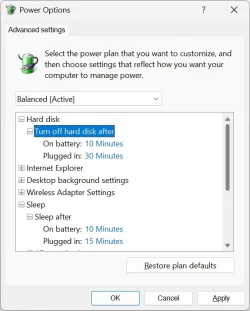
The only thing that still raises questions is the 'Turn off hard disk after' in advanced settings. Could this also be related to the crash issue? Does this setting also apply to attached drives? We have a TR-004 USB Type-C Direct Attached Storage as part of the system...
 

My Computer My Computer

At a glance

Windows 11 Proi9-14900KCorsair DDR5 192GB 5200MHzonboard
OS
Windows 11 Pro
Computer type
PC/Desktop
Manufacturer/Model
Homebrew
CPU
i9-14900K
Motherboard
Asus Pro WS W680-ACE
Memory
Corsair DDR5 192GB 5200MHz
Graphics Card(s)
onboard
Sound Card
onboard
Monitor(s) Displays
Asus VA27U
Screen Resolution
3840 x 2160
Hard Drives
4TB Iron Wolf Pro
ST 4000NT001
Cooling
Corsair Nautilus 360

I turn off hibernation and fast start up on all PCs. Standard start up up is fast enough if you have a SSD. I always power off the PC is not used for a while or sleep for a short break.
 

My Computer My Computer

At a glance

Windows 11 ProCore i7-13700K64 GB Kingston Fury Beast DDR5Gigabyte GeForce RTX 2060 Super Gaming OC 8G
OS
Windows 11 Pro
Computer type
PC/Desktop
Manufacturer/Model
Self build
CPU
Core i7-13700K
Motherboard
Asus TUF Gaming Plus WiFi Z790
Memory
64 GB Kingston Fury Beast DDR5
Graphics Card(s)
Gigabyte GeForce RTX 2060 Super Gaming OC 8G
Sound Card
Realtek S1200A
Monitor(s) Displays
Viewsonic VP2770 & Dell (secondary)
Screen Resolution
2560 x 1440
Hard Drives
Kingston KC3000 2TB NVME SSD & SATA HDDs & SSD
PSU
EVGA SuperNova G2 850W
Case
Nanoxia Deep Silence 1
Cooling
Noctua NH-D14
Keyboard
Microsoft Digital Media Pro
Mouse
Logitech Wireless
Internet Speed
80 Mb / s
Browser
Chrome
Antivirus
Defender, Malwarebytes Free & AdwCleaner
I always turn off fast startup but always turn on hibernation. I have multiple machines that don't get along with fast startup but have NEVER encountered a problem with hibernation.

Also, at least for me, hibernation is simply too useful a feature. I might be in front of my laptop with 30+ browser tabs opening as I research something, a Word doc or two open, a couple of VMs open, and more. When the time comes to pack up and leave, I can simply use hibernation. That way, the next time I power on the laptop I will have everything running exactly as it was when I packed up. Save me a lot of effort.

As for fast startup, I despise that "feature". I have one machine that cannot come out of sleep when it is enabled. On another machine, it interferes with Wake On LAN. On the machine I am in front of now, if I perform a reboot, all is well. If I shutdown, then the next time I power on I will get a bluescreen long before ever reaching the desktop. That happens 100% of the time. Fast startup is evil!
 

My Computers My Computers

  • At a glance

    Win11 Pro 25H2 (RTM+)Intel i7-14650HX32 GBNo GPU - Built-in Intel Graphics
    OS
    Win11 Pro 25H2 (RTM+)
    Computer type
    PC/Desktop
    Manufacturer/Model
    Acemagic
    CPU
    Intel i7-14650HX
    Memory
    32 GB
    Graphics Card(s)
    No GPU - Built-in Intel Graphics
    Sound Card
    Integrated
    Monitor(s) Displays
    Varies as machine will often be moved to locations with different monitors
    Screen Resolution
    Varies
    Hard Drives
    1 x 1TB Gen 4 NVMe SSD
    PSU
    120W Power Brick
    Keyboard
    Corsair K70 Max RGB Magnetic Keyboard
    Mouse
    Logitech MX Master 3
    Internet Speed
    1Gb Up / 1 Gb Down
    Browser
    Edge
    Antivirus
    Windows Defender
  • At a glance

    Win11 Pro 25H2 (RTM+)Intel i7-1255U16 GBIntel Iris Xe Graphics
    Operating System
    Win11 Pro 25H2 (RTM+)
    Computer type
    Laptop
    Manufacturer/Model
    Lenovo ThinkBook 13x Gen 2
    CPU
    Intel i7-1255U
    Memory
    16 GB
    Graphics card(s)
    Intel Iris Xe Graphics
    Sound Card
    Realtek® ALC3306-CG codec
    Monitor(s) Displays
    13.3-inch IPS Display
    Screen Resolution
    WQXGA (2560 x 1600)
    Hard Drives
    2 TB 4 x 4 NVMe SSD
    PSU
    USB-C / Thunderbolt 4 Power / Charging
    Keyboard
    Backlit, spill resistant keyboard
    Mouse
    Buttonless Glass Precision Touchpad
    Internet Speed
    1Gb Up / 1Gb Down
    Browser
    Edge
    Antivirus
    Windows Defender
    Other Info
    WiFi 6e / Bluetooth 5.1 / Facial Recognition / Fingerprint Sensor / ToF (Time of Flight) Human Presence Sensor
The only thing that still raises questions is the 'Turn off hard disk after' in advanced settings. Could this also be related to the crash issue? Does this setting also apply to attached drives? We have a TR-004 USB Type-C Direct Attached Storage as part of the system...
That setting only applies to HDDs.

The Turn off hard disk after setting only applies to HDDs.
This does not apply to SSD, M.2, or NVMe drives.

Change Turn Off Hard Disk After Idle Time in Windows 11

I don't think your usb-connected Qnap raid array would be seen as a simple HDD. It has its own operating system to control and give access to its drives.
Specs here: TR-004 | Hardware Specs

Having issue with windows crashing when waking up from hibernation.
Do you mean a BSOD? If you still have crashes after turning off hibernation, then carefully read the posting instructions and post on the BSOD Crash Analysis forum.
 
Last edited:

My Computers My Computers

  • At a glance

    Windows 11 HomeAMD Athlon Silver 3050U8GBRadeon Graphics
    OS
    Windows 11 Home
    Computer type
    Laptop
    Manufacturer/Model
    Acer Aspire 3 A315-23-R9VY
    CPU
    AMD Athlon Silver 3050U
    Memory
    8GB
    Graphics Card(s)
    Radeon Graphics
    Monitor(s) Displays
    laptop screen
    Screen Resolution
    1366x768 native resolution, up to 2560x1440 with Radeon Virtual Super Resolution
    Hard Drives
    1TB Samsung EVO 870 SSD (from April 2026: 250GB EVO 850)
    Internet Speed
    150 Mbps
    Browser
    Edge, Firefox
    Antivirus
    Defender
    Other Info
    fully 'Windows 11 ready' laptop. Windows 10 C: partition migrated from my old unsupported 'main machine' then upgraded to 11. A test migration ran Insider builds for 2 months. When 11 was released on 5th October 2021 it was re-imaged back to 10 and was offered the upgrade in Windows Update on 20th October. Windows Update offered the 22H2 Feature Update on 20th September 2022. It got the 23H2 Feature Update on 4th November 2023 through Windows Update, 24H2 on 3rd October 2024 through Windows Update by setting the Target Release Version for 24H2, and 25H2 on 30th September 2025 through Windows Update by setting the Target Release Version for 25H2.

    UPDATE - 11 April 2026: due to mechanical deterioration this PC has been retired from active duty. The OS with all software and files has been migrated to my System Seven in 'Other systems' to carry on as my general purpose 'main machine'.
  • At a glance

    Windows 11 ProIntel® Core™ i5-520M8GB(integrated graphics) Intel HD Graphics
    Operating System
    Windows 11 Pro
    Computer type
    Laptop
    Manufacturer/Model
    Dell Latitude E4310
    CPU
    Intel® Core™ i5-520M
    Motherboard
    0T6M8G
    Memory
    8GB
    Graphics card(s)
    (integrated graphics) Intel HD Graphics
    Screen Resolution
    1366x768
    Hard Drives
    500GB Crucial MX500 SSD
    Browser
    Firefox, Edge
    Antivirus
    Defender
    Other Info
    unsupported machine: Legacy bios, MBR, TPM 1.2, upgraded from W10 to W11 using W10/W11 hybrid install media workaround.

    In-place upgrade to 22H2 using ISO and a workaround.
    Feature Update to 23H2 by manually installing the Enablement Package.
    In-place upgrade to 24H2 using hybrid 23H2/24H2 install media.
    Upgraded to 25H2 by Enablement Package.

    Also running Insider Dev, and Canary builds and Windows 10 as native boot .vhdx.
  • My SYSTEM THREE is a Dell Latitude 5410, i7-10610U, 32GB RAM, 512GB NVMe ssd, supported device running Windows 11 Pro.

    My SYSTEM FOUR is a 2-in-1 convertible Lenovo Yoga 11e 20DA, Celeron N2930, 8GB RAM, 256GB ssd. Unsupported device: currently running Win10 Pro, plus Win11 Pro RTM and Insider Dev, Beta, and RP 24H2 as native boot vhdx.

    My SYSTEM FIVE is a Dell Latitude 3190 2-in-1, Pentium Silver N5030, 8GB RAM, 1TB NVMe ssd, supported device running Windows 11 Pro, plus Insider Beta, Dev, and Canary builds (and a few others) as a native boot .vhdx.

    My SYSTEM SIX is a Dell Latitude 5550, Core Ultra 7 165H, 64GB RAM, 1TB NVMe SSD, supported device, Windows 11 Pro 24H2, Hyper-V host machine. Updated to 25H2 on 30th September 2025.

    My SYSTEM SEVEN is a Lenovo Thinkpad T580, Intel Core i7-8650U, 16GB RAM, 512GB NVMe SSD + 2nd 512GB NVMe SSD, a supported device for Windows 11. This is my current general purpose 'main machine'. The installed Windows 11 Home from my System One has been migrated to this machine.
That setting only applies to HDDs.

Change Turn Off Hard Disk After Idle Time in Windows 11

I don't think your usb-connected Qnap raid array would be seen as a simple HDD. It has its own operating system to control and give access to its drives.
Specs here: TR-004 | Hardware Specs


Do you mean a BSOD? If you still have crashes after turning off hibernation, then carefully read the posting instructions and post on the BSOD Crash Analysis forum.
Thanks. The same QNAP link has a software tab which describes the following 'feature':
System sleep during USB cable disconnection and host device hibernation* or shut down. *Some hosts may not be supported.

These are relatively loud units and disk activity is obvious. You can hear the startup after wake from sleep. Not so clear about hibernation, as the machine simply shuts down. So what the QNAP does on disk shutdown is still not clear to me. Guess I need to contact QNAP to clear up the semantics.

Am dealing with the BSOD in another thread - but after a BIOS update and turning off both fast startup and hibernation, all is well for now. Thanks for the link.
 

My Computer My Computer

At a glance

Windows 11 Proi9-14900KCorsair DDR5 192GB 5200MHzonboard
OS
Windows 11 Pro
Computer type
PC/Desktop
Manufacturer/Model
Homebrew
CPU
i9-14900K
Motherboard
Asus Pro WS W680-ACE
Memory
Corsair DDR5 192GB 5200MHz
Graphics Card(s)
onboard
Sound Card
onboard
Monitor(s) Displays
Asus VA27U
Screen Resolution
3840 x 2160
Hard Drives
4TB Iron Wolf Pro
ST 4000NT001
Cooling
Corsair Nautilus 360
Sent a support request to QNAP about the 'sleep' issues and this is their reply -

"Thank you for contacting QNAP.
When the TR-004 is connected to a Windows system, it functions as an external USB storage device.
If the host system, like Windows PC, enters hibernate or sleep mode, the TR-004 drives will also enter sleep mode and become inactive during that time.

Based from the screenshot, the Power Options settings in Windows, particularly those related to hard disks, apply only to the internal drives of the Windows system host and do not apply with the drives within the TR-004."
 

Attachments

  • Windows 11 power settings.webp
    Windows 11 power settings.webp
    36.9 KB · Views: 2

My Computer My Computer

At a glance

Windows 11 Proi9-14900KCorsair DDR5 192GB 5200MHzonboard
OS
Windows 11 Pro
Computer type
PC/Desktop
Manufacturer/Model
Homebrew
CPU
i9-14900K
Motherboard
Asus Pro WS W680-ACE
Memory
Corsair DDR5 192GB 5200MHz
Graphics Card(s)
onboard
Sound Card
onboard
Monitor(s) Displays
Asus VA27U
Screen Resolution
3840 x 2160
Hard Drives
4TB Iron Wolf Pro
ST 4000NT001
Cooling
Corsair Nautilus 360
Back
Top Bottom