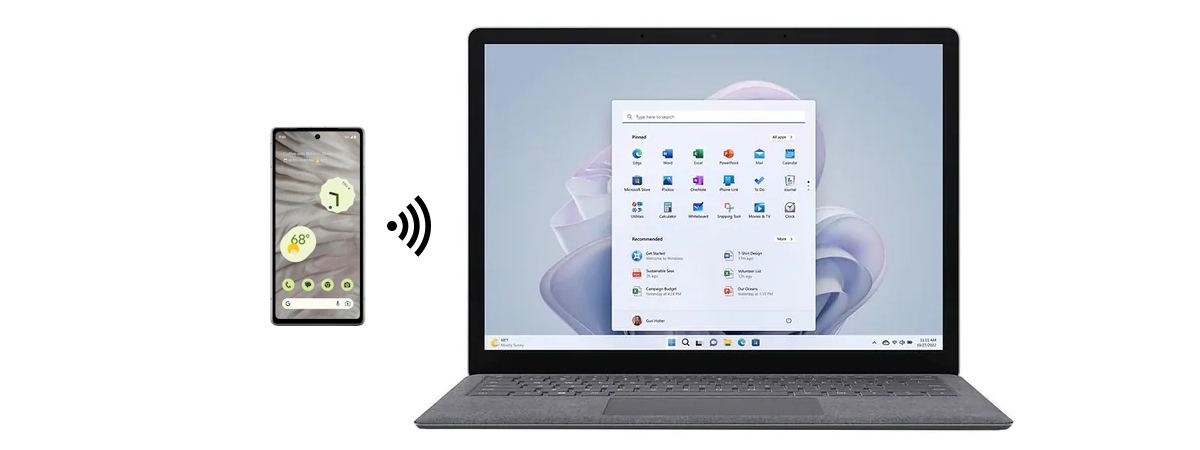
Unable to open images copied over from phone to flashdrive.


I use Xiaomi File Manager on my android phone to open my phone's storage (you can open local storage or sdcard) as a FTP server, you have to allow full file access to app, I dont trust it so I only allow it when file transfering.
And you need a FTP client on your Computer, I use FileZilla. You have to define your host and port number on FileZilla. Then click Connect. That's it.
You can find maybe better alternatives beside Xiaomi File Manager if you search. I am lazy about it.
Thank you
 

My Computer

System One

  • OS
    Windows 11
    Computer type
    Laptop
    Manufacturer/Model
    Asus
We need an Android wizard.

This is what I get from the net

1. Connect your A16 to the PC
Use the original Samsung USB‑C cable if possible.

2. Unlock your phone
A locked phone won’t allow file access.

3. Change the USB mode
A notification appears:
Charging this device via USB → Tap → Select File Transfer (MTP)

4. Open File Explorer
Your phone appears as:
Galaxy A16 or SM‑A16xx

5. Navigate to your photos
Go to:
Internal Storage → DCIM → Camera

Other folders you may need:
- DCIM/Screenshots
- Pictures
- WhatsApp/Media/WhatsApp Images
- Download

6. Copy/paste to your computer
Drag the images to a folder on your PC.
 

My Computers

System One System Two

  • OS
    Windows 11 Pro 25H2 Build 26200.8655
    Computer type
    PC/Desktop
    Manufacturer/Model
    Sin-built 2013
    CPU
    Intel(R) Core(TM) i7-4770K CPU @ 3.50GHz
    Motherboard
    ASUS ROG Maximus VI Formula
    Memory
    32.0 GB of I forget and the box is in storage.
    Graphics Card(s)
    Gigabyte nVidia GeForce GTX 1660 Super OC 6GB
    Sound Card
    Onboard thingy
    Monitor(s) Displays
    5 x LG 25MS500-B - 1 x 24MK430H-B - 1 x Wacom Pro 22" Touch Screen Tablet
    Screen Resolution
    All over the place
    Hard Drives
    Too many to list.
    OS on Samsung 1TB 870 QVO SATA
    PSU
    Silverstone 1500
    Case
    NZXT Phantom 820 Full-Tower Case
    Cooling
    Noctua NH-D15 Elite Class Dual Tower CPU Cooler / 6 x EziDIY 120mm / 2 x Corsair 140mm somethings / 1 x 140mm Thermaltake something / 2 x 200mm Corsair.
    Keyboard
    Corsair K95 / Logitech diNovo Edge Wireless
    Mouse
    Logitech: G402 / G502 / Mx Masters / Mx Air Cordless
    Internet Speed
    2000/500Mbps
    Browser
    All sorts
    Antivirus
    Kaspersky Premium
    Other Info
    ㅤㅤㅤㅤㅤㅤㅤㅤㅤㅤㅤㅤㅤㅤㅤㅤㅤㅤㅤㅤㅤㅤㅤㅤㅤㅤㅤㅤㅤㅤㅤㅤㅤㅤㅤㅤㅤㅤㅤㅤ⠀⠀⠀⠀⠀⠀⠀⠀⠀⠀
    TP-Link BE9300 WiFi 7 Bluetooth 5.4 (Archer TBE550E)
    TP-Link TX201 V1 2.5GB Lan

    Grandstream HT812 - VoIP
    ASUS DSL-AX82U - Mesh
    ASUS RT-AC68U - Mesh
    ASUS RT-BE88U Router

    Brother MFC-L2880DW Printer

    I’m on a horse.
  • Operating System
    Windows 11 Pro 25H2 Build 26200.8655
    Computer type
    Laptop
    Manufacturer/Model
    LENOVO Yoga 7 14IRL8 - 7i EVO OLED 14" Touchscreen i5 12 Core 16GB/512GB
    CPU
    Intel Core 12th Gen i5-1240P Processor (1.7 - 4.4GHz)
    Memory
    16GB LPDDR5 RAM
    Graphics card(s)
    Intel Iris Xe Graphics Processor
    Sound Card
    Optimized with Dolby Atmos®
    Screen Resolution
    QHD 2880 x 1800 OLED
    Hard Drives
    M.2 512GB
    Antivirus
    Defender / Malwarebytes
    Other Info
    …still on a horse.
We need an Android wizard.

This is what I get from the net

1. Connect your A16 to the PC
Use the original Samsung USB‑C cable if possible.

2. Unlock your phone
A locked phone won’t allow file access.

3. Change the USB mode
A notification appears:
Charging this device via USB → Tap → Select File Transfer (MTP)

4. Open File Explorer
Your phone appears as:
Galaxy A16 or SM‑A16xx

5. Navigate to your photos
Go to:
Internal Storage → DCIM → Camera

Other folders you may need:
- DCIM/Screenshots
- Pictures
- WhatsApp/Media/WhatsApp Images
- Download

6. Copy/paste to your computer
Drag the images to a folder on your PC.
Amazing thank you, I will copy this and save it for future reference
 

My Computer

System One

  • OS
    Windows 11
    Computer type
    Laptop
    Manufacturer/Model
    Asus
There is still a possible issue with them being .heic or .hdr files, hence checking the settings (where? I have no idea)
 

My Computers

System One System Two

  • OS
    Windows 11 Pro 25H2 Build 26200.8655
    Computer type
    PC/Desktop
    Manufacturer/Model
    Sin-built 2013
    CPU
    Intel(R) Core(TM) i7-4770K CPU @ 3.50GHz
    Motherboard
    ASUS ROG Maximus VI Formula
    Memory
    32.0 GB of I forget and the box is in storage.
    Graphics Card(s)
    Gigabyte nVidia GeForce GTX 1660 Super OC 6GB
    Sound Card
    Onboard thingy
    Monitor(s) Displays
    5 x LG 25MS500-B - 1 x 24MK430H-B - 1 x Wacom Pro 22" Touch Screen Tablet
    Screen Resolution
    All over the place
    Hard Drives
    Too many to list.
    OS on Samsung 1TB 870 QVO SATA
    PSU
    Silverstone 1500
    Case
    NZXT Phantom 820 Full-Tower Case
    Cooling
    Noctua NH-D15 Elite Class Dual Tower CPU Cooler / 6 x EziDIY 120mm / 2 x Corsair 140mm somethings / 1 x 140mm Thermaltake something / 2 x 200mm Corsair.
    Keyboard
    Corsair K95 / Logitech diNovo Edge Wireless
    Mouse
    Logitech: G402 / G502 / Mx Masters / Mx Air Cordless
    Internet Speed
    2000/500Mbps
    Browser
    All sorts
    Antivirus
    Kaspersky Premium
    Other Info
    ㅤㅤㅤㅤㅤㅤㅤㅤㅤㅤㅤㅤㅤㅤㅤㅤㅤㅤㅤㅤㅤㅤㅤㅤㅤㅤㅤㅤㅤㅤㅤㅤㅤㅤㅤㅤㅤㅤㅤㅤ⠀⠀⠀⠀⠀⠀⠀⠀⠀⠀
    TP-Link BE9300 WiFi 7 Bluetooth 5.4 (Archer TBE550E)
    TP-Link TX201 V1 2.5GB Lan

    Grandstream HT812 - VoIP
    ASUS DSL-AX82U - Mesh
    ASUS RT-AC68U - Mesh
    ASUS RT-BE88U Router

    Brother MFC-L2880DW Printer

    I’m on a horse.
  • Operating System
    Windows 11 Pro 25H2 Build 26200.8655
    Computer type
    Laptop
    Manufacturer/Model
    LENOVO Yoga 7 14IRL8 - 7i EVO OLED 14" Touchscreen i5 12 Core 16GB/512GB
    CPU
    Intel Core 12th Gen i5-1240P Processor (1.7 - 4.4GHz)
    Memory
    16GB LPDDR5 RAM
    Graphics card(s)
    Intel Iris Xe Graphics Processor
    Sound Card
    Optimized with Dolby Atmos®
    Screen Resolution
    QHD 2880 x 1800 OLED
    Hard Drives
    M.2 512GB
    Antivirus
    Defender / Malwarebytes
    Other Info
    …still on a horse.
If you just want to use the phone and not PC you will need an OTG adapter and then just use Samsung file manager to move or copy the pics. There
should be an adapter with the phone.
 

My Computer

System One

  • OS
    Win 11 Pro
    Computer type
    PC/Desktop
you can pair an Android phone by Bluetooth to transfer photos/images.

link to how to ..

best of luck Steve ..
 

My Computers

System One System Two

  • OS
    Debian 13 KDE .. Windows 11 Home
    Computer type
    PC/Desktop
    Manufacturer/Model
    HP 24" AiO
    CPU
    Ryzen 7 5825u
    Motherboard
    HP
    Memory
    64GB DDR4 3200
    Graphics Card(s)
    Ryzen 7 5825u
    Sound Card
    RealTek
    Monitor(s) Displays
    24" HP AiO
    Screen Resolution
    1920 x 1080 @60 Hz
    Hard Drives
    1TB WD Blue SN580 M2 SSD Partitioned.
    2x 1TB USB HDD External Backup/Storage.
    PSU
    90W external power brick
    Case
    24" All in One
    Cooling
    Default Air Cooling
    Keyboard
    HP WiFi UK extended
    Mouse
    HP WiFi 3 Button
    Internet Speed
    1GB full fibre
    Browser
    Edge & Firefox
    Antivirus
    AVG Internet Security/Windows Defender
    Other Info
    Mainly Open Source Software
  • Operating System
    Ubuntu 22.04.5 LTS
    Computer type
    Laptop
    Manufacturer/Model
    Dell 13" Latitude 2017
    CPU
    i5 7200u
    Motherboard
    Dell
    Memory
    16GB DDR4
    Graphics card(s)
    Intel
    Sound Card
    Intel
    Monitor(s) Displays
    13" Dell Laptop
    Hard Drives
    250GB Crucial 2.5" SSD
    Mouse
    Generic WiFi 3 button
    Internet Speed
    WiFi only
    Browser
    Firefox
    Antivirus
    ClamAV TK
    Other Info
    Mainly Open Source Software
@noviceuser
Based on the name of the picture from your screenshot in post #1. I suspect the picture was taken with HDR turned on in the Samsung A15 camera settings. Open Settings->display to see if there's an option to turn on HDR,
If not your Laptop display does not support HDR, you will mot be able to view it.
- To test if this is the case, Go to Camera settings, turn off "Auto HDR", take a picture then copy to your USB to see if you can display it.
- To convert a HDR JPG to a regular JPG, Google on "How to convert a HDR JPG to regular JPG"
 

My Computers

System One System Two

  • OS
    Windows 11 Pro 25H2, Linux Mint 21.3
    Computer type
    PC/Desktop
    Manufacturer/Model
    Self Build Feb.2024
    CPU
    Intel Core i9-14900K @5.8GHZ
    Motherboard
    MSI MAG Z790 Tomahawk Max WiFi 7
    Memory
    64GB (2XG Skill F5-6400J3239G32G) @6800
    Graphics Card(s)
    Radeon (TM) RX 480 Graphics (8 GB)
    Sound Card
    Intergrated Realtek
    Monitor(s) Displays
    Samsung
    Screen Resolution
    3840x2160
    Hard Drives
    1 - Crucial 705 1TB GEN5
    1 - Crucial 705 2TB GEN5
    2 - Crucial T500 2TB Gen4
    PSU
    750W EVGA-G3
    Case
    Antec NX410
    Cooling
    H2O Thermalright
    Keyboard
    Logitech K800
    Mouse
    Logitech Master 2S
    Internet Speed
    600 Mbps
    Browser
    Chrome
    Antivirus
    WD
  • Operating System
    Windows 11 Pro & Linux Mint X64
    Computer type
    PC/Desktop
    Manufacturer/Model
    MSI Z77 MPower (MS-7751)
    CPU
    Intel(R) Core(TM) i7-3770K CPU @ 4.20 GHz
    Motherboard
    Z77 MPower (MS-7751)
    Memory
    32.0GB Dual-Channel CMY16GX3M2A1600C9
    Graphics card(s)
    NVIDIA GeForce GT 740
    Monitor(s) Displays
    40" Samsung
    Screen Resolution
    1920X1080
    Hard Drives
    WIN10 - 111GB Samsung SSD 840 Series
    WIN11 - 223GB Crucial CT240BX500SSD
    2X931GB Crucial CT1000BX500SSD1
    PSU
    Antec 850W
    Case
    Antec 900
    Cooling
    H20
    Keyboard
    Logitech K800 Wireless
    Mouse
    Logitech MX Master 2S
    Internet Speed
    100 Mbps
    Browser
    Chrome
    Antivirus
    Windows Defender

My Computers

System One System Two

  • OS
    Windows 11 Pro
    Computer type
    PC/Desktop
    Manufacturer/Model
    Custom Built
    CPU
    Ryzen 7 5700 X3D
    Motherboard
    MSI MPG B550 GAMING PLUS
    Memory
    64 GB DDR4 3600mhz Gskill Ripjaws V
    Graphics Card(s)
    RTX 4070 Super , 12GB VRAM Asus EVO Overclock
    Monitor(s) Displays
    Gigabyte M27Q (rev. 2.0) 2560 x 1440 @ 170hz HDR
    Hard Drives
    2TB Samsung nvme ssd
    4TB Western Digital nvme ssd
    PSU
    CORSAIR RMx SHIFT Series™ RM750x 80 PLUS Gold Fully Modular ATX Power Supply
    Case
    CORSAIR 3500X ARGB Mid-Tower ATX PC Case – Black
    Cooling
    ID-COOLING FROSTFLOW X 240 CPU Water Cooler
    Keyboard
    Logitech G213
    Mouse
    Logitech G203
    Internet Speed
    1.2gbps Fiber 😎
  • Operating System
    Chrome OS
    Computer type
    Laptop
    Manufacturer/Model
    HP Chromebook
    CPU
    Intel Pentium Quad Core
    Memory
    4GB LPDDR4
    Monitor(s) Displays
    14 Inch HD SVA anti glare micro edge display
    Hard Drives
    64 GB emmc
We need an Android wizard.

This is what I get from the net

1. Connect your A16 to the PC
Use the original Samsung USB‑C cable if possible.

2. Unlock your phone
A locked phone won’t allow file access.

3. Change the USB mode
A notification appears:
Charging this device via USB → Tap → Select File Transfer (MTP)

4. Open File Explorer
Your phone appears as:
Galaxy A16 or SM‑A16xx

5. Navigate to your photos
Go to:
Internal Storage → DCIM → Camera

Other folders you may need:
- DCIM/Screenshots
- Pictures
- WhatsApp/Media/WhatsApp Images
- Download

6. Copy/paste to your computer
Drag the images to a folder on your PC.
I have always done it like this for every phone Ive had with a camera and I use drag and drop and if I want to delete them from the phone I dont do it till I see they can load in my viewer program
 

My Computers

System One System Two

  • OS
    Windows 11 (up to date)
    Computer type
    PC/Desktop
    Manufacturer/Model
    Custom
    CPU
    Intel i5 12400
    Motherboard
    Gigabyte Z690 UA
    Memory
    Corsair Vengeance LPX 16GB
    Graphics Card(s)
    On Board the Z690
    Sound Card
    On Board
    Monitor(s) Displays
    43" Samsung tu7000
    Screen Resolution
    2560 x 1440
    Hard Drives
    SAMSUNG SSD 1TB NVMe M.2
    PSU
    Thermaltake smart 500w 80+
    Case
    LIAN LANCOOL_205M
    Cooling
    Bunch of fans . . . :o) (lights dont work)
    Keyboard
    Unicomp: Ultra Classic White Buckling Spring USB
    Mouse
    M510
    Internet Speed
    50mbps on Ethernet
    Browser
    Fire Fox
    Antivirus
    Windows
    Other Info
    Love this computer but I still prefer Win-7 like I love my old Lazy Boy Recliner . . . it just feels better.
  • Operating System
    WIN-7-64BIT and Win-11 pro for testing on unsupported hardware
    Computer type
    PC/Desktop
    Manufacturer/Model
    Home built
    CPU
    i5-3570K CPU @ 3.40GHz, 3801 Mhz, 4 Core(s), 4 Logical Processor(s)
    Motherboard
    GA-Z77-HD3
    Memory
    16 GB - Crucial Ballistick 4GB PC3-14900 DDR3-1333 MHz
    Graphics card(s)
    NVIDIA GeForce GTX 1050
    Sound Card
    On Board
    Monitor(s) Displays
    ASUS VP278
    Screen Resolution
    1920 x 1080
    Hard Drives
    4 - internal Samsung 2.5" SSD, 1 WD HDD 7200 and some external drives
    PSU
    EVGA 550w
    Case
    Old Gygabyte Tower
    Cooling
    Yes
    Keyboard
    Unicomp - UNIOP4A USB (like the old IBM Model H that I started with)
    Mouse
    M510
    Internet Speed
    50mbps
    Browser
    Firefox
    Antivirus
    Windows
    Other Info
    The only thing it lack is USB-3.2 on the front face but it has 3.0 on the back
Google search,"can't open samsung a16 heif photos on pc"
AI Overview

To open Samsung A16 HEIF/HEIC photos on a Windows PC, install the
HEIF Image Extensions and HEVC Video Extensions from the Microsoft Store. Alternatively, use free online converters (e.g., HEICtoJPG.com), third-party viewers like ImageGlass, or change the camera settings on your phone to "High Efficiency" off.

Key Solutions for HEIF/HEIC Files on PC:

* Install Codecs (Best Solution): Search for "HEIF Image Extensions" in the Microsoft Store and install it. You may also need the "HEVC Video Extensions".
* Convert to JPG: Use online tools like HEICtoJPG.com or free converter software to change the format.
* Use Third-Party Viewers: Install ImageGlass, IrfanView, or CopyTrans Studio to view the photos without installing Microsoft extensions.
* Change Phone Settings: Go to your Samsung Camera App > Settings > Advanced Picture Options and disable HEIF/High-Efficiency pictures to save future photos in JPG format.
* Use Cloud Storage: Upload the photos to Google Photos or OneDrive, which automatically convert them for viewing in a web browser.

Here is what the HEIF setting looks like on my Samsung S21 with Android 15.

Open the Camera app
Click on Settings (gear)

s1b.webp

Select Advanced picture options

s2b.webp

For High efficiency pictures select "disable"

s3b.webp

I have three different ways to copy photos from my phone to my PC:
1. Using USB cable
2. Phone Link app
3. MyPhoneExplorer app

BTW, for this post I used the Phone Link app to copy the screenshots from my phone.
 

My Computers

System One System Two

  • OS
    Windows 11 Pro 25H2 (26200.6901)
    Computer type
    Laptop
    Manufacturer/Model
    ASUS TUF Gaming A15 (2022)
    CPU
    AMD Ryzen 7 6800H with Radeon 680M GPU (486MB RAM)
    Memory
    Crucial DDR5-4800 (2400MHz) 32GB (2 x 16GB)
    Graphics Card(s)
    NVIDIA RTX 3060 Laptop (6GB RAM)
    Sound Card
    n/a
    Monitor(s) Displays
    15.6-inch
    Screen Resolution
    1920x1080 300Hz
    Hard Drives
    2 x Samsung 990 Evo Plus (2TB M.2 NVME SSD)
    PSU
    n/a
    Mouse
    Wireless Mouse M510
    Internet Speed
    2100Mbps/300Mbps
    Browser
    Firefox
    Antivirus
    Malwarebytes
  • Operating System
    Windows 11 Pro 25H2 (26200.8246)
    Computer type
    PC/Desktop
    Manufacturer/Model
    Custom build
    CPU
    AMD Ryzen 7 5700X3D
    Motherboard
    ASUS ROG Strix B550-F Gaming WiFi II
    Memory
    G.SKILL Flare X 32GB (2x16GB) DDR4
    Graphics card(s)
    ASUS ROG-STRIX-RTX3060TI-08G-V2-GAMING (RTX 3060-Ti, 8GB RAM)
    Monitor(s) Displays
    Samsung G50D IPS 27"
    Screen Resolution
    1440p/180Hz
    Hard Drives
    SAMSUNG 990 EVO Plus (2TB] M.2 NVME SSD
    SAMSUNG 990 EVO Plus (4TB) M.2 NVME SSD
    PSU
    Corsair RM750x (750 watts)
    Case
    Cooler Master MasterCase 5
    Cooling
    Scythe Mugen 6
    Keyboard
    Logitech K520 (MK540 keyboard/mouse combo)
    Mouse
    Logitech M310 (MK540 keyboard/mouse combo)
    Internet Speed
    2100 Mbps down / 300 Mbps up
    Browser
    Firefox, Edge, Chrome
    Antivirus
    Malwarebytes (Premium)
    Other Info
    ASUS Blu-ray Burner BW-16D1HT (SATA) || Western Digital Easystore 20TB USB 3.0 external hard drive used with Acronis True Image 2025 backup software || HP OfficeJet Pro 6975 Printer/Scanner

Latest Support Threads

Back
Top Bottom