
Solved Update Secure Boot Keys (BIOS Update)


I updated to this BIOS and was wondering what to do next. I have 2 links.
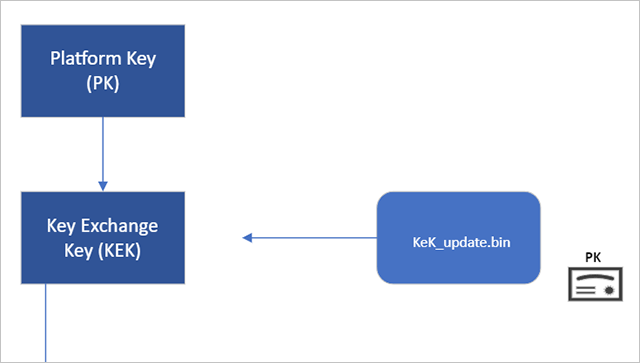

then this link

I haven't run the instructions in link 1 or link 2. I did check to see if I had the 2023 certificates and it said false. I am a bit confused on what to do.

Do I run Sheikh's script? or do I follow instructions in link 1?

I am incredibly confused I only just started reading up on this a week ago.

Thanks,
James.

There are many steps to fully locking down Secure Boot, and some of the steps may make your computer unbootable if done wrong. Here is a summary of the steps:
0. Update to the latest build of Windows 11.
1. Update DB.
2. Install updated bootloader in the EFI partition.
3. Update DBX.
4. Update KEK.
5. Install SVN in firmware.
6. Update all external boot drives with new bootloaders.
7. Revoke 2011 PCA Production certificate in DBX. (This is optional at this point and is the most dangerous step.)
8. Install the latest SKUSiPolicy.P7b file into the EFI partition. (Also, optional. Also, somewhat risky.)

Microsoft has recently released a registry setting that will do Steps 1-4 at one go. But quite often the KEK update fails. The KEK update will only work if your computer is still supported; the manufacturer has to supply an updated file to Microsoft. If your computer is no longer supported, then you have to use a tool called Mosby to create a bootable drive. It wipes out all the Secure Boot keys, including the PK, and replaces them.

Finally, several people on ElevenForum have published Powershell scripts that will check the Secure Boot status of your machine to see if the updates took. It is wise to check after each step.

Word of warning, based on experience: If you reset any Secure Boot keys in the UEFI, then cancel out of any changes, the changes to the Secure Boot keys will still take place. I rendered one computer unbootable this way. Fortunately, Mosby came to the rescue!
 

My Computer

System One

  • OS
    Windows 11 Pro
    Computer type
    PC/Desktop
    Manufacturer/Model
    iBUYPOWER
    CPU
    Intel i9-13900KF
    Motherboard
    ASUS ROG Maximus Z790 Hero
    Memory
    32 GB Corsair Vengeance DDR5-6000 MHz
    Graphics Card(s)
    ASUS Dual GeForce RTX 4070
    Sound Card
    none
    Monitor(s) Displays
    Dell U2412M
    Screen Resolution
    1920 x 1200
    Hard Drives
    WD Black SN850X NVMe SSD - 1 TB
    PSU
    Thermaltake Toughpower GF3 1000W
    Case
    Fractal Design Meshify 2 RGB
    Cooling
    Corsair H150i RGB Elite
    Keyboard
    Deck Hassium Pro
    Mouse
    Logitech MX Master 4
    Internet Speed
    1500 Mbps download, 40 Mbps upload
    Browser
    Firefox
    Antivirus
    Bitdefender Internet Security
There are many steps to fully locking down Secure Boot, and some of the steps may make your computer unbootable if done wrong. Here is a summary of the steps:
0. Update to the latest build of Windows 11.
1. Update DB.
2. Install updated bootloader in the EFI partition.
3. Update DBX.
4. Update KEK.
5. Install SVN in firmware.
6. Update all external boot drives with new bootloaders.
7. Revoke 2011 PCA Production certificate in DBX. (This is optional at this point and is the most dangerous step.)
8. Install the latest SKUSiPolicy.P7b file into the EFI partition. (Also, optional. Also, somewhat risky.)

Microsoft has recently released a registry setting that will do Steps 1-4 at one go. But quite often the KEK update fails. The KEK update will only work if your computer is still supported; the manufacturer has to supply an updated file to Microsoft. If your computer is no longer supported, then you have to use a tool called Mosby to create a bootable drive. It wipes out all the Secure Boot keys, including the PK, and replaces them.

Finally, several people on ElevenForum have published Powershell scripts that will check the Secure Boot status of your machine to see if the updates took. It is wise to check after each step.

Word of warning, based on experience: If you reset any Secure Boot keys in the UEFI, then cancel out of any changes, the changes to the Secure Boot keys will still take place. I rendered one computer unbootable this way. Fortunately, Mosby came to the rescue!
That is a lot of information and steps for a person who has moderate knowledge of Windows and computer systems.
I don't think I will be able to complete this process.

I know a lot of people who purchased new PC's this year and none of them know about this secure boot key issue.

Thanks for the steps and list.
 

My Computers

System One System Two

  • OS
    Windows 11 Pro
    Computer type
    PC/Desktop
    Manufacturer/Model
    Me
    CPU
    Intel Core i5-12600K 3.7 GHz 10-Core Processor
    Motherboard
    Gigabyte B760M H DDR4 Micro ATX LGA1700 Motherboard
    Memory
    Corsair Vengeance LPX 64 GB (2 x 32 GB) DDR4-3200 CL16 Memory
    Graphics Card(s)
    Integrated Intel UHD Graphics 770
    Sound Card
    Realtek
    Monitor(s) Displays
    LG
    Hard Drives
    Samsung 990 Pro 1 TB M.2-2280 PCIe 4.0 X4 NVME Solid State Drive
    Samsung 990 Pro 2 TB M.2-2280 PCIe 4.0 X4 NVME Solid State Drive
    PSU
    NZXT 850w ATX 3.1 Gold Fully Modular Power Supply
    Case
    Thermaltake Versa H25 ATX Mid Tower Case
    Cooling
    CPU Cooler Thermalright Assassin Spirit 120 EVO ARGB (ARGB Disabled) - Case Fans BlackThermalright TL-C12C-S X3 66.17 CFM 120 mm Fans 3-Pack (ARGB disabled)
    Internet Speed
    1 Gbps
    Other Info
    I hate ARGB.
  • Operating System
    Windows 11 Pro
    Computer type
    Laptop
    Manufacturer/Model
    Lenovo ThinkBook 14 G2 ITL
That is a lot of information and steps for a person who has moderate knowledge of Windows and computer systems.
I don't think I will be able to complete this process.

I know a lot of people who purchased new PC's this year and none of them know about this secure boot key issue.

Thanks for the steps and list.
There are two much simpler steps if you want to make it easy:

Run these commands below:

Admin CMD Pormpt:
reg add HKEY_LOCAL_MACHINE\SYSTEM\CurrentControlSet\Control\Secureboot /v AvailableUpdates /t REG_DWORD /d 0x5944 /f

Admin Powershell:
Start-ScheduledTask -TaskName "\Microsoft\Windows\PI\Secure-Boot-Update"

Then re-start the system; twice to be sure.

This simply instructs Windows to run the automated process for updating all the keys and put in place the 2023 signed boot files. Windows would do this anyway at some point in the future, based on whatever schedule Microsoft has your systems on.

This all comes from, and courtesy of @Scott :


Once finished, you can verify by running Check_Mosby_EFIBootFile.ps1 script. Personally, I'm waiting for Microsoft to revoke the 2011 CA keys (which they've said they will). But if you must I'd strongly suggest you not do so until you've verified your system is running with 2023 signed boot files using this script, or something similar that looks into the EFI partition and examines the actual boot files.

And make sure your system is fully updated, probably on 25h2.
 
Last edited:

My Computers

System One System Two

  • OS
    Windows 11 Pro
    Computer type
    PC/Desktop
    Manufacturer/Model
    DIY
    CPU
    Ryzen 7 5800X
    Motherboard
    Gigabyte B550M Aorus Pro
    Memory
    GSkill 3200, 2x8GB
    Graphics Card(s)
    MSI RX 6800 XT Gaming Z
    Sound Card
    on-board Realtek
    Monitor(s) Displays
    MSI 180hz
    Screen Resolution
    1440p
    Hard Drives
    Samsung 980 Pro, Samsung 870 Evo, generic PCIe NVME, WD 1TB 2.5" laptop spinner
    PSU
    Corsair RM 650
    Case
    mATX
    Cooling
    BeQuiet 240mm AIO and a bunch of case fans
    Keyboard
    one that clacks softly
    Mouse
    logitech
    Internet Speed
    bunches of bps
    Browser
    Firefox
    Antivirus
    Windows' own
  • Operating System
    Win11 Pro
    Computer type
    PC/Desktop
    Manufacturer/Model
    DIY
    CPU
    Ryzen 7 1700
    Motherboard
    GA-AB350M G-3
    Memory
    16GB DDR4
    Graphics card(s)
    RX-480
    Sound Card
    In-Built Realtek
    Monitor(s) Displays
    Samsung
    Screen Resolution
    1440p
    Hard Drives
    NVME/SSD's
    PSU
    Thermaltake BX1 550W
    Case
    Some junky thing
    Cooling
    ThermalTake Assassin(?)
    Browser
    FF/Edge
    Antivirus
    Whatever Windows does
    Other Info
    Secure Boot enabled updated to 2023 CA keys, TPM2.0 enabled with system drive Bitlocker'd.
That is a lot of information and steps for a person who has moderate knowledge of Windows and computer systems.
I don't think I will be able to complete this process.
....
Oh yes... and I forgot this.

Either disable and decrypt any BitLocker'd drives before doing this OR create a USB key drive to recover keys after the updates are done. It may not be necessary, but it's better to be safe with this.

And tell your friends with modern systems to update BIOS to the latest, especially if the update is dated sometime in August of 2025 or later. These updates would quite likely have all the updated keys and then Microsoft will proceed to putting in place the 2023 signed boot files according to their schedule. If your system is relatively modern (last three years or so for sure, but even older quite often) you could likely do the same.
 

My Computers

System One System Two

  • OS
    Windows 11 Pro
    Computer type
    PC/Desktop
    Manufacturer/Model
    DIY
    CPU
    Ryzen 7 5800X
    Motherboard
    Gigabyte B550M Aorus Pro
    Memory
    GSkill 3200, 2x8GB
    Graphics Card(s)
    MSI RX 6800 XT Gaming Z
    Sound Card
    on-board Realtek
    Monitor(s) Displays
    MSI 180hz
    Screen Resolution
    1440p
    Hard Drives
    Samsung 980 Pro, Samsung 870 Evo, generic PCIe NVME, WD 1TB 2.5" laptop spinner
    PSU
    Corsair RM 650
    Case
    mATX
    Cooling
    BeQuiet 240mm AIO and a bunch of case fans
    Keyboard
    one that clacks softly
    Mouse
    logitech
    Internet Speed
    bunches of bps
    Browser
    Firefox
    Antivirus
    Windows' own
  • Operating System
    Win11 Pro
    Computer type
    PC/Desktop
    Manufacturer/Model
    DIY
    CPU
    Ryzen 7 1700
    Motherboard
    GA-AB350M G-3
    Memory
    16GB DDR4
    Graphics card(s)
    RX-480
    Sound Card
    In-Built Realtek
    Monitor(s) Displays
    Samsung
    Screen Resolution
    1440p
    Hard Drives
    NVME/SSD's
    PSU
    Thermaltake BX1 550W
    Case
    Some junky thing
    Cooling
    ThermalTake Assassin(?)
    Browser
    FF/Edge
    Antivirus
    Whatever Windows does
    Other Info
    Secure Boot enabled updated to 2023 CA keys, TPM2.0 enabled with system drive Bitlocker'd.
There are many steps to fully locking down Secure Boot, and some of the steps may make your computer unbootable if done wrong. Here is a summary of the steps:
0. Update to the latest build of Windows 11.
1. Update DB.
2. Install updated bootloader in the EFI partition.
3. Update DBX.
4. Update KEK.
5. Install SVN in firmware.
6. Update all external boot drives with new bootloaders.
7. Revoke 2011 PCA Production certificate in DBX. (This is optional at this point and is the most dangerous step.)
8. Install the latest SKUSiPolicy.P7b file into the EFI partition. (Also, optional. Also, somewhat risky.)

Microsoft has recently released a registry setting that will do Steps 1-4 at one go. But quite often the KEK update fails. The KEK update will only work if your computer is still supported; the manufacturer has to supply an updated file to Microsoft. If your computer is no longer supported, then you have to use a tool called Mosby to create a bootable drive. It wipes out all the Secure Boot keys, including the PK, and replaces them.

Finally, several people on ElevenForum have published Powershell scripts that will check the Secure Boot status of your machine to see if the updates took. It is wise to check after each step.

Word of warning, based on experience: If you reset any Secure Boot keys in the UEFI, then cancel out of any changes, the changes to the Secure Boot keys will still take place. I rendered one computer unbootable this way. Fortunately, Mosby came to the rescue!

I have released a PowerShell script which performs the last 8 update tasks. Instead of assigning a specific reg value for AvailableUpdates, and waiting an indeterminate delay for the "\Microsoft\Windows\PI\Secure-Boot-Update" task to complete, the script will normally finish in about 2-3 seconds.

You can run the PS check script afterwards to immediately confirm if the update process is completed (or more work is required).

For item 0, the script checks if Windows 10 or 11 has been updated to July 2025 CU. This is the last CU which rolled out any significant changes to the DBXUpdate or DBXUpdateSVN revisions. Whenever WU rolls out a new set of SecureBootUpdate files, the script can be revised to check the minimum Windows build number in order to stay current, and the update script can be re-run again.

garlin's PowerShell scripts for updating Secure Boot CA 2023
 

My Computer

System One

  • OS
    Windows 7

Latest Support Threads

Back
Top Bottom


