Hi,
after a recent clean install, I rembered to have read somwhere that vbs is deprecated. But I have two vb scripts which I have saved to put them back in my installation, whenever I do a clean install. One is for my "show / hide hidden files" context menu entry, it's from Vishal Gupta: Add “Show / Hide Hidden Files” Option in Desktop and Explorer Context Menu in Windows. The other one is for a shortcut to safemode (I don't remember where i got it from).
The first vb script is combined with a modification of the registry. The above shown link (for the registry change) also shows a link to the corresponding vb script. But this second link does not work anymore. So I copy the complete vb script here:
---------------------------------------------------------------------------------------------------------
Hidden = "HKCU\Software\Microsoft\Windows\CurrentVersion\Explorer\Advanced\Hidden"
SSHidden = "HKCU\Software\Microsoft\Windows\CurrentVersion\Explorer\Advanced\ShowSuperHidden"
Set Command1 = WScript.CreateObject("WScript.Shell")
Check = Command1.RegRead(Hidden)
If Check = 2 Then
Command1.RegWrite Hidden, 1, "REG_DWORD"
Command1.RegWrite SSHidden, 1, "REG_DWORD"
Else
Command1.RegWrite Hidden, 2, "REG_DWORD"
Command1.RegWrite SSHidden, 0, "REG_DWORD"
End If
Command1.SendKeys "{F5}"
-----------------------------------------------------------------------------------------------------------
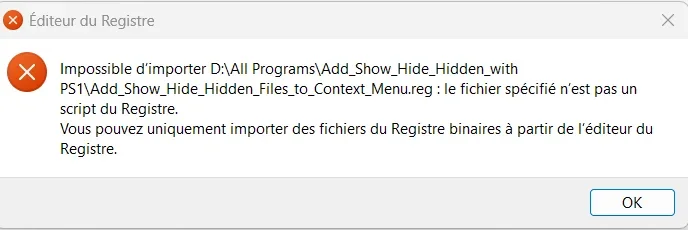
My intention was now to change the vb script to a php or ps1 script. As I have no clue about coding, I found an internet site which does the transformation automatically. I then renamed the vbs file to php/ps1 and modified the reference in the reg file accordingly.
But when I try out the context menu entry, I am getting an error saying that there is no "motor" on my system allowing to run the php or ps1 file. I suppose the motor is the "Wscript".exe to which the vbs file refers (and also the reg file).
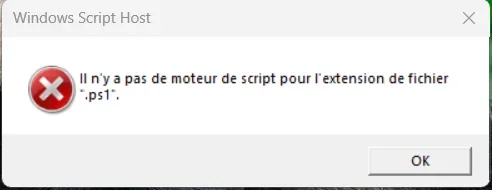
I know there are other solutions for the context menu entry to be found on the net, but they are less elegant: you get a short black screen when toggeling the show/hidden state and you need two context menu entries, one for showing the files another one for hiding the files. The solution from Vishal Gupta allow to toggle with one single rightclick menu entry.
So if someone could help me to obtain the right "motor" to get the php or ps1 file to run, I would be greatful.
after a recent clean install, I rembered to have read somwhere that vbs is deprecated. But I have two vb scripts which I have saved to put them back in my installation, whenever I do a clean install. One is for my "show / hide hidden files" context menu entry, it's from Vishal Gupta: Add “Show / Hide Hidden Files” Option in Desktop and Explorer Context Menu in Windows. The other one is for a shortcut to safemode (I don't remember where i got it from).
The first vb script is combined with a modification of the registry. The above shown link (for the registry change) also shows a link to the corresponding vb script. But this second link does not work anymore. So I copy the complete vb script here:
---------------------------------------------------------------------------------------------------------
Hidden = "HKCU\Software\Microsoft\Windows\CurrentVersion\Explorer\Advanced\Hidden"
SSHidden = "HKCU\Software\Microsoft\Windows\CurrentVersion\Explorer\Advanced\ShowSuperHidden"
Set Command1 = WScript.CreateObject("WScript.Shell")
Check = Command1.RegRead(Hidden)
If Check = 2 Then
Command1.RegWrite Hidden, 1, "REG_DWORD"
Command1.RegWrite SSHidden, 1, "REG_DWORD"
Else
Command1.RegWrite Hidden, 2, "REG_DWORD"
Command1.RegWrite SSHidden, 0, "REG_DWORD"
End If
Command1.SendKeys "{F5}"
-----------------------------------------------------------------------------------------------------------
My intention was now to change the vb script to a php or ps1 script. As I have no clue about coding, I found an internet site which does the transformation automatically. I then renamed the vbs file to php/ps1 and modified the reference in the reg file accordingly.
But when I try out the context menu entry, I am getting an error saying that there is no "motor" on my system allowing to run the php or ps1 file. I suppose the motor is the "Wscript".exe to which the vbs file refers (and also the reg file).
I know there are other solutions for the context menu entry to be found on the net, but they are less elegant: you get a short black screen when toggeling the show/hidden state and you need two context menu entries, one for showing the files another one for hiding the files. The solution from Vishal Gupta allow to toggle with one single rightclick menu entry.
So if someone could help me to obtain the right "motor" to get the php or ps1 file to run, I would be greatful.
- Windows Build/Version
- Windows 11 25H2 26200.8037
My Computer
At a glance
Windows 11Intel Core i3 12 100 12th generationKingston DDR4-3200 16 GBytesIntel UHD 730
- OS
- Windows 11
- Computer type
- PC/Desktop
- Manufacturer/Model
- Gigabyte H610M H V2
- CPU
- Intel Core i3 12 100 12th generation
- Motherboard
- American Megatrend F35
- Memory
- Kingston DDR4-3200 16 GBytes
- Graphics Card(s)
- Intel UHD 730