Windows 11/10 updates KB 5101684 and KB5120249 file history issue; other users have encountered problems with file history logging.


ssssss

New member
Local time
10:43 PM
Posts
14
OS
Windows 11
我是新手,請給我一些指導。
大家好,我想問有沒有人遇到 Windows 10 或 Windows 11 上的「文件歷史記錄」問題。
我的筆記型電腦運行的是 Windows 11 版本 25H2。在 2026 年 7 月 29 日安裝 KB5101684 之前,檔案歷史記錄功能運作正常。
更新後,我開始注意到一些奇怪的問題:
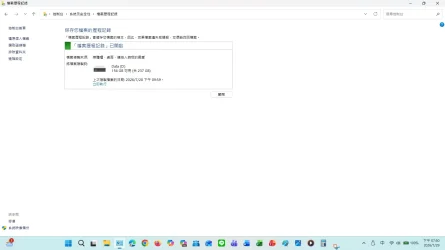
  • 上次備份時間未正確更新。
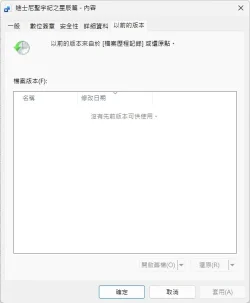
  • 當我將新文件(例如 Word 文件或圖像)的內容儲存到先前的版本時,新版本不會顯示。
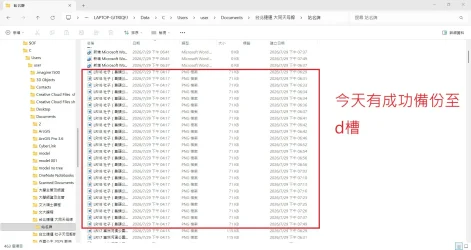
  • 但是,這些檔案仍然成功備份到 D 碟。
即使我沒有實際更改桌面和收藏夾等資料夾的內容,它們的修改日期仍然可能會更改。
我沒有手動更改文件歷史記錄設置、註冊表設置,也沒有刪除事件檢視器條目。
2026 年 8 月 13 日安裝 KB5120249 後,我的 Windows 10 版本 22H2 桌上型電腦也遇到了類似的問題。
目前的解決方案是透過重新選擇備份磁碟機來暫時恢復正常運作:控制面板 → 檔案歷史記錄 → 選擇磁碟機 → 再次選擇 D: 磁碟機
如果您遇到與我相同的情況,請隨時在下方留言或在微軟論壇和微軟學習網站上發佈。

以下問題的螢幕截圖
螢幕截圖 2026-08-18 202627.webp螢幕截圖 2026-07-29 195103.webp螢幕截圖 2026-07-29 195007.webp
雖然備份已成功傳送到 D 盤,但備份時間未同步或更新。

螢幕截圖 2026-07-29 201220.webp
當我將新文件(例如 Word 文件或圖像)的內容儲存到先前的版本時,新版本不會顯示。

我沒有刪除任何系統資料夾,沒有篡改登入文件,也沒有更改任何設定。

我不知道微軟在做什麼;你們犯了一個嚴重的錯誤。你們沒有處理、驗證或記錄安全性修補程式的發布流程。如果微軟不調查並確認最近的更新是否導致了這個問題,並且不在未來的安全更新中提供修復程序,我將別無選擇,只能繼續透過所有可用的官方管道報告此問題,並敦促其他受影響的用戶也這樣做。
 
Windows Build/Version
windows 10/11
Last edited:

My Computer My Computer

At a glance

Windows 11
OS
Windows 11
Computer type
Laptop
If you encounter the same situation as me, please leave a message below or post it on the Microsoft Forums and Microsoft Learn website.
 

My Computer My Computer

At a glance

Windows 11
OS
Windows 11
Computer type
Laptop
This forum English spoken post your problem English.
 

My Computer My Computer

At a glance

Windows 11AMD Ryzen 7 5700GMicron Technology DDR4-3200 16GBNVIDIA GeForce RTX 3060
OS
Windows 11
Computer type
PC/Desktop
Manufacturer/Model
HP Pavilion
CPU
AMD Ryzen 7 5700G
Motherboard
Erica6
Memory
Micron Technology DDR4-3200 16GB
Graphics Card(s)
NVIDIA GeForce RTX 3060
Sound Card
Realtek ALC671
Monitor(s) Displays
Samsung SyncMaster U28E590
Screen Resolution
3840 x 2160
Hard Drives
SAMSUNG MZVLQ1T0HALB-000H1
Translation (you'll have to figure out the screenshots yourself!!!):

I'm a newbie, please give me some guidance.
Hi everyone, I'd like to ask if anyone has encountered a "File History" issue on Windows 10 or Windows 11.
My laptop is running Windows 11 version 25H2. The File History feature worked fine before installing KB5101684 on July 29, 2026.
After the update, I started noticing some strange issues:
The last backup time was not updated correctly.
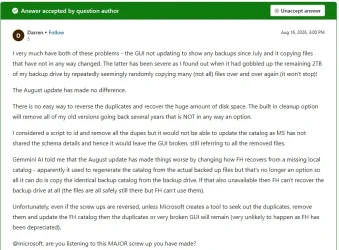
When I save the contents of a new file (such as a Word document or an image) to a previous version, the new version does not display.
However, these files were still successfully backed up to drive D.
Even without actually changing the contents of folders like the desktop and favorites, their modification dates may still change.
I haven't manually changed file history settings, registry settings, or deleted Event Viewer entries.
My Windows 10 version 22H2 desktop PC encountered a similar issue after installing KB5120249 on August 13, 2026.
The current solution is to temporarily restore normal operation by reselecting the backup drive: Control Panel → File History → Select Drive → Select D: Drive again.
If you encounter the same situation as me, please feel free to leave a message below or post it on the Microsoft Forums and Microsoft Learning Website.

Although the backup has been successfully transferred to drive D, the backup time has not been synchronized or updated.

When I save the contents of a new file (such as a Word document or an image) to a previous version, the new version does not display.

I have not deleted any system folders, tampered with my login file, or changed any settings.

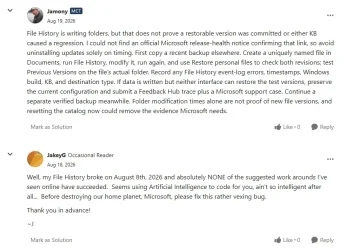
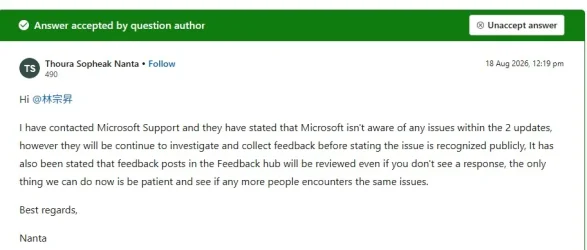
I don't know what Microsoft is doing; you have made a serious mistake. You have not processed, verified, or documented the release process for security patches. If Microsoft does not investigate and confirm whether the recent update caused this problem and does not provide a fix in a future security update, I will have no choice but to continue reporting this issue through all available official channels and urge other affected users to do the same.
Windows Build/Version windows 10/11
 

My Computers My Computers

  • At a glance

    Windows 11 Pro
    OS
    Windows 11 Pro
    Computer type
    PC/Desktop
    Manufacturer/Model
    ASUS ROG Strix
  • At a glance

    Windows 11 Pro
    Operating System
    Windows 11 Pro
    Computer type
    Laptop
    Manufacturer/Model
    ASUS VivoBook
  • ASUS VivoBook 'Lite' ~ Windows 11 Home
Last edited:

My Computer My Computer

At a glance

Windows 11
OS
Windows 11
Computer type
Laptop
If File History is disabled, Windows 11 Pro users can reenable it via the Local Group Policy Editor. Home users can adjust the registry key (HKEY_LOCAL_MACHINE\SOFTWARE\Policies\Microsoft\Windows\FileHistory) by setting “Disabled” to 0.
 

My Computer My Computer

At a glance

Windows 11AMD Ryzen 7 5700GMicron Technology DDR4-3200 16GBNVIDIA GeForce RTX 3060
OS
Windows 11
Computer type
PC/Desktop
Manufacturer/Model
HP Pavilion
CPU
AMD Ryzen 7 5700G
Motherboard
Erica6
Memory
Micron Technology DDR4-3200 16GB
Graphics Card(s)
NVIDIA GeForce RTX 3060
Sound Card
Realtek ALC671
Monitor(s) Displays
Samsung SyncMaster U28E590
Screen Resolution
3840 x 2160
Hard Drives
SAMSUNG MZVLQ1T0HALB-000H1
If File History is disabled, Windows 11 Pro users can reenable it via the Local Group Policy Editor. Home users can adjust the registry key (HKEY_LOCAL_MACHINE\SOFTWARE\Policies\Microsoft\Windows\FileHistory) by setting “Disabled” to 0.
It's normal that the FileHistory key cannot be found. The default settings under this path do not exist and must be created manually.
 

My Computer My Computer

At a glance

Windows 11
OS
Windows 11
Computer type
Laptop
I asked other users on other forums, and they said they had encountered the same problem as me.
 

My Computer My Computer

At a glance

Windows 11
OS
Windows 11
Computer type
Laptop
Translation (you'll have to figure out the screenshots yourself!!!):
I asked other users on other forums, and they said they had encountered the same problem as me.
 

My Computer My Computer

At a glance

Windows 11
OS
Windows 11
Computer type
Laptop
You can create the registry key and value.

The registry path HKEY_LOCAL_MACHINE\SOFTWARE\Policies\Microsoft\Windows\FileHistory controls whether the File History backup feature is enabled or blocked via system policy on Windows. Setting a DWORD value named Disabled to 1 turns off the feature, while setting it to 0 or deleting the value keeps File History active.
 

My Computer My Computer

At a glance

Windows 11AMD Ryzen 7 5700GMicron Technology DDR4-3200 16GBNVIDIA GeForce RTX 3060
OS
Windows 11
Computer type
PC/Desktop
Manufacturer/Model
HP Pavilion
CPU
AMD Ryzen 7 5700G
Motherboard
Erica6
Memory
Micron Technology DDR4-3200 16GB
Graphics Card(s)
NVIDIA GeForce RTX 3060
Sound Card
Realtek ALC671
Monitor(s) Displays
Samsung SyncMaster U28E590
Screen Resolution
3840 x 2160
Hard Drives
SAMSUNG MZVLQ1T0HALB-000H1
If File History is disabled, Windows 11 Pro users can reenable it via the Local Group Policy Editor. Home users can adjust the registry key (HKEY_LOCAL_MACHINE\SOFTWARE\Policies\Microsoft\Windows\FileHistory) by setting “Disabled” to 0.
He was not deactivated. Immediate execution resulted in no errors, and backup to drive D was successful, but the backup time was not synchronized.
 

My Computer My Computer

At a glance

Windows 11
OS
Windows 11
Computer type
Laptop
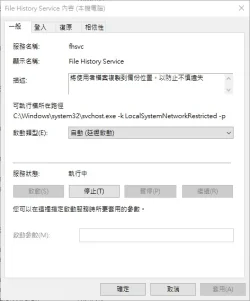
You may need to create new backup to correct that also check service for File History.

Check Service Status: Press Windows Key + R, type services.msc, look for File History Service, and ensure its startup type is set to Manual (Trigger Start) and the status is running
 

My Computer My Computer

At a glance

Windows 11AMD Ryzen 7 5700GMicron Technology DDR4-3200 16GBNVIDIA GeForce RTX 3060
OS
Windows 11
Computer type
PC/Desktop
Manufacturer/Model
HP Pavilion
CPU
AMD Ryzen 7 5700G
Motherboard
Erica6
Memory
Micron Technology DDR4-3200 16GB
Graphics Card(s)
NVIDIA GeForce RTX 3060
Sound Card
Realtek ALC671
Monitor(s) Displays
Samsung SyncMaster U28E590
Screen Resolution
3840 x 2160
Hard Drives
SAMSUNG MZVLQ1T0HALB-000H1
您可以建立註冊表項和值。

登錄路徑 HKEY_LOCAL_MACHINE\SOFTWARE\Policies\Microsoft\Windows\FileHistory 控制 Windows 系統原則是否啟用或阻止檔案記錄備份功能。將名為 Disabled 的 DWORD 值設為 1 可關閉此功能,而將其設為 0 或刪除該值則可保持檔案記錄功能處於啟用狀態。
Too troublesome I'm afraid it won't work.
You may need to create new backup to correct that also check service for File History.

Check Service Status: Press Windows Key + R, type services.msc, look for File History Service, and ensure its startup type is set to Manual (Trigger Start) and the status is running
I've tried it but it still doesn't work.
I'm pretty sure the problem started after updating these two things. I don't want to change anything.
Could you please ask if anyone else has the same issue?
 

My Computer My Computer

At a glance

Windows 11
OS
Windows 11
Computer type
Laptop
You can create the registry key and value.

The registry path HKEY_LOCAL_MACHINE\SOFTWARE\Policies\Microsoft\Windows\FileHistory controls whether the File History backup feature is enabled or blocked via system policy on Windows. Setting a DWORD value named Disabled to 1 turns off the feature, while setting it to 0 or deleting the value keeps File History active.
Thanks for your suggestion. However, I'm not a computer expert, so manually creating or modifying registry entries worries me a bit. If I make a mistake or the problem is not solved after modification, I'm afraid it will cause other problems.
Since this issue appeared after a recent Windows update, I would prefer to wait for Microsoft to investigate and confirm whether this is a file history issue or an update-related issue. Without a safe or official solution, I might just give up on troubleshooting the problem myself.
 

My Computer My Computer

At a glance

Windows 11
OS
Windows 11
Computer type
Laptop
Back
Top Bottom