Windows IT Pro Blog:
The first sign-in restore experience is now generally available as part of Windows Backup for Organizations! This means that the restore functionality is now available beyond Microsoft Entra joined devices, expanding to support the needs of hybrid-managed environments. Help employees at your organization get productive faster on a new or reimaged Windows 11 device—without requiring manual configuration steps.
Extending beyond the Windows out-of-box experience (OOBE), the first sign-in restore experience delivers a streamlined, admin-controlled restore experience across more device types and deployment scenarios. For the first time, users who sign in with a Microsoft Entra ID on eligible devices will be able to restore their environment if they missed the option during OOBE.
Note: If users deliberately choose to skip the restore opportunity during OOBE, their preference will be respected, and the restore experience won't be shown at first sign-in.
New user experience designed with IT admins in mind
Is part of your job helping users stay productive during device replacements or recovery scenarios? Incorporate a consistent restore experience across more physical, virtual, and cloud-managed endpoints, while maintaining control over where and when to apply restore.The first sign-in restore experience provides:
- Broader coverage: Safely restore more devices, including Microsoft Entra hybrid joined devices, multi-user setups, and Windows 365 Cloud PCs.
- Same seamless experience: Restore Windows settings and the Microsoft Store app list at first sign-in, as you would during OOBE, minimizing downtime and accelerating productivity.
- Continued focus on user-centric recovery: Even if users miss the opportunity to restore during OOBE by accident or due to a technical issue, they can still get their personalized environment at first sign-in. No more starting from scratch.
Getting started
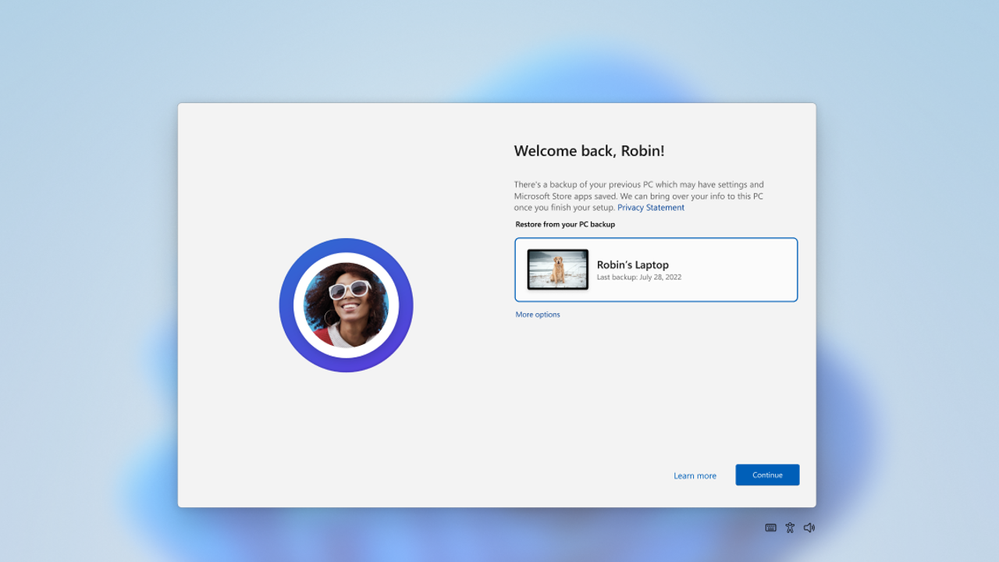
If you already use Windows Backup for Organizations, start by enabling the first sign-in restore experience. To do this, you can use Microsoft Intune settings catalog or Group Policy. To help you get started, consult new guidance on:The user restore experience appears the same on first sign-in as in OOBE. When users on devices eligible for the first sign-in restore experience sign in to their device for the first time, the restore window appears. Users can choose to restore a backup profile from a previous device or to configure the device as new.
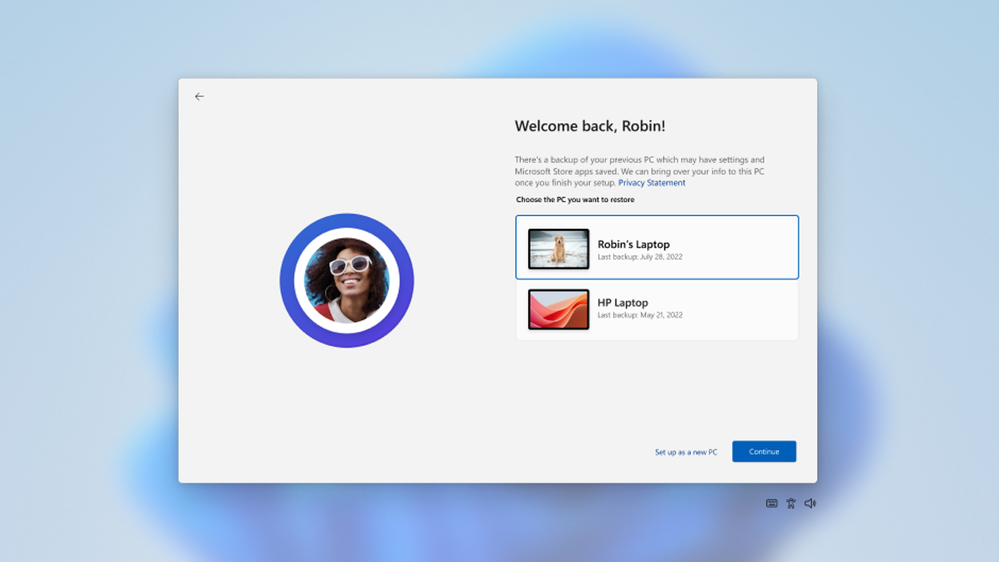
To restore settings and the list of Microsoft Store apps (if any) from a previous device, the user selects the device and then selects Continue.
Learn more
If you're new to Windows Backup for Organizations, it won't take long to familiarize yourself with this feature:The Windows Backup for Organizations first sign-in restore experience represents our continued investment in simplifying device setup and improving employee productivity. It can be an especially valuable tool as your organization migrates to Windows 11, juggles new hardware, and seeks resilience in today's world.
Thank you to those who have helped in shaping and validating this feature as part of the private preview! Your input was instrumental in getting us to this point. We look forward to your feedback as you begin using the first sign-in restore experience in your production environments.
Source:
Windows first sign-in restore experience now available - Windows IT Pro Blog
With Windows Backup for Organizations, you can now restore Windows on even more devices.
 techcommunity.microsoft.com