Windows 11 Hibernate Mode default setting ?


Chuck99

Well-known member
Member
Local time
8:59 AM
Posts
68
OS
Windows 11 Pro 25H2
What is the default setting for Hibernate Mode in a desktop PC?

Several weeks ago my PC was frequently slow to open from sleep mode to desktop.

After pressing a key to wake up, the motherboard splash screen appeared. This was not the case before. Some checking indicated this was due to the Hibernate mode being enabled. A Microsoft website said Hibernate was mainly for laptops to conserve battery power.

Either I was lucky & usually woke the PC before it went into hibernation, or a recent update or something enabled that mode.

It’s disabled now & waking up appears back to normal, IOW quick. But I'm wondering if the Hibernate mode should be set for something like 1 or 2 hours.

Thanks
 
Windows Build/Version
Vers 25H2, OS Build 26200.8037

My Computer

System One

  • OS
    Windows 11 Pro 25H2
    Computer type
    PC/Desktop
    Manufacturer/Model
    ASRock B760M Pro RS/D4 motherboard
    CPU
    Intel i5-14500
    Motherboard
    ASRock
    Memory
    16 GB
    Graphics Card(s)
    Intel
    Hard Drives
    1 TB Samsung M.2 SSD
    1 TB WD HDD
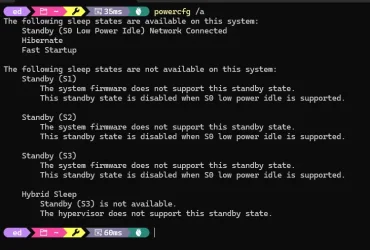
Based on my own lengthy experience, and confirmed by Copilot (FWIW), hibernate never turns on by itself or by default (after install, upgrade or update). The only way to turn it on AFAIK is to use the powercfg /hibernate on command (same string, but ending in 'off' turns it off). You can check your hibernate status with the powercfg /a command.
1775752638366.webp
As you can see, I DO have hibernate on this PC. But that's because I enabled it specifically.
OTOH, some OEMs (e.g. Lenovo, HP, ASUS, Dell, and so forth) may configure their laptops or PCs with hibernation enabled.
Best way to find out is to check!
HTH,
--Ed--
 

My Computers

System One System Two

  • OS
    Windows 11
    Computer type
    Laptop
    Manufacturer/Model
    Lenovo X380 Yoga
    CPU
    i7-8650U (8th Gen/Kaby Lake)
    Motherboard
    20LH000MUS (U3E1)
    Memory
    16 GB
    Graphics Card(s)
    Intel UHD Graphics 620
    Sound Card
    Integrated Conexant SmartAudio HD
    Monitor(s) Displays
    FlexView Display
    Screen Resolution
    1920x1080
    Hard Drives
    Toshiba 1 TB PCIe x3 NVMe SSD
    external 5TB Seagate USB-C attached HDD
    PSU
    Lenovo integrated 65W power brick
    Case
    Laptop
    Cooling
    Laptop
    Keyboard
    Integrated Lenovo ThinkPad keyboard
    Mouse
    touchscreen, touchpad
    Internet Speed
    GbE (Spectrum/Charter)
    Browser
    all of em
    Antivirus
    Defender
    Other Info
    Purchased early 2019 as Windows Insider test PC
  • Operating System
    Windows 11
    Computer type
    PC/Desktop
    Manufacturer/Model
    DIY
    CPU
    Ryzen 5800X
    Motherboard
    Asrock B550 Extreme4
    Memory
    128 GB (4x32 DDR5-5600)
    Graphics card(s)
    NVIDIA 3070Ti
    Sound Card
    built-in
    Monitor(s) Displays
    2xDell 2707
    Screen Resolution
    1980x1200
    Hard Drives
    2XNVMe, multiple HDDs from 3 to 12 TB
    PSU
    Seasonic 650
    Case
    NZXT Flo 6
    Cooling
    dual-fan air cooler
    Keyboard
    Logitech Wave
    Mouse
    Logitech Logi
    Internet Speed
    GbE
    Browser
    all of 'em
    Antivirus
    Defender
    Other Info
    temperamental UEFI
Here's what I have.
1775769754399.webp

Hibernate may be available, but I set it to "Never" in Settings>System>Power>Screen, sleep, & hibernate timeouts. Maybe it still shows up because I did not turn it off using the powercfg command.
 

My Computer

System One

  • OS
    Windows 11 Pro 25H2
    Computer type
    PC/Desktop
    Manufacturer/Model
    ASRock B760M Pro RS/D4 motherboard
    CPU
    Intel i5-14500
    Motherboard
    ASRock
    Memory
    16 GB
    Graphics Card(s)
    Intel
    Hard Drives
    1 TB Samsung M.2 SSD
    1 TB WD HDD

Latest Support Threads

Back
Top Bottom