PowerShell allows you to change the window title to anything, but CMD doesn't want to remove the Administrator tag. The only way to change it is to modify the resource string inside the MUI file. You will need to use a TrustedInstaller rights tool to overcome the file protections.
1.
Make a backup copy of "
C:\Windows\System32\[locale]\cmd.exe.mui", where
[locale] is your language like en-US or en-GB.
Code:
copy C:\Windows\System32\en-US\cmd.exe.mui C:\Windows\System32\en-US\cmd.exe-BACKUP.mui
2. Download HxD Hex Editor (Portable) and
PowerRun tools. Right now, the HxD site is down but you can find mirrors on Softonic or CNET.
3. Copy the MUI file to a different working folder.
Code:
copy C:\Windows\System32\en-US\cmd.exe.mui C:\Users\GARLIN\Downloads
4. Open the temporary copy in HxD Editor.
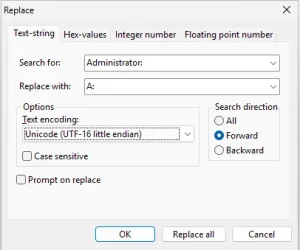
5. Search / Replace / Text-String.
Search for: "Administrator:"
Replace with: "A:"
Text encoding: UTF-16
Replace all.
6. Save the temporary copy of the MUI file.
7. Open PowerRun and choose a PowerShell session.
You can't replace the cmd.exe.mui file while CMD is running!
8. From the TI-elevated PowerShell, copy the temporary file to the "System32\[locale]" folder:
Code:
copy C:\Users\GARLIN\Downloads\cmd.exe.mui C:\Windows\System32\en-US
PLEASE NOTE: If you run SFC /scannow, or any DISM repair action, it might replace cmd.exe.mui and you will have to repeat the process or recopy your temporary save file.
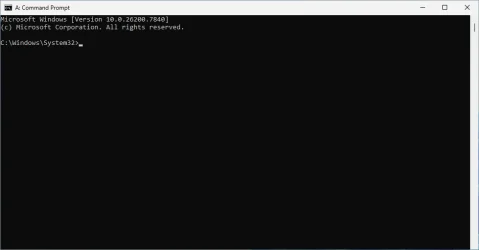
If your default Admin shell is PowerShell, it's relatively simple to create or update your profile.
Code:
if (([Security.Principal.WindowsPrincipal][Security.Principal.WindowsIdentity]::GetCurrent()).IsInRole([Security.Principal.WindowsBuiltInRole]::Administrator)) {
    $Host.UI.RawUI.WindowTitle = "A: Command Prompt"
}








 Personalization Change Category for App in Start Menu All Apps on Windows 11
 Accessibility Enable or Disable Auto Zoom Out for Narrator Math Reading Navigation in Windows 11
 Accessibility Change Narrator Math Reading Navigation Verbosity in Windows 11
 Accessibility Change Narrator Math Reading Navigation Mode in Windows 11
 Accessibility Change Narrator Math Reading Pause Factor in Windows 11