Question: How to make sure Bitlocker is disabled and stays that way?
Also I thought the Home version did not have Bitlocker.
Rant to follow!
I installed Windows 11 Home 24H2 in VirtualBox yesterday with Guest additions installed. I installed Startallback and made some changes like changing the height of the taskbar and to show all apps in the Notification area. I restarted Windows 11 Home and went looking for the Startallback program. Listed in the Apps but it will not open. Not seen in the Notification area as that does not show all apps and I found all the "fixes" do not work. Program Files shows no .exe file and not in AppData folders.

 www.geeksforgeeks.org
It turns out Startallback is an icon in the Control Panel....
I restarted the pc after doing the 3 fixes at the link above and.... It is now stuck at the Bitlocker screen.
I never set up Bitlocker so did not have the Recovery key. I went here https://account.microsoft.com > Devices and found the key BUT I cannot type in the VirtualBox window! Now times that by the millions of people who did not know they had a microsoft account and knew of the website to get the bitlocker key!! Millions to lose all their files!
The cursor does not show up on the screen.
It has been shutdown and Reset but it comes back to the Bitlocker screen with the same issue. I am now using a wired mouse after the last shutdown then starting the Windows 11 Home. The fix for this was as follows:
VirtualBox> Settings> User Interface> Input button is highlighted and keyboard and mouse intergration is checked.
In the top menu Input> Keyboard> Keyboard settings the box is checked for Auto Capture Keyboard. Mouse intergration is greyed out.
I can bring up the soft keyboard but cannot type as there is no cursor blinking in the text box.
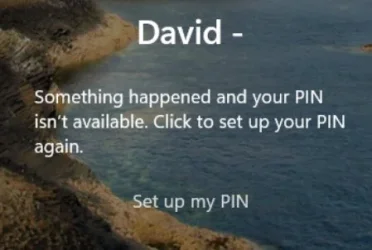
I shutdown VirtualBox again by clicking on the X in the upper right corner. Opened the soft keyboard and typed in the Bitlocker key and it booted to the login screen BUT.... it now says: PIN isn't available so I clicked on Set up my PIN and got a spinning circle then back to the cursor. Managed to log in after having to click on Set up my PIN again. Now at the desktop screen.
I have not restarted the pc again.
Question: How to make sure Bitlocker is disabled and stays that way?
This is why I installed in a Virtual window as Bitlocker can start at any time and you can and will lose all your files plus all the other issues that Windows 11 Home will throw up at you like you cannot copy and paste... Do a google search on: cannot copy and paste in windows 11

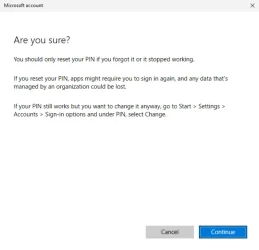
Nothing like a warning you will lose all your data when you reset the PIN....!
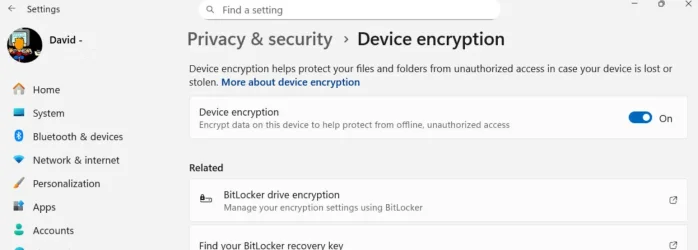
Now turned off....
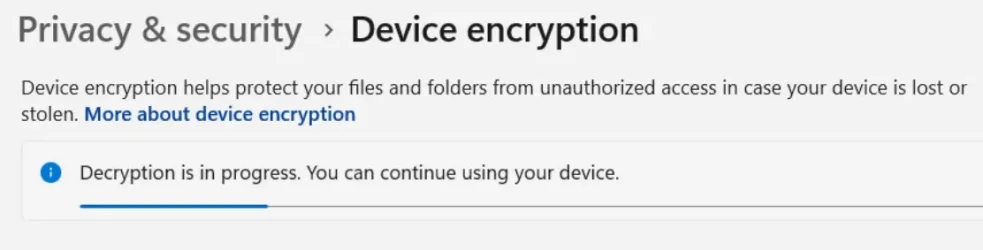
Also I thought the Home version did not have Bitlocker.
Rant to follow!
I installed Windows 11 Home 24H2 in VirtualBox yesterday with Guest additions installed. I installed Startallback and made some changes like changing the height of the taskbar and to show all apps in the Notification area. I restarted Windows 11 Home and went looking for the Startallback program. Listed in the Apps but it will not open. Not seen in the Notification area as that does not show all apps and I found all the "fixes" do not work. Program Files shows no .exe file and not in AppData folders.
How to Show All Icons in System Tray on Windows 11 - GeeksforGeeks
Your All-in-One Learning Portal: GeeksforGeeks is a comprehensive educational platform that empowers learners across domains-spanning computer science and programming, school education, upskilling, commerce, software tools, competitive exams, and more.
www.geeksforgeeks.org
It turns out Startallback is an icon in the Control Panel....
I restarted the pc after doing the 3 fixes at the link above and.... It is now stuck at the Bitlocker screen.
I never set up Bitlocker so did not have the Recovery key. I went here https://account.microsoft.com > Devices and found the key BUT I cannot type in the VirtualBox window! Now times that by the millions of people who did not know they had a microsoft account and knew of the website to get the bitlocker key!! Millions to lose all their files!
The cursor does not show up on the screen.
It has been shutdown and Reset but it comes back to the Bitlocker screen with the same issue. I am now using a wired mouse after the last shutdown then starting the Windows 11 Home. The fix for this was as follows:
VirtualBox> Settings> User Interface> Input button is highlighted and keyboard and mouse intergration is checked.
In the top menu Input> Keyboard> Keyboard settings the box is checked for Auto Capture Keyboard. Mouse intergration is greyed out.
I can bring up the soft keyboard but cannot type as there is no cursor blinking in the text box.
I shutdown VirtualBox again by clicking on the X in the upper right corner. Opened the soft keyboard and typed in the Bitlocker key and it booted to the login screen BUT.... it now says: PIN isn't available so I clicked on Set up my PIN and got a spinning circle then back to the cursor. Managed to log in after having to click on Set up my PIN again. Now at the desktop screen.
I have not restarted the pc again.
Question: How to make sure Bitlocker is disabled and stays that way?
This is why I installed in a Virtual window as Bitlocker can start at any time and you can and will lose all your files plus all the other issues that Windows 11 Home will throw up at you like you cannot copy and paste... Do a google search on: cannot copy and paste in windows 11
Nothing like a warning you will lose all your data when you reset the PIN....!
Now turned off....
Last edited:
My Computer
At a glance
Windows 11 in VirtualBoxIntel Core i5 4690K @ 3.50GHz32GB DDR34095MB NVIDIA GeForce GTX 1650
- OS
- Windows 11 in VirtualBox
- Computer type
- PC/Desktop
- Manufacturer/Model
- Gigabyte
- CPU
- Intel Core i5 4690K @ 3.50GHz
- Motherboard
- Gigabyte Z97X-UD5H
- Memory
- 32GB DDR3
- Graphics Card(s)
- 4095MB NVIDIA GeForce GTX 1650
- Sound Card
- Sound Blaster Z
- Monitor(s) Displays
- Dell G3223Q Monitor - 32-Inch 4K Ultra UHD (3840x2160), 144Hz 1Ms Display
- Screen Resolution
- 3840x2160@144Hz
- Hard Drives
- Samsung SSD 4TB
- Keyboard
- 4Tech
- Mouse
- Jelly Comb
- Internet Speed
- 1GB
- Browser
- Firefox
- Antivirus
- Windows Anti-virus