UPDATE 3/20:
 www.elevenforum.com
UPDATE 3/18: We are starting to roll out two servicing updates to Windows Insiders in the Dev Channel. Both these updates do not include anything new and are designed to test our servicing pipeline for Windows 11, version 24H2. Most Insiders in the Dev Channel will receive Cumulative Update Build 26080.1300 (KB5037139). However, Insiders that have Virtualization Based Security (VBS) turned on will receive Build 26080.1400 (KB5037140) and may not experience a restart upon installing the update. Arm64 devices, even with VBS turned on, will only receive Build 26080.1300 (KB5037139).
UPDATE 3/15: We are starting to roll out Cumulative Update Build 26080.1201 (KB5037135) to Windows Insiders in the Dev Channel. This update does not include anything new and is designed to test our servicing pipeline.
Hello Windows Insiders, today we are releasing Windows 11 Insider Preview Build 26080 to the Canary and Dev Channels. We are releasing ISOs for this build – they can be downloaded here.
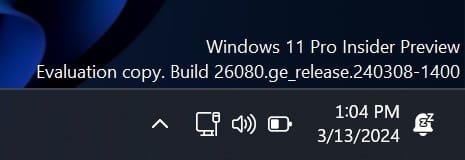
Insiders in the Canary Channel will receive Build 26080.1 while Insiders in the Dev Channel will receive Build 26080.1100 (KB5037133) as we test delivery of a full build and a servicing update at the same time. There is no difference between the two of these as Build 26068.1100 does not include any additional code.
Two important notes:
NOTE: Some features may begin rolling out to the Canary Channel first before the Dev Channel even if the two channels have the same build.
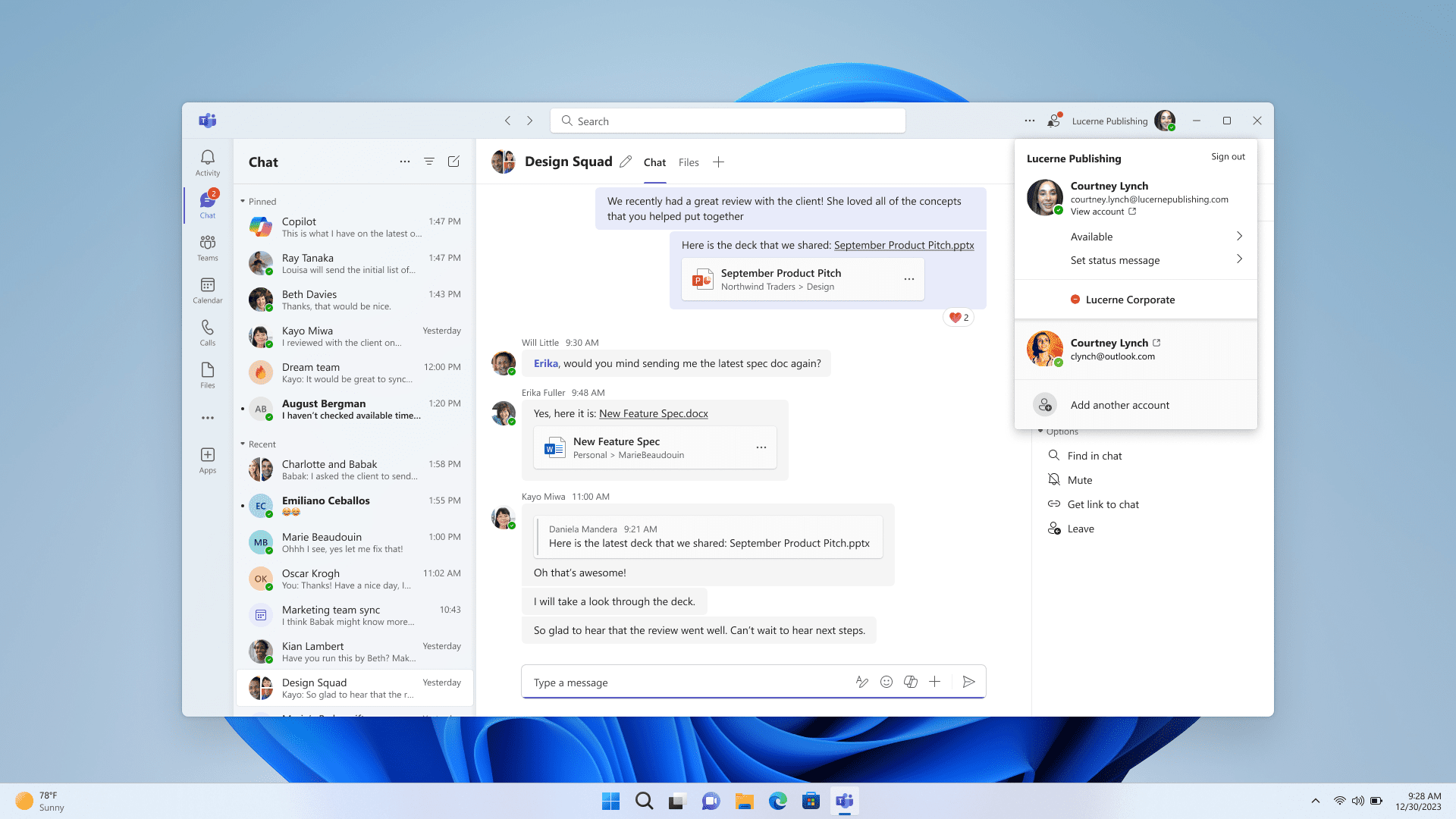
Teams work user interface showing the Me control open with both work and personal account.
We received consistent feedback from personal and work users: you prefer a single Teams app that allows you to easily access and switch between personal and work accounts. This update lets you use one app for all kinds of Teams accounts.
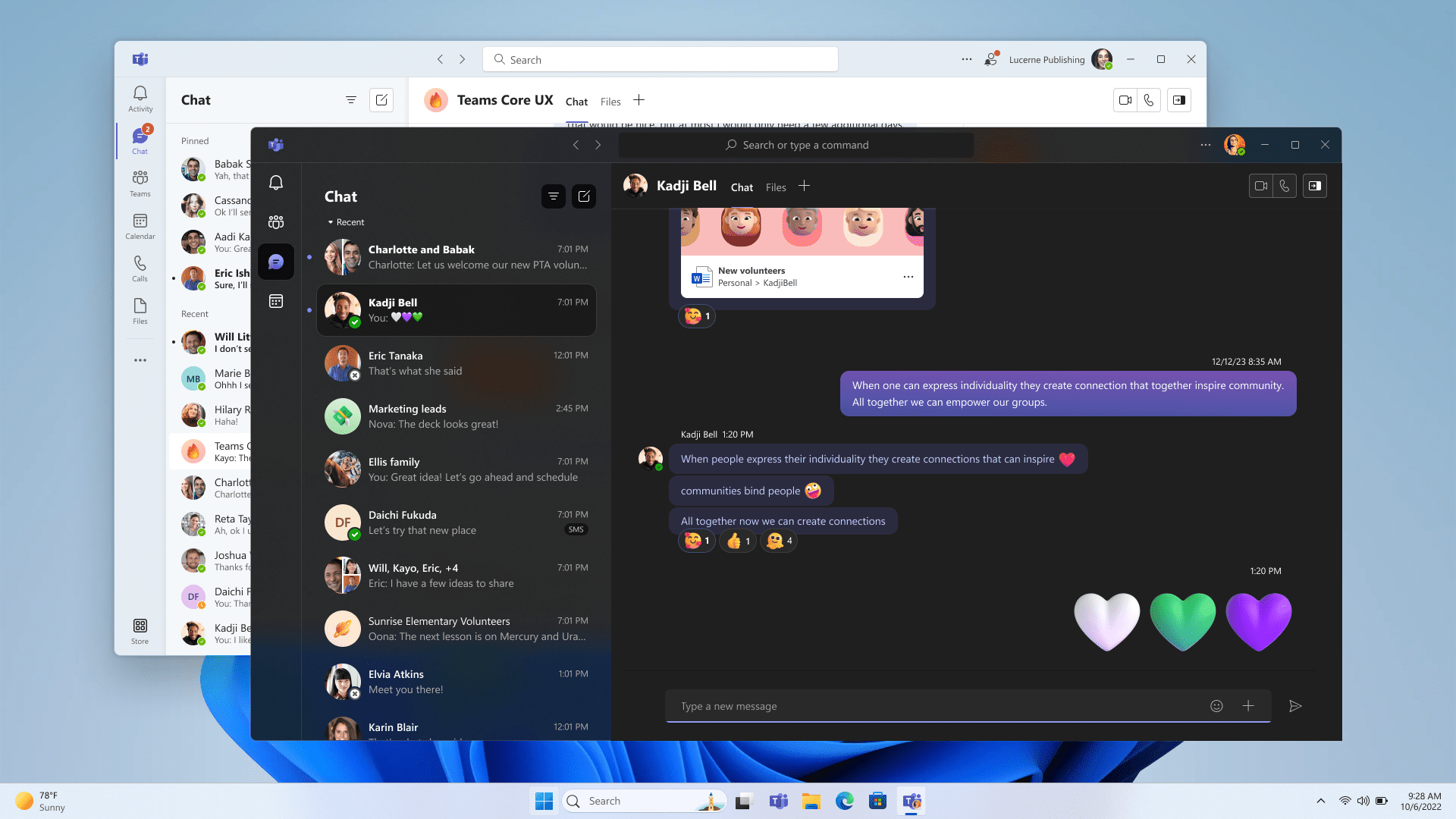
Teams personal account user interface over Teams work user interface.
You can join any Teams meeting with ease. In upcoming builds, when you are joining a meeting, you can select the account you want to use. You will also be able to join a meeting without signing in.
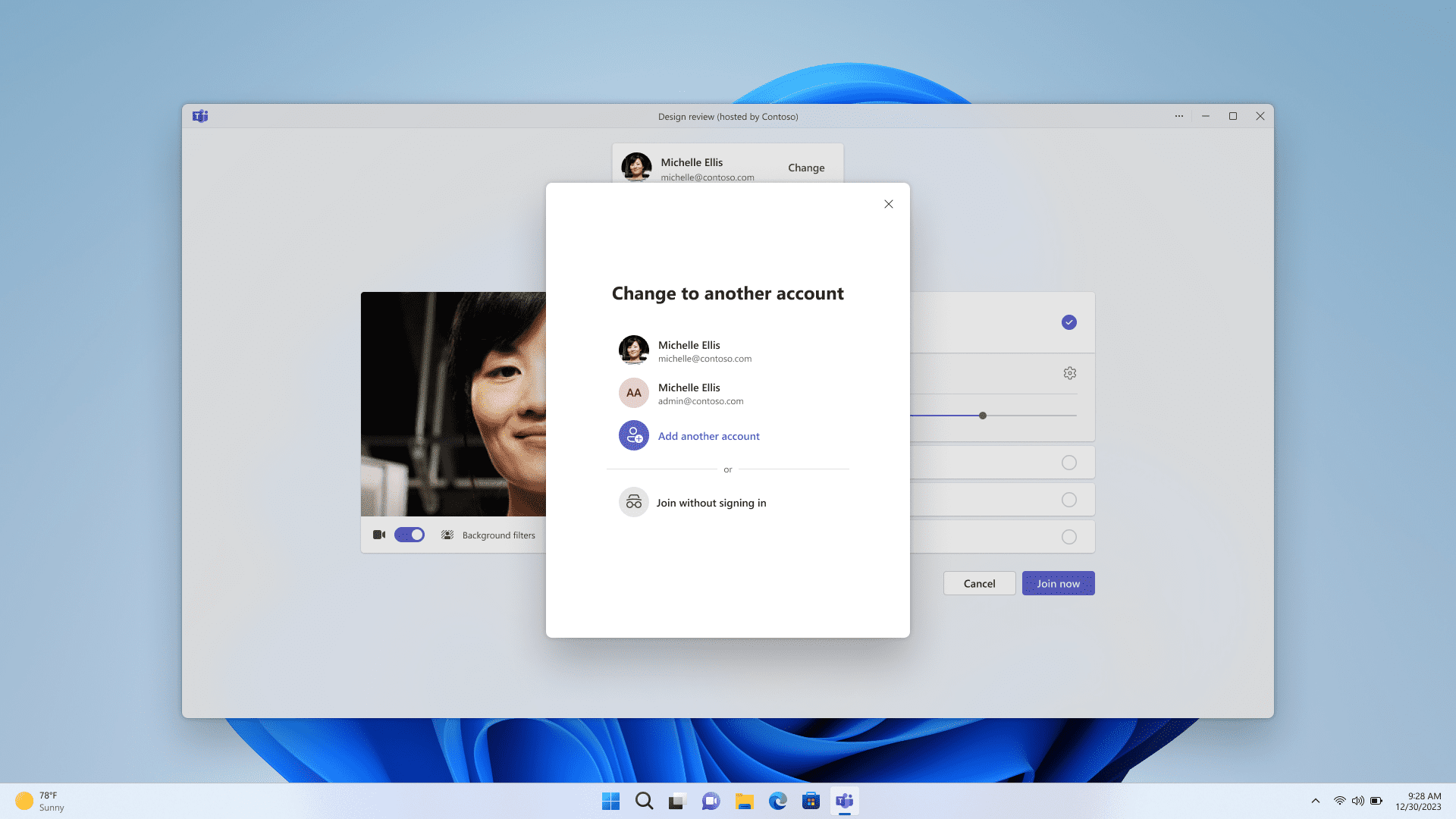
Teams user selecting which account to use to join a meeting.
Notifications have been improved, showing which Teams account they belong to. In addition, personal notifications have more details, giving clear and easy actions from the notification banner.
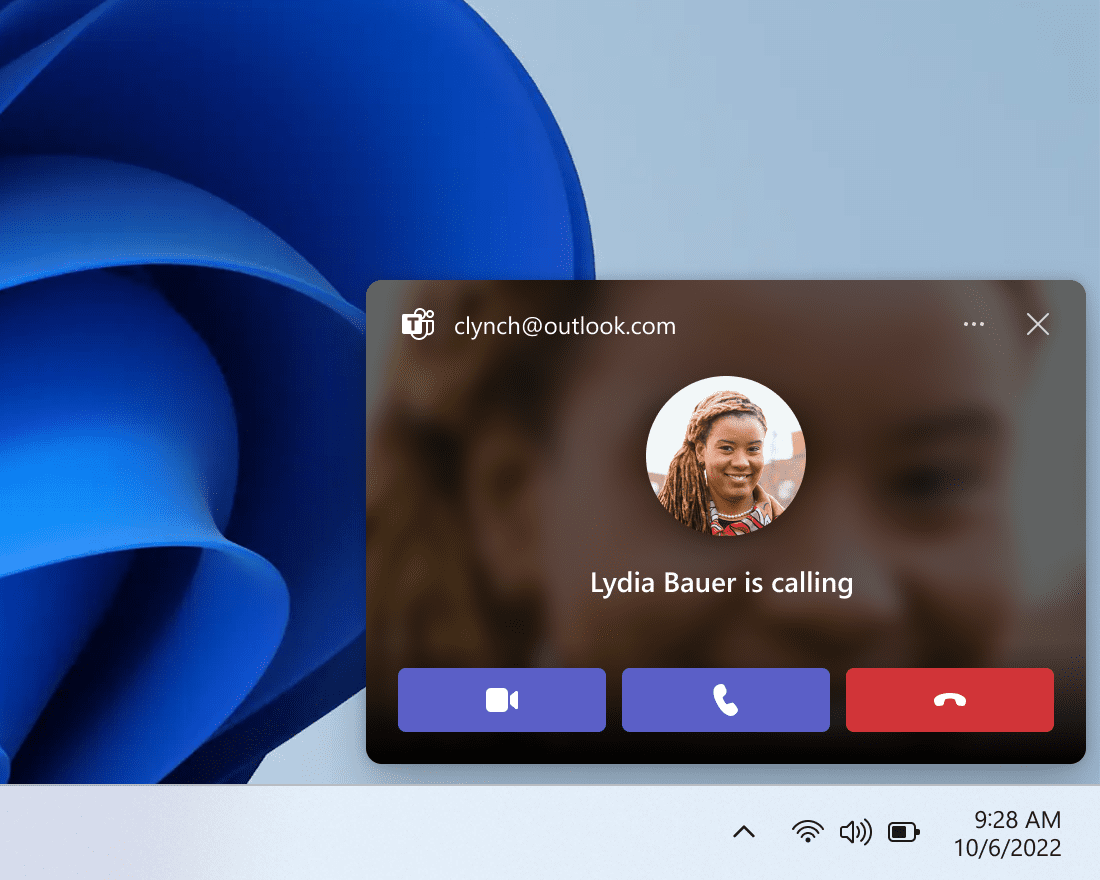
A Teams notification that someone is calling.
You can now launch personal and work accounts simultaneously with separate icons on the taskbar. We listened to users about their communication needs in various aspects of their lives and how they want to use Teams. The feedback was clear that a multi-window experience is preferred.
Other things to know:
More built-in capabilities via Copilot in Windows
Try asking Copilot to turn on Narrator or Live Captions, turn on battery saver, show you available networks, even empty your recycle bin or clean up your storage. Here’s the full list of things you can ask Copilot to do!
New with this update:
Power Automate is a low-code automation solution that is part of the Power Platform. We’re excited to introduce the Power Automate plugin in Copilot in Windows. This first release of the plugin offers automation features for Excel, PDF manipulation and file management.
To use the plugin, download or update Power Automate Desktop to the latest version from the Microsoft Store. Currently plugins are only accessible if you are signed in to Copilot in Windows with a Microsoft account.
After you have Power Automate installed and you activate the plugin in the plugins section in Copilot in Windows, you can ask for tasks such as:
[The rollout continues for these Copilot in Windows improvements to Windows Insiders in the Canary and Dev Channels today, so the experience isn’t available to all Insiders just yet.]
FEEDBACK: Because of an issue with our feedback pipeline, please do not use the in-line feedback form that opens from thumbs up/down for these actions right now, and instead file feedback about using these in Feedback Hub (WIN + F) under Desktop Environment > Copilot in Windows.
Windows 11 Insider Canary and Dev build 26085.1 (24H2) - March 20
UPDATE 3/28: https://www.elevenforum.com/t/windows-11-insider-canary-and-dev-build-26090-24h2-march-28.23892/ Windows Blogs: Hello Windows Insiders, today we are releasing Windows 11 Insider Preview Build 26085 to the Canary and Dev Channels. The Canary and Dev Channels receiving the same...
www.elevenforum.com
Windows Blogs:
UPDATE 3/18: We are starting to roll out two servicing updates to Windows Insiders in the Dev Channel. Both these updates do not include anything new and are designed to test our servicing pipeline for Windows 11, version 24H2. Most Insiders in the Dev Channel will receive Cumulative Update Build 26080.1300 (KB5037139). However, Insiders that have Virtualization Based Security (VBS) turned on will receive Build 26080.1400 (KB5037140) and may not experience a restart upon installing the update. Arm64 devices, even with VBS turned on, will only receive Build 26080.1300 (KB5037139).
UPDATE 3/15: We are starting to roll out Cumulative Update Build 26080.1201 (KB5037135) to Windows Insiders in the Dev Channel. This update does not include anything new and is designed to test our servicing pipeline.
Hello Windows Insiders, today we are releasing Windows 11 Insider Preview Build 26080 to the Canary and Dev Channels. We are releasing ISOs for this build – they can be downloaded here.
Insiders in the Canary Channel will receive Build 26080.1 while Insiders in the Dev Channel will receive Build 26080.1100 (KB5037133) as we test delivery of a full build and a servicing update at the same time. There is no difference between the two of these as Build 26068.1100 does not include any additional code.
Two important notes:
- If you’re experiencing an issue with Settings crashing or not loading the Windows Update settings page to download and install Build 26080 – you may have to reboot to correct the issue.
- Insiders on Build 26080 and higher who have Dev Drives should no longer see their Dev Drives breaking when rolling back as long as you roll back to Build 26063 and higher. (Insiders in the Dev Channel will need to wait for another new build to get released to ensure rollback happens to build that has this issue fixed.)
NOTE: Some features may begin rolling out to the Canary Channel first before the Dev Channel even if the two channels have the same build.
What’s new in Build 26080
Updates to Microsoft Teams in Windows 11
Starting with Windows 11, version 24H2, Teams users will get access to a preview experience of the new, unified Microsoft Teams experience on Windows. In this preview, Microsoft Teams will be available as a single application, enabling users to seamlessly switch between multiple cloud environments, tenants, and account types across personal and work. This new, unified application will soon be rolled out to commercial customers as well, through the normal update process. To add or access additional accounts, select your profile picture at the upper right corner of Teams when you sign into Teams.
Teams work user interface showing the Me control open with both work and personal account.
We received consistent feedback from personal and work users: you prefer a single Teams app that allows you to easily access and switch between personal and work accounts. This update lets you use one app for all kinds of Teams accounts.
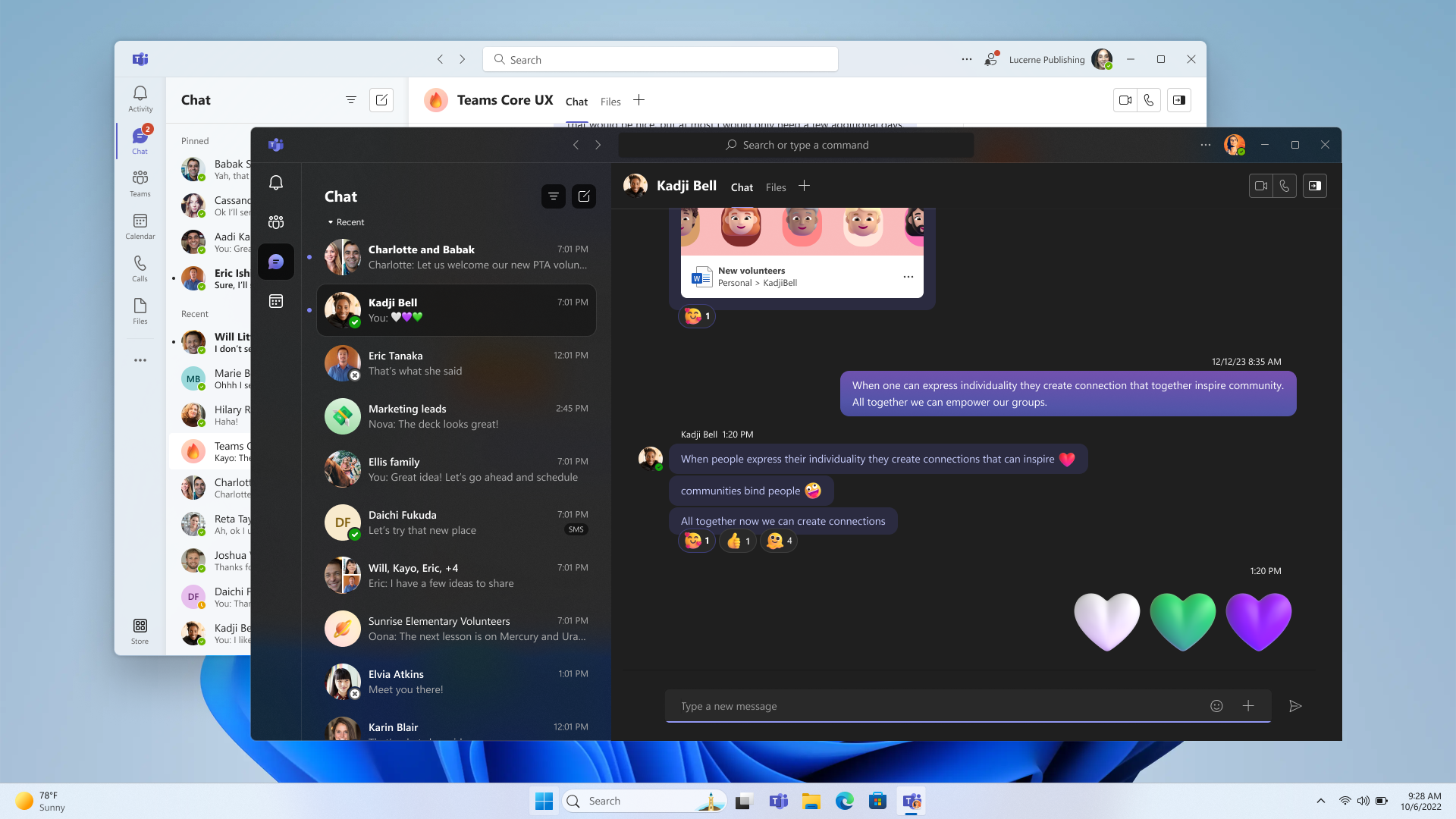
Teams personal account user interface over Teams work user interface.
You can join any Teams meeting with ease. In upcoming builds, when you are joining a meeting, you can select the account you want to use. You will also be able to join a meeting without signing in.

Teams user selecting which account to use to join a meeting.
Notifications have been improved, showing which Teams account they belong to. In addition, personal notifications have more details, giving clear and easy actions from the notification banner.
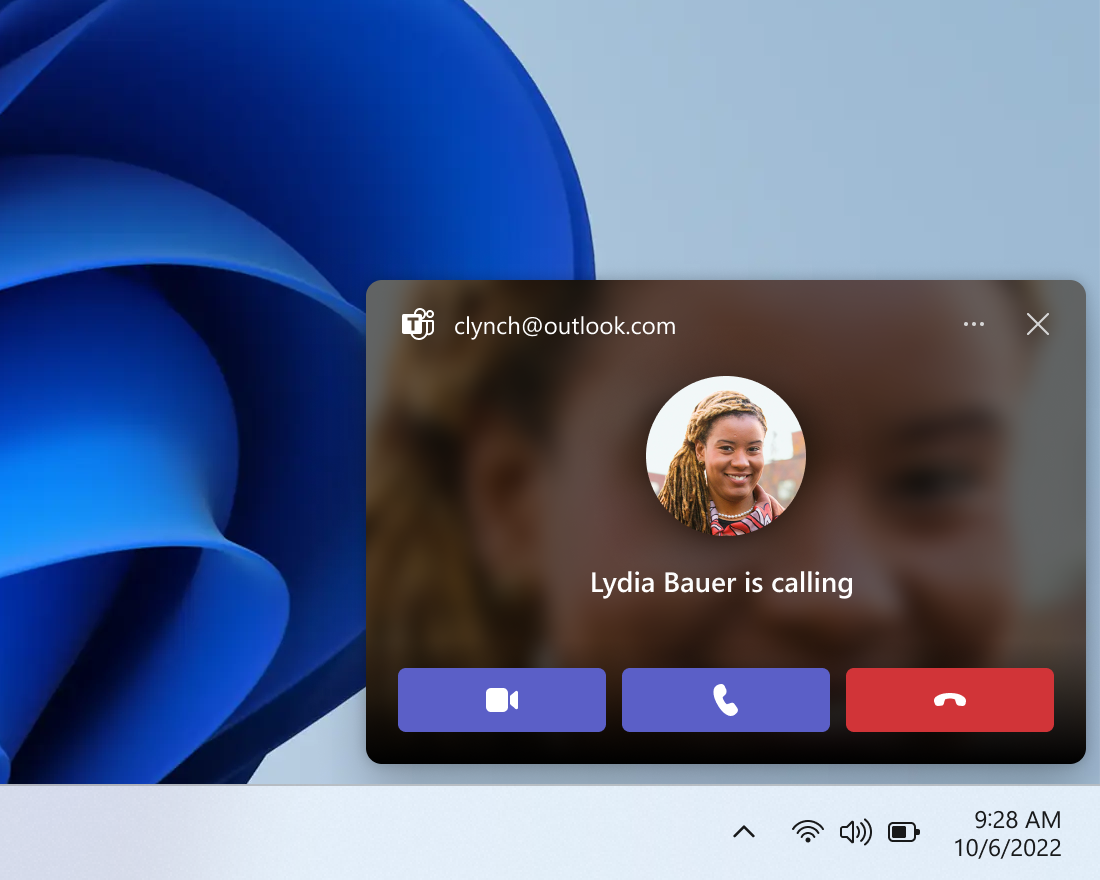
A Teams notification that someone is calling.
You can now launch personal and work accounts simultaneously with separate icons on the taskbar. We listened to users about their communication needs in various aspects of their lives and how they want to use Teams. The feedback was clear that a multi-window experience is preferred.
Other things to know:
- This unified preview app experience is labeled “Microsoft Teams (work or school)”. The app name will be automatically updated to “Microsoft Teams” in future releases.
- This is a preview release, and you will notice some changes from your current experience using Microsoft Teams (free) and Microsoft Teams (work or school). These changes and more updates will continue until we reach general availability. Notably in this release, Teams will launch into a separate icon for single accounts.
- We will remove the standalone consumer app, “Microsoft Teams (free)”, in future releases.
- If you lose access to either Teams applications through use of the Windows Insiders Program, you can access your preferred Teams application from this download page.
- For Enterprise Admins, the ability to sign in with Microsoft accounts will be part of a normal monthly update, there is no new app to install if you have new Teams. The functionality is targeted for preview in April and general availability in May. The ability for users to sign in with Microsoft accounts will follow all sign in restriction polices as it has for all versions of Teams. Admins can learn more in Message Center (MC719659).
- [ADDED] This preview version of Microsoft Teams is immediately available on clean installs of Windows 11 Insider Preview Build 26080 and higher.
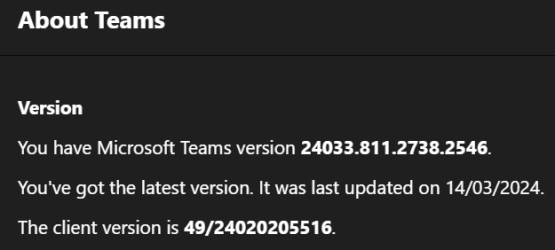
- [ADDED] Existing Windows Insiders need to be on Microsoft Teams version 24057.2000.2723.3544 or higher to see this capability, which is rolling out gradually.
Improvements to Copilot in Windows* now rolling out to more Windows Insiders
We have been trying out a new runtime for Copilot in Windows* that allows you to manage more settings via Copilot, including accessibility-focused settings, and use Power Automate Desktop through Copilot! We are now rolling out these Copilot in Windows improvements to more Windows Insiders in the Canary Channel (which first began rolling out on 2/20) and beginning to roll these improvements out to Windows Insiders in the Dev Channel.More built-in capabilities via Copilot in Windows
Try asking Copilot to turn on Narrator or Live Captions, turn on battery saver, show you available networks, even empty your recycle bin or clean up your storage. Here’s the full list of things you can ask Copilot to do!
New with this update:
- Ask for available wireless networks.
- Ask for system or device information.
- Ask for battery information.
- Ask to clean storage.
- Ask to empty recycle bin.
- Ask to toggle battery saver.
- Ask to show startup apps.
- Ask for your IP address.
- Ask for system, device, or storage information.
- Ask to turn on narrator.
- Ask to open voice access.
- Ask to turn on magnifier.
- Ask to change text size.
- Ask to start live captions.
- Ask to turn on high-contrast.
- Ask to start voice typing.
- Ask to toggle dark/light theme.
- Ask to toggle Bluetooth.
- Ask to toggle do not disturb.
- Ask to add a device.
- Ask to take a screenshot.
- Ask to cast your screen to another monitor.
- Ask to change your background image.
- Ask to set volume, change volume, or mute/unmute volume.
- Ask to launch an application.
- State that certain parts of your PC aren’t working: Audio, Windows Update, Camera, Bluetooth, Printer, Network, others.
- Ask to snap a window.
- Ask to start a focus session.
Power Automate is a low-code automation solution that is part of the Power Platform. We’re excited to introduce the Power Automate plugin in Copilot in Windows. This first release of the plugin offers automation features for Excel, PDF manipulation and file management.
To use the plugin, download or update Power Automate Desktop to the latest version from the Microsoft Store. Currently plugins are only accessible if you are signed in to Copilot in Windows with a Microsoft account.
After you have Power Automate installed and you activate the plugin in the plugins section in Copilot in Windows, you can ask for tasks such as:
- Write an email to my team wishing everyone a happy weekend.
- List the top 5 highest mountains in the world in an Excel file.
- Rename all PDF files in a folder to add the word final at the end.
- Move all word documents to another folder.
- I need to split a PDF by the first page. Can you help?
[The rollout continues for these Copilot in Windows improvements to Windows Insiders in the Canary and Dev Channels today, so the experience isn’t available to all Insiders just yet.]
FEEDBACK: Because of an issue with our feedback pipeline, please do not use the in-line feedback form that opens from thumbs up/down for these actions right now, and instead file feedback about using these in Feedback Hub (WIN + F) under Desktop Environment > Copilot in Windows.
Changes and Improvements
[Copilot in Windows*]
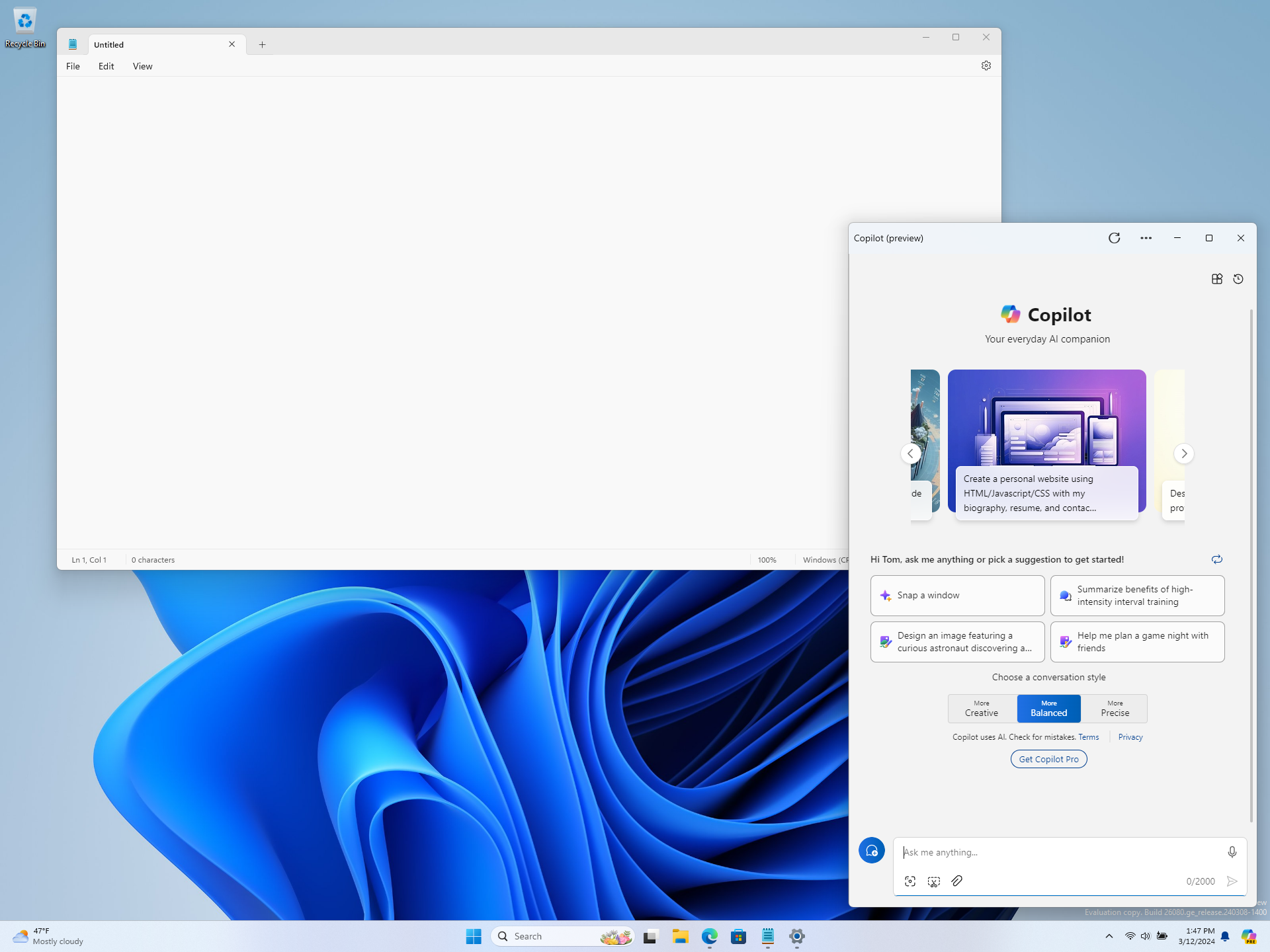
- We are beginning to roll-out an updated Copilot in Windows experience that adds the ability to switch between the existing “docked” behavior that attaches Copilot to the side of your desktop, and a new mode where it acts like a normal application window which you can resize and move around your screen. As part of this change, we’re also introducing some under-the-hood improvements as well. This experience is beginning to roll out to Windows Insiders in the Canary Channel As always, please report any issues you experience to us via Feedback Hub.

Dock or Undock Copilot on Desktop in Windows 11
This tutorial will show you how to dock or undock Copilot to the side of your desktop for your account in Windows 11. The Copilot setting in this tutorial is no longer available. Copilot in Windows adds AI to the Windows experience—AI-powered Copilot is built in to help users find answers and...
www.elevenforum.com
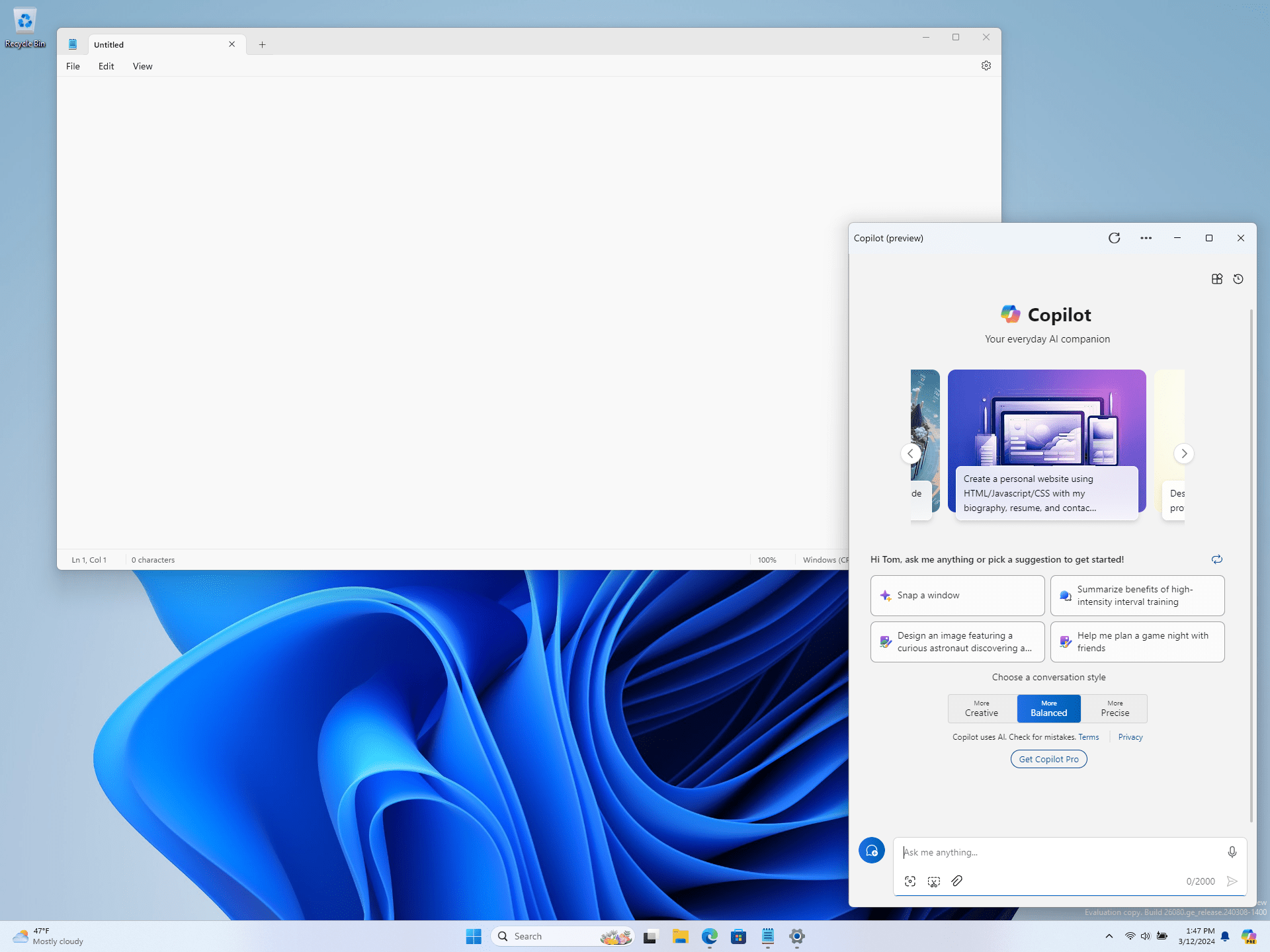
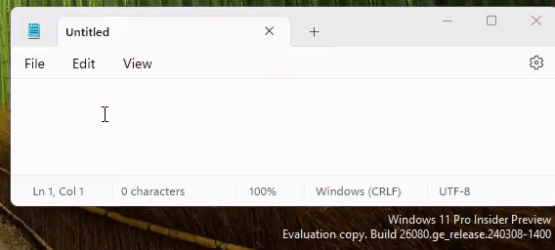
Copilot in Windows undocked and shown next to Notepad like a normal application window.
[Taskbar & System Tray]
- You can turn on live captions more quickly by using the new quick setting. Just open quick settings from the system tray, scroll down, then select the live captions quick setting.

Turn On or Off Live Captions in Windows 11
This tutorial will show you how to turn on or off Live Captions for your account in Windows 11. Microsoft introduced a new feature called Live Captions starting with Windows 11 build 22557. Live captions will help everyone, including people who are deaf or hard of hearing, better understand...
www.elevenforum.com
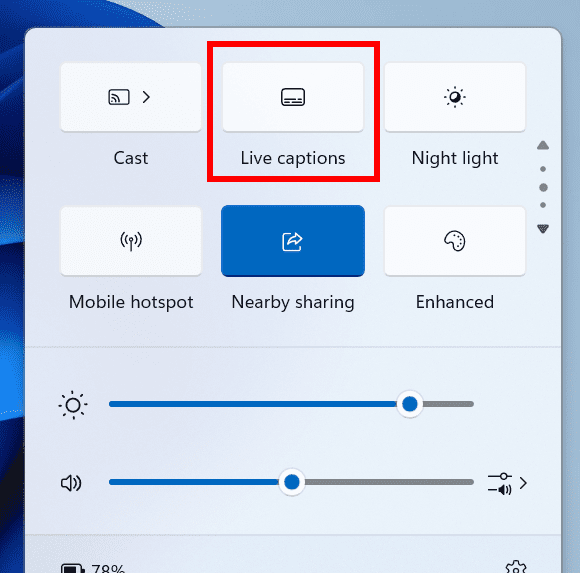
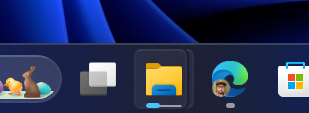
The new live captions quick setting highlighted with a red box in the quick settings flyout from the system on the taskbar. - Updated the design of the progress bar under app icons to help make it easier to see. This will appear on the taskbar as well as the Start menu.
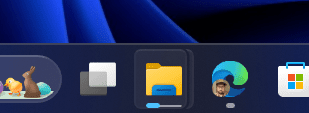
Design of progress bar under app icons has been updated to show a thin line under the colored progress bar to make it easier to see.
[File Explorer]
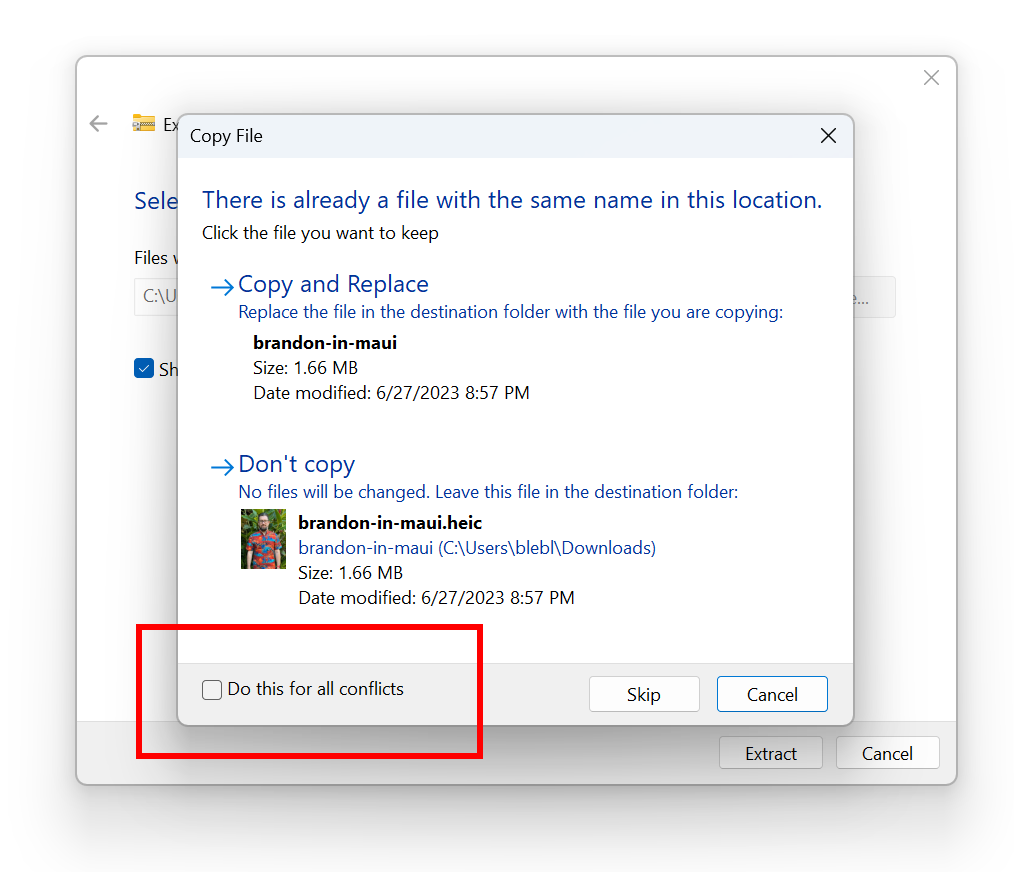
- When extracting files, if there is a file name conflict you can now choose to apply your selected action (skip, replace) for all conflicts.

Replace, Skip, or Keep Both Files in File Name Conflict Dialog in Windows 11 Tutorial
This tutorial will show you how to replace, skip, or keep both file versions being copied or moved in a file name conflict dialog box for your account in Windows 10 and Windows 11. When you copy or move files/folders from one location to another in Windows and the destination has files with the...
www.elevenforum.com
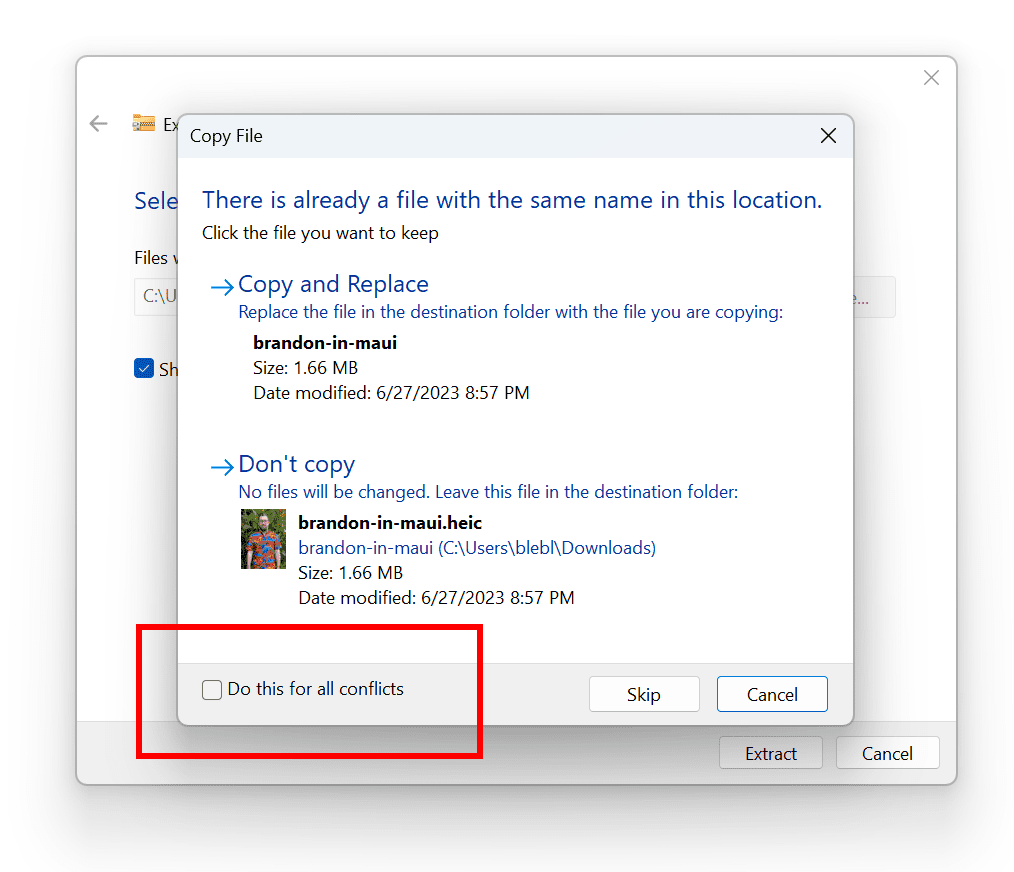
New option highlighted for choosing to apply your selected action (skip, replace) for all conflicts when extracting files in File Explorer.
[Windows Update]
- Removed the What’s New link in Windows Update history for Windows Insiders – it will only show now for retail (released) versions of Windows. To check what’s new in Insider builds, please follow this blog.
[Printing]
- [ADDED] Building off the printer improvements first introduced with Build 26020, we have added the ability to rename your printer directly from Settings > Bluetooth & devices > Printers & scanner.
Rename Printer in Windows 11
This tutorial will show you how to change the name of a printer in Windows 11. When you install a printer in Windows, the manufacturer name and model number is often used as the printer name by default. You can rename the printer to any name you like though. You must be signed in as an...
www.elevenforum.com
Fixes for known issues
[General]
- IMPORTANT NOTE FOR DEV DRIVE USERS: Insiders on Build 26068 and higher who have Dev Drives should no longer see their Dev Drives breaking when rolling back as long as you roll back to Build 26063 and higher. Rolling back to earlier builds may still result in issues with Dev Drives.
- IMPORTANT NOTE: Fixed an issue causing Windows Update in Settings to not load or crash in Build 26063. If you are still on Build 26063 and encounter this, rebooting may resolve the issue. If it doesn’t, the update should still eventually download on its own – appreciate your patience.
- Fixed an issue for Narrator not working when setting up a device or in Advanced Startup.
[Copilot in Windows*]
- Fixed an issue where if you turned the Copilot icon off and back on in Settings never showed it on your taskbar again.
[Taskbar & System Tray]
- Fixed a memory leak related to showing the tooltip for the date and time in the taskbar when you had enabled additional clocks.
[File Explorer]
- Fixed an underlying issue believed to be the cause of some Insiders finding File Explorer had started freezing and using unexpectedly high CPU in the last couple builds. Please file feedback in the Feedback Hub if you continue experiencing this after upgrading.
- Fixed an issue where your preference for “Show extracted files when complete” when extracting files in File Explorer wasn’t persisting across upgrades.
- Fixed a timing issue where when you start a search from Home in File Explorer, it might unexpectedly show no results the first time you tried.
- Fixed an issue causing the Details view in File Explorer to be unexpectedly cramped in recent builds when using compact mode.
- Made a change to help address an issue where after a DWM crash, when you opened File Explorer it could just show a blank area on top instead of rendering the area correctly.
- Fixed an issue where the 7zip and ZIP compression options weren’t displaying correctly for Insiders with the English (United Kingdom) display language.
[Task Manager]
- Fixed an issue which could lead to your GPU showing as -1 in Task Manager.
- Fixed an issue where Task Manager may unexpectedly show no GPU % used (when that was not the case).
- Fixed an issue impacting Task Manager reliability.
Last edited:

 I got bored with BETA not having lots of updates fixes so I wanted a little bit of adventure on Dev channel