Windows 11 NetGear READYSHARE


WacoJohn

New member
Local time
8:35 AM
Posts
9
OS
Windows 11
2025-07-11 19_47_00-About Windows.webp

Has ANYONE had any luck getting READYSHARE to work on W11?? Thank you in advance for any comments/help.

To begin with, have to admit READYSHARE is no longer supported. I have no problems with it on two W10 laptops but no go on my 1 W11 machine. Machine will not recognize READYSHARE as do the W10s. I have set it up on W10 a thousand times. The procedure is accepted by W11 but not with success. AI (below) describes the procedure I have been using for year on W10 with success, but not W11. AI also implies it does work on (some) W11s.
AI to the rescue (hope I don't get in trouble for this quote):

Gemini AI:
Yes, ReadySHARE can work on Windows 11, but many users have reported issues and it often requires troubleshooting. It's not always a seamless "plug and play" experience as it might have been with older Windows versions.
Here's a summary of what the search results indicate and common solutions:
Common Issues:
  • ReadySHARE drive not showing up: This is a frequent complaint, especially after Windows 11 updates (like 24H2).
  • Login/Credential problems: Users are often prompted for usernames/passwords even when the share is set for open access.
  • Network discovery issues: Windows 11 PCs may not discover other network devices, including the ReadySHARE drive.
Potential Solutions and Troubleshooting Steps:
  • Enable Network Discovery and File and Printer Sharing: This is a fundamental step for any network sharing. Go to Settings > Network & Internet > Advanced network settings > Advanced sharing settings.
  • Enable SMB 1.0/CIFS File Sharing Support: Windows 11 often has SMB 1.0 disabled by default, which some older ReadySHARE implementations might rely on. You can enable it in Control Panel > Programs > Turn Windows Features On or Off.
  • Access by IP Address: Instead of trying to find "\readyshare" directly, try accessing the drive using your router's IP address (e.g., \\192.168.1.1\readyshare) in File Explorer. You can find your router's IP address by logging into its interface.
  • Clear Cached Credentials: If you're having login issues, clear any saved credentials related to your ReadySHARE drive in Control Panel > Credential Manager > Windows Credentials.
  • Check Network Profile: Ensure your network profile in Windows 11 is set to "Private" rather than "Public," as public profiles have stricter security settings that can block network discovery.
  • Temporarily Disable Firewall: As a troubleshooting step, you can temporarily disable Windows Defender Firewall to see if it's blocking the connection. Remember to re-enable it afterward.
  • Update Network Drivers: Make sure your laptop's network drivers are up to date via Device Manager.
  • Router Firmware: Ensure your Netgear router has the latest firmware installed.
  • Insecure Guest Logins: In some cases, enabling the "Enable insecure guest logins" policy in Windows can help, though this is less secure.1
  • Reset Network: One user reported success by resetting the network through the Control Panel in Windows 11.
Important Note:
Some users have also pointed out that Netgear's focus on ReadyNAS (their dedicated NAS devices) and the deprecation of services like ReadyCLOUD might indicate less active development or support for the ReadySHARE feature on their routers.
In conclusion, while ReadySHARE can be made to work on Windows 11, it often requires some manual configuration and troubleshooting due to changes in Windows security and networking protocols.
 

My Computer

System One

  • OS
    Windows 11
    Computer type
    Laptop
I had an older model but finally removed it from usage. The older software requires SMBv1 to work. Windows 11 has disabled SMBv1 by default. If you go in to Control Panel under "Programs" then look under "Programs and Features" and select "Turn Windows features on or off" You can then scroll down and check the box labeled "SMB 1.0/CIFS File Sharing Support" or just select the box for Client. This will turn on SMB sharing. Just be advised it opens up a huge security risk.
 

My Computer

System One

  • OS
    Win 7/10/11
    Computer type
    PC/Desktop
    Other Info
    I'm a computer enthusiast so have quite a few systems that I run. More like an advanced hobby.
Thank you for the kind reply. Yes, SMB 1.0 is on as noted in my original post. Other requirements have been met as well (each troubleshooting item). Historically, this is what I have had to do every time I had the W11 failure IN W10 and it worked .... but doesn't work in W11

Go to gpedit.msc
Under Group policy editor access the following :-
->Computer configuration\administrative templates\network\Lanman Workstation
->"Enable insecure guest logons"

#Go to services.msc
The following should to set to Automatic[Delayed Start]
->Function Discovery Provider Host
->Function Discovery Resource Publication

#Go to Programs and features
Under Turn on Windows Features
->SMB-1.0 File sharing and support

Restart

I really appreciate your reply. Any other ideas/suggestions are welcome. I am predicting a newer router with NAS capability (similar to XR500). Any recommendations on that point is also welcome.
 

My Computer

System One

  • OS
    Windows 11
    Computer type
    Laptop
Yes. It is still possible, though quite impractical. Not possible to log-on upon startup, anymore.
THIS solves it (tried on a R6220 router, both Win10 and Win11 clients):

do this every time (once a day suffices) you'd like to add your shared drive (USB, on the router).
  1. log into router config (routerlogin.net) with ID admin + password
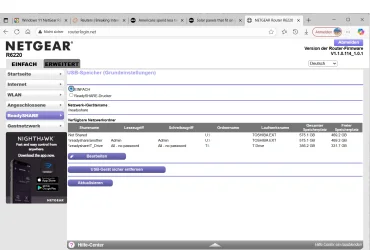
  2. go to readyshare. it'll show your shared resource/drive like this:
    RS_screen1.webpnote the "not shared" precedes the shared drive (another, T_Drive). Appears to be a problem with a persistent default setting.
  3. click on modify/change, apply. The "not shared" is gone. Apply a 2nd time (center top of next screen). Log out of router config (top right corner).
  4. now change to file explorer on your LT/desktop. Click on This PC, click on ... (three dots, top line). Choose connect to network
    share/drive.
  5. Type in this for access:
    drive letter: (any will do)
  6. folder: type \\readyshare.local\(share) share = another, in my case.
  7. click on connect/access.
    ID: admin
    Password: your router config pwd
  8. after a delay of perhaps 0.5 sec, the share is connected. And stays this way even through suspend/sleep cycles of your LT/desktop.
    However, don't wait too long between steps 6 & 7 and by all means do not misstype the login credentials.
Cumbersome, but it works (on both Win10 and Win11). My OS is the German localization, your commands are slightly different but similar.

Good luck and give this a try.
Marc from Switzerland
 

My Computer

System One

  • OS
    win11 and win10
    Computer type
    Laptop
    Manufacturer/Model
    acer, HP
do this every time (once a day suffices) you'd like to add your shared drive (USB, on the router).
Well, Sir .... your brilliance is obvious and certainly exceeds mine. I sincerely thank you. Not sure I could follow this and doing it once a day is impractical, as you said.

I think the best choice is a new NAT router. The XR500 is the only one I have any experience with ... but I assume a NAT router would be something I can handle. Might even have similarities to the XR500 Any suggestions .... anyone?? Thank you again, Sir ... immensely.
 

My Computer

System One

  • OS
    Windows 11
    Computer type
    Laptop
BTW, there IS a new Microsoft patch/update, that claims to address SMB1-connection issues.

Look here. Does it solve the problem? Not certain about it...Sorry, my link is for the German version, the KB article # is the same,
as for the English version (presumably).

Greetings from Switzerland.
Marc.
 

My Computer

System One

  • OS
    win11 and win10
    Computer type
    Laptop
    Manufacturer/Model
    acer, HP
I finally updated to Windows 11 and had the same problem with ReadySHARE on my Netgear R7000 router but finally discoverd a fairly easy solution that works for me. I added a "Network location" under "This PC" but it wasn't straight forward. (I asked Gemini for this solution.)

Open the router settings, go to the ReadySHARE tab, click the 'Edit' button, and enable the 'FTP' option. (Notice Port 21 applies here.)

Use the following address to "Add a network location" in the "This PC" group:
ftp://admin:[your_router_password]@192.168.1.1:21
('21' is the port number shown on my router's ReadySHARE page.)

Once the new network location is created, you should be able to double-click the its icon to open a File Explorer window.
This will look like any other open file location, but with a few limitations.

1. When you open File Explorer to the ReadySHARE drive & double-click a file, it will just open a new browser window. So...

2. To open a file in the ReadySHARE drive you first have to copy it to a local folder. BUT, drag & drop from the ReadySHARE drive won't work. You have to COPY (Ctrl-C) and PASTE (Ctrl-V). (Right-click, "Copy To Folder..." also works.)

3. Drag and drop COPY from a local folder TO the ReadySHARE drive works as expected.

I hope you find this solution useful.
 

My Computer

System One

  • OS
    Windows 11
    Computer type
    PC/Desktop
    Manufacturer/Model
    Dell ECT125
    CPU
    ntel(R) Core(TM) Ultra 5 225 (3.30 GHz)
    Memory
    16 GB
Useful Indeed! Over my head .... more indeed. Still can't see Readyshare on W11 Pro. I now have only 1 Windows laptop ... that one. Also two other laptops ... 1 Linux Mint xfc 22.3 (ZENA) and other Zorin Core. Mint forum tech actually got READYSHARE working on the Mint machine. Unfortunately, I don't know how he did it. Would have to go back to that thread and figure out exactly what he did. Mainly, because I want Readyshare on all 3 ... Mint, Zorin, W11. Not that what worked on Mint would worn on Zorin. That Mint tech is the only person I know that can make it work .... on a Mint machine.
I notice this thread is marked SOLVED. Hmmmmm, well, it isn't ... I will have to fix that. What gets me the most is W11 did work, just like W10 did .. quite a while back though. I don't know, but I think a W11 patch or update or ??? clobbered my W11. In case there is any confusion .. I am on the XR500 router. Thank you immensely for all your valuable tiime and help. I will give your most recent advice a good try.
 

My Computer

System One

  • OS
    Windows 11
    Computer type
    Laptop
Still need help with this @WacoJohn? I have a totally working Netgear READYSHARE setup on my Windows 11. I've got all-time access to my USB storage drive that's connected to my R6100-router over the network. 😊
 

My Computer

System One

  • OS
    Windows 11
    Computer type
    Laptop
    Manufacturer/Model
    ASUS ZenBook
Back
Top Bottom