Body:
After 7 weeks and 33 install attempts, I’m seeking expert insight into a persistent issue with a clean install of Windows 11 Pro on a new HP Envy TE01-5364 desktop.
Context:
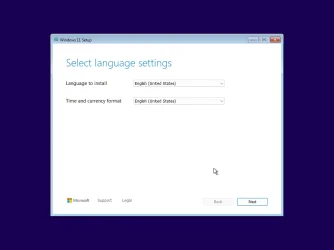
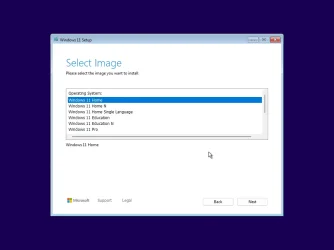
I’m attempting to install Windows 11 Pro to a newly created partition on a fresh SSD. The original Windows 11 Home installation is being preserved on a separate partition for archival and fallback purposes. The SSD (“Mickey”) is now visible during install thanks to the correct NVMe driver injection. However, despite using an file to force the Pro edition, Windows Setup defaults to installing Home. I suspect the embedded OEM key or firmware logic is overriding the installer’s instructions.
Steps Already Taken:
• Created bootable USB with specifying Professional
• Injected NVMe driver via F6 folder (Intel RST VMD 9A0B)
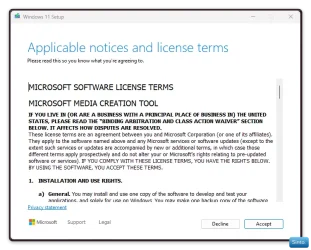
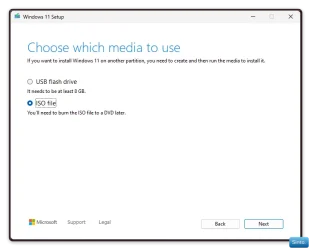
• Tried Rufus ISO, Media Creation Tool, OEM DVD, and direct USB copy
• Mounted ISO on C: and transferred to USB manually
• Disabled/enabled Secure Boot for testing
• Tried multiple USB sticks and install methods
• 23 of 33 attempts failed due to driver issues (now resolved)
• Last 10 attempts failed due to installer ignoring Pro edition and defaulting to Home
What I Need:
A targeted solution for this exact scenario — not general install advice. I’m looking for someone who understands how HP firmware, embedded keys, or SSD controller logic might override edition selection, even with a valid Pro license and correctly configured install media.
After 7 weeks and 33 install attempts, I’m seeking expert insight into a persistent issue with a clean install of Windows 11 Pro on a new HP Envy TE01-5364 desktop.
Context:
I’m attempting to install Windows 11 Pro to a newly created partition on a fresh SSD. The original Windows 11 Home installation is being preserved on a separate partition for archival and fallback purposes. The SSD (“Mickey”) is now visible during install thanks to the correct NVMe driver injection. However, despite using an file to force the Pro edition, Windows Setup defaults to installing Home. I suspect the embedded OEM key or firmware logic is overriding the installer’s instructions.
Steps Already Taken:
• Created bootable USB with specifying Professional
• Injected NVMe driver via F6 folder (Intel RST VMD 9A0B)
• Tried Rufus ISO, Media Creation Tool, OEM DVD, and direct USB copy
• Mounted ISO on C: and transferred to USB manually
• Disabled/enabled Secure Boot for testing
• Tried multiple USB sticks and install methods
• 23 of 33 attempts failed due to driver issues (now resolved)
• Last 10 attempts failed due to installer ignoring Pro edition and defaulting to Home
What I Need:
A targeted solution for this exact scenario — not general install advice. I’m looking for someone who understands how HP firmware, embedded keys, or SSD controller logic might override edition selection, even with a valid Pro license and correctly configured install media.
- Windows Build/Version
- Current: Windows 11 Home 24H2 → Installing: Windows 11 Pro 24H2 (OEM DVD)
Last edited:
My Computer
At a glance
WINDOWS 11Processor | Intel Core i7-14700F (14th Gen, L...31.76 Gigabytes Usable Installed MemoryNVIDIA GeForce RTX 4060 [Display adapter]
- OS
- WINDOWS 11
- Computer type
- PC/Desktop
- Manufacturer/Model
- HP Envy Desktop TE01-5364 PC (9H1J8AA)
- CPU
- Processor | Intel Core i7-14700F (14th Gen, LGA1700 soc
- Motherboard
- Motherboard: HP 8B3B A / RenoR)
- Memory
- 31.76 Gigabytes Usable Installed Memory
- Graphics Card(s)
- NVIDIA GeForce RTX 4060 [Display adapter]
- Sound Card
- Realtek(R) Audio
- Monitor(s) Displays
- SAMSUNG [Monitor] (7.2"vis, November 2010)
- Screen Resolution
- 1920 x 1080
- Hard Drives
- Model SK hynix BC901 HFS001TEJ9X108N
Size 953.86 GB (1,024,203,640,320 bytes)
- PSU
- Power Supply Maximum Wattage 500 watts
- Case
- Prebuilt system
- Cooling
- Stock fans
- Keyboard
- logitech
- Mouse
- logitech
- Internet Speed
- spectrum internet
- Browser
- Edge
- Antivirus
- Avast Platinum