Solved Windows 11 update failed. Boot up loop


Just thinking out loud @zbook and @Megahertz
Brink's statement in the custom install tutorial says "When you perform a custom install of Windows 11, a clean install of Windows 11 is performed only on the same partition as the current installation of Windows to replace it."
This leads me to believe that the EFI patition is not touched by the custom install. The EFI is where the bootloader resides. This user has boot issues. How can a custom install solve the problem? Just asking because I don't know.
 

My Computers

System One System Two

  • OS
    Windows 11 Pro 25H2
    Computer type
    PC/Desktop
    Manufacturer/Model
    Dell Optiplex 7080
    CPU
    i9-10900 10 core 20 threads
    Motherboard
    DELL 0J37VM
    Memory
    32 gb
    Graphics Card(s)
    none-Intel UHD Graphics 630
    Sound Card
    Integrated Realtek
    Monitor(s) Displays
    Benq 27
    Screen Resolution
    2560x1440
    Hard Drives
    2x1tb Solidigm m.2 nvme /External drives 512gb Samsung m.2 sata+2tb Kingston m2.nvme
    PSU
    500w
    Case
    MT
    Cooling
    Dell Premium
    Keyboard
    Logitech wired
    Mouse
    Logitech wireless
    Internet Speed
    so slow I'm too embarrassed to tell
    Browser
    #1 Edge #2 Firefox
    Antivirus
    Defender+MWB Premium
  • Operating System
    Windows 11 Pro 24H2 26200.8457
    Computer type
    PC/Desktop
    Manufacturer/Model
    Beelink Mini PC SER5
    CPU
    AMD Ryzen 7 6800U
    Memory
    32 gb
    Graphics card(s)
    integrated
    Sound Card
    integrated
    Monitor(s) Displays
    Benq 27
    Screen Resolution
    2560x1440
    Hard Drives
    1TB Crucial nvme
    Keyboard
    Logitech wired
    Mouse
    Logitech wireless
    Internet Speed
    still too embarrassed to tell
    Browser
    Firefox
    Antivirus
    Defender
    Other Info
    System 3 is non compliant Dell 9020 i7-4770/24gb ram Win11 PRO 26200.8457
@zbook @Megahertz OK I found the answer to my question. A Custom Install can break a reboot loop, but only if the loop is caused by the old Windows installation itself. If the reboot loop is caused by something outside the C: partition, then no — a Custom Install will not fix it. If the problem is with the bootloader, a custom install does not rewrite or recreate the EFI partition.
I feel better now that I understand the whole custom install process..
 

My Computers

System One System Two

  • OS
    Windows 11 Pro 25H2
    Computer type
    PC/Desktop
    Manufacturer/Model
    Dell Optiplex 7080
    CPU
    i9-10900 10 core 20 threads
    Motherboard
    DELL 0J37VM
    Memory
    32 gb
    Graphics Card(s)
    none-Intel UHD Graphics 630
    Sound Card
    Integrated Realtek
    Monitor(s) Displays
    Benq 27
    Screen Resolution
    2560x1440
    Hard Drives
    2x1tb Solidigm m.2 nvme /External drives 512gb Samsung m.2 sata+2tb Kingston m2.nvme
    PSU
    500w
    Case
    MT
    Cooling
    Dell Premium
    Keyboard
    Logitech wired
    Mouse
    Logitech wireless
    Internet Speed
    so slow I'm too embarrassed to tell
    Browser
    #1 Edge #2 Firefox
    Antivirus
    Defender+MWB Premium
  • Operating System
    Windows 11 Pro 24H2 26200.8457
    Computer type
    PC/Desktop
    Manufacturer/Model
    Beelink Mini PC SER5
    CPU
    AMD Ryzen 7 6800U
    Memory
    32 gb
    Graphics card(s)
    integrated
    Sound Card
    integrated
    Monitor(s) Displays
    Benq 27
    Screen Resolution
    2560x1440
    Hard Drives
    1TB Crucial nvme
    Keyboard
    Logitech wired
    Mouse
    Logitech wireless
    Internet Speed
    still too embarrassed to tell
    Browser
    Firefox
    Antivirus
    Defender
    Other Info
    System 3 is non compliant Dell 9020 i7-4770/24gb ram Win11 PRO 26200.8457
This user has boot issues. How can a custom install solve the problem? Just asking because I don't know.

The opening post reported:
Recently my PC automatically updated and failed, causing my boot process to continue to fail.


There was no posted error message or code.


There was limited info:


windows update and boot failure


A custom install creates a new Windows.old.

If a custom install works or fails a clean install can be performed.

If a Windows.old is available then important files can be restored to a successful custom install or a clean install.


These are some trial and error steps:

a) Rebuild BCD

b) Replace the efi partition

c) Replace the operating system and registry

d) Check SATA/NVMe controller mode

etc.


This was AI reply:


top causes failure to boot after attempted automatic windows update

The most common causes of a Windows PC failing to boot after an automatic update fall into a few clear categories:

corrupted boot files,
problematic cumulative updates,
storage/partition damage, and
Secure Boot–related changes.


Below is a structured breakdown of the top causes, grounded in recent real‑world update failures.


Summary of the Top Causes​


CauseDescription
Corrupted boot volumeUNMOUNTABLE_BOOT_VOLUME, failed rollback, damaged BCD
Boot loops/BSODsUpdate KB5083769 and others causing repeated restarts
Secure Boot certificate issuesMultiple reboots, 0x800f0922, failed certificate updates
Partition/GPT corruptionDrive not recognized or mountable after update
Rollback failuresUpdate fails → rollback fails → system unbootable
Driver blocksSecurity updates blocking kernel drivers
Firmware/BIOS conflictsHardware‑specific boot failures
Recovery loopsWinRE options fail and loop back
 

My Computer

System One

  • OS
    Windows 10
    Computer type
    Laptop
    Manufacturer/Model
    HP
    CPU
    Intel(R) Core(TM) i7-4800MQ CPU @ 2.70GHz
    Motherboard
    Product : 190A Version : KBC Version 94.56
    Memory
    16 GB Total: Manufacturer : Samsung MemoryType : DDR3 FormFactor : SODIMM Capacity : 8GB Speed : 1600
    Graphics Card(s)
    NVIDIA Quadro K3100M; Intel(R) HD Graphics 4600
    Sound Card
    IDT High Definition Audio CODEC; PNP Device ID HDAUDIO\FUNC_01&VEN_111D&DEV_76E0
    Hard Drives
    Model Hitachi HTS727575A9E364
    Antivirus
    Microsoft Defender
    Other Info
    Mobile Workstation
I wouldn’t wipe the drive. If an update failed and it’s stuck in a loop, it could very well be something as simple as a broken bcd. I would start by using a hirens boot drive and just use the bcd repair tools provided in that environment. Post pictures of your bios screen here and myself or another member can assist you in allowing boot from usb option
 

My Computer

System One

  • OS
    Windows 11 Pro
First, recreate the boot files on the EFI system partition using the bcdboot command. If the boot loop issue is caused by corruption on the EFI system partition, this may allow Windows to boot again.

  • Repair the system partition. If the system partition has been corrupted, you can use BCDBoot to recreate the system partition files by using new copies of these files from the Windows partition.
UEFI:
  • BCDBoot copies the boot files to either the EFI system partition, or the partition specified by the /s option.
    BCDBoot creates the BCD store in the same partition.


If bcdboot does not fix the boot loop issue, then perform a custom install of Windows if you do not have backups of your important files.

A custom install of Windows 11 can be useful if you are unable to start Windows for whatever reason, need to reinstall Windows 11, but do not want to lose any files in your current installation by doing a full clean install.

 
Last edited:

My Computers

System One System Two

  • OS
    Windows 11 Pro
    Computer type
    PC/Desktop
    CPU
    AMD Ryzen 9 9950X3D
    Motherboard
    ASRock B650E Taichi Lite
    Memory
    Kingston FURY Beast 64GB (2x32GB) DDR5 6000MT/s
    Graphics Card(s)
    ASUS TUF Gaming Radeon RX 9070 OC Edition 16GB GDDR6
    Hard Drives
    Solidigm P44 Pro 2TB M.2 NVMe SSD
  • Operating System
    Windows 11 Home
    Computer type
    Laptop
    Manufacturer/Model
    Lenovo Legion Pro 7i Gen 10 16"
    CPU
    Intel Core Ultra 9 275HX
    Memory
    64GB (2x 32GB) DDR5-6400
    Graphics card(s)
    NVIDIA GeForce RTX 5080 16GB GDDR7 Laptop GPU
    Hard Drives
    2x 1TB M.2 NVMe SSD (SK Hynix)
Option 2

Remove the problem drive
Replace with new blank drive
Clean install on the new drive
Insert the old drive into a USB enclosure
Connect to the new installation
Copy your files across (you may have to take possession of personal folders on the old drive)
When complete, wipe the old drive
Run CrystalDiskInfo on the old drive to make sue it wasn't a hardware issue, in the first place
You now have a spare external USB to do regular and frequent backups (either native formats and/or imaging)
 

My Computers

System One System Two

  • OS
    Windows 11 2xH2 (latest update ... forever anal)
    Computer type
    PC/Desktop
    Manufacturer/Model
    HP Slim S01
    CPU
    Intel i5-12400
    Memory
    8GB
    Graphics Card(s)
    NVIDIA GeForce GT730
    Sound Card
    OOBE
    Monitor(s) Displays
    Acer 32"
    Screen Resolution
    1920x1080
    Hard Drives
    512GB KIOXIA NVMe
    1TB SATA SSD
    PSU
    OOBE
    Case
    OOBE
    Cooling
    OOBE
    Keyboard
    BT
    Mouse
    BT
    Browser
    Brave FFox Chrome Opera
    Antivirus
    KIS
  • Operating System
    Windows 11 Pro 2xH2 (latest update ... 4ever anal)
    Computer type
    Laptop
    Manufacturer/Model
    HP Pavillion 15
    CPU
    i7-1165G7 @ 2.80GHz
    Graphics card(s)
    Intel Iris Xe Graphics
    Hard Drives
    Samsung NVMe 512GB
    + numerous/multiple SSD Type C USB enclosures
    Internet Speed
    NBN FTTN 50
    Browser
    Brave
    Antivirus
    KIS
Edit: There is no need to delete any partitions when performing a custom install of Windows.

If the problem is with the bootloader, a custom install does not rewrite or recreate the EFI partition.

I tested this in a virtual machine: during a custom install, Windows Setup creates a new EFI partition if one does not already exist.

1.webp

2.webp

Image below: "Keep nothing" does not mean that a custom install will delete your important files from the Windows partition.

3.webp

4.webp

5.webp
 
Last edited:

My Computers

System One System Two

  • OS
    Windows 11 Pro
    Computer type
    PC/Desktop
    CPU
    AMD Ryzen 9 9950X3D
    Motherboard
    ASRock B650E Taichi Lite
    Memory
    Kingston FURY Beast 64GB (2x32GB) DDR5 6000MT/s
    Graphics Card(s)
    ASUS TUF Gaming Radeon RX 9070 OC Edition 16GB GDDR6
    Hard Drives
    Solidigm P44 Pro 2TB M.2 NVMe SSD
  • Operating System
    Windows 11 Home
    Computer type
    Laptop
    Manufacturer/Model
    Lenovo Legion Pro 7i Gen 10 16"
    CPU
    Intel Core Ultra 9 275HX
    Memory
    64GB (2x 32GB) DDR5-6400
    Graphics card(s)
    NVIDIA GeForce RTX 5080 16GB GDDR7 Laptop GPU
    Hard Drives
    2x 1TB M.2 NVMe SSD (SK Hynix)
Thank you for your response. No, the drives are not bit locked or encrypted. Yes, I would like to know another solution. Thanks!
 

My Computer

System One

  • OS
    Windows 11 Pro (x64) Version 25H2 build 26200.8457
    Computer type
    PC/Desktop
    Manufacturer/Model
    custom built
    CPU
    Ryzen 5 5600X
    Motherboard
    Asus Prime X370-pro
    Memory
    G. Skill 4X8GB 288-pin SDRAM DDR4-3000
    Graphics Card(s)
    MSI GeForce GTX 1060 6GB
    Sound Card
    onboard
    Monitor(s) Displays
    Dual ViewSonic VG2753 Series [Monitor] (27.2"vis, October 2017)
    Screen Resolution
    1920 x 1080
    Hard Drives
    1T SSD (C:\); 2T spinner HDD partitioned into virtual drives; 250gb WD Blue SSD;
    PSU
    Seasonic Focus Plus SSR-650FX
    Case
    Cool Master Mastercase Pro 5
    Cooling
    Cryorig H7
    Keyboard
    Logitech wireless
    Mouse
    Logitech wireless
    Internet Speed
    1 Gb fiber optic AT&T
    Browser
    Opera
    Antivirus
    McAfee
    Other Info
    NordVPN installed
I have never used this in a large scale situation but it's worth a try.
On the laptop, add "take ownership" to your right click context menu. Add Take Ownership to Context Menu in Windows 11

Connect the drive in the extender to the laptop. . See if you can then browse to the X:\users\yourname\ Right click on each of the sub folders you want to recover files from. Select "show more options" then select "take ownership" This should change ownership of the folder to your laptop user. While you can take ownership of the entire drive, I would go by folder since all you're interested in is your personal files.

If that doesn't work, you can go the Linux route for recovery, custom install, or take ownership by manually changing permissions on the folders..Attached is a link to onedrive for instructions how to do that.


My Computers

System One System Two

  • OS
    Windows 11 Pro 25H2
    Computer type
    PC/Desktop
    Manufacturer/Model
    Dell Optiplex 7080
    CPU
    i9-10900 10 core 20 threads
    Motherboard
    DELL 0J37VM
    Memory
    32 gb
    Graphics Card(s)
    none-Intel UHD Graphics 630
    Sound Card
    Integrated Realtek
    Monitor(s) Displays
    Benq 27
    Screen Resolution
    2560x1440
    Hard Drives
    2x1tb Solidigm m.2 nvme /External drives 512gb Samsung m.2 sata+2tb Kingston m2.nvme
    PSU
    500w
    Case
    MT
    Cooling
    Dell Premium
    Keyboard
    Logitech wired
    Mouse
    Logitech wireless
    Internet Speed
    so slow I'm too embarrassed to tell
    Browser
    #1 Edge #2 Firefox
    Antivirus
    Defender+MWB Premium
  • Operating System
    Windows 11 Pro 24H2 26200.8457
    Computer type
    PC/Desktop
    Manufacturer/Model
    Beelink Mini PC SER5
    CPU
    AMD Ryzen 7 6800U
    Memory
    32 gb
    Graphics card(s)
    integrated
    Sound Card
    integrated
    Monitor(s) Displays
    Benq 27
    Screen Resolution
    2560x1440
    Hard Drives
    1TB Crucial nvme
    Keyboard
    Logitech wired
    Mouse
    Logitech wireless
    Internet Speed
    still too embarrassed to tell
    Browser
    Firefox
    Antivirus
    Defender
    Other Info
    System 3 is non compliant Dell 9020 i7-4770/24gb ram Win11 PRO 26200.8457
I think I have some good news. I removed my c: drive and checked it on my laptop. I was able to copy all my pertinent documents and files to a thumb drive. I am in the process of doing a clean install of Windows 11 on my PC. I will update this post when it is up and running. Thanks to all 👍. I will let you know.
 

My Computer

System One

  • OS
    Windows 11 Pro (x64) Version 25H2 build 26200.8457
    Computer type
    PC/Desktop
    Manufacturer/Model
    custom built
    CPU
    Ryzen 5 5600X
    Motherboard
    Asus Prime X370-pro
    Memory
    G. Skill 4X8GB 288-pin SDRAM DDR4-3000
    Graphics Card(s)
    MSI GeForce GTX 1060 6GB
    Sound Card
    onboard
    Monitor(s) Displays
    Dual ViewSonic VG2753 Series [Monitor] (27.2"vis, October 2017)
    Screen Resolution
    1920 x 1080
    Hard Drives
    1T SSD (C:\); 2T spinner HDD partitioned into virtual drives; 250gb WD Blue SSD;
    PSU
    Seasonic Focus Plus SSR-650FX
    Case
    Cool Master Mastercase Pro 5
    Cooling
    Cryorig H7
    Keyboard
    Logitech wireless
    Mouse
    Logitech wireless
    Internet Speed
    1 Gb fiber optic AT&T
    Browser
    Opera
    Antivirus
    McAfee
    Other Info
    NordVPN installed
I have never used this in a large scale situation but it's worth a try.
On the laptop, add "take ownership" to your right click context menu. Add Take Ownership to Context Menu in Windows 11

Connect the drive in the extender to the laptop. . See if you can then browse to the X:\users\yourname\ Right click on each of the sub folders you want to recover files from. Select "show more options" then select "take ownership" This should change ownership of the folder to your laptop user. While you can take ownership of the entire drive, I would go by folder since all you're interested in is your personal files.

If that doesn't work, you can go the Linux route for recovery, custom install, or take ownership by manually changing permissions on the folders..Attached is a link to onedrive for instructions how to do that.


I used to use the subinACL utility for large scale permission changes, but I guess that hasn't been available for a while.
 

My Computer

System One

  • OS
    W11
    Computer type
    PC/Desktop
    Manufacturer/Model
    2 HP Desktops, 1 Dell Desktop, 2 Dell XPS Laptops, 1 HP Laptop
    Keyboard
    Logitech
    Mouse
    Logitech MX Master 4 & 3
    Internet Speed
    500 mps
    Browser
    Firefox
    Antivirus
    Bitdefender
So far, everything seems to be going smoothly. Had to download some apps which I knew I would have to do. Yes, I did lose some important files, but the most important ones I did manage to rescue. I just want to thank all of you who contributed suggestions and helpful directions. There is so much info given on this thread, that it will take me a while sifting through them to figure out how to safeguard my PC by recovery means and backups. You have all been very kind and helpful. Thanks!
 

My Computer

System One

  • OS
    Windows 11 Pro (x64) Version 25H2 build 26200.8457
    Computer type
    PC/Desktop
    Manufacturer/Model
    custom built
    CPU
    Ryzen 5 5600X
    Motherboard
    Asus Prime X370-pro
    Memory
    G. Skill 4X8GB 288-pin SDRAM DDR4-3000
    Graphics Card(s)
    MSI GeForce GTX 1060 6GB
    Sound Card
    onboard
    Monitor(s) Displays
    Dual ViewSonic VG2753 Series [Monitor] (27.2"vis, October 2017)
    Screen Resolution
    1920 x 1080
    Hard Drives
    1T SSD (C:\); 2T spinner HDD partitioned into virtual drives; 250gb WD Blue SSD;
    PSU
    Seasonic Focus Plus SSR-650FX
    Case
    Cool Master Mastercase Pro 5
    Cooling
    Cryorig H7
    Keyboard
    Logitech wireless
    Mouse
    Logitech wireless
    Internet Speed
    1 Gb fiber optic AT&T
    Browser
    Opera
    Antivirus
    McAfee
    Other Info
    NordVPN installed
Last edited:

My Computers

System One System Two

  • OS
    Windows 11 Pro - Windows 7 HP 64 - Lubuntu
    Computer type
    PC/Desktop
    Manufacturer/Model
    custom build
    CPU
    i5 6600K - 800MHz to 4400MHz
    Motherboard
    GA-Z170-HD3P
    Memory
    4+4G GSkill DDR4 3000
    Graphics Card(s)
    IG - Intel 530
    Monitor(s) Displays
    Samsung 226BW
    Screen Resolution
    1680x1050
    Hard Drives
    (1) -1 SM951 – 128GB M.2 AHCI PCIe SSD drive for Win 11
    (2) -1 WD SATA 3 - 1T for Data
    (3) -1 WD SATA 3 - 1T for backup
    (4) -1 BX500 SSD - 256G for Windows 7 and Lubuntu
    PSU
    Thermaltake 450W TR2 gold
    Keyboard
    Old and good Chicony mechanical keyboard
    Mouse
    Logitech mX performance - 9 buttons (had to disable some)
    Internet Speed
    500 Mb/s
    Browser
    Firefox 64
  • Operating System
    Windows 11 Pro
    Computer type
    Laptop
    Manufacturer/Model
    Asus Q550LF
    CPU
    i7-4500U 800- 3000MHz
    Motherboard
    Asus Q550LF
    Memory
    (4+4)G DDR3 1600
    Graphics card(s)
    IG intel 4400 + NVIDIA GeForce GT 745M
    Sound Card
    Realtek
    Monitor(s) Displays
    LG Display LP156WF4-SPH1
    Screen Resolution
    1920 x 1080
    Hard Drives
    BX500 120G SSD for Windows and programs
    & 1T HDD for data
    Internet Speed
    500 Mb/s
    Browser
    Firefox 64
In addition, these are some optional additional steps:

a) Test the drive
b) Enable Regback
c) Add WMIC
d) Create a new restore point


My Computer

System One

  • OS
    Windows 10
    Computer type
    Laptop
    Manufacturer/Model
    HP
    CPU
    Intel(R) Core(TM) i7-4800MQ CPU @ 2.70GHz
    Motherboard
    Product : 190A Version : KBC Version 94.56
    Memory
    16 GB Total: Manufacturer : Samsung MemoryType : DDR3 FormFactor : SODIMM Capacity : 8GB Speed : 1600
    Graphics Card(s)
    NVIDIA Quadro K3100M; Intel(R) HD Graphics 4600
    Sound Card
    IDT High Definition Audio CODEC; PNP Device ID HDAUDIO\FUNC_01&VEN_111D&DEV_76E0
    Hard Drives
    Model Hitachi HTS727575A9E364
    Antivirus
    Microsoft Defender
    Other Info
    Mobile Workstation
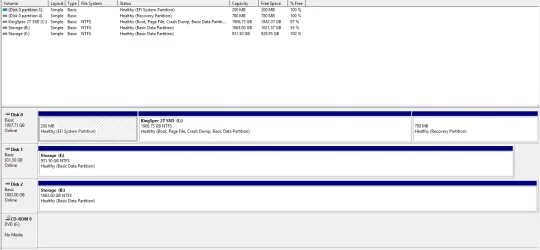
Good evening to all. I think I finally got my PC working properly. I ended up purchasing new drives. Took the old C: drive and wiped it after removing any necessary files, and am using it as my E: drive (storage). I have a new HDD drive that is designated as storage also, and designated it B: drive. I took the old storage drive and removed all pertinent files and folders, then wiped it clean and removed all partitions. My only major task is to go through my B: drive and remove all duplicate photos, documents, videos etc.
Can anyone recommend a good duplicate file finder app?
 

Attachments

  • Disk Management 2026-05-27 184301.webp
    Disk Management 2026-05-27 184301.webp
    51.7 KB · Views: 2

My Computer

System One

  • OS
    Windows 11 Pro (x64) Version 25H2 build 26200.8457
    Computer type
    PC/Desktop
    Manufacturer/Model
    custom built
    CPU
    Ryzen 5 5600X
    Motherboard
    Asus Prime X370-pro
    Memory
    G. Skill 4X8GB 288-pin SDRAM DDR4-3000
    Graphics Card(s)
    MSI GeForce GTX 1060 6GB
    Sound Card
    onboard
    Monitor(s) Displays
    Dual ViewSonic VG2753 Series [Monitor] (27.2"vis, October 2017)
    Screen Resolution
    1920 x 1080
    Hard Drives
    1T SSD (C:\); 2T spinner HDD partitioned into virtual drives; 250gb WD Blue SSD;
    PSU
    Seasonic Focus Plus SSR-650FX
    Case
    Cool Master Mastercase Pro 5
    Cooling
    Cryorig H7
    Keyboard
    Logitech wireless
    Mouse
    Logitech wireless
    Internet Speed
    1 Gb fiber optic AT&T
    Browser
    Opera
    Antivirus
    McAfee
    Other Info
    NordVPN installed
@bimfi

Now that's how Disk Management should look. :-)

You should mark your topic as solved (upper right), when you're done with it.
 

My Computers

System One System Two

  • OS
    Win 11 Home ♦♦♦26200.8457 ♦♦♦♦♦♦♦25H2
    Computer type
    PC/Desktop
    Manufacturer/Model
    Built by Ghot® [May 2020]
    CPU
    AMD Ryzen 7 3700X
    Motherboard
    Asus Pro WS X570-ACE (BIOS 5302)
    Memory
    G.Skill (F4-3200C14D-16GTZKW)
    Graphics Card(s)
    EVGA RTX 2070 (08G-P4-2171-KR)
    Sound Card
    Realtek ALC1220P / ALC S1220A
    Monitor(s) Displays
    Dell U3011 30"
    Screen Resolution
    2560 x 1600
    Hard Drives
    2x Samsung 860 EVO 500GB,
    WD 4TB Black FZBX - SATA III,
    WD 8TB Black FZBX - SATA III,
    DRW-24B1ST CD/DVD Burner
    PSU
    PC Power & Cooling 750W Quad EPS12V
    Case
    Cooler Master ATCS 840 Tower
    Cooling
    CM Hyper 212 EVO (push/pull)
    Keyboard
    Ducky DK9008 Shine II Blue LED
    Mouse
    Logitech Optical M-100
    Internet Speed
    300/300
    Browser
    Firefox (latest)
    Antivirus
    Bitdefender Total Security
    Other Info
    Speakers: Klipsch Pro Media 2.1
  • Operating System
    Windows XP Pro 32bit w/SP3
    Computer type
    PC/Desktop
    Manufacturer/Model
    Built by Ghot® (not in use)
    CPU
    AMD Athlon 64 X2 5000+ (OC'd @ 3.2Ghz)
    Motherboard
    ASUS M2N32-SLI Deluxe Wireless Edition
    Memory
    TWIN2X2048-6400C4DHX (2 x 1GB, DDR2 800)
    Graphics card(s)
    EVGA 256-P2-N758-TR GeForce 8600GT SSC
    Sound Card
    Onboard
    Monitor(s) Displays
    ViewSonic G90FB Black 19" Professional (CRT)
    Screen Resolution
    up to 2048 x 1536
    Hard Drives
    WD 36GB 10,000rpm Raptor SATA
    Seagate 80GB 7200rpm SATA
    Lite-On LTR-52246S CD/RW
    Lite-On LH-18A1P CD/DVD Burner
    PSU
    PC Power & Cooling Silencer 750 Quad EPS12V
    Case
    Generic Beige case, 80mm fans
    Cooling
    ZALMAN 9500A 92mm CPU Cooler
    Keyboard
    Logitech Classic Keybooard 200
    Mouse
    Logitech Optical M-BT96a
    Internet Speed
    300/300
    Browser
    Firefox 3.x ??
    Antivirus
    Symantec (Norton)
    Other Info
    Still assembled, still runs. Haven't turned it on for 15 years?
Probably too late for the OP but maybe will help someone in the future so i'll post this.

Same or similar issue on 3 machines, one old incompatible with Windows 11 Dell laptop and one old incompatible xps tower both on previously running Windows 11 Home up to date 11 by Rufus installation, and one xps 8940 compatible running Windows 11 Pro. Recovered without loss from 3 machines.

All machines failed boot, but I did not have to reinstall.

On the two incompatibles I pressed F2 during initial startup, made sure under the BOOT section of BIOS that USB boot option was before HDD boot option, placed a Rufus installation USB in the port, and restarted. It booted, recognized that there was a problem booting, and gave me the restore options. I chose to go back to a prior setpoint before the last update, and that took care of it. Neither machine now works well though. The laptop had a mechanical failure of the keyboard and mousepad, so i tossed it, but the hard drive was intact and i was able to extract everything i wanted by attaching it with a SATA to USB wire ($7 at Microcenter) to another machine using Diskgenius. The xps works but is ungodly slow. I cannot tell why, but it has only 8 GIG of memory so i assume it is that, or maybe it is trying to access something that is simply not present in that old a machine and has to time out before proceeding, or maybe the HDD is beginning to fail. I could go back to an even earlier prior setpoint on that one and play around, but it too is very old so i will salvage the data on the hard drive and donate the carcass to someone who will run Windows 10 on a newer HDD.

The compatible xps 8940 had the same issue, but after pressing F2 at initial startup and verifying the BOOT section of the BIOS, then restarting, it booted to recovery and i again restored to a prior setpoint. It sometimes throws the warning that model Dell does of over temp, but it works as it should now, although i will wonder if it too has a mechanical issue yet to be uncovered.
 

My Computers

System One System Two

  • OS
    Windows 11 Pro
    Computer type
    Laptop
    Manufacturer/Model
    Dell xps 17 9710
    Other Info
    Sandisk Extreme Portable USB backup with Macrium 8 free
  • Operating System
    Windows 11
    Computer type
    PC/Desktop
    Manufacturer/Model
    Dell xps 8940, 8950
Probably too late for the OP but maybe will help someone in the future so i'll post this.

Same or similar issue on 3 machines, one old incompatible with Windows 11 Dell laptop and one old incompatible xps tower both on previously running Windows 11 Home up to date 11 by Rufus installation, and one xps 8940 compatible running Windows 11 Pro. Recovered without loss from 3 machines.

All machines failed boot, but I did not have to reinstall.

On the two incompatibles I pressed F2 during initial startup, made sure under the BOOT section of BIOS that USB boot option was before HDD boot option, placed a Rufus installation USB in the port, and restarted. It booted, recognized that there was a problem booting, and gave me the restore options. I chose to go back to a prior setpoint before the last update, and that took care of it. Neither machine now works well though. The laptop had a mechanical failure of the keyboard and mousepad, so i tossed it, but the hard drive was intact and i was able to extract everything i wanted by attaching it with a SATA to USB wire ($7 at Microcenter) to another machine using Diskgenius. The xps works but is ungodly slow. I cannot tell why, but it has only 8 GIG of memory so i assume it is that, or maybe it is trying to access something that is simply not present in that old a machine and has to time out before proceeding, or maybe the HDD is beginning to fail. I could go back to an even earlier prior setpoint on that one and play around, but it too is very old so i will salvage the data on the hard drive and donate the carcass to someone who will run Windows 10 on a newer HDD.

The compatible xps 8940 had the same issue, but after pressing F2 at initial startup and verifying the BOOT section of the BIOS, then restarting, it booted to recovery and i again restored to a prior setpoint. It sometimes throws the warning that model Dell does of over temp, but it works as it should now, although i will wonder if it too has a mechanical issue yet to be uncovered.
Yes, I believe if I had this info, I probably could have saved a lot of time. Thanks for the post. I will definitely keep this post on file! 👍
 

My Computer

System One

  • OS
    Windows 11 Pro (x64) Version 25H2 build 26200.8457
    Computer type
    PC/Desktop
    Manufacturer/Model
    custom built
    CPU
    Ryzen 5 5600X
    Motherboard
    Asus Prime X370-pro
    Memory
    G. Skill 4X8GB 288-pin SDRAM DDR4-3000
    Graphics Card(s)
    MSI GeForce GTX 1060 6GB
    Sound Card
    onboard
    Monitor(s) Displays
    Dual ViewSonic VG2753 Series [Monitor] (27.2"vis, October 2017)
    Screen Resolution
    1920 x 1080
    Hard Drives
    1T SSD (C:\); 2T spinner HDD partitioned into virtual drives; 250gb WD Blue SSD;
    PSU
    Seasonic Focus Plus SSR-650FX
    Case
    Cool Master Mastercase Pro 5
    Cooling
    Cryorig H7
    Keyboard
    Logitech wireless
    Mouse
    Logitech wireless
    Internet Speed
    1 Gb fiber optic AT&T
    Browser
    Opera
    Antivirus
    McAfee
    Other Info
    NordVPN installed
Can anyone recommend a good duplicate file finder app?
Alldup
Can de-duplicate by
- file name
- file type
- file size
- file contents

Also
- Awesome Duplicate Photo Finder
- Glary Utilities
 

My Computers

System One System Two

  • OS
    Windows 11 2xH2 (latest update ... forever anal)
    Computer type
    PC/Desktop
    Manufacturer/Model
    HP Slim S01
    CPU
    Intel i5-12400
    Memory
    8GB
    Graphics Card(s)
    NVIDIA GeForce GT730
    Sound Card
    OOBE
    Monitor(s) Displays
    Acer 32"
    Screen Resolution
    1920x1080
    Hard Drives
    512GB KIOXIA NVMe
    1TB SATA SSD
    PSU
    OOBE
    Case
    OOBE
    Cooling
    OOBE
    Keyboard
    BT
    Mouse
    BT
    Browser
    Brave FFox Chrome Opera
    Antivirus
    KIS
  • Operating System
    Windows 11 Pro 2xH2 (latest update ... 4ever anal)
    Computer type
    Laptop
    Manufacturer/Model
    HP Pavillion 15
    CPU
    i7-1165G7 @ 2.80GHz
    Graphics card(s)
    Intel Iris Xe Graphics
    Hard Drives
    Samsung NVMe 512GB
    + numerous/multiple SSD Type C USB enclosures
    Internet Speed
    NBN FTTN 50
    Browser
    Brave
    Antivirus
    KIS
Alldup
Can de-duplicate by
- file name
- file type
- file size
- file contents

Also
- Awesome Duplicate Photo Finder
- Glary Utilities
Thanks! Will check them out 👍
 

My Computer

System One

  • OS
    Windows 11 Pro (x64) Version 25H2 build 26200.8457
    Computer type
    PC/Desktop
    Manufacturer/Model
    custom built
    CPU
    Ryzen 5 5600X
    Motherboard
    Asus Prime X370-pro
    Memory
    G. Skill 4X8GB 288-pin SDRAM DDR4-3000
    Graphics Card(s)
    MSI GeForce GTX 1060 6GB
    Sound Card
    onboard
    Monitor(s) Displays
    Dual ViewSonic VG2753 Series [Monitor] (27.2"vis, October 2017)
    Screen Resolution
    1920 x 1080
    Hard Drives
    1T SSD (C:\); 2T spinner HDD partitioned into virtual drives; 250gb WD Blue SSD;
    PSU
    Seasonic Focus Plus SSR-650FX
    Case
    Cool Master Mastercase Pro 5
    Cooling
    Cryorig H7
    Keyboard
    Logitech wireless
    Mouse
    Logitech wireless
    Internet Speed
    1 Gb fiber optic AT&T
    Browser
    Opera
    Antivirus
    McAfee
    Other Info
    NordVPN installed

Latest Support Threads

Back
Top Bottom