Windows Admin Center Blog:
We’ve been working on something big, and now we’d like to share it with you and get your feedback before we release to general availability. The time has come—we’ve combined Windows Admin Center: Administration Mode (aMode) and Windows Admin Center: Virtualization Mode (vMode) into a single installer. Only one mode can be selected per installation, and we don’t support having both modes installed on the same machine.
New features in vMode now available include Azure Arc onboarding, backup and restore, certificate lifecycle management, and more. As with all our releases, we’ve also made bugfixes to improve your overall experience.
Thank you to our customers, partners, and fans for helping us to continue to improve and make Windows Admin Center better! Download the preview build today and leave us feedback on our GitHub.
What’s new in Windows Admin Center 2610 (preview)
Platform
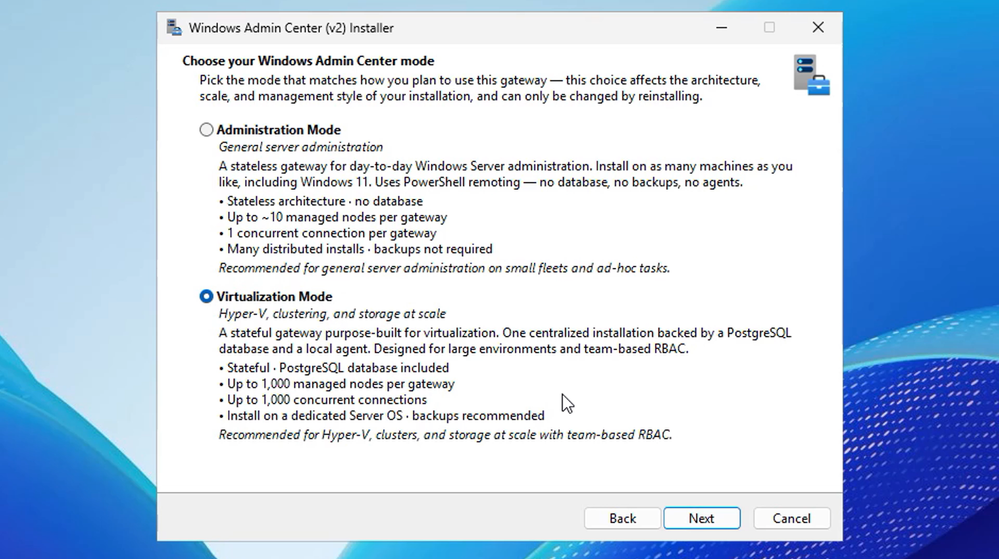
Combined mode installer
Windows Admin Center now provides a unified installer experience for both Administration Mode (aMode) and Virtualization Mode (vMode). Administrators can deploy and configure their preferred management mode from a single installation workflow, reducing setup complexity and streamlining deployment.- Simplified installation experience with a single installer
- Faster deployment and onboarding for new environments
- Reduced administrative overhead when evaluating or adopting vMode
- Consistent setup and configuration workflow across Windows Admin Center management experiences
New Azure registration experience
With this release, we’ve redesigned the gateway Azure registration experience. It’s now easier than ever to connect Windows Admin Center to Azure with just a few clicks. We’ve reduced the setup friction by requesting only the permissions needed for the current user and registration task. This new flow does not require tenant-level administrator consent, so teams no longer need to coordinate with a highly privileged tenant administrator before getting started. Administrators can further restrict who can perform Azure operations in Windows Admin Center by assigning appropriate permissions through Azure role-based access control (Azure RBAC).Access this new experience by navigating to your Windows Admin Center gateway settings and selecting the Register tab.
Key bug fixes
- Fixed an issue where the installer was failing with “RegCreateKeyEx failed, code 5” (reported in the comments of the last generally available Windows Admin Center release)
Virtualization mode
Haven't been following Windows Admin Center: Virtualization Mode? Read our blog series, documentation, and be sure to check out the release notes for our previous previews before you get started.Update on the VM Conversion tool
Microsoft is aware of a change Broadcom has made affecting the availability of the VMware Virtual Disk Development Kit (VDDK) package required by the preview VM Conversion extension in Windows Admin Center. We are actively evaluating options to continue supporting customers desire to migrate away from Broadcom. However, at this time we do not have an alternative available and would recommend customers discontinue evaluation of the preview VM Conversion tool until we can provide an update. As the options under evaluation all require significant rework of the extension’s implementation, we have removed the extension from the extension feed. Customers who need to proceed with migrations can consider System Center Virtual Machine Manager (SCVMM) for migrations to Windows Server with Hyper-V, or Azure Migrate (agent-based) for migrations to Azure.We hope to provide you with another update soon.
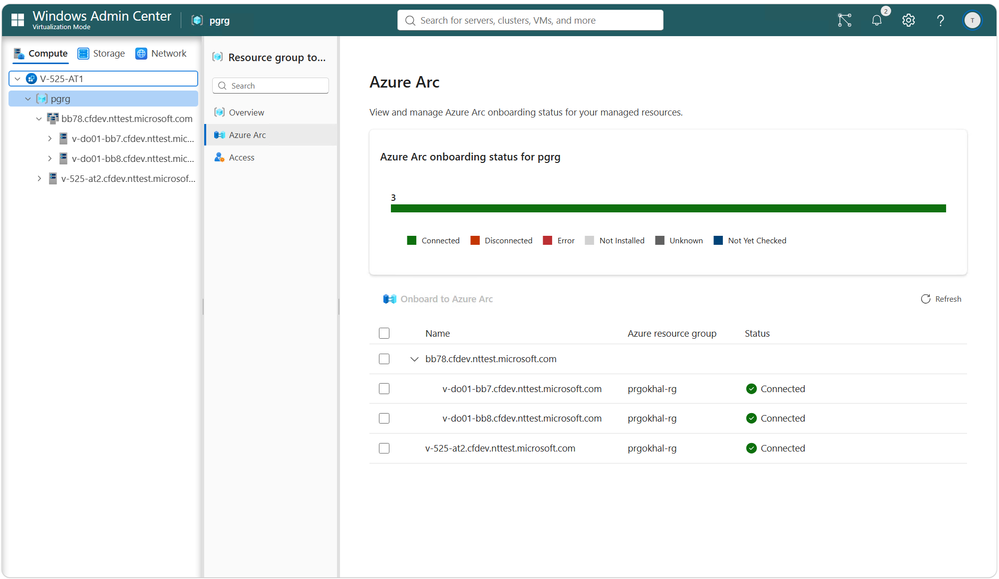
Azure Arc onboarding
Connecting your virtualization environment to Azure is now easier than ever. vMode provides a streamlined Azure Arc onboarding experience that helps administrators quickly register and connect their infrastructure to Azure while minimizing setup complexity.By onboarding through Azure Arc, organizations can extend their hybrid management capabilities, gain greater visibility into their infrastructure, and take advantage of Azure-powered services and experiences directly from their connected environment.
Key benefits:
- Faster onboarding to Azure Arc
- Simplified hybrid infrastructure management
- Enhanced visibility across on-premises and Azure resources
- Access to Azure-integrated management and operational services
Add resource
Networking improvements
We've made several improvements to the networking experience in vMode to make it easier to configure, validate, and troubleshoot networking when adding resources.Improved network intent status visibility
The Networking page in the Add Resource workflow now displays the status of existing network intents detected on your hosts. You can review intent health, identify configuration issues earlier in the onboarding process, and troubleshoot intents that need attention.
Refresh networking state without restarting the workflow
If you make networking changes directly on a host while adding a resource, you can now refresh the Networking page to retrieve the latest configuration without exiting and restarting the Add Resource workflow. This makes it easier to resolve networking issues and continue onboarding from where you left off.
Storage VLAN override support
Storage network intent templates now support storage VLAN overrides, giving you more flexibility when configuring storage networks that require VLAN settings that differ from the defaults defined by the intent template.
More flexibility for external storage deployments
The Add Resource workflow no longer requires a storage intent for deployments using external storage. Customers who rely on dedicated storage networking can continue to configure storage intents as needed, while external storage deployments can onboard without configuring a storage intent.
Improved networking diagnostics
We’ve also made it easier to troubleshoot networking issues by including Network ATC Event Logs in vMode Agent logs, providing additional diagnostic information when investigating network intent configuration or validation issues.
Resume/retry functionality
After you begin adding a resource to be managed through vMode, transient issues like loss of connectivity or configuration changes can cause your workflow to fail. Previously, we required you to clean up the workflow and completely restart, going through the Add Resource wizard again. Now, we’ve added the ability to resume workflow steps (in the case of service disruption) and retry steps have failed, as long as rerunning the step won’t disrupt anything else in the wizard.As part of workflow feature expansion work, we’ve also made two changes to our deployment process. When you begin to deploy your machine to vMode, it will immediately be added to the navigation hierarchy. If you select your object before it’s ready, you’ll be able to see the status of its deployment, similar to how it appears in the workflow status pane. That way if you don’t make it back to the workflow for a while, you’ll know where to find the information you need to get started or rectify any issues if they occur during deployment.
Backup and restore
Protect and recover your vMode environment with built-in backup and restore capabilities. Backup packages capture critical vMode management data, including virtualization inventory, cluster metadata, gateway configuration, certificates, RBAC settings, templates, and operational state, helping ensure business continuity and disaster recovery readiness.With restore support, administrators can recover a vMode deployment after infrastructure failures, configuration errors, or migration scenarios. Restored environments retain key management settings and virtualization metadata, reducing recovery time and simplifying operational continuity.
Certificate lifecycle management
vMode uses certificates to help secure communication and establish trust between the Windows Admin Center gateway and managed hosts. Self-signed certificates are a great fit for testing because they can be generated quickly without requiring an existing certificate authority or PKI configuration. This makes it easier to evaluate vMode deployment workflows and validate connectivity in non-production environments.For production environments, however, we now support managing vMode certificates through Active Directory Certificate Services (AD CS) for stronger governance and scalability. Centralized issuance and certificate templates help administrators control certificate configuration and align deployments with existing PKI policies. AD CS also integrates certificates with the organization’s established trust infrastructure. Automated renewal and consistent lifecycle management improve auditing and reduce the risk of service interruptions caused by expired certificates.
To configure your Windows Admin Center gateway to manage certificates using AD CS, navigate to your gateway settings and select the Certificates tab.
Detailed documentation on how to configure certificate templates for use with autorenewal is coming soon.
Live migration
Live migration is a critical virtualization capability that allows a running virtual machine to move from one physical host to another with little or no downtime. This enables administrators to perform hardware maintenance, apply updates, balance workloads, and respond to failures without disrupting applications or users. By eliminating the need to shut down VMs during these operations, live migration improves availability and helps organizations meet business continuity and service-level objectives. It is a foundational technology for highly available and flexible virtualized environments.Making the live migration experience in the virtual machines tool aware of your vMode managed machines is a small step towards making your virtualization management experience easier than ever. To try it out, navigate to the Virtual Machines tool, select a VM, and then select Manage > Move.
Key bug fixes
- The GPU tool is now available in vMode
- Improved agent logging
- Agent health indicators are now visible in navigation hierarchy
Other improvements
New SDK—now with React support
The Windows Admin Center SDK has been updated to version 6.0.0! This new version features two major updates: commands for upgrading existing Windows Admin Center extensions to Angular 20 as well as commands for creating and testing React-based Windows Admin Center extensions. The documentation for preparing your development environment and creating a tool extension has been updated to reflect these changes.Known issues
The following issues about this build are known and actively being addressed:- [vMode] The Azure Arc-enabled status table may appear inaccurate when collapsed.
- [vMode] Some links within tool extensions may redirect you to an aMode interface.
- [both modes] When performing VM live migration, the operation may fail if the source and target nodes have different authentication methods.
Davanna and the Windows Admin Center team
Source:
Two modes combined: Windows Admin Center version 2610 is now in public preview! | Microsoft Community Hub
We’ve been working on something big, and now we’d like to share it with you and get your feedback before we release to general availability. The time has...
 techcommunity.microsoft.com