BogdanCristianS
New member
- Local time
- 10:49 PM
- Posts
- 9
- OS
- Windows 11
Hello,
2 days ago, my work computer updated to KB5067036. Before I left, I gave it a shutdown and update, but I stayed to see what happened, it restarted and started Automatic Repair automatically, but it resulted in the message "Automatic Repair couldn't repair your PC". I tried several times in RE startup repair, but it showed me the same message, I tried "uninstall updates", but it showed me the message: "you have pending update actions... try running startup repair instead. I tried system restore, I saw that it made a backup right at the time it downloaded and installed the update, but without success: " System restore failed while scanning the file system".
Since then I've been struggling to fix it. I have tried sfc /scannow, bootrec fixmbr, fixboot, dism offline. I also tried a few utilities from a copy of Hirens Boot Cd, nothing works. Now it doesn't even enter the Recovery Environment, I had a BSOD related to ntoskrnl.exe at one point, but now I have a BSOD related to winload.efi. I read somewhere on the forum that it would be possible to create a wim image from that restore point/shadow copy and apply the image with dism, but I don't know exactly how to do this.
Now let me tell you configuration:
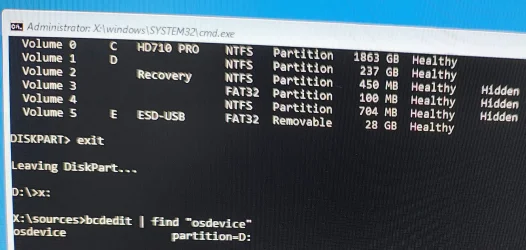
At the time of the update I had 1 SSD with a partition (C:) where I had Windows 11, and a 2TB hdd with a single partition (E:)
What seemed strange to me, after that update, automatic repair appeared to save the log in partition E: and system restore also told me that the system files were in partition E:. I tried to change the partition letters with diskpart to reverse them as they were normally, but without success, then I used a partitioning utility on a usb, I think paragon and I reversed the letters as they should be, but it didn't help at all.
Has anyone else experienced this? And if you have any ideas how I could fix it, I really don't want to do a new installation. Of course I will give more details and attach everything needed. Thank you!
2 days ago, my work computer updated to KB5067036. Before I left, I gave it a shutdown and update, but I stayed to see what happened, it restarted and started Automatic Repair automatically, but it resulted in the message "Automatic Repair couldn't repair your PC". I tried several times in RE startup repair, but it showed me the same message, I tried "uninstall updates", but it showed me the message: "you have pending update actions... try running startup repair instead. I tried system restore, I saw that it made a backup right at the time it downloaded and installed the update, but without success: " System restore failed while scanning the file system".
Since then I've been struggling to fix it. I have tried sfc /scannow, bootrec fixmbr, fixboot, dism offline. I also tried a few utilities from a copy of Hirens Boot Cd, nothing works. Now it doesn't even enter the Recovery Environment, I had a BSOD related to ntoskrnl.exe at one point, but now I have a BSOD related to winload.efi. I read somewhere on the forum that it would be possible to create a wim image from that restore point/shadow copy and apply the image with dism, but I don't know exactly how to do this.
Now let me tell you configuration:
At the time of the update I had 1 SSD with a partition (C:) where I had Windows 11, and a 2TB hdd with a single partition (E:)
What seemed strange to me, after that update, automatic repair appeared to save the log in partition E: and system restore also told me that the system files were in partition E:. I tried to change the partition letters with diskpart to reverse them as they were normally, but without success, then I used a partitioning utility on a usb, I think paragon and I reversed the letters as they should be, but it didn't help at all.
Has anyone else experienced this? And if you have any ideas how I could fix it, I really don't want to do a new installation. Of course I will give more details and attach everything needed. Thank you!
My Computer
At a glance
Windows 11
- OS
- Windows 11
- Computer type
- PC/Desktop