Access Blog:
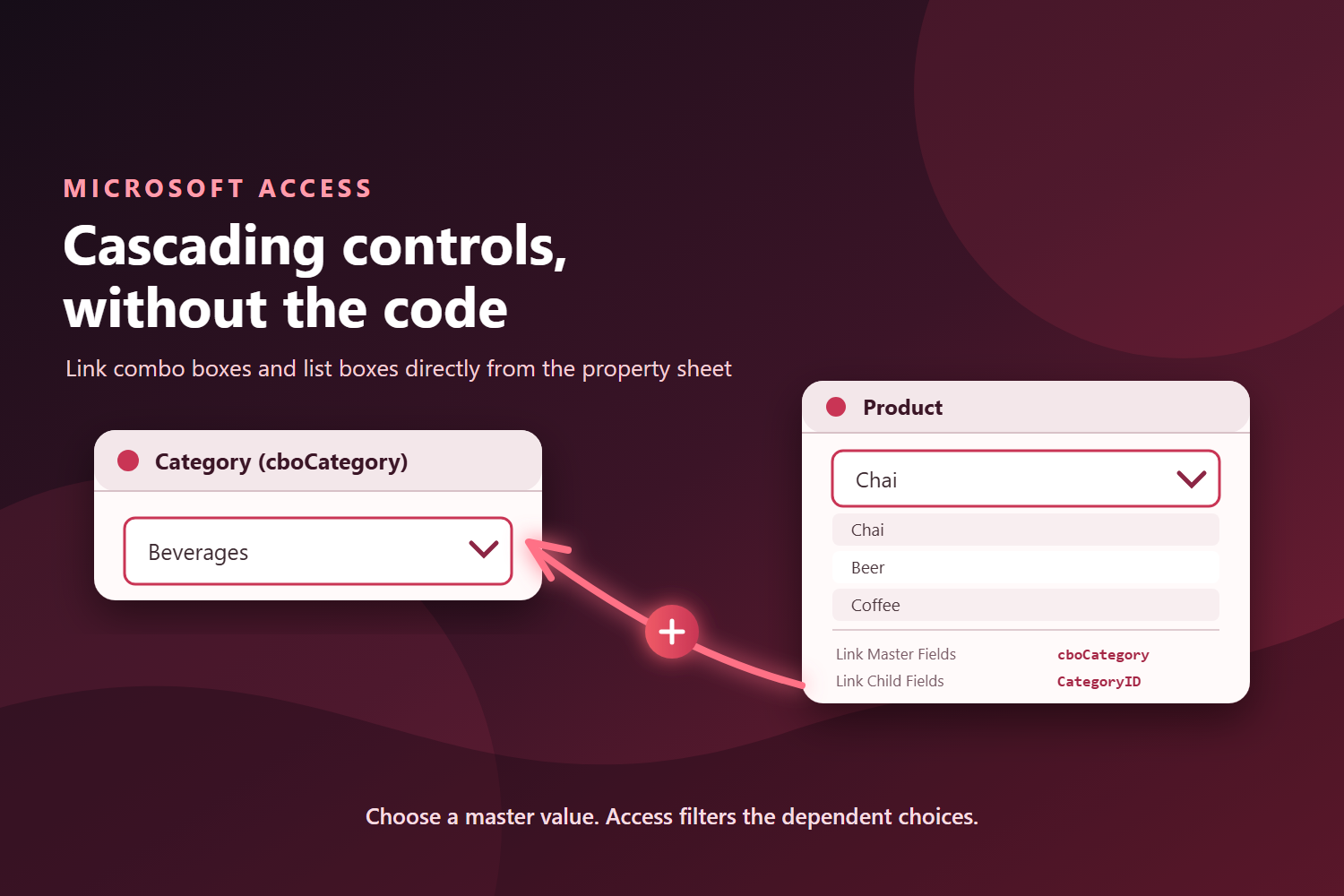
Choosing a value in one control often determines what should appear in another. Select a country, and the city list should show only cities in that country. Select a product category, and the product list should show only products in that category. Access developers commonly call these cascading controls. Until now, building them with combo boxes or list boxes usually required VBA, macros, or manually constructed queries that requery the dependent control whenever the master value changes. Access now exposes Link Master Fields and Link Child Fields properties for combo boxes and list boxes. These are the same familiar concepts used to link subforms, now available directly on list controls.
A simpler way to filter related choices
The two properties define how values on the form relate to fields in the control's row source:- Link Master Fields identifies the field or control on the form that supplies the value.
- Link Child Fields identifies the matching field in the combo box or list box row source.
Example: Filter products by category
Suppose an order form contains:- cboCategory, where the user selects a product category.
- cboProduct, where the user selects a product.
SELECT ProductID, ProductName, CategoryID FROM Products ORDER BY ProductName;
Set these properties on cboProduct:
Property | Value |
|---|---|
| Row Source | The product query shown above |
| Link Master Fields | cboCategory |
| Link Child Fields | CategoryID |
After the user selects a category, cboProduct shows only products whose CategoryID matches cboCategory.
The child field does not have to be visible in the dropdown. It only needs to be included in the row source so Access can use it for filtering.
Use the same approach with list boxes
The properties work the same way for list boxes. This makes it easier to build:- Category and product selectors.
- Country, region, and city pickers.
- Customer and order lists.
- Project and task selectors.
- Any form where one set of choices depends on another.
Link more than one field
For relationships that use multiple fields, enter comma-separated field or control names in both properties. The fields are matched by position:Link Master Fields: CompanyID, LocationID Link Child Fields: CompanyID, LocationID
The two lists must contain the same number of entries, and corresponding fields must use compatible data types.
Why this is useful
Using built-in linking instead of event code has several advantages:- Less code: No AfterUpdate handler is required for routine cascading behavior.
- Clearer design: The relationship is visible in the property sheet.
- Better reuse: Controls carry their linking configuration with them.
- Consistent behavior: Access manages refreshing and filtering as records change.
- Continuous-form support: Dependent combo boxes and list boxes can filter independently for each visible record.
Try it
Open a form in Design View, select a combo box or list box, and look on the Data tab of the property sheet for Link Master Fields and Link Child Fields.Start with a simple one-field relationship, make sure the child field is included in the dependent control's row source, and let Access handle the filtering.
Availability
This feature is included in Microsoft Access Version 2609 (Build 20430.20092), now available in Current Channel. The build and the feature are both rolling out gradually, so you may not see them immediately. You can select Update Now to install the latest Current Channel build sooner; after updating, the feature may still take additional time to become available as its rollout expands. Source:
Create cascading combo boxes and list boxes in Access - without VBA | Microsoft Community Hub
A simpler way to filter related choices The two properties define how values on the form relate to fields in the control's row source: Link Master Fields...
 techcommunity.microsoft.com