Microsoft 365 Insider Blog:
I’m excited to announce that you can share direct cloud links to specific locations within a document in Microsoft Word for Windows and for Mac.
What’s new
If you work on long, complex documents, you’ve probably experienced the frustration of telling a teammate, “See the section halfway down page 47” and waiting while they scroll to find the right content.With the ability to link to a location, you can take collaborators exactly where they need to go. Just create a shareable link to a specific part of the document, and when someone opens the link, they’ll land exactly where you intended.
Why it matters
This feature provides benefits such as:- Helping teams edit and discuss content more efficiently.
- Speeding up the process of reviewing and resolving feedback.
- Making navigation to specific content smoother.
- Communicating clearly to collaborators the areas that need feedback.
- Keeping teams aligned without constant back-and-forth.
How it works
- Open a Word document on your Windows or Mac device.
- Select the content where you want to create a link.
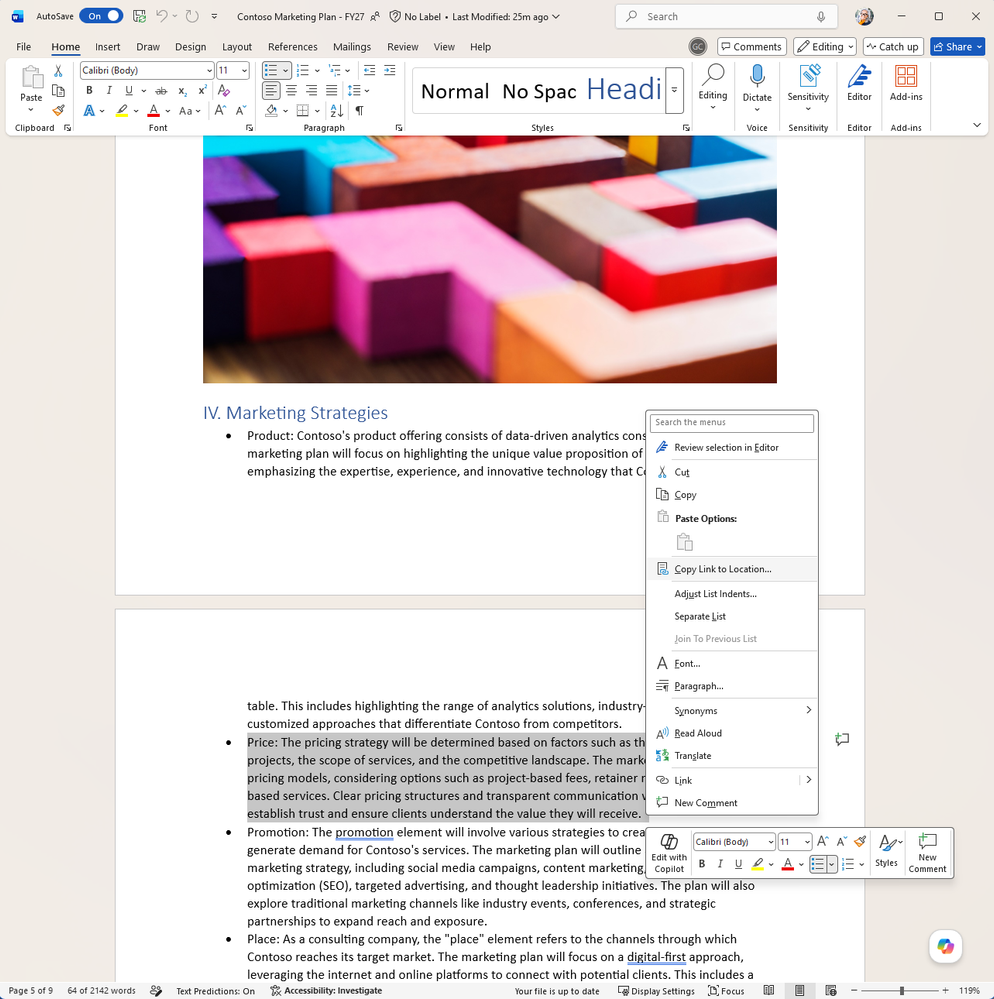
- Right-click on the selection to open the context menu, then select Copy Link to Location.
A link will be generated, and you can now copy and share this with others!
When they open the link, they’ll go directly to the selected content in their preferred Word document experience (web or desktop).
Availability
This feature is available to Word users running:- Windows: Version 2605 (Build 20011.20000) or later.
- Mac: Version 16.109 (Build 26051019) or later.
Feedback
We’d love to hear what you think of this update! From the Help tab at the top of your Word app, select Feedback and include #LinkToLocation in your feedback description. Source:
Link to a location in Word for Windows and Mac
You can share direct cloud links to specific locations within a document in Microsoft Word for Windows and for Mac for easy navigation.
 techcommunity.microsoft.com