Microsoft 365 Insider Blog:
PowerPoint Live now gives presenters more ways to personalize and control their presentation experience with:
- light, dark, and high contrast modes
- up and down arrow key slide navigation
- a resizable Notes pane
What’s new
Previously, PowerPoint Live offered fewer options for customizing your presentation experience. Navigation controls were more limited, and the Notes pane always occupied valuable screen space even when you didn't need it.These updates make the PowerPoint Live experience more flexible and personalized. PowerPoint Live now supports light, dark, and high contrast modes, so you can choose the viewing experience that works best for your preferences, environment, and accessibility needs. Up and down arrow keys and Page Up and Page Down keys let you navigate slides using familiar keyboard commands and compatible presentation devices anywhere in the experience. Lastly, the resizable Notes pane lets you expand it when you need more room to read, make it smaller when you need more space for your slides, or collapse it completely when you don’t have notes to reference. Together, these improvements help PowerPoint Live adapt to your workflow, make for fewer distractions, and create a more personalized way to present.
How it works
How to select a theme
- Select the three dots (...) next to your profile picture in Teams.
- Settings > Appearance. Then, choose Light, Dark, Classic, or High contrast.

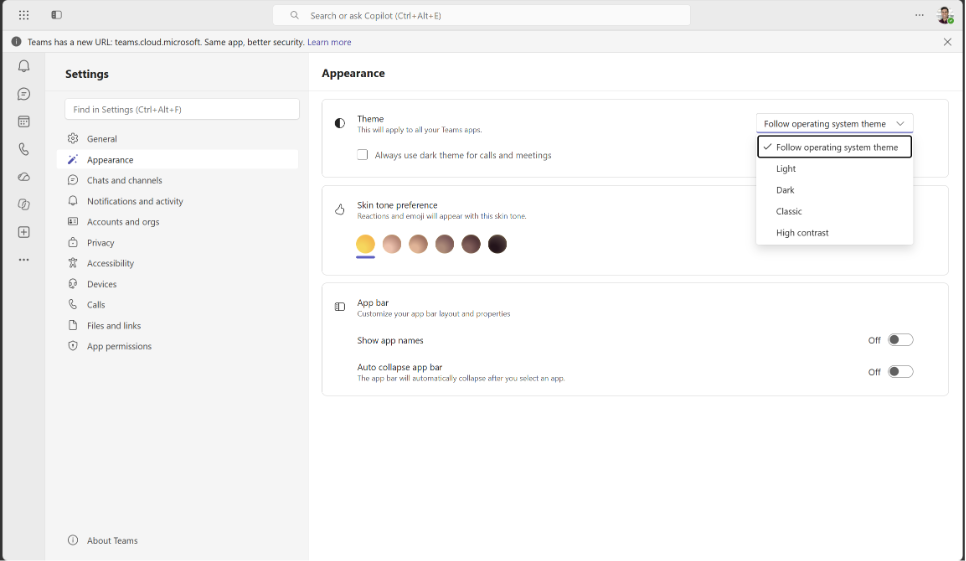
When you begin presenting with PowerPoint Live, your theme will appear as selected.
How to navigate with up and down arrow keys or Page Up / Page Down keys
- Start presenting your slides with PowerPoint Live.
- Press the down arrow key or Page Down key on your keyboard to advance through the presentation, and the up arrow key or the Page Up key to return to the previous slide.
How to resize or collapse the Notes pane
- Start presenting with PowerPoint Live, and hover over the divider between the slide and the Notes pane to reveal the resize cursor.
- Drag the divider to make the Notes pane larger or smaller, or drag it toward the right edge of the screen to collapse it.
- When the Notes pane is collapsed, click the arrow or drag the resize handle to reopen it.
Availability
Features covered in this blog roll out over time to enable us to monitor quality and performance, so some features may not be available to you right away.Feedback
We’d love to hear from you! To provide feedback on these changes, select … in the top-right corner of Teams while in a Teams meeting, then select Report a problem. For category, select Meetings - PowerPoint Live, then describe your feedback or issue and hit submit. Source:
Personalize PowerPoint Live with Theme, Navigation, and Notes pane controls | Microsoft Community Hub
PowerPoint Live now gives presenters more ways to personalize and control their presentation experience with: light, dark, and high contrast modes up and...
 techcommunity.microsoft.com