Microsoft 365 Insider Blog:
We’re excited to announce the rollout of Test mic and speaker in Microsoft Teams — a new, pre-join experience designed to help you confirm your audio setup before entering a meeting.
What’s new
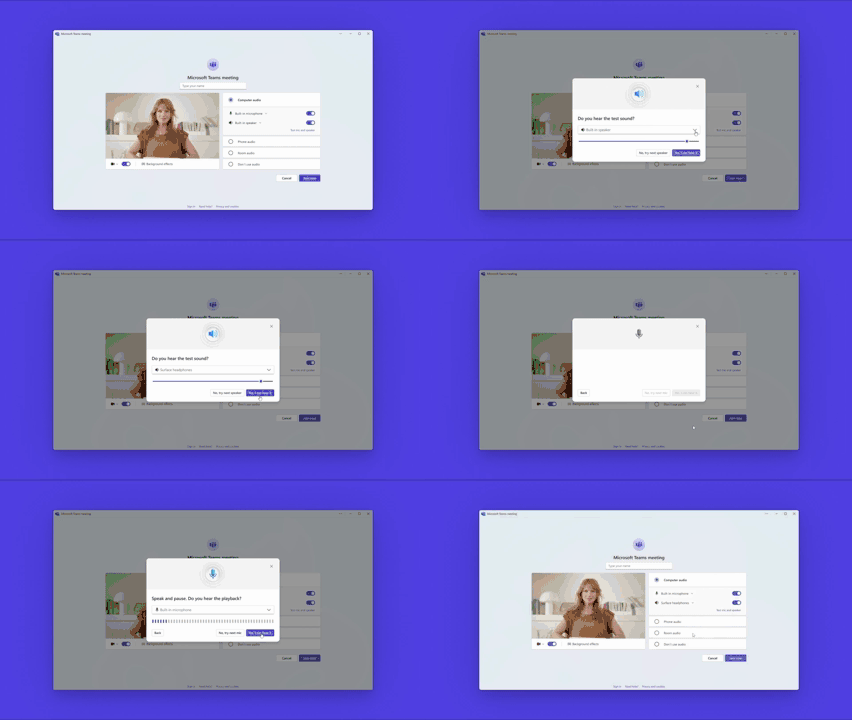
With this release, you can now test your microphone and speakers directly from the pre-join screen. The feature provides a simple, guided flow to ensure devices are working as expected before joining the call.The experience includes:
- Speaker test: plays an audio tone to confirm sound is coming through the selected device
- Microphone test: records a short sample and plays it back so you can verify you can be heard
- Summary view: confirms whether both devices are functioning correctly
Why this matters
Audio issues remain one of the most common pain points in online meetings. Testing devices ahead of time helps avoid interruptions and improves overall meeting quality.This feature is designed to:
- Reduce in-meeting troubleshooting by catching issues early
- Improve confidence before joining, especially for new users or complex device setups
- Minimize one-way audio scenarios, a key driver of poor meeting experiences
How it works
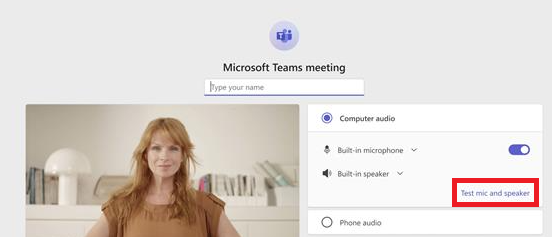
- Select a meeting to join, and you’ll enter the pre-join screen.
- Select Test mic and speaker under Computer audio.
- Follow the guided steps to check audio output and input.
Availability
The Test mic and speaker feature is rolling out to users across desktop experiences, with additional platform support following.Looking ahead
This release is part of our broader investment in audio/video reliability and meeting readiness. By helping users resolve issues before they join, we’re making meetings more predictable, efficient, and frustration-free.Feedback
Your feedback helps us continue improving meetings for everyone! Share your thoughts and your experience by selecting Help > Give feedback. Source:
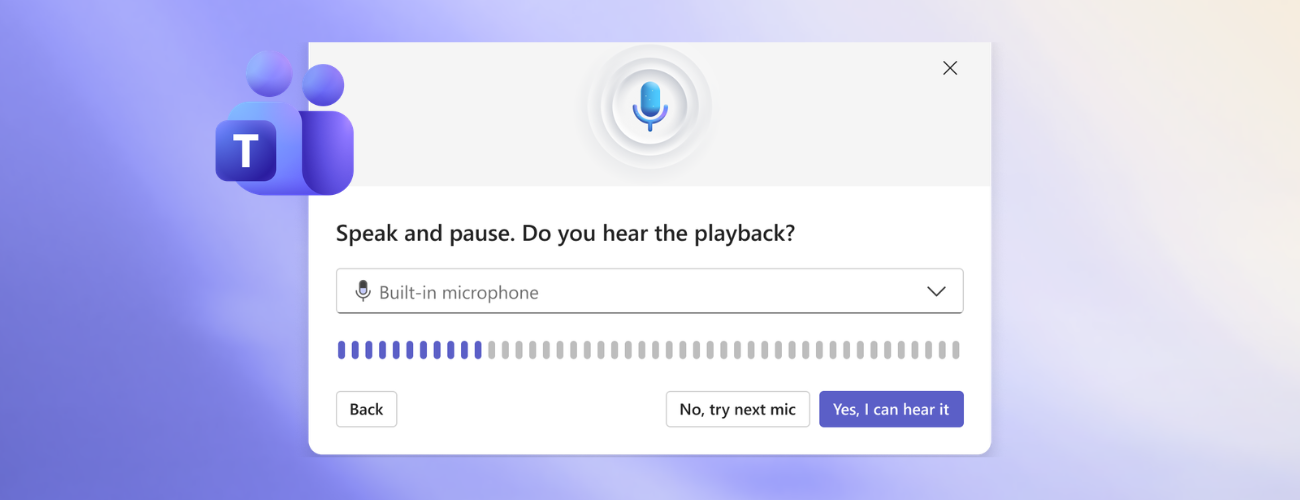
Test your audio before joining a Teams meeting
You can now test your microphone and speakers from the pre-join screen to ensure devices are working as expected before joining a Microsoft Teams call.
 techcommunity.microsoft.com