2 Boot records in Windows ?


sfleury

Well-known member
Member
Local time
6:21 AM
Posts
38
OS
Windows 11 Professional
Hello
After a repair of an unbootable Windows 11 system ( with the command bcdboot i:\Windows /s i: /f all
it seems that now, at the BIOS level, I have 2 boot records that boo to the same Windows !
Is that normal ? Could I suppress one of them ? If the answer is "Yes", how should I proceed ?

Thanks for any help Have a good day
 
Windows Build/Version
23H2

My Computer

System One

  • OS
    Windows 11 Professional
    Computer type
    PC/Desktop
    Manufacturer/Model
    Custom built
    CPU
    Intel Core i5-8600K CPU @ 3.60GHz Famille
    Motherboard
    ASUSTeK COMPUTER INC. ROG STRIX Z370-E GAMING (LGA1151)
    Memory
    DDR4 32768 Mo
    Graphics Card(s)
    NVIDIA GeForce GTX 1050 Ti
    Sound Card
    None
    Monitor(s) Displays
    NEC X223HQ on NVIDIA GeForce GTX 1050 Ti and ACER EA243WM on NVIDIA GeForce GTX 1050 Ti
    Screen Resolution
    1920x1080
    Hard Drives
    System on EMTEC X150 960GB (SSD) and additional HDD
Can you post screenshot of Disk Manager?
 

My Computer

System One

  • OS
    Windows 11
    Computer type
    PC/Desktop
    Manufacturer/Model
    HP Pavilion
    CPU
    AMD Ryzen 7 5700G
    Motherboard
    Erica6
    Memory
    Micron Technology DDR4-3200 16GB
    Graphics Card(s)
    NVIDIA GeForce RTX 3060
    Sound Card
    Realtek ALC671
    Monitor(s) Displays
    Samsung SyncMaster U28E590
    Screen Resolution
    3840 x 2160
    Hard Drives
    SAMSUNG MZVLQ1T0HALB-000H1
bcdboot i:\Windows /s i: /f all

The command bcdboot i:\Windows /s i: /f all copies both UEFI and BIOS boot files (/f all) from the Windows installation at i:\Windows to the target system partition i: (/s i:) and creates a new Boot Configuration Data (BCD) store there.

BCDBOOT <source> [/s <volume letter> [/f <firmware type>]]

- On a GPT disk, the system partition is the EFI system partition.
- On an MBR disk, the system partition is the active partition on the primary disk, either the System Reserved partition or the Windows partition.

Edit:

The command bcdboot i:\Windows /s i: /f all does not work on a UEFI system.

The following command works on a UEFI system:

bcdboot x:\windows /s z: /f uefi

- replace "x" with the Windows partition letter
- /s z: refers to the EFI partition you assigned previously
 
Last edited:

My Computers

System One System Two

  • OS
    Windows 11 Pro
    Computer type
    PC/Desktop
    CPU
    AMD Ryzen 9 9950X3D
    Motherboard
    ASRock B650E Taichi Lite
    Memory
    Kingston FURY Beast 64GB (2x32GB) DDR5 6000MT/s
    Graphics Card(s)
    ASUS TUF Gaming Radeon RX 9070 OC Edition 16GB GDDR6
    Hard Drives
    Solidigm P44 Pro 2TB M.2 NVMe SSD
  • Operating System
    Windows 11 Home
    Computer type
    Laptop
    Manufacturer/Model
    Lenovo Legion Pro 7i Gen 10 16"
    CPU
    Intel Core Ultra 9 275HX
    Memory
    64GB (2x 32GB) DDR5-6400
    Graphics card(s)
    NVIDIA GeForce RTX 5080 16GB GDDR7 Laptop GPU
    Hard Drives
    2x 1TB M.2 NVMe SSD (SK Hynix)
So it c reates a NEW boot record
But can I dele te one of them (to avoid confusion later) and have a "clean" disk ?
Thanks
 

My Computer

System One

  • OS
    Windows 11 Professional
    Computer type
    PC/Desktop
    Manufacturer/Model
    Custom built
    CPU
    Intel Core i5-8600K CPU @ 3.60GHz Famille
    Motherboard
    ASUSTeK COMPUTER INC. ROG STRIX Z370-E GAMING (LGA1151)
    Memory
    DDR4 32768 Mo
    Graphics Card(s)
    NVIDIA GeForce GTX 1050 Ti
    Sound Card
    None
    Monitor(s) Displays
    NEC X223HQ on NVIDIA GeForce GTX 1050 Ti and ACER EA243WM on NVIDIA GeForce GTX 1050 Ti
    Screen Resolution
    1920x1080
    Hard Drives
    System on EMTEC X150 960GB (SSD) and additional HDD

As FreeBooter mentioned: Can you post screenshot of Disk Management?
 

My Computers

System One System Two

  • OS
    Windows 11 Pro
    Computer type
    PC/Desktop
    CPU
    AMD Ryzen 9 9950X3D
    Motherboard
    ASRock B650E Taichi Lite
    Memory
    Kingston FURY Beast 64GB (2x32GB) DDR5 6000MT/s
    Graphics Card(s)
    ASUS TUF Gaming Radeon RX 9070 OC Edition 16GB GDDR6
    Hard Drives
    Solidigm P44 Pro 2TB M.2 NVMe SSD
  • Operating System
    Windows 11 Home
    Computer type
    Laptop
    Manufacturer/Model
    Lenovo Legion Pro 7i Gen 10 16"
    CPU
    Intel Core Ultra 9 275HX
    Memory
    64GB (2x 32GB) DDR5-6400
    Graphics card(s)
    NVIDIA GeForce RTX 5080 16GB GDDR7 Laptop GPU
    Hard Drives
    2x 1TB M.2 NVMe SSD (SK Hynix)
Thanks
as required : sc reen caprures of Disk ment and Easus Partition Manager
 

Attachments

  • Partitions Disque Système 02.webp
    Partitions Disque Système 02.webp
    17.7 KB · Views: 1
  • Partitions Disque Système 01.webp
    Partitions Disque Système 01.webp
    56.1 KB · Views: 1

My Computer

System One

  • OS
    Windows 11 Professional
    Computer type
    PC/Desktop
    Manufacturer/Model
    Custom built
    CPU
    Intel Core i5-8600K CPU @ 3.60GHz Famille
    Motherboard
    ASUSTeK COMPUTER INC. ROG STRIX Z370-E GAMING (LGA1151)
    Memory
    DDR4 32768 Mo
    Graphics Card(s)
    NVIDIA GeForce GTX 1050 Ti
    Sound Card
    None
    Monitor(s) Displays
    NEC X223HQ on NVIDIA GeForce GTX 1050 Ti and ACER EA243WM on NVIDIA GeForce GTX 1050 Ti
    Screen Resolution
    1920x1080
    Hard Drives
    System on EMTEC X150 960GB (SSD) and additional HDD
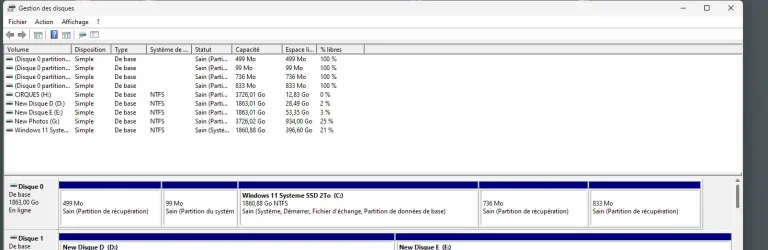
Your EaseUS Partition Manager screenshot shows that the disk is configured in RAID mode. Since I am not familiar with RAID-based Windows boot configurations, I cannot reliably advise you further.
 

My Computers

System One System Two

  • OS
    Windows 11 Pro
    Computer type
    PC/Desktop
    CPU
    AMD Ryzen 9 9950X3D
    Motherboard
    ASRock B650E Taichi Lite
    Memory
    Kingston FURY Beast 64GB (2x32GB) DDR5 6000MT/s
    Graphics Card(s)
    ASUS TUF Gaming Radeon RX 9070 OC Edition 16GB GDDR6
    Hard Drives
    Solidigm P44 Pro 2TB M.2 NVMe SSD
  • Operating System
    Windows 11 Home
    Computer type
    Laptop
    Manufacturer/Model
    Lenovo Legion Pro 7i Gen 10 16"
    CPU
    Intel Core Ultra 9 275HX
    Memory
    64GB (2x 32GB) DDR5-6400
    Graphics card(s)
    NVIDIA GeForce RTX 5080 16GB GDDR7 Laptop GPU
    Hard Drives
    2x 1TB M.2 NVMe SSD (SK Hynix)
Does msconfig at Boot tab show more than one Windows 11 entire?
 

My Computer

System One

  • OS
    Windows 11
    Computer type
    PC/Desktop
    Manufacturer/Model
    HP Pavilion
    CPU
    AMD Ryzen 7 5700G
    Motherboard
    Erica6
    Memory
    Micron Technology DDR4-3200 16GB
    Graphics Card(s)
    NVIDIA GeForce RTX 3060
    Sound Card
    Realtek ALC671
    Monitor(s) Displays
    Samsung SyncMaster U28E590
    Screen Resolution
    3840 x 2160
    Hard Drives
    SAMSUNG MZVLQ1T0HALB-000H1

My Computers

System One System Two

  • OS
    Windows 11 Pro 25H2 26200.8524
    Computer type
    Laptop
    Manufacturer/Model
    Acemagic LX15PRO
    CPU
    AMD Ryzen 7 5825U with Radeon Graphics
    Memory
    16GB
    Screen Resolution
    1920 x 1080
    Hard Drives
    SSD 2TB
    Internet Speed
    30 Mbps
    Browser
    Brave
    Antivirus
    Webroot Secure Anywhere
    Other Info
    System 3

    Acer Swift SF114-34 laptop
    OS Windows 11 Pro 26200.8524
    CPU Pentium Silver N6000
    RAM 4GB
    SSD Samsung 970 EVO Plus SSD 2TB (an upgrade)
  • Operating System
    Windows 11 Pro 23H2 22631.2506
    Computer type
    Laptop
    Manufacturer/Model
    HP Mini 210-1090NR PC (bought in late 2009!)
    CPU
    Atom N450 1.66GHz
    Memory
    2GB
    Browser
    Brave
    Antivirus
    Webroot
it seems that now, at the BIOS level, I have 2 boot records that boot to the same Windows !
Do you mean that the motherboard’s boot menu (Asus F8) shows two Windows Boot Manager entries (that is, two firmware boot entries stored in UEFI NVRAM), or that the Windows boot menu shows two operating systems (entries in the BCD store)?
 

My Computers

System One System Two

  • OS
    Windows 11 Pro
    Computer type
    PC/Desktop
    CPU
    AMD Ryzen 9 9950X3D
    Motherboard
    ASRock B650E Taichi Lite
    Memory
    Kingston FURY Beast 64GB (2x32GB) DDR5 6000MT/s
    Graphics Card(s)
    ASUS TUF Gaming Radeon RX 9070 OC Edition 16GB GDDR6
    Hard Drives
    Solidigm P44 Pro 2TB M.2 NVMe SSD
  • Operating System
    Windows 11 Home
    Computer type
    Laptop
    Manufacturer/Model
    Lenovo Legion Pro 7i Gen 10 16"
    CPU
    Intel Core Ultra 9 275HX
    Memory
    64GB (2x 32GB) DDR5-6400
    Graphics card(s)
    NVIDIA GeForce RTX 5080 16GB GDDR7 Laptop GPU
    Hard Drives
    2x 1TB M.2 NVMe SSD (SK Hynix)
Its usually safe to delete an OS you don't use. Don't delete anything else if you don't know what you're doing.
 

My Computers

System One System Two

  • OS
    Windows 11 Education For 25H2
    Computer type
    Laptop
    Manufacturer/Model
    HP ZBook G2
    CPU
    Intel® Core i7 5500u
    Motherboard
    HP
    Memory
    8 GB
    Graphics Card(s)
    Intel HD Family Graphics 5500 AMD Firepro 4150M
    Sound Card
    Realtek High Audio
    Hard Drives
    1 TB SSD
    Mouse
    HP USB Mouse
    Antivirus
    Windows Defender
  • Operating System
    Windows 11 Pro For Workstations 25H2
    Computer type
    Laptop
    Manufacturer/Model
    HP Zbook G4
    CPU
    Xeon 1535m v6
    Motherboard
    HP
    Memory
    32 GB
    Graphics card(s)
    AMD Quadro Pro 4100
    Sound Card
    Bang and Olufson Audio
    Hard Drives
    1TB SSD
    Mouse
    HP USB Mouse
    Antivirus
    Windows Defender
A t the BIOS level (immediately after I press th e DEL key), I can chosse between 2 identical entries that finally boo the same Windows 11 system
loned the complete Sys tem SSD to another SSD (in order to have a backup) and when I try to boot on this "backup", I have the same problrem
 

My Computer

System One

  • OS
    Windows 11 Professional
    Computer type
    PC/Desktop
    Manufacturer/Model
    Custom built
    CPU
    Intel Core i5-8600K CPU @ 3.60GHz Famille
    Motherboard
    ASUSTeK COMPUTER INC. ROG STRIX Z370-E GAMING (LGA1151)
    Memory
    DDR4 32768 Mo
    Graphics Card(s)
    NVIDIA GeForce GTX 1050 Ti
    Sound Card
    None
    Monitor(s) Displays
    NEC X223HQ on NVIDIA GeForce GTX 1050 Ti and ACER EA243WM on NVIDIA GeForce GTX 1050 Ti
    Screen Resolution
    1920x1080
    Hard Drives
    System on EMTEC X150 960GB (SSD) and additional HDD
Asus motherboard:
- Del key: Enter UEFI/BIOS settings
- F8 key: Boot Menu (also called the one-time boot menu)

You cloned your Windows system SSD to another SSD, and now the UEFI one-time boot menu (F8) shows two Windows Boot Manager entries?
 

My Computers

System One System Two

  • OS
    Windows 11 Pro
    Computer type
    PC/Desktop
    CPU
    AMD Ryzen 9 9950X3D
    Motherboard
    ASRock B650E Taichi Lite
    Memory
    Kingston FURY Beast 64GB (2x32GB) DDR5 6000MT/s
    Graphics Card(s)
    ASUS TUF Gaming Radeon RX 9070 OC Edition 16GB GDDR6
    Hard Drives
    Solidigm P44 Pro 2TB M.2 NVMe SSD
  • Operating System
    Windows 11 Home
    Computer type
    Laptop
    Manufacturer/Model
    Lenovo Legion Pro 7i Gen 10 16"
    CPU
    Intel Core Ultra 9 275HX
    Memory
    64GB (2x 32GB) DDR5-6400
    Graphics card(s)
    NVIDIA GeForce RTX 5080 16GB GDDR7 Laptop GPU
    Hard Drives
    2x 1TB M.2 NVMe SSD (SK Hynix)
Y es
1) The "source" sy stem on SSD show 2 Boot entries when clicking on F8
2) and of cou rse after the cloning, the "cloned" SSD shows 2 entries

Is there a way to remove the second entry on the "source" SSD ? If "yes", how to proceed ?

Thanks Good evening
 

My Computer

System One

  • OS
    Windows 11 Professional
    Computer type
    PC/Desktop
    Manufacturer/Model
    Custom built
    CPU
    Intel Core i5-8600K CPU @ 3.60GHz Famille
    Motherboard
    ASUSTeK COMPUTER INC. ROG STRIX Z370-E GAMING (LGA1151)
    Memory
    DDR4 32768 Mo
    Graphics Card(s)
    NVIDIA GeForce GTX 1050 Ti
    Sound Card
    None
    Monitor(s) Displays
    NEC X223HQ on NVIDIA GeForce GTX 1050 Ti and ACER EA243WM on NVIDIA GeForce GTX 1050 Ti
    Screen Resolution
    1920x1080
    Hard Drives
    System on EMTEC X150 960GB (SSD) and additional HDD
ChatGPT:

You can remove the unwanted firmware entry either:
  • from the BIOS/UEFI boot management interface (if Asus exposes a delete option), or
  • from Windows using bcdedit /enum firmware followed by bcdedit /delete {identifier}
Be careful to delete only the duplicate entry.

Edit:

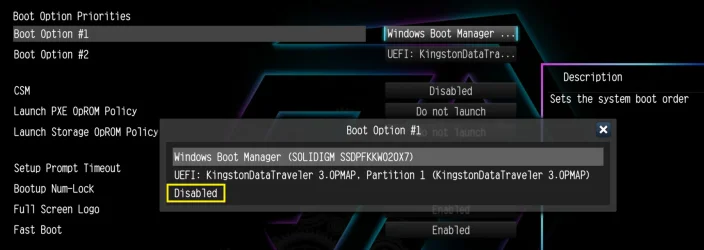
The image shows the Boot Option Priorities screen of an ASRock motherboard.

I do not know whether your Asus motherboard has the "Disabled" option shown in the image.

ASRock.webp
 
Last edited:

My Computers

System One System Two

  • OS
    Windows 11 Pro
    Computer type
    PC/Desktop
    CPU
    AMD Ryzen 9 9950X3D
    Motherboard
    ASRock B650E Taichi Lite
    Memory
    Kingston FURY Beast 64GB (2x32GB) DDR5 6000MT/s
    Graphics Card(s)
    ASUS TUF Gaming Radeon RX 9070 OC Edition 16GB GDDR6
    Hard Drives
    Solidigm P44 Pro 2TB M.2 NVMe SSD
  • Operating System
    Windows 11 Home
    Computer type
    Laptop
    Manufacturer/Model
    Lenovo Legion Pro 7i Gen 10 16"
    CPU
    Intel Core Ultra 9 275HX
    Memory
    64GB (2x 32GB) DDR5-6400
    Graphics card(s)
    NVIDIA GeForce RTX 5080 16GB GDDR7 Laptop GPU
    Hard Drives
    2x 1TB M.2 NVMe SSD (SK Hynix)
Y es
1) The "source" sy stem on SSD show 2 Boot entries when clicking on F8
2) and of cou rse after the cloning, the "cloned" SSD shows 2 entries

Is there a way to remove the second entry on the "source" SSD ? If "yes", how to proceed ?

Thanks Good evening
I believe post #9 answers your question.
 

My Computer

System One

  • OS
    Windows 11 25H2
    Computer type
    PC/Desktop
    Manufacturer/Model
    EVGA home brew
    CPU
    Broadwell-e 6850K 4.5ghz @1.36v
    Motherboard
    EVGA X99 FTW K
    Memory
    32GB Corsair LPM 3600 C16
    Graphics Card(s)
    EVGA RTX 3080Ti FTW
    Sound Card
    Asus Centurion true 7.1 headset. (5 speakers in each earpeice)
    Monitor(s) Displays
    LG C4 55"
    Screen Resolution
    4K 144hz
    Hard Drives
    Various models of SSDs ~10TB No HDDs installed.
    PSU
    be quiet! BN516 Straight Power 12-1000w 80 Plus Platinum
    Case
    Corsair 780T modified to dual 200mm intake fans
    Cooling
    Corsair H110i
    Keyboard
    Corsair K95 Platinum
    Mouse
    Corsair M65 RGB Elite
    Internet Speed
    50Mbs
The OP wants to remove an unwanted UEFI firmware boot entry stored in NVRAM, not a Windows boot menu entry in the BCD store.

GPT Disk Boot Process (UEFI-based booting):

1. UEFI firmware performs the POST (Power-On Self-Test).
2. UEFI checks the system's NVRAM for boot entries.
3. A boot entry (usually named "Windows Boot Manager") points to \EFI\Microsoft\Boot\bootmgfw.efi on the EFI system partition.
4. bootmgfw.efi is the Windows Boot Manager, which loads and reads the Boot Configuration Data (BCD) store from the same EFI system partition.
5. Based on BCD settings, it launches winload.efi, the OS loader for UEFI-based systems, to start Windows.
 

My Computers

System One System Two

  • OS
    Windows 11 Pro
    Computer type
    PC/Desktop
    CPU
    AMD Ryzen 9 9950X3D
    Motherboard
    ASRock B650E Taichi Lite
    Memory
    Kingston FURY Beast 64GB (2x32GB) DDR5 6000MT/s
    Graphics Card(s)
    ASUS TUF Gaming Radeon RX 9070 OC Edition 16GB GDDR6
    Hard Drives
    Solidigm P44 Pro 2TB M.2 NVMe SSD
  • Operating System
    Windows 11 Home
    Computer type
    Laptop
    Manufacturer/Model
    Lenovo Legion Pro 7i Gen 10 16"
    CPU
    Intel Core Ultra 9 275HX
    Memory
    64GB (2x 32GB) DDR5-6400
    Graphics card(s)
    NVIDIA GeForce RTX 5080 16GB GDDR7 Laptop GPU
    Hard Drives
    2x 1TB M.2 NVMe SSD (SK Hynix)
Thanks for the information
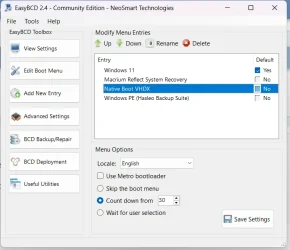
I'm looking at the problem with EasyBCD 2.4 and it seems that (with caution !) could solve the problem and help me to delete the useless entry
I used Windows for a long time but never had this problem - It would be good to have a detailed explanation of the Windows boot mechanism and architecture - May be there is some good explanation somewhere !
Thanks for your time and your patience
 

My Computer

System One

  • OS
    Windows 11 Professional
    Computer type
    PC/Desktop
    Manufacturer/Model
    Custom built
    CPU
    Intel Core i5-8600K CPU @ 3.60GHz Famille
    Motherboard
    ASUSTeK COMPUTER INC. ROG STRIX Z370-E GAMING (LGA1151)
    Memory
    DDR4 32768 Mo
    Graphics Card(s)
    NVIDIA GeForce GTX 1050 Ti
    Sound Card
    None
    Monitor(s) Displays
    NEC X223HQ on NVIDIA GeForce GTX 1050 Ti and ACER EA243WM on NVIDIA GeForce GTX 1050 Ti
    Screen Resolution
    1920x1080
    Hard Drives
    System on EMTEC X150 960GB (SSD) and additional HDD
 

My Computers

System One System Two

  • OS
    Windows 11 Pro
    Computer type
    PC/Desktop
    CPU
    AMD Ryzen 9 9950X3D
    Motherboard
    ASRock B650E Taichi Lite
    Memory
    Kingston FURY Beast 64GB (2x32GB) DDR5 6000MT/s
    Graphics Card(s)
    ASUS TUF Gaming Radeon RX 9070 OC Edition 16GB GDDR6
    Hard Drives
    Solidigm P44 Pro 2TB M.2 NVMe SSD
  • Operating System
    Windows 11 Home
    Computer type
    Laptop
    Manufacturer/Model
    Lenovo Legion Pro 7i Gen 10 16"
    CPU
    Intel Core Ultra 9 275HX
    Memory
    64GB (2x 32GB) DDR5-6400
    Graphics card(s)
    NVIDIA GeForce RTX 5080 16GB GDDR7 Laptop GPU
    Hard Drives
    2x 1TB M.2 NVMe SSD (SK Hynix)
Option One: Delete Boot Loader Entry on Boot Options Menu in System Configuration (msconfig)

I believe that option has been presented several times. 🤷‍♂️ :-)
 

My Computer

System One

  • OS
    Windows 11 25H2
    Computer type
    PC/Desktop
    Manufacturer/Model
    EVGA home brew
    CPU
    Broadwell-e 6850K 4.5ghz @1.36v
    Motherboard
    EVGA X99 FTW K
    Memory
    32GB Corsair LPM 3600 C16
    Graphics Card(s)
    EVGA RTX 3080Ti FTW
    Sound Card
    Asus Centurion true 7.1 headset. (5 speakers in each earpeice)
    Monitor(s) Displays
    LG C4 55"
    Screen Resolution
    4K 144hz
    Hard Drives
    Various models of SSDs ~10TB No HDDs installed.
    PSU
    be quiet! BN516 Straight Power 12-1000w 80 Plus Platinum
    Case
    Corsair 780T modified to dual 200mm intake fans
    Cooling
    Corsair H110i
    Keyboard
    Corsair K95 Platinum
    Mouse
    Corsair M65 RGB Elite
    Internet Speed
    50Mbs
Back
Top Bottom