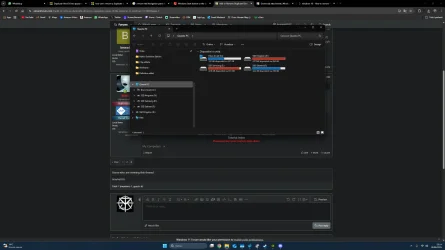
This tutorial will show you how to add (show) or remove (hide) the drives showing twice in the navigation pane of File Explorer for your account or all users in Windows 10 and Windows 11.
Removable drives are shown as separate groups in the navigation pane of File Explorer by default in addition to being shown under the This PC group in the navigation pane.
OS drives and fixed drives (ex: internal drives) will only be shown under This PC, and not separately in the navigation pane.
This will not affect drives listed under the This PC group in the navigation pane.
Contents
- Option One: Add or Remove Duplicate Drives in Navigation Pane of File Explorer for Current User
- Option Two: Add or Remove Duplicate Drives in Navigation Pane of File Explorer for All Users
EXAMPLE: Duplicate removable drives in navigation pane of File Explorer
1 Do step 2 (add) or step 3 (remove) below for what you would like to do.
2 Add Duplicate Drives in Navigation Pane of File Explorer for Current User
This is the default setting.
A) Click/tap on the Download button below to download the file below, and go to step 4 below.
Add_duplicate_removable_drives_to_navigation_pane_of_File_Explorer_for_current_user.reg
Download
(Contents of REG file for reference)
Code:
Windows Registry Editor Version 5.00

[HKEY_CURRENT_USER\Software\Classes\WOW6432Node\CLSID\{F5FB2C77-0E2F-4A16-A381-3E560C68BC83}\ShellFolder]
"Attributes"=-

[HKEY_CURRENT_USER\Software\Classes\CLSID\{F5FB2C77-0E2F-4A16-A381-3E560C68BC83}\ShellFolder]
"Attributes"=-
3 Remove Duplicate Drives in Navigation Pane of File Explorer for Current User
A) Click/tap on the Download button below to download the file below, and go to step 4 below.
Remove_duplicate_removable_drives_from_navigation_pane_of_File_Explorer_for_current_user.reg
Download
(Contents of REG file for reference)
Code:
Windows Registry Editor Version 5.00

[HKEY_CURRENT_USER\Software\Classes\WOW6432Node\CLSID\{F5FB2C77-0E2F-4A16-A381-3E560C68BC83}\ShellFolder]
"Attributes"=dword:b0100000

[HKEY_CURRENT_USER\Software\Classes\CLSID\{F5FB2C77-0E2F-4A16-A381-3E560C68BC83}\ShellFolder]
"Attributes"=dword:b0100000
4 Save the .reg file to your desktop.
5 If you have Smart App Control turned on, you will need to unblock the downloaded REG file.
6 Double click/tap on the downloaded .reg file to merge it.
7 When prompted, click/tap on Run, Yes (UAC), Yes, and OK to approve the merge.
8 If changes are not applied immediately, then either restart explorer process, sign out and sign in, or restart the computer to apply.
9 You can now delete the downloaded .reg file if you like.
You must be signed in as an administrator to use this option.
1 Do step 2 (add) or step 3 (remove) below for what you want.
2. Add Duplicate Drives in Navigation Pane of File Explorer for All Users
This is the default setting.
A) Click/tap on the Download button below to download the file below, and go to step 4 below.
Add_duplicate_removable_drives_to_navigation_pane_of_File_Explorer_for_all_users.reg
Download
(Contents of REG file for reference)
Code:
Windows Registry Editor Version 5.00

[HKEY_LOCAL_MACHINE\SOFTWARE\Microsoft\Windows\CurrentVersion\Explorer\Desktop\NameSpace\DelegateFolders\{F5FB2C77-0E2F-4A16-A381-3E560C68BC83}]
@="Removable Drives"

[HKEY_LOCAL_MACHINE\SOFTWARE\WOW6432Node\Microsoft\Windows\CurrentVersion\Explorer\Desktop\NameSpace\DelegateFolders\{F5FB2C77-0E2F-4A16-A381-3E560C68BC83}]
@="Removable Drives"
3. Remove Duplicate Drives in Navigation Pane of File Explorer for All Users
A) Click/tap on the Download button below to download the file below, and go to step 4 below.
Remove_duplicate_removable_drives_from_navigation_pane_of_File_Explorer_for_all_users.reg
Download
(Contents of REG file for reference)
Code:
Windows Registry Editor Version 5.00

[-HKEY_LOCAL_MACHINE\SOFTWARE\Microsoft\Windows\CurrentVersion\Explorer\Desktop\NameSpace\DelegateFolders\{F5FB2C77-0E2F-4A16-A381-3E560C68BC83}]

[-HKEY_LOCAL_MACHINE\SOFTWARE\WOW6432Node\Microsoft\Windows\CurrentVersion\Explorer\Desktop\NameSpace\DelegateFolders\{F5FB2C77-0E2F-4A16-A381-3E560C68BC83}]
4 Save the .reg file to your desktop.
5 If you have Smart App Control turned on, you will need to unblock the downloaded REG file.
6 Double click/tap on the downloaded .reg file to merge it.
7 When prompted, click/tap on Run, Yes (UAC), Yes, and OK to approve the merge.
8 You can now delete the downloaded .reg file if you like.
That's it,
Shawn Brink
Related Tutorials
- Hide or Show Drive Letters in File Explorer in Windows 11
- Show Drive Letters Before or After Drive Name in Windows 11
- Add or Remove Windows C Drive in Navigation Pane of File Explorer in Windows 11
- Add or Remove D Drive in Navigation Pane of File Explorer in Windows 11
- Add or Remove E Drive in Navigation Pane of File Explorer in Windows 11
- Add or Remove F Drive in Navigation Pane of File Explorer in Windows 11
Attachments
-
Remove_duplicate_removable_drives_from_navigation_pane_of_File_Explorer_for_all_users.reg1.1 KB · Views: 1,474
-
Add_duplicate_removable_drives_to_navigation_pane_of_File_Explorer_for_all_users.reg1.2 KB · Views: 456
-
Remove_duplicate_removable_drives_from_navigation_pane_of_File_Explorer_for_current_user.reg988 bytes · Views: 2,217
-
Add_duplicate_removable_drives_to_navigation_pane_of_File_Explorer_for_current_user.reg936 bytes · Views: 912
Last edited: