Network and Internet Add or Remove "Give access to" context menu in Windows 11


Sharing_banner.png

This tutorial will show you how to add or remove the Give access to context menu for your account or all users in Windows 10 and Windows 11.

The Give access to context menu makes it easy for a user to grant access to share their selected files, folders, and libraries with other users registered on the PC.

Reference:


Contents

  • Option One: Add or Remove "Give access to" Context Menu for Current User
  • Option Two: Add or Remove "Give access to" Context Menu for All Users


EXAMPLE: "Give access to" context menu

You will need to click/tap on Show more options first by default, then click/tap on Give access to.

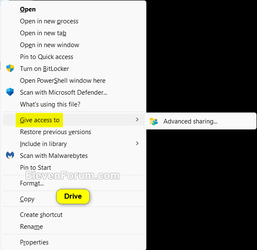
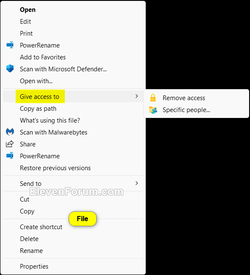
Show_more_options.png Drive_Give_access_to.png File_Give_access_to.png Folder_Give_access_to.png Library_Give_access_to.png


Option One

Add or Remove "Give access to" Context Menu for Current User


1 Do step 2 (add) or step 3 (remove) below for what you would like to do.

2 Add "Give access to" Context Menu for Current User

This is the default setting.


A) Click/tap on the Download button below to download the file below, and go to step 4 below.​

Add_Give_access_to_context_menu_for_current_user.reg


(Contents of REG file for reference)
Code:
Windows Registry Editor Version 5.00

[HKEY_CURRENT_USER\Software\Microsoft\Windows\CurrentVersion\Shell Extensions\Blocked]
"{f81e9010-6ea4-11ce-a7ff-00aa003ca9f6}"=-

3 Remove "Give access to" Context Menu for Current User

A) Click/tap on the Download button below to download the file below, and go to step 4 below.​

Remove_Give_access_to_context_menu_for_current_user.reg


(Contents of REG file for reference)
Code:
Windows Registry Editor Version 5.00

[HKEY_CURRENT_USER\Software\Microsoft\Windows\CurrentVersion\Shell Extensions\Blocked]
"{f81e9010-6ea4-11ce-a7ff-00aa003ca9f6}"="Give access to"

4 Save the .reg file to your desktop.

5 If you have Smart App Control turned on, you will need to unblock the downloaded REG file.

6 Double click/tap on the downloaded .reg file to merge it.

7 When prompted, click/tap on Run, Yes (UAC), Yes, and OK to approve the merge.

8 If changes are not applied immediately, then either restart explorer process, sign out and sign in, or restart the computer to apply.

9 You can now delete the downloaded .reg file if you like.


Option Two

Turn On or Off Display File Size Info in Folder Tips in Folder Options


You must be signed in as an administrator to use this option.


1 Do step 2 (add) or step 3 (remove) below for what you would like to do.


 2. Add "Give access to" context menu for All Users

This is the default setting.


A) Click/tap on the Download button below to download the file below, and go to step 4 below.​

Add_Give_access_to_context_menu_for_all_users.reg


(Contents of REG file for reference)
Code:
Windows Registry Editor Version 5.00

[HKEY_CLASSES_ROOT\*\shellex\ContextMenuHandlers\Sharing]
@="{f81e9010-6ea4-11ce-a7ff-00aa003ca9f6}"

[HKEY_CLASSES_ROOT\Directory\Background\shellex\ContextMenuHandlers\Sharing]
@="{f81e9010-6ea4-11ce-a7ff-00aa003ca9f6}"

[HKEY_CLASSES_ROOT\Directory\shellex\ContextMenuHandlers\Sharing]
@="{f81e9010-6ea4-11ce-a7ff-00aa003ca9f6}"

[HKEY_CLASSES_ROOT\Directory\shellex\CopyHookHandlers\Sharing]
@="{40dd6e20-7c17-11ce-a804-00aa003ca9f6}"

[HKEY_CLASSES_ROOT\Drive\shellex\ContextMenuHandlers\Sharing]
@="{f81e9010-6ea4-11ce-a7ff-00aa003ca9f6}"

[HKEY_CLASSES_ROOT\LibraryFolder\background\shellex\ContextMenuHandlers\Sharing]
@="{f81e9010-6ea4-11ce-a7ff-00aa003ca9f6}"

[HKEY_CLASSES_ROOT\UserLibraryFolder\shellex\ContextMenuHandlers\Sharing]
@="{f81e9010-6ea4-11ce-a7ff-00aa003ca9f6}"

[HKEY_CURRENT_USER\SOFTWARE\Microsoft\Windows\CurrentVersion\Policies\Explorer]
"NoInplaceSharing"=-

[HKEY_LOCAL_MACHINE\SOFTWARE\Microsoft\Windows\CurrentVersion\Shell Extensions\Blocked]
"{f81e9010-6ea4-11ce-a7ff-00aa003ca9f6}"=-

[HKEY_LOCAL_MACHINE\SYSTEM\CurrentControlSet\Control\Lsa]
"forceguest"=dword:00000000

[HKEY_CURRENT_USER\Software\Microsoft\Windows\CurrentVersion\Explorer\Advanced]
"SharingWizardOn"=dword:00000001


 3. Remove "Give access to" context menu for All Users

This will override Option One.


A) Click/tap on the Download button below to download the file below, and go to step 4 below.​

Remove_Give_access_to_context_menu_for_all_users.reg


(Contents of REG file for reference)
Code:
Windows Registry Editor Version 5.00

[-HKEY_CLASSES_ROOT\*\shellex\ContextMenuHandlers\Sharing]

[-HKEY_CLASSES_ROOT\Directory\Background\shellex\ContextMenuHandlers\Sharing]

[-HKEY_CLASSES_ROOT\Directory\shellex\ContextMenuHandlers\Sharing]

[-HKEY_CLASSES_ROOT\Drive\shellex\ContextMenuHandlers\Sharing]

[-HKEY_CLASSES_ROOT\LibraryFolder\background\shellex\ContextMenuHandlers\Sharing]

[-HKEY_CLASSES_ROOT\UserLibraryFolder\shellex\ContextMenuHandlers\Sharing]

4 Save the .reg file to your desktop.

5 If you have Smart App Control turned on, you will need to unblock the downloaded REG file.

6 Double click/tap on the downloaded .reg file to merge it.

7 When prompted, click/tap on Run, Yes (UAC), Yes, and OK to approve the merge.

8 You can now delete the downloaded .reg file if you like.


That's it,
Shawn Brink


Attachments

Last edited:
Thanks you
 

My Computer

System One

  • OS
    window 11 home
    Computer type
    PC/Desktop
    Manufacturer/Model
    Dell Inc.
    Motherboard
    Enhanced (101 - or 102-key)
could not use windows 11 without this website, thanks !
 

My Computer

System One

  • OS
    11
    Computer type
    PC/Desktop
    Internet Speed
    fast
    Browser
    firefox
    Antivirus
    avast

My Computers

System One System Two

  • OS
    Windows 11 Pro for Workstations
    Computer type
    PC/Desktop
    Manufacturer/Model
    Custom self build
    CPU
    Intel i7-8700K 5 GHz
    Motherboard
    ASUS ROG Maximus XI Formula Z390
    Memory
    64 GB (4x16GB) G.SKILL TridentZ RGB DDR4 3600 MHz (F4-3600C18D-32GTZR)
    Graphics Card(s)
    ASUS ROG-STRIX-GTX1080TI-O11G-GAMING (11GB GDDR5X)
    Sound Card
    Integrated Digital Audio (S/PDIF)
    Monitor(s) Displays
    2 x Samsung Odyssey G75 27"
    Screen Resolution
    2560x1440
    Hard Drives
    1TB Samsung 990 PRO M.2,
    4TB Samsung 990 PRO M.2,
    TerraMaster F8 SSD Plus NAS
    PSU
    Seasonic Prime Titanium 850W
    Case
    Thermaltake Core P3 wall mounted
    Cooling
    Corsair Hydro H115i
    Keyboard
    Amazon Basics Wired Full Keyboard MD005
    Mouse
    Logitech MX Master 4
    Internet Speed
    2 Gbps Download and 100 Mbps Upload
    Browser
    Chrome and Edge
    Antivirus
    Microsoft Defender
    Other Info
    Logitech Z625 speaker system,
    Logitech BRIO 4K Pro webcam,
    HP Color LaserJet Pro MFP M477fdn,
    CyberPower CP1500PFCLCD
    Galaxy S23 Plus phone
  • Operating System
    Windows 11 Pro
    Computer type
    Laptop
    Manufacturer/Model
    Surface Laptop 7 Copilot+ PC
    CPU
    Snapdragon X Elite (12 core) 3.42 GHz
    Memory
    16 GB LPDDR5x-7467 MHz
    Monitor(s) Displays
    15" HDR
    Screen Resolution
    2496 x 1664
    Hard Drives
    1 TB SSD
    Internet Speed
    Wi-Fi 7 and Bluetooth 5.4
    Browser
    Chrome and Edge
    Antivirus
    Microsoft Defender
This isn't working for me. I'm running Windows 11 64-Bit. Any ideas?
 

My Computer

System One

  • OS
    Windows 11 Pro 64 Bit
    Computer type
    PC/Desktop
    CPU
    AMD Ryzen 5825U
    Memory
    32.0GB RAM (DDR4)
    Graphics Card(s)
    AMD Radeon Graphics
    Hard Drives
    1TB SSD

My Computers

System One System Two

  • OS
    Windows 11 Pro for Workstations
    Computer type
    PC/Desktop
    Manufacturer/Model
    Custom self build
    CPU
    Intel i7-8700K 5 GHz
    Motherboard
    ASUS ROG Maximus XI Formula Z390
    Memory
    64 GB (4x16GB) G.SKILL TridentZ RGB DDR4 3600 MHz (F4-3600C18D-32GTZR)
    Graphics Card(s)
    ASUS ROG-STRIX-GTX1080TI-O11G-GAMING (11GB GDDR5X)
    Sound Card
    Integrated Digital Audio (S/PDIF)
    Monitor(s) Displays
    2 x Samsung Odyssey G75 27"
    Screen Resolution
    2560x1440
    Hard Drives
    1TB Samsung 990 PRO M.2,
    4TB Samsung 990 PRO M.2,
    TerraMaster F8 SSD Plus NAS
    PSU
    Seasonic Prime Titanium 850W
    Case
    Thermaltake Core P3 wall mounted
    Cooling
    Corsair Hydro H115i
    Keyboard
    Amazon Basics Wired Full Keyboard MD005
    Mouse
    Logitech MX Master 4
    Internet Speed
    2 Gbps Download and 100 Mbps Upload
    Browser
    Chrome and Edge
    Antivirus
    Microsoft Defender
    Other Info
    Logitech Z625 speaker system,
    Logitech BRIO 4K Pro webcam,
    HP Color LaserJet Pro MFP M477fdn,
    CyberPower CP1500PFCLCD
    Galaxy S23 Plus phone
  • Operating System
    Windows 11 Pro
    Computer type
    Laptop
    Manufacturer/Model
    Surface Laptop 7 Copilot+ PC
    CPU
    Snapdragon X Elite (12 core) 3.42 GHz
    Memory
    16 GB LPDDR5x-7467 MHz
    Monitor(s) Displays
    15" HDR
    Screen Resolution
    2496 x 1664
    Hard Drives
    1 TB SSD
    Internet Speed
    Wi-Fi 7 and Bluetooth 5.4
    Browser
    Chrome and Edge
    Antivirus
    Microsoft Defender
Remove 'Give Access To' from context menu. lol
 

My Computer

System One

  • OS
    Windows 11 Pro 64 Bit
    Computer type
    PC/Desktop
    CPU
    AMD Ryzen 5825U
    Memory
    32.0GB RAM (DDR4)
    Graphics Card(s)
    AMD Radeon Graphics
    Hard Drives
    1TB SSD
Remove 'Give Access To' from context menu. lol

I just tested the REG file in step 3 of option 2, and it still works for me to remove the context menu.


My Computers

System One System Two

  • OS
    Windows 11 Pro for Workstations
    Computer type
    PC/Desktop
    Manufacturer/Model
    Custom self build
    CPU
    Intel i7-8700K 5 GHz
    Motherboard
    ASUS ROG Maximus XI Formula Z390
    Memory
    64 GB (4x16GB) G.SKILL TridentZ RGB DDR4 3600 MHz (F4-3600C18D-32GTZR)
    Graphics Card(s)
    ASUS ROG-STRIX-GTX1080TI-O11G-GAMING (11GB GDDR5X)
    Sound Card
    Integrated Digital Audio (S/PDIF)
    Monitor(s) Displays
    2 x Samsung Odyssey G75 27"
    Screen Resolution
    2560x1440
    Hard Drives
    1TB Samsung 990 PRO M.2,
    4TB Samsung 990 PRO M.2,
    TerraMaster F8 SSD Plus NAS
    PSU
    Seasonic Prime Titanium 850W
    Case
    Thermaltake Core P3 wall mounted
    Cooling
    Corsair Hydro H115i
    Keyboard
    Amazon Basics Wired Full Keyboard MD005
    Mouse
    Logitech MX Master 4
    Internet Speed
    2 Gbps Download and 100 Mbps Upload
    Browser
    Chrome and Edge
    Antivirus
    Microsoft Defender
    Other Info
    Logitech Z625 speaker system,
    Logitech BRIO 4K Pro webcam,
    HP Color LaserJet Pro MFP M477fdn,
    CyberPower CP1500PFCLCD
    Galaxy S23 Plus phone
  • Operating System
    Windows 11 Pro
    Computer type
    Laptop
    Manufacturer/Model
    Surface Laptop 7 Copilot+ PC
    CPU
    Snapdragon X Elite (12 core) 3.42 GHz
    Memory
    16 GB LPDDR5x-7467 MHz
    Monitor(s) Displays
    15" HDR
    Screen Resolution
    2496 x 1664
    Hard Drives
    1 TB SSD
    Internet Speed
    Wi-Fi 7 and Bluetooth 5.4
    Browser
    Chrome and Edge
    Antivirus
    Microsoft Defender
Okay option 2 worked. I didn't think I'd have to remove for all users since I'm the only user/account. Thank you.
 

My Computer

System One

  • OS
    Windows 11 Pro 64 Bit
    Computer type
    PC/Desktop
    CPU
    AMD Ryzen 5825U
    Memory
    32.0GB RAM (DDR4)
    Graphics Card(s)
    AMD Radeon Graphics
    Hard Drives
    1TB SSD
Okay option 4 worked. I didn't think I'd have to remove for all users since I'm the only user/account. Thank you.

I hear you. Something has changed making the usual "current user" options not work anymore.

At least the "all users" option works, but I'll look into this more.
 

My Computers

System One System Two

  • OS
    Windows 11 Pro for Workstations
    Computer type
    PC/Desktop
    Manufacturer/Model
    Custom self build
    CPU
    Intel i7-8700K 5 GHz
    Motherboard
    ASUS ROG Maximus XI Formula Z390
    Memory
    64 GB (4x16GB) G.SKILL TridentZ RGB DDR4 3600 MHz (F4-3600C18D-32GTZR)
    Graphics Card(s)
    ASUS ROG-STRIX-GTX1080TI-O11G-GAMING (11GB GDDR5X)
    Sound Card
    Integrated Digital Audio (S/PDIF)
    Monitor(s) Displays
    2 x Samsung Odyssey G75 27"
    Screen Resolution
    2560x1440
    Hard Drives
    1TB Samsung 990 PRO M.2,
    4TB Samsung 990 PRO M.2,
    TerraMaster F8 SSD Plus NAS
    PSU
    Seasonic Prime Titanium 850W
    Case
    Thermaltake Core P3 wall mounted
    Cooling
    Corsair Hydro H115i
    Keyboard
    Amazon Basics Wired Full Keyboard MD005
    Mouse
    Logitech MX Master 4
    Internet Speed
    2 Gbps Download and 100 Mbps Upload
    Browser
    Chrome and Edge
    Antivirus
    Microsoft Defender
    Other Info
    Logitech Z625 speaker system,
    Logitech BRIO 4K Pro webcam,
    HP Color LaserJet Pro MFP M477fdn,
    CyberPower CP1500PFCLCD
    Galaxy S23 Plus phone
  • Operating System
    Windows 11 Pro
    Computer type
    Laptop
    Manufacturer/Model
    Surface Laptop 7 Copilot+ PC
    CPU
    Snapdragon X Elite (12 core) 3.42 GHz
    Memory
    16 GB LPDDR5x-7467 MHz
    Monitor(s) Displays
    15" HDR
    Screen Resolution
    2496 x 1664
    Hard Drives
    1 TB SSD
    Internet Speed
    Wi-Fi 7 and Bluetooth 5.4
    Browser
    Chrome and Edge
    Antivirus
    Microsoft Defender
I hear you. Something has changed making the usual "current user" options not work anymore.
Well, it now does something different. It removes the "Specific People..." option but leaves the "Advanced Sharing" option. The text will depend on whether the file/directory is already shared.

1756463214650.webp

with the sharing Wizard off
1756463234462.webp

To make the context menu disappear without admin rights there are various options.

Add the CLSID to HKEY_CURRENT_USER\Software\Microsoft\Windows\CurrentVersion\Shell Extensions\Blocked . This will deal with all instances of the context menu, and also remove the sharing tab from the object properties of directories and drives etc.

To only remove the context menu from the locations listed in option 3, you need to make a change to HKCR that can be performed from HKCU\Software\Classes. A method other than deleting the key.

The "traditional" method of doing this is to edit the default value that is the CLSID. Normally by prepending with a "-". If you add the matching key under HKCU\Software\Classes, then you can edit from HKCR if you wish.

The badly documented method from Microsoft is to add a SuppressionPolicy value that matches a group policy. This works perfectly well with Group Policiy settings that are automatically present, although do not appear in gpedit. An obvious choice is REST_NOACTIVEDESKTOP which is 0x40000004. Which is an XP era policy which prevents actrive desktop from being used, but appears to be set by default in every Windows 10 and 11 system I've checked.

Hre's an example:
Code:
Windows Registry Editor Version 5.00

[HKEY_CURRENT_USER\Software\Classes\*\shellex\ContextMenuHandlers\Sharing]
"SuppressionPolicy"=dword:40000004

See: Creating Shortcut Menu Handlers - Win32 apps and RESTRICTIONS (shlobj_core.h) - Win32 apps. For an explanation of the mechanics behind restrictions see: RESTRICTIONS

SuppressionPolicy also works on static context menu items, although for per user changes I would use ProgrammaticAccessOnly instead. See: Creating Shortcut Menu Handlers - Win32 apps. However, if you use SuppressionPolicy at the machine level, it does allow users to turn the context menu back on if desired, by setting the value to 0, whereas users can't disable ProgrammaticAccessOnly.
 

My Computers

System One System Two

  • OS
    Windows 11 25H2 Pro Build 26200
    Computer type
    PC/Desktop
    Manufacturer/Model
    MSI PRO ADL-U Cubi 5 (MS-B0A8)
    CPU
    i3-1215U
    Memory
    8GB
    Monitor(s) Displays
    Sony 43" 4k TV
    Screen Resolution
    3840x2160
    Hard Drives
    250GB NVMe M.2 PCIe Gen 3 SSD
    PSU
    External 65W
    Case
    Mini PC
    Browser
    FireFox
    Antivirus
    MS
  • Operating System
    Windows 11 Pro 25H2
    Computer type
    PC/Desktop
    Manufacturer/Model
    Dell Optiplex 3070 SFF
    CPU
    Intel i3-9100
    Memory
    16GB DDR4
    Monitor(s) Displays
    Dell S2721
    Screen Resolution
    3840 x 2160
    Hard Drives
    Samsung 500GB nvMe
    Case
    Dell small form factor
    Keyboard
    Cherry mechanical (Blue)
    Mouse
    Microsoft
    Antivirus
    MS Defender
Thank you @Skeptic Mike , :shawn:

I've updated the tutorial for this with option 1 for current user.
 

My Computers

System One System Two

  • OS
    Windows 11 Pro for Workstations
    Computer type
    PC/Desktop
    Manufacturer/Model
    Custom self build
    CPU
    Intel i7-8700K 5 GHz
    Motherboard
    ASUS ROG Maximus XI Formula Z390
    Memory
    64 GB (4x16GB) G.SKILL TridentZ RGB DDR4 3600 MHz (F4-3600C18D-32GTZR)
    Graphics Card(s)
    ASUS ROG-STRIX-GTX1080TI-O11G-GAMING (11GB GDDR5X)
    Sound Card
    Integrated Digital Audio (S/PDIF)
    Monitor(s) Displays
    2 x Samsung Odyssey G75 27"
    Screen Resolution
    2560x1440
    Hard Drives
    1TB Samsung 990 PRO M.2,
    4TB Samsung 990 PRO M.2,
    TerraMaster F8 SSD Plus NAS
    PSU
    Seasonic Prime Titanium 850W
    Case
    Thermaltake Core P3 wall mounted
    Cooling
    Corsair Hydro H115i
    Keyboard
    Amazon Basics Wired Full Keyboard MD005
    Mouse
    Logitech MX Master 4
    Internet Speed
    2 Gbps Download and 100 Mbps Upload
    Browser
    Chrome and Edge
    Antivirus
    Microsoft Defender
    Other Info
    Logitech Z625 speaker system,
    Logitech BRIO 4K Pro webcam,
    HP Color LaserJet Pro MFP M477fdn,
    CyberPower CP1500PFCLCD
    Galaxy S23 Plus phone
  • Operating System
    Windows 11 Pro
    Computer type
    Laptop
    Manufacturer/Model
    Surface Laptop 7 Copilot+ PC
    CPU
    Snapdragon X Elite (12 core) 3.42 GHz
    Memory
    16 GB LPDDR5x-7467 MHz
    Monitor(s) Displays
    15" HDR
    Screen Resolution
    2496 x 1664
    Hard Drives
    1 TB SSD
    Internet Speed
    Wi-Fi 7 and Bluetooth 5.4
    Browser
    Chrome and Edge
    Antivirus
    Microsoft Defender
Back
Top Bottom