This tutorial will show you how to add or remove the Give access to context menu for your account or all users in Windows 10 and Windows 11.
The Give access to context menu makes it easy for a user to grant access to share their selected files, folders, and libraries with other users registered on the PC.
Reference:
File sharing over a network in Windows - Microsoft Support
Learn about file sharing over a network in Windows.
 support.microsoft.com
Contents
- Option One: Add or Remove "Give access to" Context Menu for Current User
- Option Two: Add or Remove "Give access to" Context Menu for All Users
EXAMPLE: "Give access to" context menu
You will need to click/tap on Show more options first by default, then click/tap on Give access to.

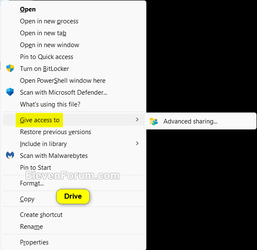
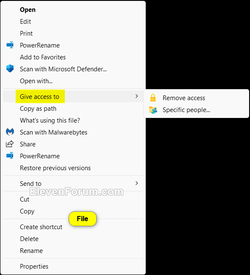


1 Do step 2 (add) or step 3 (remove) below for what you would like to do.
2 Add "Give access to" Context Menu for Current User
This is the default setting.
A) Click/tap on the Download button below to download the file below, and go to step 4 below.
Add_Give_access_to_context_menu_for_current_user.reg
Download
(Contents of REG file for reference)
Code:
Windows Registry Editor Version 5.00

[HKEY_CURRENT_USER\Software\Microsoft\Windows\CurrentVersion\Shell Extensions\Blocked]
"{f81e9010-6ea4-11ce-a7ff-00aa003ca9f6}"=-
3 Remove "Give access to" Context Menu for Current User
A) Click/tap on the Download button below to download the file below, and go to step 4 below.
Remove_Give_access_to_context_menu_for_current_user.reg
Download
(Contents of REG file for reference)
Code:
Windows Registry Editor Version 5.00

[HKEY_CURRENT_USER\Software\Microsoft\Windows\CurrentVersion\Shell Extensions\Blocked]
"{f81e9010-6ea4-11ce-a7ff-00aa003ca9f6}"="Give access to"
4 Save the .reg file to your desktop.
5 If you have Smart App Control turned on, you will need to unblock the downloaded REG file.
6 Double click/tap on the downloaded .reg file to merge it.
7 When prompted, click/tap on Run, Yes (UAC), Yes, and OK to approve the merge.
8 If changes are not applied immediately, then either restart explorer process, sign out and sign in, or restart the computer to apply.
9 You can now delete the downloaded .reg file if you like.
You must be signed in as an administrator to use this option.
1 Do step 2 (add) or step 3 (remove) below for what you would like to do.
2. Add "Give access to" context menu for All Users
This is the default setting.
A) Click/tap on the Download button below to download the file below, and go to step 4 below.
Add_Give_access_to_context_menu_for_all_users.reg
Download
(Contents of REG file for reference)
Code:
Windows Registry Editor Version 5.00

[HKEY_CLASSES_ROOT\*\shellex\ContextMenuHandlers\Sharing]
@="{f81e9010-6ea4-11ce-a7ff-00aa003ca9f6}"

[HKEY_CLASSES_ROOT\Directory\Background\shellex\ContextMenuHandlers\Sharing]
@="{f81e9010-6ea4-11ce-a7ff-00aa003ca9f6}"

[HKEY_CLASSES_ROOT\Directory\shellex\ContextMenuHandlers\Sharing]
@="{f81e9010-6ea4-11ce-a7ff-00aa003ca9f6}"

[HKEY_CLASSES_ROOT\Directory\shellex\CopyHookHandlers\Sharing]
@="{40dd6e20-7c17-11ce-a804-00aa003ca9f6}"

[HKEY_CLASSES_ROOT\Drive\shellex\ContextMenuHandlers\Sharing]
@="{f81e9010-6ea4-11ce-a7ff-00aa003ca9f6}"

[HKEY_CLASSES_ROOT\LibraryFolder\background\shellex\ContextMenuHandlers\Sharing]
@="{f81e9010-6ea4-11ce-a7ff-00aa003ca9f6}"

[HKEY_CLASSES_ROOT\UserLibraryFolder\shellex\ContextMenuHandlers\Sharing]
@="{f81e9010-6ea4-11ce-a7ff-00aa003ca9f6}"

[HKEY_CURRENT_USER\SOFTWARE\Microsoft\Windows\CurrentVersion\Policies\Explorer]
"NoInplaceSharing"=-

[HKEY_LOCAL_MACHINE\SOFTWARE\Microsoft\Windows\CurrentVersion\Shell Extensions\Blocked]
"{f81e9010-6ea4-11ce-a7ff-00aa003ca9f6}"=-

[HKEY_LOCAL_MACHINE\SYSTEM\CurrentControlSet\Control\Lsa]
"forceguest"=dword:00000000

[HKEY_CURRENT_USER\Software\Microsoft\Windows\CurrentVersion\Explorer\Advanced]
"SharingWizardOn"=dword:00000001
3. Remove "Give access to" context menu for All Users
This will override Option One.
A) Click/tap on the Download button below to download the file below, and go to step 4 below.
Remove_Give_access_to_context_menu_for_all_users.reg
Download
(Contents of REG file for reference)
Code:
Windows Registry Editor Version 5.00

[-HKEY_CLASSES_ROOT\*\shellex\ContextMenuHandlers\Sharing]

[-HKEY_CLASSES_ROOT\Directory\Background\shellex\ContextMenuHandlers\Sharing]

[-HKEY_CLASSES_ROOT\Directory\shellex\ContextMenuHandlers\Sharing]

[-HKEY_CLASSES_ROOT\Drive\shellex\ContextMenuHandlers\Sharing]

[-HKEY_CLASSES_ROOT\LibraryFolder\background\shellex\ContextMenuHandlers\Sharing]

[-HKEY_CLASSES_ROOT\UserLibraryFolder\shellex\ContextMenuHandlers\Sharing]
4 Save the .reg file to your desktop.
5 If you have Smart App Control turned on, you will need to unblock the downloaded REG file.
6 Double click/tap on the downloaded .reg file to merge it.
7 When prompted, click/tap on Run, Yes (UAC), Yes, and OK to approve the merge.
8 You can now delete the downloaded .reg file if you like.
That's it,
Shawn Brink
Attachments
-
Add_Give_access_to_context_menu_for_all_users.reg2.9 KB · Views: 1,641
-
Add_Give_access_to_context_menu_for_current_user.reg682 bytes · Views: 887
-
Remove_Give_access_to_context_menu_for_current_user.reg712 bytes · Views: 1,392
-
Remove_Give_access_to_context_menu_for_all_users.reg1.3 KB · Views: 911
Last edited: