This tutorial will show you how to add or remove an image file for an album in the OneDrive Photos app for your account in Windows 11.
OneDrive includes a photos experience included with the OneDrive app on Windows 11. It brings the photo experience you already have on OneDrive web and mobile to the Windows desktop, so your photos feel consistent everywhere you use OneDrive.
In OneDrive Photos you can:
- Browse your OneDrive photos or photos stored on your PC together in the Gallery, a single timeline sorted by the newest photo first.
- Search by what's in your photos, not only by file name. On a Copilot+ PC, search also covers photos stored locally.
- Find photos of specific people in People or filter Gallery by people you've named.
- Revisit highlights from your library in Moments, where OneDrive surfaces collections from your history automatically.
- Create Albums, mark Favorites, and edit photos directly in the photos experience.
- Add local folders and use Windows actions with any photo: set it as your desktop background or lock screen, print it, or open it in File Explorer.
You can select images you want to add to a new or existing album, or remove from an album. Removing an image from an album will not delete the image from your gallery.
The OneDrive Photos (Preview) app is rolling out to Windows Insiders in the Experimental, Experimental (26H1), and Experimental (Future Platforms).
References:
Browse and manage your photos on Windows | Microsoft Support
The OneDrive photos experience on Windows combines your OneDrive and PC pictures in one timeline. Find out how to search, favorite, and set any photo as your background.
 support.microsoft.com
Organize and find photos in OneDrive | Microsoft Support
Learn to organize and find files in OneDrive by using photo search, tags, and albums.
support.microsoft.com
Contents
- Option One: Add Image(s) to Album from Albums in OneDrive Photos app
- Option Two: Add Image(s) to Album from Gallery in OneDrive Photos app
- Option Three: Remove Image(s) from Album in OneDrive Photos app
1 Open the OneDrive Photos or Photos (Preview) app.
2 Open Albums on the sidebar. (see screenshot below step 3)
3 Click/tap on an album you want to add images to. (see screenshot below)
4 Click/tap on Add to album on the toolbar. (see screenshot below)
5 Select (check) one or more images you want to add to this album, and click/tap on the Add to album button at the bottom. (see screenshot below)
1 Open the OneDrive Photos or Photos (Preview) app.
2 Open Gallery on the sidebar. (see screenshot below step 3)
3 Perform an available action below you want to use: (see screenshots below)
- Select (check) one or more images, and click/tap on Add to album on the toolbar.
- Right click on a single image, and click/tap on Add to album.
You cannot add an image that is On this PC when you hover on it to an album.

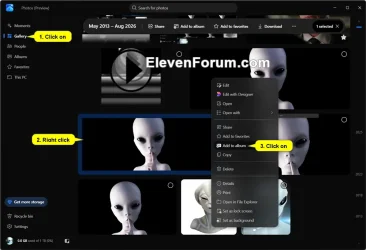
4 Click/tap on the album you want to add the image(s) to. (see screenshot below)
You can click/tap on Create new album to create a new album to add the image(s) to instead.
1 Open the OneDrive Photos or Photos (Preview) app.
2 Open Albums on the sidebar. (see screenshots below step 3)
3 Click/tap on an album you want to remove images from. (see screenshot below)
4 Perform an available action below you want to use: (see screenshots below)
- Select (check) one or more images, and click/tap on Remove from album on the toolbar.
- Right click on a single image, and click/tap on Remove from album.


5 Click/tap on Remove to confirm. (see screenshot below)
That's it,
Shawn Brink
Related Tutorials
- Sign in or Sign out of OneDrive Photos app in Windows 11
- Toggle Sidebar in OneDrive Photos app in Windows 11
- Create and Delete Albums in OneDrive Photos app in Windows 11
- Change Album Cover in OneDrive Photos app in Windows 11
- Change Album Name in OneDrive Photos app in Windows 11
- Add or Remove Favorites in OneDrive Photos app in Windows 11
- Change Gallery Layout View in OneDrive Photos app in Windows 11
- Filter Gallery in OneDrive Photos app in Windows 11
- Change Theme to Light or Dark Mode in OneDrive Photos app in Windows 11
Last edited: