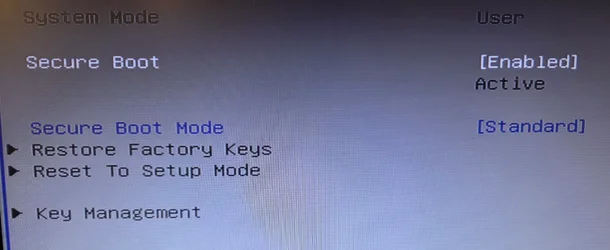
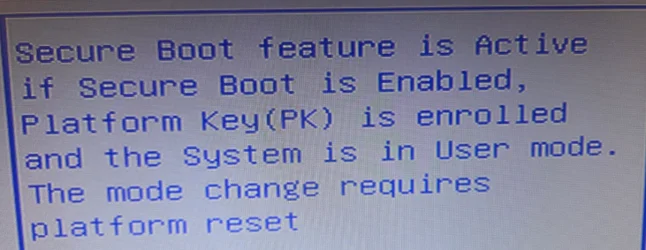
On Acemagic Mini PCs, use F7 to give you the boot menu. That will allow you to select the device to boot or enter BIOS setup.I tried the ESC, F2, and F12 keys, none of them were recognized by the BIOS
My Computers
-
At a glance
Win11 Pro 26H2 (Release Preview)Intel i7-14650HX32 GBNo GPU - Built-in Intel Graphics- OS
- Win11 Pro 26H2 (Release Preview)
- Computer type
- PC/Desktop
- Manufacturer/Model
- Acemagic Matrix M5
- CPU
- Intel i7-14650HX
- Memory
- 32 GB
- Graphics Card(s)
- No GPU - Built-in Intel Graphics
- Sound Card
- Integrated
- Monitor(s) Displays
- Varies as machine will often be moved to locations with different monitors
- Screen Resolution
- Varies
- Hard Drives
- 1 x 1TB Gen 4 NVMe SSD
- PSU
- 120W Power Brick
- Keyboard
- Corsair K70 Max RGB Magnetic Keyboard
- Mouse
- Logitech MX Master 3
- Internet Speed
- 1Gb Up / 1 Gb Down
- Browser
- Edge
- Antivirus
- Windows Defender
-
At a glance
Win11 Pro 26H2 (Release Preview)Intel i7-1255U16 GBIntel Iris Xe Graphics- Operating System
- Win11 Pro 26H2 (Release Preview)
- Computer type
- Laptop
- Manufacturer/Model
- Lenovo ThinkBook 13x Gen 2
- CPU
- Intel i7-1255U
- Memory
- 16 GB
- Graphics card(s)
- Intel Iris Xe Graphics
- Sound Card
- Realtek® ALC3306-CG codec
- Monitor(s) Displays
- 13.3-inch IPS Display
- Screen Resolution
- WQXGA (2560 x 1600)
- Hard Drives
- 4 TB 4 x 4 NVMe SSD
- PSU
- USB-C / Thunderbolt 4 Power / Charging Using an Anker 160W Charger
- Keyboard
- Backlit, spill resistant keyboard
- Mouse
- Buttonless Glass Precision Touchpad
- Internet Speed
- 1Gb Up / 1Gb Down
- Browser
- Edge
- Antivirus
- Windows Defender
- Other Info
- WiFi 6e / Bluetooth 5.1 / Facial Recognition / Fingerprint Sensor / ToF (Time of Flight) Human Presence Sensor

 I buy the products as advertised, I'm not the patent police. I'm sure a ton of similar products we buy have similar issues.