Microsoft 365 Insider Blog:
Hi, Insiders! I’m Shireen Salma, a Product Manager on the Office Accessibility team. Today, I’m excited to share an update to Accessibility Assistant in PowerPoint for Windows that improves how we detect color contrast issues—especially when text appears on transparent backgrounds. This enhancement helps to ensure that contrast checks reflect what you can actually see, particularly in slides that use images, gradients, or layered design elements.
Better contrast checking for slides in PowerPoint
Color contrast is one of the most common accessibility challenges in presentation content. In PowerPoint, text is often placed on top of images, gradients, or layered visuals, and most text boxes are transparent by default. Until now, Accessibility Assistant evaluated color contrast only when text appeared on solid backgrounds, which meant some real‑world contrast issues could go undetected.With this update, Accessibility Assistant now checks the color contrast of text against the background you can actually see, even when that background includes transparency.
This means authors get more accurate guidance when text appears over images, gradients, or other slide content—helping ensure presentations are readable for people with low vision or color‑vision deficiencies.
How it works
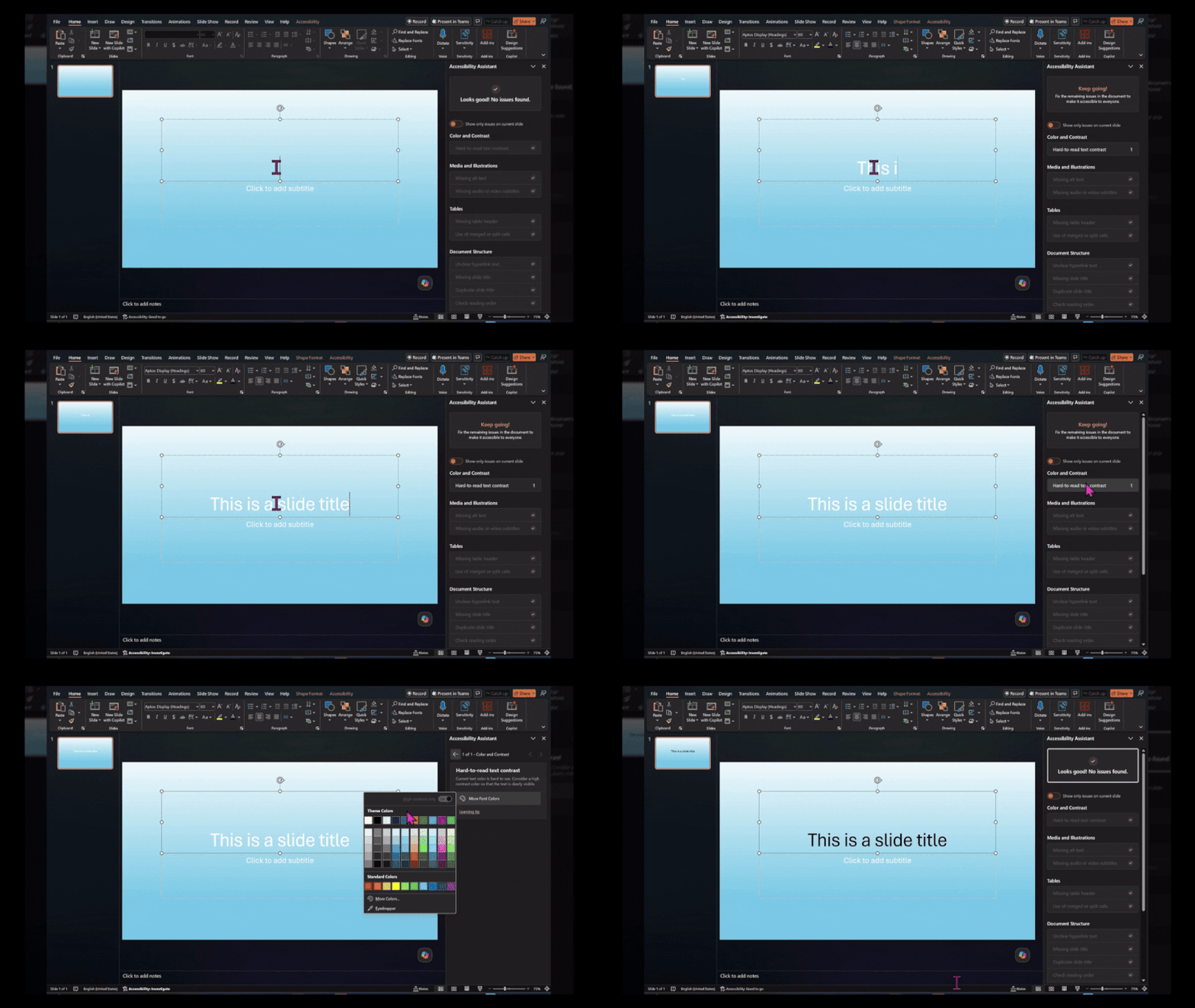
- In a PowerPoint file, go to Review. From the ribbon choose Check Accessibility, then select Hard-to-read text contrast.
- Notice that text against transparent backgrounds are evaluated and flagged.
Availability
This feature is rolling out to users with a Microsoft 365 subscription and running:- Windows: Version 2603 (Build 19822.20114) or later.
- Mac: Version 16.108 (Build 26032513) or later.
Known issues
Color contrast evaluation against transparent backgrounds does not yet apply to text inside tables without solid fill and text inside native Chart objects such as legends and data callouts.Feedback
We’d love to hear your thoughts on how this update is working! Open Accessibility Assistant, then select Give Feedback to provide feedback. Source:
Better contrast checking for slides in PowerPoint | Microsoft Community Hub
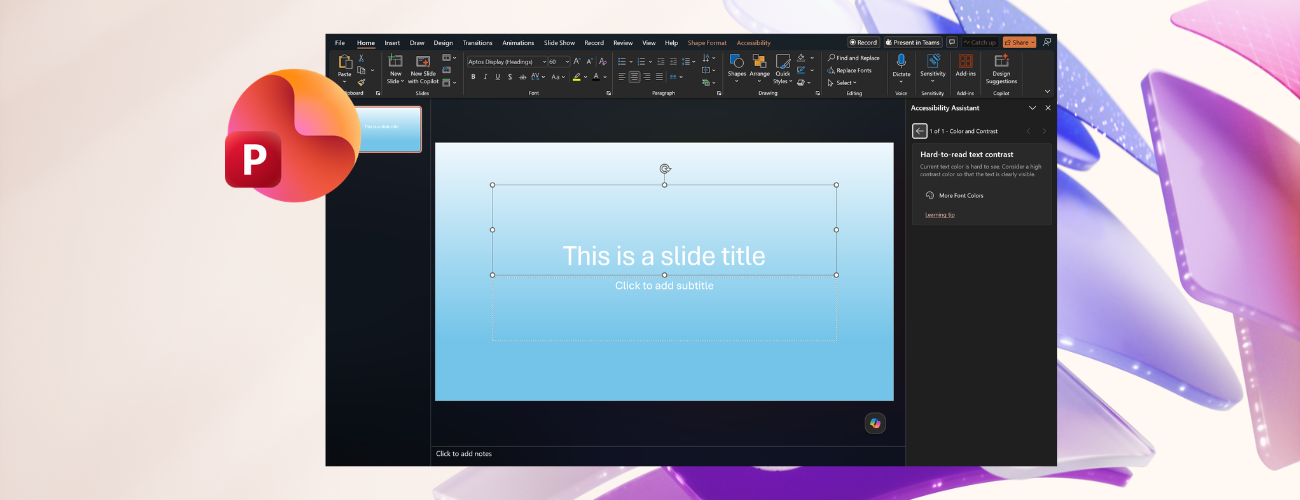
An update to Accessibility Assistant in PowerPoint for Windows improves how it detects color contrast issues.
 techcommunity.microsoft.com