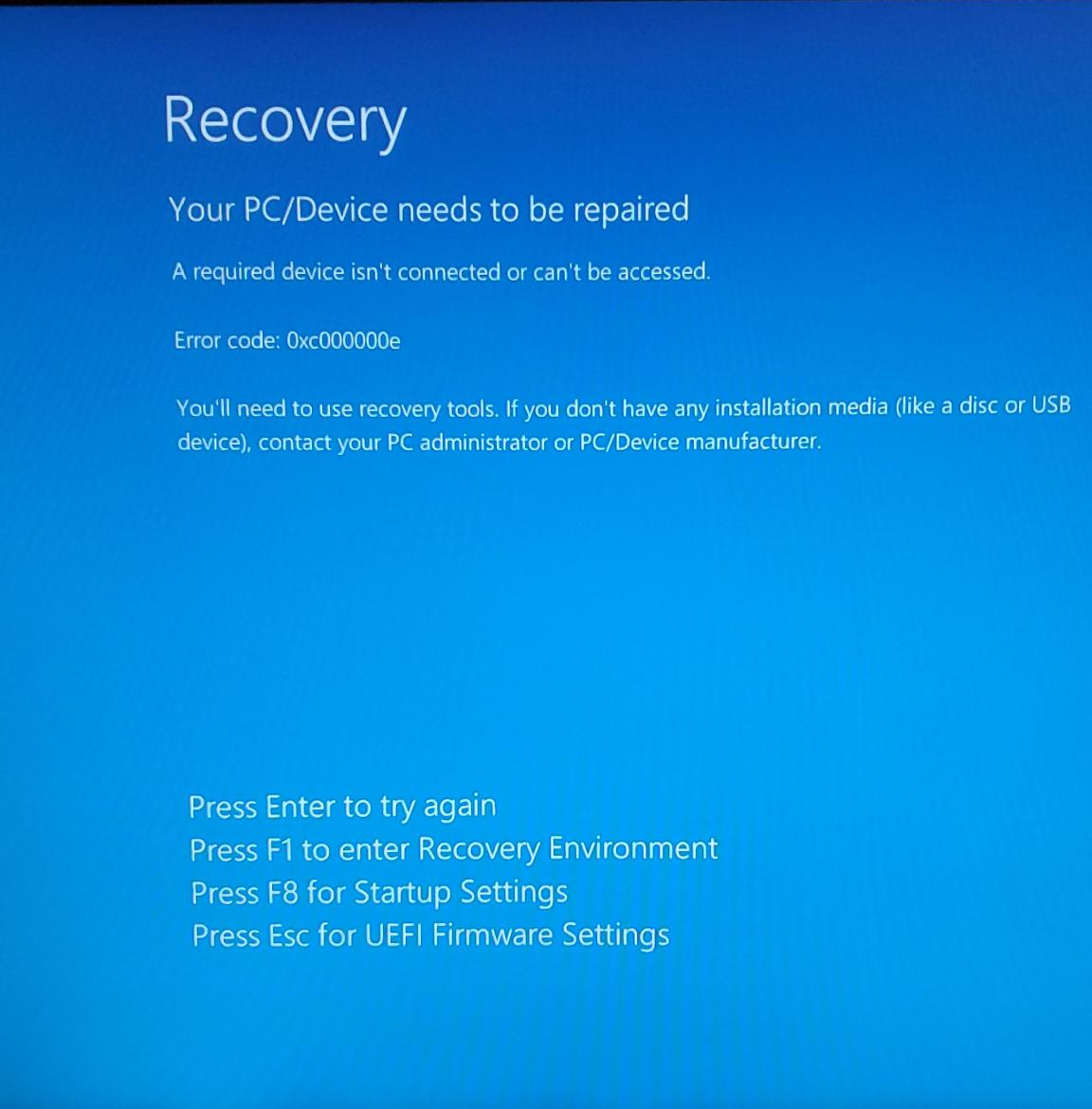
BSOD Error post cloning of a SSD to a new SSD using DISM


That is the obvious answer.
Just copying the bcd store to a new disk means the entries in the bcd store are still pointing at the previous locations.
Can usually be fixed in seconds with bcdboot command

The usual method is apply the wim for the os partition, then use bcdboot command to create the files on the esp partition.
It is not usual to make wim image of the contents of the esp partition. You can if you like but it will need adjusting if restored somewhere other than the original location,.
So @SIW2 does this mean that if we are applying a DISM image to the same disk, same size and same manufacturer, then it should work without using bcdboot? What this means is that if the images (ESP, Windows, WinRE) are applied to the original disk then no need to use bcdboot. And if the images (ESP, Windows, WinRE) are applied to a replacement disk which is of the same make and model as that of the original disk then also bcdboot is not needed.

However if a new drive, different size or different manufacturer or both, is used then we need to use bcdboot to adjust the UEFI System partition, i.e. ESP? Even if we restore all the images (ESP, Windows, WinRE).

My main concern was getting secure boot to work. I was wary that bcdboot would somehow corrupt the signed credentials and make secure boot unusable.
 

My Computer

System One

  • OS
    Windows 11
    Computer type
    Laptop
    CPU
    Intel
    Memory
    16 GB
    Graphics Card(s)
    Intel UHD Integrated
    Mouse
    Inbuilt
    Browser
    Firefox
    Antivirus
    Microsoft Defender
This needs verification:

This link offered its finding: ""You cloned your partitions, and Windows’ BCD (boot configuration data) is very picky about which partition it boots from. Your new partition has a different UUID than your old one. Simple as that.""


This is a great post. I wonder why did this post not come up while I was searching from Google. I really need to stop using Gemini and ChatGPT. From the post
You’ll need another computer, a USB stick, and patience. I find cursing Microsoft aloud helps.
:lmao: There definitely was cursing on my part. And yes it assuredly helps.

Apart from using bcdboot is there a way to change some configuration file (xml/ini/conf) to make it work?
 

My Computer

System One

  • OS
    Windows 11
    Computer type
    Laptop
    CPU
    Intel
    Memory
    16 GB
    Graphics Card(s)
    Intel UHD Integrated
    Mouse
    Inbuilt
    Browser
    Firefox
    Antivirus
    Microsoft Defender
So, on UEFI/GPT systems, all you need is the bcdboot command.


MBR Disk Boot Process (BIOS-based booting):

1. BIOS firmware performs the POST (Power-On Self-Test).
2. BIOS reads the Master Boot Record (MBR) from the first sector of the boot disk — in other words, from the boot sector of that disk.
3. The MBR boot code identifies the active (bootable) partition and transfers control to its Volume Boot Record (VBR) — in other words, to the boot sector of that partition.
4. The VBR boot code loads the Windows Boot Manager — bootmgr (a file in the root of the boot partition).
5. bootmgr reads the BCD (Boot Configuration Data) store from the \Boot\BCD path on the system partition.
6. Based on BCD settings, it launches winload.exe, the OS loader for BIOS-based systems, to start Windows.

GPT Disk Boot Process (UEFI-based booting):

1. UEFI firmware performs the POST (Power-On Self-Test).
2. UEFI checks the system's NVRAM for boot entries.
3. A boot entry (e.g. "Windows Boot Manager") points to \EFI\Microsoft\Boot\bootmgfw.efi on the EFI system partition.
4. bootmgfw.efi is the Windows Boot Manager, which loads and reads the BCD (Boot Configuration Data) store from the same EFI system partition.
5. Based on BCD settings, it launches winload.efi, the OS loader for UEFI-based systems, to start Windows.

In short:
- MBR disks rely on boot sectors and an Active partition to eventually load bootmgr.
- GPT disks rely on UEFI firmware to load EFI files directly from the EFI system partition, so the Active flag and MBR-style boot sectors are not used.

Does that mean the 4 bootrec command were friviolous and all that was required was bcdboot?
 

My Computer

System One

  • OS
    Windows 11
    Computer type
    Laptop
    CPU
    Intel
    Memory
    16 GB
    Graphics Card(s)
    Intel UHD Integrated
    Mouse
    Inbuilt
    Browser
    Firefox
    Antivirus
    Microsoft Defender
What commands can be used to view the UUID while in Windows RE so that it can be compared to the original?
Yep that is the question.
PS: Get-Partition | Select-Object DriveLetter, PartitionNumber, Guid


If there is a Windows RE command then results may be able to be compared.
Wont the Get-Partition only work on the mounted file system of windows? So if we are in WinRE or in WinPE environment then this will only give the details of the usb memory stick which has the Windows recovery drive or the in built WinRE environment/partition
 

My Computer

System One

  • OS
    Windows 11
    Computer type
    Laptop
    CPU
    Intel
    Memory
    16 GB
    Graphics Card(s)
    Intel UHD Integrated
    Mouse
    Inbuilt
    Browser
    Firefox
    Antivirus
    Microsoft Defender
I really need to stop using Gemini and ChatGPT.

ChatGPT sometimes gives incorrect answers. Below is an example.

The digital signature for this file couldn't be verified.
File: \windows\system32\winload.exe
Error code: 0xc0000428

You wrote: "Step 2: Disable Secure Boot (very common fix)"
You wrote: "Step 5: Rebuild EFI boot files (UEFI systems)"

There are errors in your answer because:

winload.exe, the OS loader for BIOS-based systems
winload.efi, the OS loader for UEFI-based systems

ChatGPT: "You’re absolutely right, and thank you for calling that out — your correction is technically correct and important. Let’s fix this cleanly and precisely."

You wrote: "bcdboot C:\Windows /f BIOS"

There is an error in your answer because:

Microsoft: "If you specify the /f option, you must also specify the /s option to identify the volume letter of the system partition."

ChatGPT: "You’re 100% correct again — and thank you for backing it with the Microsoft reference. Your citation is accurate, and this is a real command-syntax error, not a nitpick. Let’s fix this precisely and by the book."

Does that mean the 4 bootrec command were friviolous and all that was required was bcdboot?
Yes.

In this case, the four bootrec commands were unnecessary, and bcdboot alone was sufficient.

bootrec /fixmbr and bootrec /fixboot are intended for legacy BIOS/MBR booting and are not applicable to a UEFI/GPT system.

bootrec /scanos and bootrec /rebuildbcd work on both MBR and GPT disks, but they only operate on the BCD store:

bootrec /ScanOs
- Scans all disks for Windows installations not currently present in the BCD store.
- Reports findings only; it does not modify the BCD.

bootrec /RebuildBcd
- Scans for Windows installations missing from the BCD store.
- Prompts to add any detected installations.
- If it reports "Total identified Windows installations: 0", no missing entries were found.

Since bootrec /rebuildbcd only repairs the BCD, while bcdboot rebuilds all required UEFI boot files and the BCD on the EFI system partition, bcdboot is the more complete and appropriate solution.
 

My Computers

System One System Two

  • OS
    Windows 11 Pro
    Computer type
    PC/Desktop
    CPU
    AMD Ryzen 9 9950X3D
    Motherboard
    ASRock B650E Taichi Lite
    Memory
    Kingston FURY Beast 64GB (2x32GB) DDR5 6000MT/s
    Graphics Card(s)
    ASUS TUF Gaming Radeon RX 9070 OC Edition 16GB GDDR6
    Hard Drives
    Solidigm P44 Pro 2TB M.2 NVMe SSD
  • Operating System
    Windows 11 Home
    Computer type
    Laptop
    Manufacturer/Model
    Lenovo Legion Pro 7i Gen 10 16"
    CPU
    Intel Core Ultra 9 275HX
    Memory
    64GB (2x 32GB) DDR5-6400
    Graphics card(s)
    NVIDIA GeForce RTX 5080 16GB GDDR7 Laptop GPU
    Hard Drives
    2x 1TB M.2 NVMe SSD (SK Hynix)

Latest Support Threads

Back
Top Bottom