Can I change automatic system protection "shadow copies" settings?


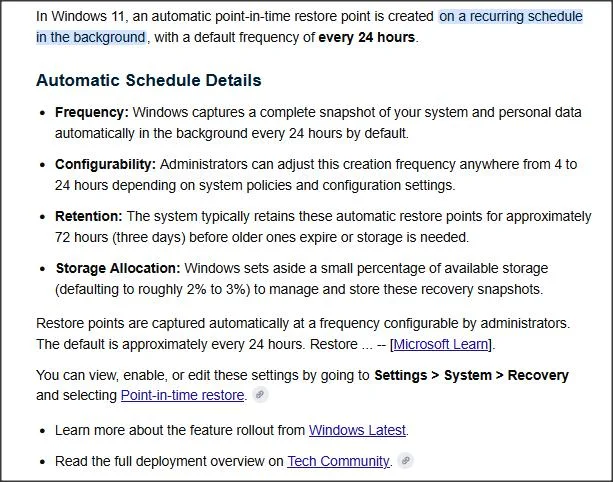
Useful summary of PITR:
1.webp

From here:

PITR can be disabled, frequency of PITR point creation can be increased, but cannot be less frequent than once in 24 hours.

It doesn't seem you can change the scheduled time, and I haven't yet seen a way to create one manually e.g. with Powershell, as you can a System Restore point. Without that, you can't create your own scheduled task.
 
Last edited:

My Computer My Computer

At a glance

Windows 11 Proi7-8650U16GBIntel UHD 620
OS
Windows 11 Pro
Computer type
Laptop
Manufacturer/Model
Lenovo t480s
CPU
i7-8650U
Memory
16GB
Graphics Card(s)
Intel UHD 620
Screen Resolution
1920x1080
Hard Drives
C SN810 SDCPNRY-512G-1006
Browser
Edge, Firefox
Antivirus
Defender
System restore points can not be used to recover user files.


Test it for yourself.

create a file e.g. test.txt on your desktop

create system restore point

delete test.txt

mount the restore point (shadow copy) or look inside it with shadowcopyview.

easy way is rt click the shadow copy and select "open in windows explorer"

copy out test.txt


shadowcopyview-1.webp


if you are running shadowcopyview in pe without explorer an alternative is scroll at the bottom to see the contents

rt click whatever files/folder you want in the bottom panel and select "copy selected files to"

shadowcopyview1copy-out.webp

if you haven't got explorerframe set up in your pe, just type the destination for the copied files/folders
 
Last edited:

My Computers My Computers

  • At a glance

    Win7,Win11i7-97002x16gb 3600mhz
    OS
    Win7,Win11
    Computer type
    PC/Desktop
    CPU
    i7-9700
    Motherboard
    gigabyte b365m ds3h
    Memory
    2x16gb 3600mhz
    Monitor(s) Displays
    benq gw2480
    PSU
    bequiet pure power 11 400CM
    Cooling
    cryorig m9i
  • At a glance

    win7,win11i5-84002x8gb 3200
    Operating System
    win7,win11
    Computer type
    PC/Desktop
    CPU
    i5-8400
    Motherboard
    gigabyte b365m ds3h
    Memory
    2x8gb 3200
    PSU
    xfx pro 450
Test it for yourself.

Yes you are right, I have found out also. Creating a restore point makes a shadow copy including the user files. When restoring, the shadow copy system however exclusively picks up the system files and ignores the user files. You can effectively verify (and recover all user files) with shadow copy viewer.

This leaves the question what really is the difference between the old restore points and PITR, except that, for restoration, PITR restores also the user files.
 

My Computer My Computer

At a glance

Windows 11Intel Core i3 12 100 12th generationKingston DDR4-3200 16 GBytesIntel UHD 730
OS
Windows 11
Computer type
PC/Desktop
Manufacturer/Model
Gigabyte H610M H V2
CPU
Intel Core i3 12 100 12th generation
Motherboard
American Megatrend F35
Memory
Kingston DDR4-3200 16 GBytes
Graphics Card(s)
Intel UHD 730
what really is the difference between the old restore points and PITR, except that, for restoration, PITR restores also the user files.

That seems to be it except the pitr shadows are only kept for 72 hours. I havent looked at pitr yet so it is a guess.

As I have posted many times before shadowcopy can be captured into a wim for restore purposes.

for beginners it can be capured into install.wim. Then replace the install.wim in installation media sources folder so setup.exe can do the job
 

My Computers My Computers

  • At a glance

    Win7,Win11i7-97002x16gb 3600mhz
    OS
    Win7,Win11
    Computer type
    PC/Desktop
    CPU
    i7-9700
    Motherboard
    gigabyte b365m ds3h
    Memory
    2x16gb 3600mhz
    Monitor(s) Displays
    benq gw2480
    PSU
    bequiet pure power 11 400CM
    Cooling
    cryorig m9i
  • At a glance

    win7,win11i5-84002x8gb 3200
    Operating System
    win7,win11
    Computer type
    PC/Desktop
    CPU
    i5-8400
    Motherboard
    gigabyte b365m ds3h
    Memory
    2x8gb 3200
    PSU
    xfx pro 450
That seems to be it except the pitr shadows are only kept for 72 hours. I havent looked at pitr yet so it is a guess.

As I have posted many times before shadowcopy can be captured into a wim for restore purposes.

for beginners it can be capured into install.wim. Then replace the install.wim in installation media sources folder so setup.exe can do the job

Thanks,
another easy way is Shadow Explorer (easier to use than ShadowCopyView; just copy and paste the file you want to get back from the list) !
 

My Computer My Computer

At a glance

Windows 11Intel Core i3 12 100 12th generationKingston DDR4-3200 16 GBytesIntel UHD 730
OS
Windows 11
Computer type
PC/Desktop
Manufacturer/Model
Gigabyte H610M H V2
CPU
Intel Core i3 12 100 12th generation
Motherboard
American Megatrend F35
Memory
Kingston DDR4-3200 16 GBytes
Graphics Card(s)
Intel UHD 730
shadowexplorer needs netframework so not much in use pe, unless you are going to put all that in your pe which I cba with

shadowcopyview is a more useful tool because it doesnt have those dependencies.

can also be done with 7-zip ui but you need to type in the path so you need to know which shadow you are looking for
e.g \\?\GLOBALROOT\Device\HarddiskVolumeShadowCopy5\ then press enter

shadowcopyview lists them for you with dates which makes it easier to identify and opening in windows explorer makes it simpler for beginners
 
Last edited:

My Computers My Computers

  • At a glance

    Win7,Win11i7-97002x16gb 3600mhz
    OS
    Win7,Win11
    Computer type
    PC/Desktop
    CPU
    i7-9700
    Motherboard
    gigabyte b365m ds3h
    Memory
    2x16gb 3600mhz
    Monitor(s) Displays
    benq gw2480
    PSU
    bequiet pure power 11 400CM
    Cooling
    cryorig m9i
  • At a glance

    win7,win11i5-84002x8gb 3200
    Operating System
    win7,win11
    Computer type
    PC/Desktop
    CPU
    i5-8400
    Motherboard
    gigabyte b365m ds3h
    Memory
    2x8gb 3200
    PSU
    xfx pro 450
shadowexplorer needs netframework so not much in use pe

Sorry, I don't use PE, except for the Hasleo Bootmenu ;-)
 

My Computer My Computer

At a glance

Windows 11Intel Core i3 12 100 12th generationKingston DDR4-3200 16 GBytesIntel UHD 730
OS
Windows 11
Computer type
PC/Desktop
Manufacturer/Model
Gigabyte H610M H V2
CPU
Intel Core i3 12 100 12th generation
Motherboard
American Megatrend F35
Memory
Kingston DDR4-3200 16 GBytes
Graphics Card(s)
Intel UHD 730
the Hasleo Bootmenu

that should be pointing to the wim named as a long number something like this:

%systemdrive%\boot\longnumber.WIM

I dont know what the numbers signify

can find it with

bcdedit.exe /enum |findstr "des dev den"
 
Last edited:

My Computers My Computers

  • At a glance

    Win7,Win11i7-97002x16gb 3600mhz
    OS
    Win7,Win11
    Computer type
    PC/Desktop
    CPU
    i7-9700
    Motherboard
    gigabyte b365m ds3h
    Memory
    2x16gb 3600mhz
    Monitor(s) Displays
    benq gw2480
    PSU
    bequiet pure power 11 400CM
    Cooling
    cryorig m9i
  • At a glance

    win7,win11i5-84002x8gb 3200
    Operating System
    win7,win11
    Computer type
    PC/Desktop
    CPU
    i5-8400
    Motherboard
    gigabyte b365m ds3h
    Memory
    2x8gb 3200
    PSU
    xfx pro 450
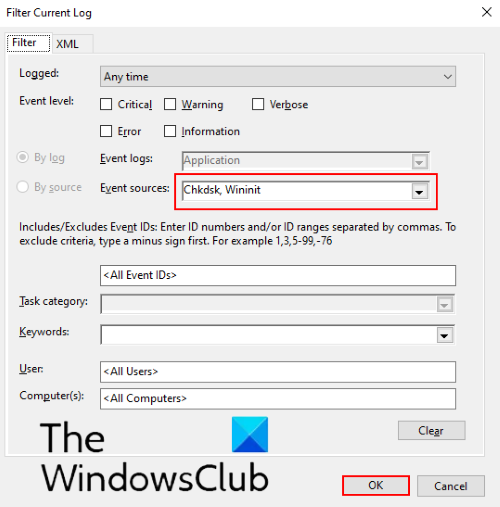
Now I am definitely stumped. I turned off both Point-In-Time Restore and System Protection and made sure they remained off at the time I made the test. I opened my media player (JRiver Media Center 35) and began playing an audio file at 11:59 AM. The computer clock in the system tray flipped over to 12:00 PM and it hiccuped at the usual point, 12:00:14 (give or take a second or two using a stopwatch timer). I double checked that System Restore and Point-In-Time Restore remained off by checking both again. I looked at Event Viewer and say the same two events that appear every day at noon: Event Log at 12:00:00 PM and then Ntfs (Microsoft-Windows-Ntfs) at 12:00:17 (a few seconds later than usual, that NTFS event usually happens at 12:00:13 or 12:00:14).

Screenshot 2026-09-07 120414.webpScreenshot 2026-09-07 120435.webpScreenshot 2026-09-07 120457.webp

I'm not 100% certain but it seems highly probable that that NTFS event which gets logged in Event Viewer under Windows Logs>System every day is the thing causing the audio glitch - but turning off System Protection and Point-In-Time Restore does nothing to prevent that NTFS event from happening every day at the same time, synchronous with the audio hiccup in playback.

Could there be some other Windows process that is triggering that NTFS event daily at noon? Or is it something in the audio player JRiver MC35, perhaps that is going off at 12:00:00 noon when the program is running. I have automatic imports turned off in JRiver, so it's not that it's scanning for updates to my library. And I added a whole long list of exceptions for JRiver in Windows Security as directed at this page.

JRiver is a very solid player in terms of performance and I very rarely hear glitches or hiccups during playback. And as a rule I close out all other apps and windows and folders and files on the PC when I'm playing music (of course there are inevitably some apps running in the background by default in Windows, so I don't know if it's one of those background apps causing this hiccup every day at the same time, though I'm still inclined to blame it on that NTFS event shown in Event Viewer logged at the exact same time the audio glitch happens).

If anyone has any further ideas for troubleshooting, I'm all ears. If I don't figure this out then I will just avoid playing audio on my computer at 12:00 noon (unless I'm willing to put up with the glitch). It's not the end of the world, but I'd still like to get to the bottom of this annoying glitch.
 

My Computer My Computer

At a glance

Windows 11
OS
Windows 11
Computer type
PC/Desktop
Manufacturer/Model
Dell Pro Max Tower T2 FCT2250 Desktop PC
Monitor(s) Displays
Dell E2225HSM Pro 22" Adjustable Stand Monitor, Sony Bravia 4K VH21 KD-43X85K 43" 4K HDR LED Google TV
Screen Resolution
1920 X 1080, 3840 X 2160
Could there be some other Windows process that is triggering that NTFS event daily at noon?
 

My Computer My Computer

At a glance

Windows 11 Pro 25H2
OS
Windows 11 Pro 25H2
Computer type
Laptop
Manufacturer/Model
Toshiba
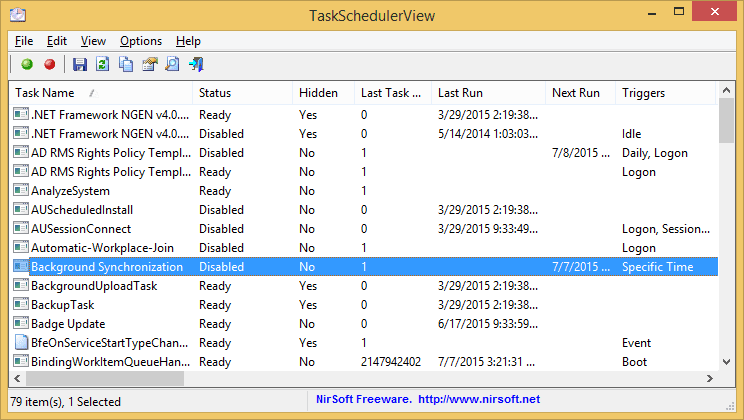
Try temporarily disabling disk defrag:
Code:
schtasks /change /disable /tn "\Microsoft\Windows\Defrag\ScheduledDefrag"

schtasks /change /enable /tn "\Microsoft\Windows\Defrag\ScheduledDefrag"

If that works, then you need to open the Defrag Tool and change the schedule frequency.
 

My Computer My Computer

At a glance

Windows 7
OS
Windows 7
Try temporarily disabling disk defrag:
Code:
schtasks /change /disable /tn "\Microsoft\Windows\Defrag\ScheduledDefrag"

schtasks /change /enable /tn "\Microsoft\Windows\Defrag\ScheduledDefrag"

If that works, then you need to open the Defrag Tool and change the schedule frequency.

Not sure how to implement your suggestion, but I already have scheduled optimization set to OFF:

Screenshot 2026-09-07 222026.webp
 

My Computer My Computer

At a glance

Windows 11
OS
Windows 11
Computer type
PC/Desktop
Manufacturer/Model
Dell Pro Max Tower T2 FCT2250 Desktop PC
Monitor(s) Displays
Dell E2225HSM Pro 22" Adjustable Stand Monitor, Sony Bravia 4K VH21 KD-43X85K 43" 4K HDR LED Google TV
Screen Resolution
1920 X 1080, 3840 X 2160
Back
Top Bottom