Accounts Change Name of User Profile Folder in Windows 11

  • Thread starter Thread starter Brink
  • Start date Published: Start date Updated Updated:
  • Tags Tags
    folder

User_profile_folder_banner.png

This tutorial will show you how to rename a user profile folder for any account (local account or Microsoft account) in Windows 10 and Windows 11.

When adding a new user account in Windows, a profile for the account is automatically created when the user signs in to the new account for the first time.

A user profile is a collection of settings that make the computer look and work the way you want it to for a user account. It is stored in the account's C:\Users\<user name> profile folder, and contains the account's settings for desktop backgrounds, screen savers, pointer preferences, sound settings, and other features. User profiles ensure that your personal preferences are used whenever you sign in to Windows.

A user's profile folder also contains their personal folders such as the Contacts, Desktop, Documents, Downloads, Favorites, Links, Music, OneDrive, Pictures, Saved Games, Searches, and Videos folders.

Since a user's profile folder is automatically named by Windows by default, it will not always be named what you may have wanted its name to be. For example, when you add a Microsoft account to the PC, its user profile folder in the "C:\Users" folder will be named with the first 5 characters of the email address used for the Microsoft account.

Starting with Windows 11 build 26100.8524 (24H2) and build 26200.8524 (25H2), you can now choose a custom name for your user folder on the Device Name page when going through Windows setup. This most recent update now makes it easier to choose a custom name. The naming option is available during setup only. If you skip this step, Windows will use the default folder name and continue setup as usual. User folder names must follow standard Windows naming requirements.

Reference:

You must be signed in as an administrator to change the name of a user profile folder.

Changing the name of an account's user profile folder will not change the user account name.


Here's How:

1 Sign out of the user account (ex: "Brink2") you want to change the name of its user profile folder (ex: "C:\Users\Brink2").

2 Sign in to any administrator account on the PC that you are not changing its user profile folder name.

If you do not have another administrator account, then you can temporarily enable the built-in Administrator to sign in to do these steps.


3 Open Windows Terminal, and select either Windows PowerShell or Command Prompt.

4 Copy and paste the command below into Windows Terminal, and press Enter. (see screenshot below)

powershell "Get-LocalUser | Select-Object -Property @('Name', 'SID')"​

Make note of the SID for the account (ex: "Brink2") you want to change the name of its user profile folder. You will need to know this SID in step 6 below.


SID.webp

5 Open Registry Editor (regedit.exe).

6 Navigate to the key below in the left pane of Registry Editor. (see screenshot below)

HKEY_LOCAL_MACHINE\SOFTWARE\Microsoft\Windows NT\CurrentVersion\ProfileList\<SID>​

Substitute <SID> in the registry key path above with the actual SID (ex: "S-1-5-21-2212846312-626644311-134141314-1002") from step 4 above for the account name (ex: "Brink2") you want to change the name of its user profile folder.

For example:
HKEY_LOCAL_MACHINE\SOFTWARE\Microsoft\Windows NT\CurrentVersion\ProfileList\S-1-5-21-2212846312-626644311-134141314-1002


User_profile_folder_name_regedit-1.png

7 In the right pane of the SID key (ex: "S-1-5-21-2212846312-626644311-134141314-1002"), double click/tap on the ProfileImagePath expandable string value (REG_EXPAND_SZ) to modify it. (see screenshot above)

8 Change the current name of the user profile folder in its full path (ex: "C:\Users\Brink2") to what you want (ex: "C:\Users\Brink3") instead, and click/tap on OK. (see screenshot below)

Make note of the current full path and name (ex: "C:\Users\Brink2") and new name (ex: "Brink3") for this account's user profile folder.

You will need to know both in step 10 and step 12 below.


User_profile_folder_name_regedit-2.png

9 You can close Registry Editor and Windows Terminal if you like. (see screenshot below)

User_profile_folder_name_regedit-3.png

10 Open File Explorer (Win+E), and navigate to the original full path of the user profile folder (ex: "C:\Users\Brink2") from step 8 above.

11 Select the user profile folder (ex: "Brink2"), and click/tap on the Rename icon on the command bar at the top. (see screenshot below)

User_profile_folder_name_File_Explorer-1.png

12 Change the current name of the user profile folder (ex: "Brink2") to the same new name (ex: "Brink3") from step 8 above. (see screenshot below)

User_profile_folder_name_File_Explorer-2.png

13 You can now close File Explorer if you like.

14 Create a symbolic link using the command below in an elevated command prompt. This symbolic link will show as a folder shortcut with the old profile name so anything that still references the old user profile folder name will be automatically redirected to the new user profile folder name.

You can skip this step 14 if you like so as not to have a folder shortcut with the old profile name.

If you skip this step 14 and have any issues of something not able to find your new profile folder name, then you will just need to do this step 14 to fix it.


mklink /d "Full path of old profile folder name" "full path of new profile folder name"​

Substitute Full path of old profile folder name in the command above with the actual full path of the old user profile folder name (ex: "C:\Users\Brink2").

Substitute full path of new profile folder name in the command above with the full path of the new user profile folder name (ex: "C:\Users\Brink3").

For example: mklink /d "C:\Users\Brink2" "C:\Users\Brink3"


15 If you use OneDrive, then while signed in to the account you renamed its profile folder for, change the OneDrive folder location to correct it for the new user profile folder name (ex: "Brink3") if needed. (see screenshot below)

User_profile_folder_name_OneDrive.png

16 Reset and rebuild the Windows Search index to clear any entries pointing to the old profile folder name.


That's it,
Shawn Brink


Last edited:
No I didn't create the symbolic link. I have a bacup Desktop folder from a couple of days ago before I started this exrcise. It"s now under the <newname> folder. How can I stop Windows looking for it under <oldname> when the <oldname> folder no longer exists?
Sorry to bother you, found it! Thanks again, I'm off to create the symbolic links just in case theres anything else.
 

My Computer My Computer

At a glance

Windows 11 Pro 25H2Intel(R) Core(TM) i7-1070016GB
OS
Windows 11 Pro 25H2
Computer type
PC/Desktop
Manufacturer/Model
Dell Optiplex
CPU
Intel(R) Core(TM) i7-10700
Memory
16GB
Monitor(s) Displays
Dell U2722DE
Screen Resolution
2560x1440
Hard Drives
NVMe Kioxia 512GB
Keyboard
Logi MX Keys
Mouse
Logi MX Vertical
Internet Speed
76
Browser
Edge/Chrome/Firefox
Antivirus
Bitdefender
Sorry to bother you, found it! Thanks again, I'm off to create the symbolic links just in case theres anything else.

Great news so far.
 

My Computers My Computers

  • At a glance

    Windows 11 Pro for WorkstationsIntel i7-8700K 5 GHz64 GB (4x16GB) G.SKILL TridentZ RGB DDR4 3600...ASUS ROG-STRIX-GTX1080TI-O11G-GAMING (11GB GD...
    OS
    Windows 11 Pro for Workstations
    Computer type
    PC/Desktop
    Manufacturer/Model
    Custom self build
    CPU
    Intel i7-8700K 5 GHz
    Motherboard
    ASUS ROG Maximus XI Formula Z390
    Memory
    64 GB (4x16GB) G.SKILL TridentZ RGB DDR4 3600 MHz (F4-3600C18D-32GTZR)
    Graphics Card(s)
    ASUS ROG-STRIX-GTX1080TI-O11G-GAMING (11GB GDDR5X)
    Sound Card
    Integrated Digital Audio (S/PDIF)
    Monitor(s) Displays
    2 x Samsung Odyssey G75 27"
    Screen Resolution
    2560x1440
    Hard Drives
    1TB Samsung 990 PRO M.2,
    4TB Samsung 990 PRO M.2,
    TerraMaster F8 SSD Plus NAS
    PSU
    Seasonic Prime Titanium 850W
    Case
    Thermaltake Core P3 wall mounted
    Cooling
    Corsair Hydro H115i
    Keyboard
    Amazon Basics Wired Full Keyboard MD005
    Mouse
    Logitech MX Master 4
    Internet Speed
    2 Gbps Download and 100 Mbps Upload
    Browser
    Chrome and Edge
    Antivirus
    Microsoft Defender
    Other Info
    Logitech Z625 speaker system,
    Logitech BRIO 4K Pro webcam,
    HP Color LaserJet Pro MFP M477fdn,
    CyberPower CP1500PFCLCD
    Galaxy S23 Plus phone
  • At a glance

    Windows 11 ProSnapdragon X Elite (12 core) 3.42 GHz16 GB LPDDR5x-7467 MHz
    Operating System
    Windows 11 Pro
    Computer type
    Laptop
    Manufacturer/Model
    Surface Laptop 7 Copilot+ PC
    CPU
    Snapdragon X Elite (12 core) 3.42 GHz
    Memory
    16 GB LPDDR5x-7467 MHz
    Monitor(s) Displays
    15" HDR
    Screen Resolution
    2496 x 1664
    Hard Drives
    1 TB SSD
    Internet Speed
    Wi-Fi 7 and Bluetooth 5.4
    Browser
    Chrome and Edge
    Antivirus
    Microsoft Defender
Great news so far.
Aargh, Outlook data files still have <oldname> any way to change? Would really like to banish all trace of <oldname> if its possible. Guess I just need to wait for each individual problem to crop up then try to fix it.
 

My Computer My Computer

At a glance

Windows 11 Pro 25H2Intel(R) Core(TM) i7-1070016GB
OS
Windows 11 Pro 25H2
Computer type
PC/Desktop
Manufacturer/Model
Dell Optiplex
CPU
Intel(R) Core(TM) i7-10700
Memory
16GB
Monitor(s) Displays
Dell U2722DE
Screen Resolution
2560x1440
Hard Drives
NVMe Kioxia 512GB
Keyboard
Logi MX Keys
Mouse
Logi MX Vertical
Internet Speed
76
Browser
Edge/Chrome/Firefox
Antivirus
Bitdefender
Aargh, Outlook data files still have <oldname> any way to change? Would really like to banish all trace of <oldname> if its possible. Guess I just need to wait for each individual problem to crop up then try to fix it.

Using the symbolic link to redirect would be the easiest way.
 

My Computers My Computers

  • At a glance

    Windows 11 Pro for WorkstationsIntel i7-8700K 5 GHz64 GB (4x16GB) G.SKILL TridentZ RGB DDR4 3600...ASUS ROG-STRIX-GTX1080TI-O11G-GAMING (11GB GD...
    OS
    Windows 11 Pro for Workstations
    Computer type
    PC/Desktop
    Manufacturer/Model
    Custom self build
    CPU
    Intel i7-8700K 5 GHz
    Motherboard
    ASUS ROG Maximus XI Formula Z390
    Memory
    64 GB (4x16GB) G.SKILL TridentZ RGB DDR4 3600 MHz (F4-3600C18D-32GTZR)
    Graphics Card(s)
    ASUS ROG-STRIX-GTX1080TI-O11G-GAMING (11GB GDDR5X)
    Sound Card
    Integrated Digital Audio (S/PDIF)
    Monitor(s) Displays
    2 x Samsung Odyssey G75 27"
    Screen Resolution
    2560x1440
    Hard Drives
    1TB Samsung 990 PRO M.2,
    4TB Samsung 990 PRO M.2,
    TerraMaster F8 SSD Plus NAS
    PSU
    Seasonic Prime Titanium 850W
    Case
    Thermaltake Core P3 wall mounted
    Cooling
    Corsair Hydro H115i
    Keyboard
    Amazon Basics Wired Full Keyboard MD005
    Mouse
    Logitech MX Master 4
    Internet Speed
    2 Gbps Download and 100 Mbps Upload
    Browser
    Chrome and Edge
    Antivirus
    Microsoft Defender
    Other Info
    Logitech Z625 speaker system,
    Logitech BRIO 4K Pro webcam,
    HP Color LaserJet Pro MFP M477fdn,
    CyberPower CP1500PFCLCD
    Galaxy S23 Plus phone
  • At a glance

    Windows 11 ProSnapdragon X Elite (12 core) 3.42 GHz16 GB LPDDR5x-7467 MHz
    Operating System
    Windows 11 Pro
    Computer type
    Laptop
    Manufacturer/Model
    Surface Laptop 7 Copilot+ PC
    CPU
    Snapdragon X Elite (12 core) 3.42 GHz
    Memory
    16 GB LPDDR5x-7467 MHz
    Monitor(s) Displays
    15" HDR
    Screen Resolution
    2496 x 1664
    Hard Drives
    1 TB SSD
    Internet Speed
    Wi-Fi 7 and Bluetooth 5.4
    Browser
    Chrome and Edge
    Antivirus
    Microsoft Defender
Hey @Brink, minor nit: I just noticed step 15 says "ranamed."
 

My Computer My Computer

At a glance

Win11 Ent. 25H2
OS
Win11 Ent. 25H2

My Computers My Computers

  • At a glance

    Windows 11 Pro for WorkstationsIntel i7-8700K 5 GHz64 GB (4x16GB) G.SKILL TridentZ RGB DDR4 3600...ASUS ROG-STRIX-GTX1080TI-O11G-GAMING (11GB GD...
    OS
    Windows 11 Pro for Workstations
    Computer type
    PC/Desktop
    Manufacturer/Model
    Custom self build
    CPU
    Intel i7-8700K 5 GHz
    Motherboard
    ASUS ROG Maximus XI Formula Z390
    Memory
    64 GB (4x16GB) G.SKILL TridentZ RGB DDR4 3600 MHz (F4-3600C18D-32GTZR)
    Graphics Card(s)
    ASUS ROG-STRIX-GTX1080TI-O11G-GAMING (11GB GDDR5X)
    Sound Card
    Integrated Digital Audio (S/PDIF)
    Monitor(s) Displays
    2 x Samsung Odyssey G75 27"
    Screen Resolution
    2560x1440
    Hard Drives
    1TB Samsung 990 PRO M.2,
    4TB Samsung 990 PRO M.2,
    TerraMaster F8 SSD Plus NAS
    PSU
    Seasonic Prime Titanium 850W
    Case
    Thermaltake Core P3 wall mounted
    Cooling
    Corsair Hydro H115i
    Keyboard
    Amazon Basics Wired Full Keyboard MD005
    Mouse
    Logitech MX Master 4
    Internet Speed
    2 Gbps Download and 100 Mbps Upload
    Browser
    Chrome and Edge
    Antivirus
    Microsoft Defender
    Other Info
    Logitech Z625 speaker system,
    Logitech BRIO 4K Pro webcam,
    HP Color LaserJet Pro MFP M477fdn,
    CyberPower CP1500PFCLCD
    Galaxy S23 Plus phone
  • At a glance

    Windows 11 ProSnapdragon X Elite (12 core) 3.42 GHz16 GB LPDDR5x-7467 MHz
    Operating System
    Windows 11 Pro
    Computer type
    Laptop
    Manufacturer/Model
    Surface Laptop 7 Copilot+ PC
    CPU
    Snapdragon X Elite (12 core) 3.42 GHz
    Memory
    16 GB LPDDR5x-7467 MHz
    Monitor(s) Displays
    15" HDR
    Screen Resolution
    2496 x 1664
    Hard Drives
    1 TB SSD
    Internet Speed
    Wi-Fi 7 and Bluetooth 5.4
    Browser
    Chrome and Edge
    Antivirus
    Microsoft Defender
I login to admin accuont, and try to change regular username, but I get error folder is in use, how can I rename it?
Also I want to change both folder name
 

My Computer My Computer

At a glance

Windows 11 26H2
OS
Windows 11 26H2
Computer type
Laptop
I login to admin accuont, and try to change regular username, but I get error folder is in use, how can I rename it?
Also I want to change both folder name

Hello. :alien:

Just to clarify, username is the name of the account and not the account's profile folder.

Usually when you get a "in use" error, it means either you are still signed in to the account or something (ex: app or process) is still accessing the account's profile folder.

You can boot into Safe Mode and sign in to the built-in Admin account, or some other admin account, than do the steps in the tutorial for the account you want to rename its profile folder.


My Computers My Computers

  • At a glance

    Windows 11 Pro for WorkstationsIntel i7-8700K 5 GHz64 GB (4x16GB) G.SKILL TridentZ RGB DDR4 3600...ASUS ROG-STRIX-GTX1080TI-O11G-GAMING (11GB GD...
    OS
    Windows 11 Pro for Workstations
    Computer type
    PC/Desktop
    Manufacturer/Model
    Custom self build
    CPU
    Intel i7-8700K 5 GHz
    Motherboard
    ASUS ROG Maximus XI Formula Z390
    Memory
    64 GB (4x16GB) G.SKILL TridentZ RGB DDR4 3600 MHz (F4-3600C18D-32GTZR)
    Graphics Card(s)
    ASUS ROG-STRIX-GTX1080TI-O11G-GAMING (11GB GDDR5X)
    Sound Card
    Integrated Digital Audio (S/PDIF)
    Monitor(s) Displays
    2 x Samsung Odyssey G75 27"
    Screen Resolution
    2560x1440
    Hard Drives
    1TB Samsung 990 PRO M.2,
    4TB Samsung 990 PRO M.2,
    TerraMaster F8 SSD Plus NAS
    PSU
    Seasonic Prime Titanium 850W
    Case
    Thermaltake Core P3 wall mounted
    Cooling
    Corsair Hydro H115i
    Keyboard
    Amazon Basics Wired Full Keyboard MD005
    Mouse
    Logitech MX Master 4
    Internet Speed
    2 Gbps Download and 100 Mbps Upload
    Browser
    Chrome and Edge
    Antivirus
    Microsoft Defender
    Other Info
    Logitech Z625 speaker system,
    Logitech BRIO 4K Pro webcam,
    HP Color LaserJet Pro MFP M477fdn,
    CyberPower CP1500PFCLCD
    Galaxy S23 Plus phone
  • At a glance

    Windows 11 ProSnapdragon X Elite (12 core) 3.42 GHz16 GB LPDDR5x-7467 MHz
    Operating System
    Windows 11 Pro
    Computer type
    Laptop
    Manufacturer/Model
    Surface Laptop 7 Copilot+ PC
    CPU
    Snapdragon X Elite (12 core) 3.42 GHz
    Memory
    16 GB LPDDR5x-7467 MHz
    Monitor(s) Displays
    15" HDR
    Screen Resolution
    2496 x 1664
    Hard Drives
    1 TB SSD
    Internet Speed
    Wi-Fi 7 and Bluetooth 5.4
    Browser
    Chrome and Edge
    Antivirus
    Microsoft Defender
Hello Brink,

I followed the instructions but

1. In some of my apps the file path where the data is saved is broken but when I try to reconnect it the folders are not in the new username folder
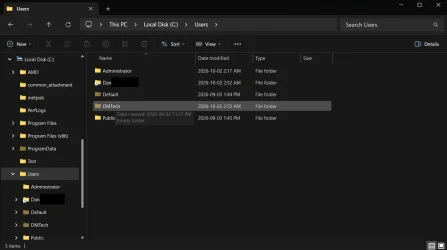
2. As you see in the screen shot some of the folders are grayed out, I can access them but the files do not open to their corresponding apps.
3. The old folder name is "Dan" and the new folder name is DMTech but the old folder is still there as a short cut but has no files in it and the new folder has the files and folders but is grayed out as you see in the screenshot.

Your help would be greatly appreciated Thank you.
 

Attachments

  • Users Folders Screen Shot.webp
    Users Folders Screen Shot.webp
    34.4 KB · Views: 3

My Computer My Computer

At a glance

Win 11
OS
Win 11
Computer type
PC/Desktop
Hello Brink,

I followed the instructions but

1. In some of my apps the file path where the data is saved is broken but when I try to reconnect it the folders are not in the new username folder
2. As you see in the screen shot some of the folders are grayed out, I can access them but the files do not open to their corresponding apps.
3. The old folder name is "Dan" and the new folder name is DMTech but the old folder is still there as a short cut but has no files in it and the new folder has the files and folders but is grayed out as you see in the screenshot.

Your help would be greatly appreciated Thank you.

Hello, and welcome to the forum. :alien:

The "Dan" shortcut folder would be the symbolic link created at step 14 to redirect to the new "DMTech" folder for backwards compatibility in case anything still references the old "Dan" folder location.

I'm not sure why the new "DMTech" folder is grayed out indicating it's a hidden folder. It shouldn't be hidden.


My Computers My Computers

  • At a glance

    Windows 11 Pro for WorkstationsIntel i7-8700K 5 GHz64 GB (4x16GB) G.SKILL TridentZ RGB DDR4 3600...ASUS ROG-STRIX-GTX1080TI-O11G-GAMING (11GB GD...
    OS
    Windows 11 Pro for Workstations
    Computer type
    PC/Desktop
    Manufacturer/Model
    Custom self build
    CPU
    Intel i7-8700K 5 GHz
    Motherboard
    ASUS ROG Maximus XI Formula Z390
    Memory
    64 GB (4x16GB) G.SKILL TridentZ RGB DDR4 3600 MHz (F4-3600C18D-32GTZR)
    Graphics Card(s)
    ASUS ROG-STRIX-GTX1080TI-O11G-GAMING (11GB GDDR5X)
    Sound Card
    Integrated Digital Audio (S/PDIF)
    Monitor(s) Displays
    2 x Samsung Odyssey G75 27"
    Screen Resolution
    2560x1440
    Hard Drives
    1TB Samsung 990 PRO M.2,
    4TB Samsung 990 PRO M.2,
    TerraMaster F8 SSD Plus NAS
    PSU
    Seasonic Prime Titanium 850W
    Case
    Thermaltake Core P3 wall mounted
    Cooling
    Corsair Hydro H115i
    Keyboard
    Amazon Basics Wired Full Keyboard MD005
    Mouse
    Logitech MX Master 4
    Internet Speed
    2 Gbps Download and 100 Mbps Upload
    Browser
    Chrome and Edge
    Antivirus
    Microsoft Defender
    Other Info
    Logitech Z625 speaker system,
    Logitech BRIO 4K Pro webcam,
    HP Color LaserJet Pro MFP M477fdn,
    CyberPower CP1500PFCLCD
    Galaxy S23 Plus phone
  • At a glance

    Windows 11 ProSnapdragon X Elite (12 core) 3.42 GHz16 GB LPDDR5x-7467 MHz
    Operating System
    Windows 11 Pro
    Computer type
    Laptop
    Manufacturer/Model
    Surface Laptop 7 Copilot+ PC
    CPU
    Snapdragon X Elite (12 core) 3.42 GHz
    Memory
    16 GB LPDDR5x-7467 MHz
    Monitor(s) Displays
    15" HDR
    Screen Resolution
    2496 x 1664
    Hard Drives
    1 TB SSD
    Internet Speed
    Wi-Fi 7 and Bluetooth 5.4
    Browser
    Chrome and Edge
    Antivirus
    Microsoft Defender
Hey @Brink,

I was following your forum last night and then ran into multiple issues. I thought it would be best that I don't try to do anything else before I get a helping hand from a professional.

(Note: I am doing this on a laptop, but the laptop is connected to 2 monitors, in which allows me to have a desktop-like setup even with my own keyboard and mouse!)

I was making sure to follow along closely with the steps you provided, although during Step 11, I was not able to rename the old user profile to my new desired name. I saw that it only created another folder afterwards with that desired name but it was not the old main profile folder. Afterwards, my mouse started reloading a lot to the point I could not interact with anything and so I restarted my computer in hopes my computer was simply acting up.

After restarting my computer, I noticed immediately that the background changed and when I tried logging in I was met with a short waiting time since the system was "Preparing Windows" for me. I later then am met with a message saying "We can't sign in to your account". I signed out as it recommended but the same thing only keeps happening over and over.

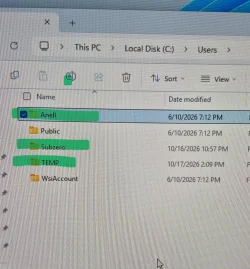
I was lost so I tried to continue on with the tutorial to create the symbolic link. With trying to do that, I noticed the user pathway changed its name to "system32" and then after another restart, it changes into "TEMP", though I still tried to follow through, once again to be met with another issue that says.. "Cannot create a file when that file already exists".

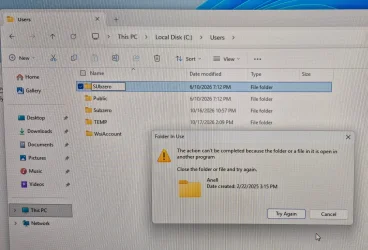
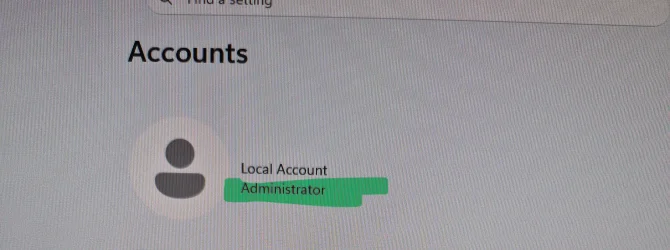
I decided to leave that alone for now and move to my File Explorer towards Users. I noticed I was finally able to change the name of the old main user folder but then told me once more that I needed adminstrator permission to rename the folder.. Clicking continue only led to it saying it "cannot be completed because the folder or a file in it is open in another program" Even though I checked whether the account (I never made another account nor are there any other accounts listed, it was my main account I was doing it all on) was an administrator.

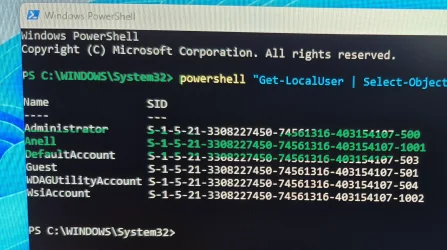
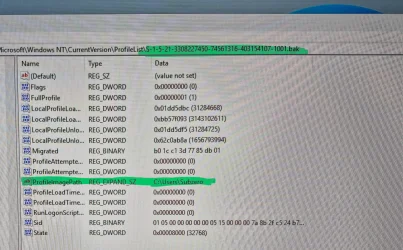
I then went on to check the Registry Editor only to notice there was a copy of the SID I was entering (Anell) to change the name from the start... with ".bak" at the end..

For now, I decided to stop, in fear that I'll probably keep messing up worse, leading me to where I am now... hah.. I took plently of pictures hopefully too to show you... I apologize if Im not the smartest with tech as a 17 y/o and wrote a whole essay but I would greatly appreciate help!

(Another note too, with every shutdown/restart that happens, it always seem to change the name of the user pathway and my account.)
 

My Computer My Computer

At a glance

26300.9711
OS
26300.9711
Computer type
Laptop
Manufacturer/Model
Dell Latitude 7420
@Brink, herr are the images
 

Attachments

  • 20261017_144503.webp
    20261017_144503.webp
    926.1 KB · Views: 1
  • 20261017_144320.webp
    20261017_144320.webp
    1.5 MB · Views: 1
  • 20261017_143508.webp
    20261017_143508.webp
    1.7 MB · Views: 1
  • 20261017_143446.webp
    20261017_143446.webp
    1.1 MB · Views: 1
  • 20261017_151552.webp
    20261017_151552.webp
    404.2 KB · Views: 1
  • 20261017_143803.webp
    20261017_143803.webp
    1.2 MB · Views: 1
  • 20261017_143133.webp
    20261017_143133.webp
    211.8 KB · Views: 1
  • 20261017_143144.webp
    20261017_143144.webp
    901.3 KB · Views: 1
  • 20261017_140931.webp
    20261017_140931.webp
    396.9 KB · Views: 1
  • 20261017_145146.webp
    20261017_145146.webp
    1.4 MB · Views: 1

My Computer My Computer

At a glance

26300.9711
OS
26300.9711
Computer type
Laptop
Manufacturer/Model
Dell Latitude 7420
Hello @011 , and welcome to the forum. :alien:

You're getting signed in to a temporary profile since something went wrong while renaming your account's profile folder. This is why it seems like a new account each time.

I'm not sure where you went wrong, but you can try to boot into Safe Mode, and sign in to a different administrator account other than the one you're wanting to rename its profile folder for.

While in Safe Mode, check to make sure ProfileImagePath in the registry has the same name in its path as the renamed profile folder.


My Computers My Computers

  • At a glance

    Windows 11 Pro for WorkstationsIntel i7-8700K 5 GHz64 GB (4x16GB) G.SKILL TridentZ RGB DDR4 3600...ASUS ROG-STRIX-GTX1080TI-O11G-GAMING (11GB GD...
    OS
    Windows 11 Pro for Workstations
    Computer type
    PC/Desktop
    Manufacturer/Model
    Custom self build
    CPU
    Intel i7-8700K 5 GHz
    Motherboard
    ASUS ROG Maximus XI Formula Z390
    Memory
    64 GB (4x16GB) G.SKILL TridentZ RGB DDR4 3600 MHz (F4-3600C18D-32GTZR)
    Graphics Card(s)
    ASUS ROG-STRIX-GTX1080TI-O11G-GAMING (11GB GDDR5X)
    Sound Card
    Integrated Digital Audio (S/PDIF)
    Monitor(s) Displays
    2 x Samsung Odyssey G75 27"
    Screen Resolution
    2560x1440
    Hard Drives
    1TB Samsung 990 PRO M.2,
    4TB Samsung 990 PRO M.2,
    TerraMaster F8 SSD Plus NAS
    PSU
    Seasonic Prime Titanium 850W
    Case
    Thermaltake Core P3 wall mounted
    Cooling
    Corsair Hydro H115i
    Keyboard
    Amazon Basics Wired Full Keyboard MD005
    Mouse
    Logitech MX Master 4
    Internet Speed
    2 Gbps Download and 100 Mbps Upload
    Browser
    Chrome and Edge
    Antivirus
    Microsoft Defender
    Other Info
    Logitech Z625 speaker system,
    Logitech BRIO 4K Pro webcam,
    HP Color LaserJet Pro MFP M477fdn,
    CyberPower CP1500PFCLCD
    Galaxy S23 Plus phone
  • At a glance

    Windows 11 ProSnapdragon X Elite (12 core) 3.42 GHz16 GB LPDDR5x-7467 MHz
    Operating System
    Windows 11 Pro
    Computer type
    Laptop
    Manufacturer/Model
    Surface Laptop 7 Copilot+ PC
    CPU
    Snapdragon X Elite (12 core) 3.42 GHz
    Memory
    16 GB LPDDR5x-7467 MHz
    Monitor(s) Displays
    15" HDR
    Screen Resolution
    2496 x 1664
    Hard Drives
    1 TB SSD
    Internet Speed
    Wi-Fi 7 and Bluetooth 5.4
    Browser
    Chrome and Edge
    Antivirus
    Microsoft Defender

Latest Support Threads

Latest Tutorials

Back
Top Bottom