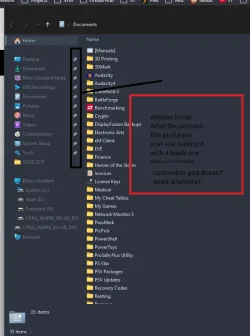
Changing explorer sidebar icon


paradoxum

Sublimed
Member
Local time
7:08 AM
Posts
187
OS
Windows 11 [22H2] [22621.2428]
Untitled.webp

sorry black tet

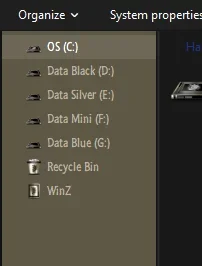
also how would I make all the text in the sidebar slightly lighter? it's nord for win 11
 
Windows Build/Version
Windows 11, version 25H2 (26200.7019) amd64

My Computer

System One

  • OS
    Windows 11 [22H2] [22621.2428]
    Computer type
    PC/Desktop
    Manufacturer/Model
    Culture-Virus v7.0
    CPU
    Intel Core i9-14900K 3.2 GHz 24-Core Processor
    Motherboard
    Asus ROG MAXIMUS Z790 APEX ENCORE ATX LGA1700 Motherboard
    Memory
    G.Skill Trident Z5 RGB 32 GB (2 x 16 GB) DDR5-7200 CL34 Memory
    Graphics Card(s)
    AMD Radeon RX 6950 XT
    Monitor(s) Displays
    AOC CQ27G2U/BK
    Screen Resolution
    2560x1440
    Hard Drives
    M.2 1: Samsung SSD 990 PRO 2TB
    M.2 2: Samsung SSD 970 EVO Plus 2TB
    PSU
    Corsair RM1000X SHIFT
    Case
    Phanteks NV9
    Cooling
    Custom Water / Direct-Die Cooling
    Keyboard
    Corsair K95 RGB PLATINUM XT Wired Gaming Keyboard
    Mouse
    ROCCAT LEADR Optical
    Internet Speed
    500mb Direct Fiber
    Browser
    Chrome
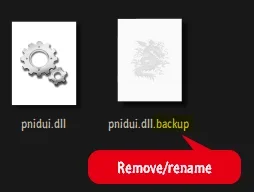
If CG is throwing an error that pnidui.dll no longer exists, you need to reinstate it by removing the .backup extension.

11058.webp

11059.webp
 

My Computers

System One System Two

  • OS
    Windows 11 Pro
    Computer type
    PC/Desktop
    Manufacturer/Model
    ASUS ROG Strix
  • Operating System
    Windows 11 Pro
    Computer type
    Laptop
    Manufacturer/Model
    ASUS VivoBook
The file C:\System32\pnidui.dll is not present in versions 24H2 and 25H2. It was used in Windows 7 and later up to Windows 11 23H2 and contained the network icons, not the pin icon. To replace the network icons you need a copy of pnidui.dll which is provided by third-party tools. One of them is Explorer Patcher and you can find it in C:\Program Files\ExplorerPatcher\pnidui.dll

I haven't checked, but the pin icon should be in file C:\Windows\SystemResources\imageres.dll.mun which CANNOT be modified directly, or you get an error and screws all your system icons! You must copy the file to another folder, modify it and then take ownership of both the specific file and the containing folder and grant full access to Administrators group for both the specific file and the containing folder. Even then, you cannot just copy-paste and replace it because it is used by File Explorer. So you must use a third party file manager or do it from Command Prompt while you have terminated File Explorer (End Task). Yes, it is a little complicated, but it works and it's worth it to replace all those flat Windows 11 default system icons with custom. See my older posts in Personalization section for details.
 

My Computers

System One System Two

  • OS
    Windows 11 Pro 23H2 (5699), 25H2 (8457)
    Computer type
    Laptop
    Manufacturer/Model
    Acer Extensa 5630EZ
    CPU
    Mobile DualCore Intel Core 2 Duo T7250, 2000 MHz
    Motherboard
    Acer Extensa 5630
    Memory
    4GB
    Graphics Card(s)
    Mobile Intel(R) GMA 4500M (Mobile 4 series)
    Sound Card
    Realtek ALC268 @ Intel 82801IB ICH9 - High Definition Audio Controller
    Monitor(s) Displays
    1
    Screen Resolution
    1280x800
    Hard Drives
    Samsung SSD 850 EVO 250GB SATA Device (250 GB, SATA-III)
    Internet Speed
    VDSL 50 Mbps
    Browser
    MICROSOFT EDGE
    Antivirus
    WINDOWS DEFENDER
    Other Info
    Legacy MBR installation, no TPM, no Secure Boot, no WDDM 2.0 graphics drivers, no SSE4.2, cannot get more unsupported ;) This is only my test laptop. I had installed Windows 11 here before upgrading my main PC. For my main PC I use everyday see my 2nd system specs.
  • Operating System
    Windows 11 Pro v25H2 (build 26200.8457)
    Computer type
    PC/Desktop
    Manufacturer/Model
    Custom-built PC
    CPU
    Intel Core-i7 3770 3.40GHz s1155 (3rd generation)
    Motherboard
    Asus P8H61 s1155 ATX
    Memory
    2x Kingston Hyper-X Blu 8GB DDR3-1600
    Graphics card(s)
    GIGABYTE GeForce RTX 3050 WINDFORCE OC V2 6GB (GV-N3050WF2OCV2-6GD)
    Sound Card
    Realtek HD audio (ALC887)
    Monitor(s) Displays
    Sony Bravia KDL-19L4000 19" LCD TV via VGA
    Screen Resolution
    1440x900 32-bit 60Hz
    Hard Drives
    WD Blue SA510 2.5 1000GB SSD as system disk, Western Digital Caviar Purple 4TB SATA III (WD40PURZ) as second
    PSU
    Thermaltake Litepower RGB 550W Full Wired
    Case
    SUPERCASE MIDI-TOWER
    Cooling
    Deepcool Gamma Archer CPU cooler, 1x 8cm fan at the back
    Keyboard
    Mitsumi 101-key PS/2
    Mouse
    Sunnyline OptiEye PS/2
    Internet Speed
    100Mbps
    Browser
    Microsoft Edge, Mozilla Firefox
    Antivirus
    Microsoft Windows Defender
    Other Info
    Legacy BIOS (MBR) installation, no TPM, no Secure Boot, WDDM 3.0 graphics drivers, WEI score 7.4
What programs should I be i using that are mentioned here?
 

My Computer

System One

  • OS
    Windows 11 [22H2] [22621.2428]
    Computer type
    PC/Desktop
    Manufacturer/Model
    Culture-Virus v7.0
    CPU
    Intel Core i9-14900K 3.2 GHz 24-Core Processor
    Motherboard
    Asus ROG MAXIMUS Z790 APEX ENCORE ATX LGA1700 Motherboard
    Memory
    G.Skill Trident Z5 RGB 32 GB (2 x 16 GB) DDR5-7200 CL34 Memory
    Graphics Card(s)
    AMD Radeon RX 6950 XT
    Monitor(s) Displays
    AOC CQ27G2U/BK
    Screen Resolution
    2560x1440
    Hard Drives
    M.2 1: Samsung SSD 990 PRO 2TB
    M.2 2: Samsung SSD 970 EVO Plus 2TB
    PSU
    Corsair RM1000X SHIFT
    Case
    Phanteks NV9
    Cooling
    Custom Water / Direct-Die Cooling
    Keyboard
    Corsair K95 RGB PLATINUM XT Wired Gaming Keyboard
    Mouse
    ROCCAT LEADR Optical
    Internet Speed
    500mb Direct Fiber
    Browser
    Chrome
To extract the icons from a system file (for example from the Windows 7 version) I use Customizer God. To import the custom icons in the respective Windows 11 file and replace the default, I use Customizer God again. For a couple of system files that cannot be modified by Customizer God I use Resource Hacker. Since Windows 10 v1903 many files from C:\Windows\System32 were replaced with files with the same name and extension .dll.mun in the folder C:\Windows\SystemResources. All these files in that folder cannot be replaced directly, you must copy them to another folder, modify and then get access rights to replace them.

Where to find the icons:

Power icons: C:\Windows\SystemResources\batmeter.dll.mun
Most system icons: C:\Windows\SystemResources\imageres.dll.mun
Network icons: C:\Program Files\ExplorerPatcher\pnidui.dll (assuming you have Explorer Patcher installed)
Sound icons: C:\Windows\SystemResources\SndVolSSO.dll.mun
USB safe removal icon: C:\Windows\SystemResources\stobject.dll.mun

All these system files from Windows 7 to Windows 10 v1809 were in C:\Windows\System32 folder with the same names and extension .dll
In order to see the customized power/network/sound icons on the taskbar you must first ungroup them (I use Explorer Patcher for that). If you install Explorer Patcher you must also set the taskbar to Windows 10 (Explorer Patcher) style.
 

My Computers

System One System Two

  • OS
    Windows 11 Pro 23H2 (5699), 25H2 (8457)
    Computer type
    Laptop
    Manufacturer/Model
    Acer Extensa 5630EZ
    CPU
    Mobile DualCore Intel Core 2 Duo T7250, 2000 MHz
    Motherboard
    Acer Extensa 5630
    Memory
    4GB
    Graphics Card(s)
    Mobile Intel(R) GMA 4500M (Mobile 4 series)
    Sound Card
    Realtek ALC268 @ Intel 82801IB ICH9 - High Definition Audio Controller
    Monitor(s) Displays
    1
    Screen Resolution
    1280x800
    Hard Drives
    Samsung SSD 850 EVO 250GB SATA Device (250 GB, SATA-III)
    Internet Speed
    VDSL 50 Mbps
    Browser
    MICROSOFT EDGE
    Antivirus
    WINDOWS DEFENDER
    Other Info
    Legacy MBR installation, no TPM, no Secure Boot, no WDDM 2.0 graphics drivers, no SSE4.2, cannot get more unsupported ;) This is only my test laptop. I had installed Windows 11 here before upgrading my main PC. For my main PC I use everyday see my 2nd system specs.
  • Operating System
    Windows 11 Pro v25H2 (build 26200.8457)
    Computer type
    PC/Desktop
    Manufacturer/Model
    Custom-built PC
    CPU
    Intel Core-i7 3770 3.40GHz s1155 (3rd generation)
    Motherboard
    Asus P8H61 s1155 ATX
    Memory
    2x Kingston Hyper-X Blu 8GB DDR3-1600
    Graphics card(s)
    GIGABYTE GeForce RTX 3050 WINDFORCE OC V2 6GB (GV-N3050WF2OCV2-6GD)
    Sound Card
    Realtek HD audio (ALC887)
    Monitor(s) Displays
    Sony Bravia KDL-19L4000 19" LCD TV via VGA
    Screen Resolution
    1440x900 32-bit 60Hz
    Hard Drives
    WD Blue SA510 2.5 1000GB SSD as system disk, Western Digital Caviar Purple 4TB SATA III (WD40PURZ) as second
    PSU
    Thermaltake Litepower RGB 550W Full Wired
    Case
    SUPERCASE MIDI-TOWER
    Cooling
    Deepcool Gamma Archer CPU cooler, 1x 8cm fan at the back
    Keyboard
    Mitsumi 101-key PS/2
    Mouse
    Sunnyline OptiEye PS/2
    Internet Speed
    100Mbps
    Browser
    Microsoft Edge, Mozilla Firefox
    Antivirus
    Microsoft Windows Defender
    Other Info
    Legacy BIOS (MBR) installation, no TPM, no Secure Boot, WDDM 3.0 graphics drivers, WEI score 7.4
What programs should I be i using that are mentioned here?
If you have used CG in the past, the pnidui.dll.backup should still reside in System32.
 

My Computers

System One System Two

  • OS
    Windows 11 Pro
    Computer type
    PC/Desktop
    Manufacturer/Model
    ASUS ROG Strix
  • Operating System
    Windows 11 Pro
    Computer type
    Laptop
    Manufacturer/Model
    ASUS VivoBook
If you have used CG in the past, the pnidui.dll.backup should still reside in System32.
But not used in 24H2 and 25H2. Explorer Patcher simply ignores the Windows 11 default setting and uses a copy of the file saved in its application folder.
 

My Computers

System One System Two

  • OS
    Windows 11 Pro 23H2 (5699), 25H2 (8457)
    Computer type
    Laptop
    Manufacturer/Model
    Acer Extensa 5630EZ
    CPU
    Mobile DualCore Intel Core 2 Duo T7250, 2000 MHz
    Motherboard
    Acer Extensa 5630
    Memory
    4GB
    Graphics Card(s)
    Mobile Intel(R) GMA 4500M (Mobile 4 series)
    Sound Card
    Realtek ALC268 @ Intel 82801IB ICH9 - High Definition Audio Controller
    Monitor(s) Displays
    1
    Screen Resolution
    1280x800
    Hard Drives
    Samsung SSD 850 EVO 250GB SATA Device (250 GB, SATA-III)
    Internet Speed
    VDSL 50 Mbps
    Browser
    MICROSOFT EDGE
    Antivirus
    WINDOWS DEFENDER
    Other Info
    Legacy MBR installation, no TPM, no Secure Boot, no WDDM 2.0 graphics drivers, no SSE4.2, cannot get more unsupported ;) This is only my test laptop. I had installed Windows 11 here before upgrading my main PC. For my main PC I use everyday see my 2nd system specs.
  • Operating System
    Windows 11 Pro v25H2 (build 26200.8457)
    Computer type
    PC/Desktop
    Manufacturer/Model
    Custom-built PC
    CPU
    Intel Core-i7 3770 3.40GHz s1155 (3rd generation)
    Motherboard
    Asus P8H61 s1155 ATX
    Memory
    2x Kingston Hyper-X Blu 8GB DDR3-1600
    Graphics card(s)
    GIGABYTE GeForce RTX 3050 WINDFORCE OC V2 6GB (GV-N3050WF2OCV2-6GD)
    Sound Card
    Realtek HD audio (ALC887)
    Monitor(s) Displays
    Sony Bravia KDL-19L4000 19" LCD TV via VGA
    Screen Resolution
    1440x900 32-bit 60Hz
    Hard Drives
    WD Blue SA510 2.5 1000GB SSD as system disk, Western Digital Caviar Purple 4TB SATA III (WD40PURZ) as second
    PSU
    Thermaltake Litepower RGB 550W Full Wired
    Case
    SUPERCASE MIDI-TOWER
    Cooling
    Deepcool Gamma Archer CPU cooler, 1x 8cm fan at the back
    Keyboard
    Mitsumi 101-key PS/2
    Mouse
    Sunnyline OptiEye PS/2
    Internet Speed
    100Mbps
    Browser
    Microsoft Edge, Mozilla Firefox
    Antivirus
    Microsoft Windows Defender
    Other Info
    Legacy BIOS (MBR) installation, no TPM, no Secure Boot, WDDM 3.0 graphics drivers, WEI score 7.4
Browse to
"C:\Windows\System32\" and COPY imageres.dll to Desktop

Rename the imageres.dll to pnidui.dll and MOVE pnidui.dll back to "C:\Windows\System32\"

Then you can use customized god
 

My Computer

System One

  • OS
    Windows 11 Pro
Back
Top Bottom