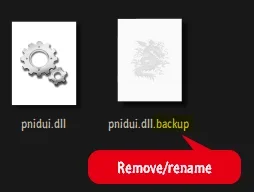
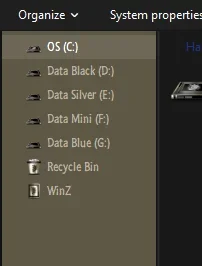
- Local time
- 9:57 AM
- Posts
- 187
- OS
- Windows 11 [22H2] [22621.2428]
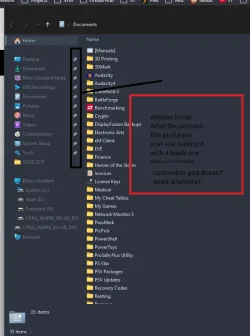
sorry black tet
also how would I make all the text in the sidebar slightly lighter? it's nord for win 11
- Windows Build/Version
- Windows 11, version 25H2 (26200.7019) amd64
My Computer
At a glance
Windows 11 [22H2] [22621.2428]Intel Core i9-14900K 3.2 GHz 24-Core ProcessorG.Skill Trident Z5 RGB 32 GB (2 x 16 GB) DDR5...AMD Radeon RX 6950 XT
- OS
- Windows 11 [22H2] [22621.2428]
- Computer type
- PC/Desktop
- Manufacturer/Model
- Culture-Virus v7.0
- CPU
- Intel Core i9-14900K 3.2 GHz 24-Core Processor
- Motherboard
- Asus ROG MAXIMUS Z790 APEX ENCORE ATX LGA1700 Motherboard
- Memory
- G.Skill Trident Z5 RGB 32 GB (2 x 16 GB) DDR5-7200 CL34 Memory
- Graphics Card(s)
- AMD Radeon RX 6950 XT
- Monitor(s) Displays
- AOC CQ27G2U/BK
- Screen Resolution
- 2560x1440
- Hard Drives
- M.2 1: Samsung SSD 990 PRO 2TB
M.2 2: Samsung SSD 970 EVO Plus 2TB
- PSU
- Corsair RM1000X SHIFT
- Case
- Phanteks NV9
- Cooling
- Custom Water / Direct-Die Cooling
- Keyboard
- Corsair K95 RGB PLATINUM XT Wired Gaming Keyboard
- Mouse
- ROCCAT LEADR Optical
- Internet Speed
- 500mb Direct Fiber
- Browser
- Chrome