
This tutorial will show you how to check if a file is digitally signed or not in Windows 10 and Windows 11.
A digital signature is an electronic, encrypted, stamp of authentication by the source of the file. A signature confirms if the file has been signed by the original distributor or not to verify if the file has been altered.
Reference:
Digital signatures and certificates | Microsoft Support
Digital signatures provide assurances about the validity and authenticity of digital documents.
 support.microsoft.com
Contents
- Option One: Check Digital Signatures of File in File Properties
- Option Two: Check Digital Signatures of All System Files using File Signature Verification
1 Open File Explorer (Win+E).
2 Navigate to the file you want to check.
3 Right click on the file, and click/tap on Properties.
4 Click/tap on the Digital Signatures tab. (see screenshot below)
1 Run (Win+R) File Signature Verification (sigverif.exe).
2 Click/tap on Start. (see screenshot below)
If you like, you can click/tap on Advanced first to change the logging settings to what you want instead of the default settings, and click/tap on OK to apply.
3 File Signature Verification will now scan your system files and drivers. (see screenshot below)
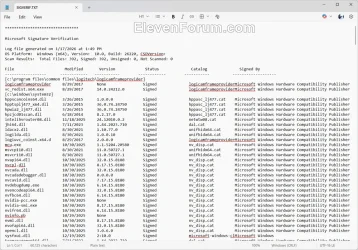
4 When finished, all unsigned system files and drivers are displayed in the results with its file name, full folder path, modified, file type, and version details. (see screenshots below)
File Signature Verification (sigverif.exe) saves its results to the log file below.
C:\Users\Public\Documents\SIGVERIF.TXT
That's it,
Shawn Brink
Last edited:
















