Microsoft 365 Blog:
Hi, Microsoft 365 Insiders, I’m thrilled to announce two most requested features from our passionate OneNote community are now rolling out to Insiders! These updates are all about giving you more control, more flexibility, and a smoother note-taking experience, just the way you like it.
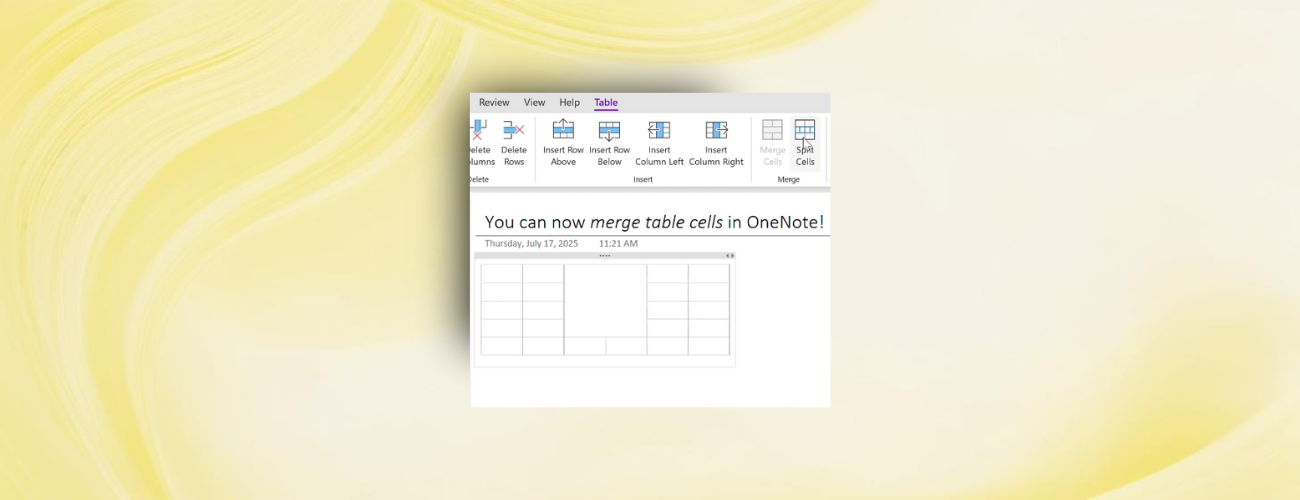
Merge Table Cells
Yes, it’s finally here! You can now merge table cells in OneNote!We heard your feedback loud and clear: “Let me merge cells in OneNote tables!” And now, you can! Whether you're building custom headers, grouping content, or simply cleaning up the look of your tables, this new capability brings the flexibility OneNote tables have been seeking
How it works
- Select two or more adjacent cells in a OneNote table.
- Right-click and choose Merge Cells or use the Table tab on the ribbon.
- Done! The content will align and update automatically.
Availability
The ability to Merge Table Cells is now available to all OneNote Insiders on supported platforms.
| Platform | Minimum Version | Display Merged Cells | Create Merged Cells |
|---|---|---|---|
| Windows | 16.0.19030.10000 or later |  Yes Yes | Yes |
| Mac | 16.100.715.0 or later | Yes | Yes |
| iPad | 16.100.715.0 or later | Yes | Yes |
| iPhone | 16.100.715.0 or later | Yes |  Not yet Not yet |
| Android | 16.0.19030.10000 or later | Yes | Not yet |
| Web | — | Yes | Not yet |
Paste Text Only shortcut in OneNote
We're also excited to announce a major quality-of-life improvement: Paste Without Formatting is now supported in OneNote for Windows (Ctrl + Shift + V) and Mac (Cmd + Shift + V).Keep it clean, keep it consistent
No more mismatched fonts, awkward background colors, or unwanted styles when pasting from other apps. With just a quick shortcut, you can now paste content into OneNote as plain text, automatically matching your notebook’s look and feel.
Whether you’re capturing ideas from a webpage, an email, or a document, Paste Text Only shortcut helps you keep your notes tidy and distraction-free.
How it works
- Copy text from any source – like Outlook, Teams, or a web page.
- In your OneNote page, place your cursor where you want the content to go.
- Paste using one of the following methods:
- Keyboard shortcut:
- Ctrl + Shift + V on Windows
- Cmd + Shift + V on Mac
- Right-click menu: Choose Paste Text Only
- Toolbar: Go to Home > Paste > Paste Options > Keep Text Only
- Keyboard shortcut:
- The pasted text will adopt the formatting of your note, not the original source.
Why this matters!
This small shortcut makes a big difference when you're pulling content from multiple sources into your notes. It's another step toward making OneNote the smart, modern workspace you expect.
Availability
This feature is available on OneNote for Windows, Mac, and Online
- Windows Build: 16.0.19101.10000 or later
- Mac: Build 16.100.719.0 or later
Don’t have it yet? It’s probably us, not you.
Features are released over some time to ensure things are working smoothly. We highlight features that you may not have because they’re slowly releasing to larger numbers of Insiders. Sometimes we remove elements to further improve them based on your feedback. Though this is rare, we also reserve the option to pull a feature entirely out of the product, even if you, as an Insider, have had the opportunity to try it.Feedback
Your feedback helped shape these features. We’d love to hear more, go to Help > Feedback in OneNote to share your thoughts! Source:
Coming to OneNote: Merge Table Cells and Paste Text Only | Microsoft Community Hub
Yes, it’s finally here! You can now merge table cells and Paste Text only in OneNote!
 techcommunity.microsoft.com