Copy Windows installation from 1TB to 4TB SSD


Calab

Well-known member
Member
Local time
10:49 PM
Posts
118
Location
Alberta, Canada
OS
Windows 11 / Linux Mint
A friend of mine currently has a 1TB SSD installed in their laptop. I believe that it is set up as an MBR disk partitioning scheme. She has just purchased a 4TB SSD to replace the 1TB SSD. MBR disks have a 2TB limit. How do we transfer the system from the 1 TB SSD to the 4TB SSD and use the 4TB as a single partition? We cannot modify what is on the 1TB disks.

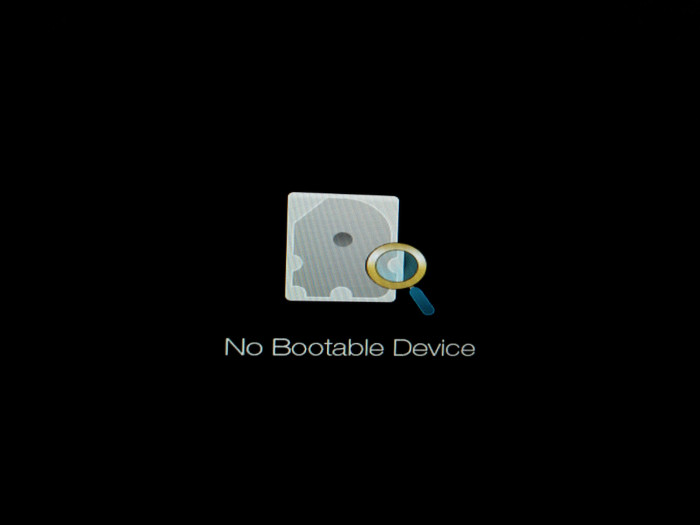
We did try to clone the disk from the 1TB to the 4TB with AOMEI Backupper, converting the disk to GPT on the clone, and with SSD alignment. The laptop will not boot from the clone drive.

If it matters, the BIOS on the laptop can support Legacy booting as well as UEFI booting.

I don't have the laptop handy, so I can't provide any more details, unfortunately.
 
Windows Build/Version
Windows 11 unknown version

My Computers My Computers

  • At a glance

    Windows 11 / Linux Minti9-12900k32 GB DDR4Strix RTX 3060
    OS
    Windows 11 / Linux Mint
    Computer type
    PC/Desktop
    Manufacturer/Model
    C.S.D.
    CPU
    i9-12900k
    Motherboard
    Gigabyte Z690 UD AX DDR4
    Memory
    32 GB DDR4
    Graphics Card(s)
    Strix RTX 3060
    Sound Card
    Onboard
    Monitor(s) Displays
    LG QNED75URA 43" TV
    Screen Resolution
    3840x2160
    Hard Drives
    One 1tb M.2 for Windows, one 500gb M.2 for Linux, and a 8 TB HDD for data
    PSU
    850 watt
    Case
    Cougar
    Cooling
    upHere D6SEC CPU Cooler
    Keyboard
    Logitech G213
    Mouse
    Logitech G305
    Internet Speed
    1Gbit/100mb
    Browser
    Firefox
    Antivirus
    Microsoft
    Other Info
    Bluray optical writer drive
  • At a glance

    SpartaDOS6502CUltimate 1MBSophia 2
    Operating System
    SpartaDOS
    Computer type
    PC/Desktop
    Manufacturer/Model
    Atari 600XL
    CPU
    6502C
    Memory
    Ultimate 1MB
    Graphics card(s)
    Sophia 2
    Monitor(s) Displays
    Sony MFM-HT95
    Screen Resolution
    320x200
    Hard Drives
    SIDE3
    PSU
    USB
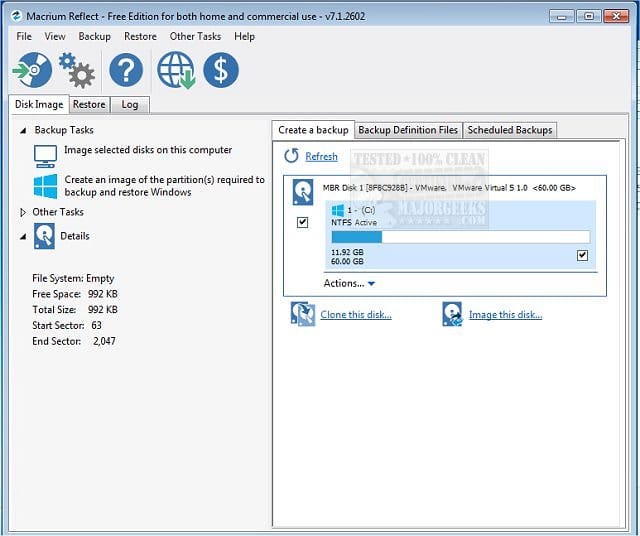
1) Please make free or pay backup images using Macrium.


Backup and Restore with Macrium Reflect:


2) Clean install Windows 11 on the new 4TB drive with BIOS UEFI (without CSM)


3) Use Macrium to restore only the C: partition from the 1TB MBR drive to the new 4TB GPT drive.
 

My Computer My Computer

At a glance

Windows 10Intel(R) Core(TM) i7-4800MQ CPU @ 2.70GHz16 GB Total: Manufacturer : Samsung MemoryTyp...NVIDIA Quadro K3100M; Intel(R) HD Graphics 4600
OS
Windows 10
Computer type
Laptop
Manufacturer/Model
HP
CPU
Intel(R) Core(TM) i7-4800MQ CPU @ 2.70GHz
Motherboard
Product : 190A Version : KBC Version 94.56
Memory
16 GB Total: Manufacturer : Samsung MemoryType : DDR3 FormFactor : SODIMM Capacity : 8GB Speed : 1600
Graphics Card(s)
NVIDIA Quadro K3100M; Intel(R) HD Graphics 4600
Sound Card
IDT High Definition Audio CODEC; PNP Device ID HDAUDIO\FUNC_01&VEN_111D&DEV_76E0
Hard Drives
Model Hitachi HTS727575A9E364
Antivirus
Microsoft Defender
Other Info
Mobile Workstation
There's a raft of possible causes, but you'll need the laptop on hand to go through them.

Quick reference:
 

My Computer My Computer

At a glance

Windows 11 Pro 24H2i7 Ultra16GBIntel
OS
Windows 11 Pro 24H2
Computer type
Laptop
Manufacturer/Model
LG
CPU
i7 Ultra
Memory
16GB
Graphics Card(s)
Intel
Sound Card
Intel Realtek
Monitor(s) Displays
Laptop 17" & TB4 Dell 27" QHD Ultrasharp w/integral TB4 hub
Screen Resolution
2560x1600
Hard Drives
1TB SSD, 5 external WDs
Mouse
Logitech Master MX 3S
Browser
Vivaldi
Antivirus
Kaspersky Premium Suite
a 1TB SSD installed in their laptop
First of all you need to check the specs in the laptop manual. Not all motherboards (or bios)will accept a 4tb drive. You give us nothing regarding the laptop in question. If the current drive was formatted from the factory as MBR, it would seem it's old enough that the new drivet probably won't work in that device..
If it won't then all the rest of your questions are moot.
use the 4TB as a single partition?

Secondly, Even if the motherboard recognizes the new drive as 4tb, I don't think you are going to like the limitations of using a 4tb MBR drive. You can't use the 4tb drive as MBR with one partition. Period.

I had AI lay the limitations of a MBR drive with references:

A Master boot record (MBR) drive has several major technical limitations due to its 1980s architecture: [1, 2]
  • 2 TB Capacity Limit: MBR uses 32-bit fields to store sector addresses. With standard 512-byte sectors, it can only address up to 2³² sectors, capping the maximum usable disk or partition size at approximately 2.2 TB (2 TB practical). Any storage space beyond 2 TB on a larger drive cannot be addressed or used. [1, 2, 3]
  • 4 Primary Partitions Limit: MBR allows a maximum of four primary partitions per disk. To bypass this restriction, you have to create an extended partition containing multiple logical drives, which adds complexity to disk management. [1, 2]
  • Single Point of Failure: MBR stores all partition and boot information in a single sector at the very beginning of the drive. If this sector or partition table gets corrupted or overwritten, data recovery can be very difficult or result in total boot failure. [1, 2, 3, 4]
  • No Built-in Data Redundancy or Checksums: Unlike GPT (GUID Partition Table), MBR does not keep backup copies of its partition table and lacks CRC checksums to verify data integrity or automatically repair corrupted structures. [1, 2, 3, 4]
  • Legacy BIOS Dependency: MBR is designed around traditional 16-bit BIOS systems. While it can work on modern UEFI systems if Compatibility Support Module (CSM) or legacy boot mode is enabled, it cannot take full advantage of modern UEFI features like Secure Boot for large boot drives. [1, 2, 3, 4]

We cannot modify what is on the 1TB disks.
Never say never. Even if the laptop will recognize the drive as 4tb (and personally I do not think it will), you would have to first convert the existing installation on the 1 tb drive to GPT, then either clone it to the 4tb or make an image of the 1tb which could be restored to the new drive. You would then have to deal with extending the system partition into the extra unallocated space.
Doing all this comes with extreme risks.
 

My Computers My Computers

  • At a glance

    Windows 11 Pro 26H2 26300.9457i9-10900 10 core 20 threads32 gbnone-Intel UHD Graphics 630
    OS
    Windows 11 Pro 26H2 26300.9457
    Computer type
    PC/Desktop
    Manufacturer/Model
    Dell Optiplex 7080
    CPU
    i9-10900 10 core 20 threads
    Motherboard
    DELL 0J37VM
    Memory
    32 gb
    Graphics Card(s)
    none-Intel UHD Graphics 630
    Sound Card
    Integrated Realtek
    Monitor(s) Displays
    Benq 27
    Screen Resolution
    2560x1440
    Hard Drives
    2x1tb Solidigm m.2 nvme /External drives 512gb Samsung m.2 sata+2tb Kingston m2.nvme
    PSU
    500w
    Case
    MT
    Cooling
    Dell Premium
    Keyboard
    Logitech wired
    Mouse
    Logitech wireless
    Internet Speed
    so slow I'm too embarrassed to tell
    Browser
    #1 Edge #2 Firefox
    Antivirus
    Defender+MWB Premium
  • At a glance

    Windows 11 Pro 24H2 26200.9457AMD Ryzen 7 6800U32 gbintegrated
    Operating System
    Windows 11 Pro 24H2 26200.9457
    Computer type
    PC/Desktop
    Manufacturer/Model
    Beelink Mini PC SER5
    CPU
    AMD Ryzen 7 6800U
    Memory
    32 gb
    Graphics card(s)
    integrated
    Sound Card
    integrated
    Monitor(s) Displays
    Benq 27
    Screen Resolution
    2560x1440
    Hard Drives
    1TB Crucial nvme
    Keyboard
    Logitech wired
    Mouse
    Logitech wireless
    Internet Speed
    still too embarrassed to tell
    Browser
    Firefox
    Antivirus
    Defender
  • System 3 is non compliant Dell 9020 i7-4770/24gb ram Win11 PRO 26200.9457
I suggest doing the conversions to GPT and UEFI first. When finished clone the 1TB SSD to the 4TB one.

Earlier this year on an SSD with Windows 10 I converted the SSD from MBR to GPT and changed the boot from CSM to UEFI. I did not have to reinstall. No data was lost. Naturally I backed up the SSD before I did this.

I don't remember all the steps but I used AI to help reconstruct them. Maybe someone can verify this...
To convert a Windows 11 boot SSD from CSM/Legacy BIOS (MBR partition style) to UEFI (GPT partition style) without losing data, use Microsoft's built-in MBR2GPT tool.

Step 1: Back Up Your Data

Step 2: Check Current BIOS Mode

1. Press Win + R, type msinfo32, and hit Enter.
2. Look for BIOS Mode. If it says Legacy or CSM, your drive is currently using MBR.

Step 3: Validate the Disk with MBR2GPT

1. Open the command prompt
2. Run the validation command:
C:\> mbr2gpt.exe /validate /allowFullOS
3. If validation succeeds, you will see a message saying: Validation completed successfully.

Step 4: Convert MBR to GPT

1 Run the conversion command in the same administrator window:
C:\> mbr2gpt.exe /convert /allowFullOS
2. The tool will create the EFI system partition and convert the disk layout to GPT in a few moments

Step 5: Change BIOS Settings to UEFI

1. Restart your computer and immediately press your BIOS/UEFI key (such as Del, F2, F10, or F12) during startup.
2. Navigate to the boot or firmware settings.
3. Change the boot mode from Legacy / CSM to UEFI.
4. Disable CSM (Compatibility Support Module).
5. (Optional) Enable Secure Boot if desired.
6. Save your changes and exit (usually by pressing F10).

Step 6: Verify the Conversion

Once Windows 11 boots up, press Win + R, type msinfo32, and confirm that BIOS Mode now displays UEFI
 

My Computers My Computers

  • At a glance

    Windows 11 Pro 26H2 (26300.9547)AMD Ryzen 7 6800H with Radeon 680M GPU (486MB...Crucial DDR5-4800 (2400MHz) 32GB (2 x 16GB)NVIDIA RTX 3060 Laptop (6GB RAM)
    OS
    Windows 11 Pro 26H2 (26300.9547)
    Computer type
    Laptop
    Manufacturer/Model
    ASUS TUF Gaming A15 (2022)
    CPU
    AMD Ryzen 7 6800H with Radeon 680M GPU (486MB RAM)
    Memory
    Crucial DDR5-4800 (2400MHz) 32GB (2 x 16GB)
    Graphics Card(s)
    NVIDIA RTX 3060 Laptop (6GB RAM)
    Sound Card
    n/a
    Monitor(s) Displays
    15.6-inch
    Screen Resolution
    1920x1080 300Hz
    Hard Drives
    2 x Samsung 990 Evo Plus (2TB M.2 NVME SSD)
    PSU
    n/a
    Mouse
    Wireless Mouse M510
    Internet Speed
    2100Mbps/300Mbps
    Browser
    Firefox
    Antivirus
    Malwarebytes
  • At a glance

    Windows 11 Pro 26H2 (26300.9547)AMD Ryzen 7 5700X3DG.SKILL Flare X 32GB (2x16GB) DDR4ASUS ROG-STRIX-RTX3060TI-08G-V2-GAMING (RTX 3...
    Operating System
    Windows 11 Pro 26H2 (26300.9547)
    Computer type
    PC/Desktop
    Manufacturer/Model
    Custom build
    CPU
    AMD Ryzen 7 5700X3D
    Motherboard
    ASUS ROG Strix B550-F Gaming WiFi II
    Memory
    G.SKILL Flare X 32GB (2x16GB) DDR4
    Graphics card(s)
    ASUS ROG-STRIX-RTX3060TI-08G-V2-GAMING (RTX 3060-Ti, 8GB RAM)
    Monitor(s) Displays
    Samsung G50D IPS 27"
    Screen Resolution
    1440p/180Hz
    Hard Drives
    SAMSUNG 990 EVO Plus (2TB] M.2 NVME SSD
    SAMSUNG 990 EVO Plus (4TB) M.2 NVME SSD
    PSU
    Corsair RM750x (750 watts)
    Case
    Cooler Master MasterCase 5
    Cooling
    Scythe Mugen 6
    Keyboard
    Logitech K520 (MK540 keyboard/mouse combo)
    Mouse
    Logitech M310 (MK540 keyboard/mouse combo)
    Internet Speed
    2100 Mbps down / 300 Mbps up
    Browser
    Firefox, Edge, Chrome
    Antivirus
    Malwarebytes (Premium)
    Other Info
    ASUS Blu-ray Burner BW-16D1HT (SATA) || Western Digital Easystore 20TB USB 3.0 external hard drive used with Acronis True Image 2025 backup software || HP OfficeJet Pro 6975 Printer/Scanner
Back
Top Bottom