
Solved Custom Folder for Transparent View


dacrone

Well-known member
Guru
VIP
Local time
4:41 AM
Posts
4,593
OS
Windows 11 Pro
For anyone that is interested in having their folders look like this (i believe it looks much more appealing for photo directories, etc):
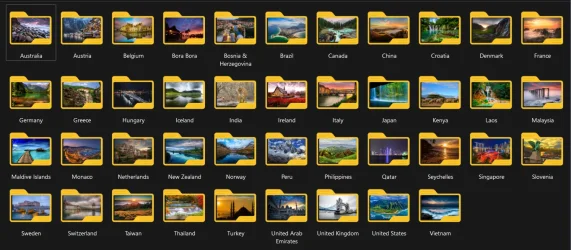
1738534883212.webp

here is how to accomplish it:

Download the attached Folder_Glass_Custom.zip file on this tutorial and save it. Extract it and move the .ico file to a known location (I will use "C:\CustomIcons" in this tutorial)

Download the attached Clear_icon_cache.zip and save it. Extract it anywhere you would like

1. Get CustomizerGod

2. Browse to
"C:\Windows\System32\" and COPY imageres.dll to Desktop

3. Rename the imageres.dll to pnidui.dll and MOVE pnidui.dll back to "C:\Windows\System32\"

4. Go to "C:\Windows\SystemResources\" and COPY imageres.dll.mun to Desktop

5. Go to "C:\Windows\System32\" and COPY imageres.dll to Desktop

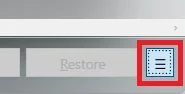
6. Open CustomizerGod, Dismiss the error message, then click the menu button in the lower-right (three horizontal lines)
1738535217364.webp

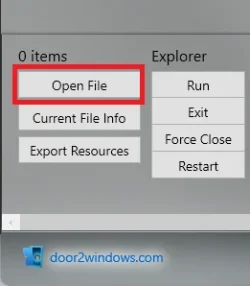
7. Click the Open File button and open the imageres.dll.mun COPY on Desktop (in dropdown - select All Files Types to choose .mun)
1738535235598.webp
1738535290451.webp

8. Scroll down and click imageres.dll.mun - Icons

1738535352588.webp

9. Change both ID: #5 and ID: #6 to custom folder ico (the one in "C:\CustomIcons")

1738535594510.webp

10. Close CustomizerGod

ANNOTATE THE FOLLOWING BEFORE PROCEEDING

11. Restart into Advanced Startup Options (Settings > System > Recovery > Advanced Startup > Restart Now)

12. Choose Troubleshoot > Command Prompt

13. Type the following and press Enter after each command:
Code:
C:
Code:
Cd Windows\System32\
Code:
Ren imageres.dll imageres.dll.bak
Code:
Cd..
Code:
Cd SystemRources
Code:
Ren imagres.dll.mun imageres.dll.mun.bak
Code:
Cd..
Code:
Cd..
Code:
Cd CustomIcons
Code:
Copy imageres.dll C:\Windows\System32\imageres.dll
Code:
Copy imageres.dll.mun C:\Windows\SystemResources\imageres.dll.mun
Code:
Exit

11. Continue to Windows

12. Run Clear_icon_cache.bat
 

Attachments

Last edited:

My Computer

System One

  • OS
    Windows 11 Pro
@dacrone
Pretty slick! (y)
Does it actually pick an image from inside the folder as the front end icon???
 

My Computers

System One System Two

  • OS
    Windows 11 Pro
    Computer type
    PC/Desktop
    Manufacturer/Model
    ASUS ROG Strix
  • Operating System
    Windows 11 Pro
    Computer type
    Laptop
    Manufacturer/Model
    ASUS VivoBook
@dacrone
Pretty slick! (y)
Does it actually pick an image from inside the folder as the front end icon???
Yep, correct. Its actually the folder flap ico that gets replaced so its completely transparent. What you see inside is from the content inside the folder
 

My Computer

System One

  • OS
    Windows 11 Pro
There's two limitations when you follow this method:
1. You can't get vertical (portrait mode) thumbnails. Even if you replace the folder icons with the old W10-style versions, W11 Explorer will only generate landscape thumbnails.

2. Running "sfc /scannow" will undo your recent changes, because the original Windows files are still hidden in WinSxS.
 

My Computer

System One

  • OS
    Windows 7
There's two limitations when you follow this method:
1. You can't get vertical (portrait mode) thumbnails. Even if you replace the folder icons with the old W10-style versions, W11 Explorer will only generate landscape thumbnails.

2. Running "sfc /scannow" will undo your recent changes, because the original Windows files are still hidden in WinSxS.
just keep the modified .dll and .dll.mun. if you ever HAVE TO run sfc, just replace them again. i've only had to run sfc once and that was years ago on win 10.
thanks for letting others reading this know though. but on that subject, they should know sfc will undo many tweaks
 

My Computer

System One

  • OS
    Windows 11 Pro
just keep the modified .dll and .dll.mun. if you ever HAVE TO run sfc, just replace them again. i've only had to run sfc once and that was years ago on win 10.
thanks for letting others reading this know though. but on that subject, they should know sfc will undo many tweaks
Thank you for sharing. It does look nicer than MS thumbnail view.
 

My Computers

System One System Two

  • OS
    All Branches but Release
    Computer type
    Laptop
    Manufacturer/Model
    Acer Nitro ANV15-51
    CPU
    AMD Ryzen 7 7735HS 3200-4500 Mhz 8 cores x 2
    Motherboard
    Sportage_RBH
    Memory
    32 GB DDR5
    Graphics Card(s)
    Radeon Graphic / NVIDIA GeForce RTX 4060 8 GB GDDR6
    Sound Card
    AMD/Realtek(R) Audio
    Monitor(s) Displays
    Integrated Monitor (15.3"vis)
    Screen Resolution
    FHD 1920X1080 16:9 144Hz
    Hard Drives
    KINGSTON OM8SEP4512Q-AA 1TB
    Western Digital 256GB
    PSU
    19V DC 6.32 A 120 W
    Cooling
    Dual Fans
    Mouse
    MS Bluetooth
    Internet Speed
    Fiber 1GB Cox -us & 1GB Orange-fr
    Browser
    Edge Canary- Firefox Nightly-Chrome Dev-Chrome Dev
    Antivirus
    Windows Defender
  • Operating System
    Windows 11 Beta
    Computer type
    Laptop
    Manufacturer/Model
    Asus X751BP
    CPU
    AMD A9-9420
    Memory
    8 GB of DDR4
    Graphics card(s)
    AMD Radeon R5
    Screen Resolution
    1600x900
    Hard Drives
    Seagate 1 TB
Hey! I tried this today and it didn't work.
Both of my imageres.dll files from System32 and SystemResources broke down, so I reverted to the backups (.bak files)
 

My Computer

System One

  • OS
    Windows 11 Home, Version 24H2, OS build 26100.4946
    Computer type
    Laptop
    Manufacturer/Model
    Lenovo
    CPU
    Intel(R) Core(TM) i9-14900HX (2.20 GHz)
    Memory
    32 Gb with 5600 MT/s
    Graphics Card(s)
    NVIDIA GeForce TRTX 4060 Laptop GPU
Still works on my 24h2 with latest cumulative updates.
 

My Computer

System One

  • OS
    Windows 11 Pro
Isn't this basically what @LesFerch Folder Thumbnail Fix does?
 

My Computers

System One System Two

  • OS
    Windows 11 Enterprise 25H2 26200 7462
    Computer type
    PC/Desktop
    Manufacturer/Model
    Custom Build
    CPU
    Intel XEON E5-2699 v3
    Motherboard
    ASUS X99-A
    Memory
    64GB Teamgroup UD4-3600
    Graphics Card(s)
    NVIDIA GeForce GTX 1080 Ti
    Sound Card
    Integrated
    Monitor(s) Displays
    ACER X34 Predator
    Screen Resolution
    3440 x 1440
    Hard Drives
    Crucial CT1000P 3P SSD8 1TB
    Crucial CT1000 BX500 SSD 1TB
    PSU
    GameMax Pro
    Case
    Fractal Design
    Cooling
    Corsair H110iGT + 6 140mm Fans
    Keyboard
    Corsair K4
    Mouse
    G-Skill G502
    Internet Speed
    300MBs
    Browser
    Chrome
    Antivirus
    OEM
    Other Info
    ASUS RT-AC87U Router
  • Operating System
    25H2 26200.5074
    Computer type
    Laptop
    Manufacturer/Model
    ASUS X555LA
    Memory
    8GB
    Browser
    Chrome
    Antivirus
    OEM
This is where he got it from. And it’s not my mod either. This came from bbmaster123 who originally did it with Windhawk’s Resource Redirection mod. I just did it without windhawk.


My Computer

System One

  • OS
    Windows 11 Pro
Sorry if I'm being stupid because I'm new to this website. I am looking for a working download for these folder icons but I can't seem to find a download for the files. Could you point me in the right direction? @dacrone
 

My Computer

System One

  • OS
    Windows 11
    Computer type
    PC/Desktop
Sorry if I'm being stupid because I'm new to this website. I am looking for a working download for these folder icons but I can't seem to find a download for the files. Could you point me in the right direction? @dacrone
Reuploaded. attachments were gone, but back on the original post again so you can download them now.
 

My Computer

System One

  • OS
    Windows 11 Pro
Back
Top Bottom


