
Navigation
Install the app
How to install the app on iOS
Follow along with the video below to see how to install our site as a web app on your home screen.
Note: This feature may not be available in some browsers.
More options
Style variation
System
Light
Dark
You are using an out of date browser. It may not display this or other websites correctly.
You should upgrade or use an alternative browser.
You should upgrade or use an alternative browser.
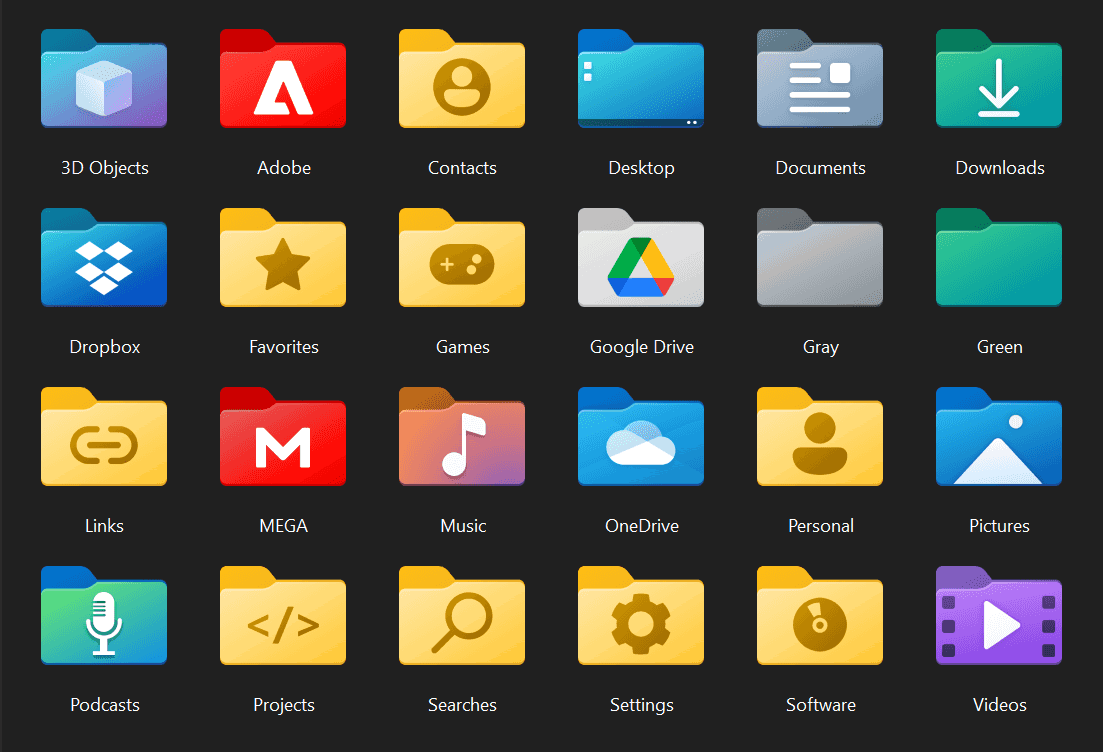
Custom Icons for Windows 11 Thread (Folders, Dropbox, Google Drive, Podcasts, NVME Drive, Steam, Adobe)
- Thread starter davidvkimball
- Start date

I can create folders, I’ve been making 1000’s of icons for windows the past 8-10 years. But first it starts with a default folder and then customize that default for all other types of folders. Unless you just want the default windows 11 folder icon with custom on top of that. Let me know and I can make them for you. Have you looked at any of my other folder icons I’ve made?
My Computer
At a glance
Windows 11
- OS
- Windows 11
- Computer type
- PC/Desktop
- Manufacturer/Model
- Dell

Sicnic
New member
- Local time
- 11:17 PM
- Posts
- 2
- OS
- Windows 11

My Computer
At a glance
Windows 11
- OS
- Windows 11
- Local time
- 6:17 AM
- Posts
- 1,240
- OS
- Windows 11 Education For 26H2
You can't replace default web app or Microsoft Store app icons.
My Computers
-
At a glance
Windows 11 Education For 26H2Intel® Core i7 5500u8 GBIntel HD Family Graphics 5500 AMD Firepro 4150M- OS
- Windows 11 Education For 26H2
- Computer type
- Laptop
- Manufacturer/Model
- HP ZBook G2
- CPU
- Intel® Core i7 5500u
- Motherboard
- HP
- Memory
- 8 GB
- Graphics Card(s)
- Intel HD Family Graphics 5500 AMD Firepro 4150M
- Sound Card
- Realtek High Audio
- Hard Drives
- 1 TB SSD
- Mouse
- HP USB Mouse
- Antivirus
- Windows Defender
-
At a glance
Windows 11 Pro For Workstations 26H2Xeon 1535m v632 GBAMD Quadro Pro 4100- Operating System
- Windows 11 Pro For Workstations 26H2
- Computer type
- Laptop
- Manufacturer/Model
- HP Zbook G4
- CPU
- Xeon 1535m v6
- Motherboard
- HP
- Memory
- 32 GB
- Graphics card(s)
- AMD Quadro Pro 4100
- Sound Card
- Bang and Olufson Audio
- Hard Drives
- 1TB SSD
- Mouse
- HP USB Mouse
- Antivirus
- Windows Defender

- Local time
- 1:17 PM
- Posts
- 17
- OS
- Windows 11


The link does not work anymore. Could you please upload the icons in your post again. I really want to use your icons. Thanks in advance :)To simplify the process for everyone interested by the various customs icons that can be found on this thread, I decided to make the works of all the contributors on this thread available in one easy to download archive.
Download link : Windows 11 Ultimate Icons Pack on MEGA (the archive contain a total of 831 icons files.)
BENIFITS :
Here's some screenshot of what's included in this release :
- most icons from page 1 to 40 of this thread are included (excluding the stuff that did not meet expectation)
- icons has been organized into different folder for easy-to-use purpose ("apps", "folder_colored", "folder_plain" and "shell")
- all the "shell" icons (Windows 11 default icons) have been given names and have been organized, vastly improving the ease of use.
- no duplicate
- a small batch script is included that allow to easily modify the icons of the following folders :
"C:\Program Files", "C:\Program Files (x86)", "C:\Users" and "C:\Windows"
"apps" :
View attachment 13179
"folder_colored" :
View attachment 13182
"folder_plain" :
View attachment 13180
"shell" :
View attachment 13181
"Custom icons script.bat"
Code::: :: Set a custom icon for "C:\Program Files" folder :: IF EXIST "C:\Program Files\desktop.ini" attrib -h -s "C:\Program Files\desktop.ini" IF EXIST "C:\Program Files\desktop.ini" del "C:\Program Files\desktop.ini" /f /q ECHO [.ShellClassInfo]> "C:\Program Files\desktop.ini" ECHO IconResource=%~dp0\folder_colored\x64.ico>>"C:\Program Files\desktop.ini" attrib +h +s "C:\Program Files\desktop.ini" attrib /d +r "C:\Program Files" :: :: Set a custom icon for "C:\Program Files (x86)" folder :: IF EXIST "C:\Program Files (x86)\desktop.ini" attrib -h -s "C:\Program Files (x86)\desktop.ini" IF EXIST "C:\Program Files (x86)\desktop.ini" del "C:\Program Files (x86)\desktop.ini" /f /q ECHO [.ShellClassInfo]> "C:\Program Files (x86)\desktop.ini" ECHO IconResource=%~dp0\folder_colored\x86.ico>>"C:\Program Files (x86)\desktop.ini" attrib +h +s "C:\Program Files (x86)\desktop.ini" attrib /d +r "C:\Program Files (x86)" :: :: Set a custom icon for "C:\Users" folder :: IF EXIST "C:\Users\desktop.ini" attrib -h -s "C:\Users\desktop.ini" IF EXIST "C:\Users\desktop.ini" del "C:\Users\desktop.ini" /f /q ECHO [.ShellClassInfo]> "C:\Users\desktop.ini" ECHO IconResource=%~dp0\folder_colored\Users.ico>>"C:\Users\desktop.ini" attrib +h +s "C:\Users\desktop.ini" attrib /d +r "C:\Users" :: :: Set a custom icon for "C:\Windows" folder :: IF EXIST "C:\Windows\desktop.ini" attrib -h -s "C:\Windows\desktop.ini" IF EXIST "C:\Windows\desktop.ini" del "C:\Windows\desktop.ini" /f /q ECHO [.ShellClassInfo]> "C:\Windows\desktop.ini" ECHO IconResource=%~dp0\folder_colored\Windows.ico>>"C:\Windows\desktop.ini" attrib +h +s "C:\Windows\desktop.ini" attrib /d +r "C:\Windows"
Hope this release is helpful. Feel free to re-use it, upload it to different cloud services, improve it by adding more icons, to use it as a base for your futur icons pack release and whatnot !
Download link : Windows 11 Ultimate Icons Pack on MEGA (the archive contain a total of 831 icons files.)
My Computer
At a glance
Windows 11 Pro
- OS
- Windows 11 Pro
Nice. Could you please share it? :)Just for the fun of it, I customized my This PC drive icons. Nothing fancy and impressive like the icons you designers produce, but good enough for now. I kInda like it:
View attachment 84030
My Computer
At a glance
Windows 11 Pro
- OS
- Windows 11 Pro
Does an icon for OS disk with a NVMe and Windows 11 icon exist in this thread? If not im searching for one. Also I dont know how to change the OS disk icon. Could someone please explain how to do it? I would like to have the abillity to switch back if do regret it. Wanted to ask and to be sure so I dont mess anything up. Thanks in advance.
My Computer
At a glance
Windows 11 Pro
- OS
- Windows 11 Pro

Does an icon for OS disk with a NVMe and Windows 11 icon exist in this thread? If not im searching for one. Also I dont know how to change the OS disk icon. Could someone please explain how to do it? I would like to have the abillity to switch back if do regret it. Wanted to ask and to be sure so I dont mess anything up. Thanks in advance.
Hey.
1. Disk icons
2. Disk icon change.
My Computer
At a glance
Windows 11 ProIntel 113700H16GBNVIDIA RTX 3050 ti
- OS
- Windows 11 Pro
- Computer type
- Laptop
- Manufacturer/Model
- HP Pavilion 17 cd2205nw
- CPU
- Intel 113700H
- Memory
- 16GB
- Graphics Card(s)
- NVIDIA RTX 3050 ti
- Screen Resolution
- 1980x1020
- Hard Drives
- Micron 512GB
- Mouse
- Logitech
- Internet Speed
- 100Mbs
- Browser
- Vivaldi , Edge
- Antivirus
- Windows defender

Custom Icons for Windows 11 Thread (Folders, Dropbox, Google Drive, Podcasts, NVME Drive, Steam, Adobe)
Just shoot whatever you think. As you can see, I love High res Icons. Just look at what I'm using it will give you a good idea. I'm sure you have some great ideas! As you can see here, these are my most used ones. I suggest pulling from all of the Windows 11 icons. I've collected them for...
 www.elevenforum.com
Post number 27
My Computers
-
At a glance
Win 11 Pro 26300.9818Intel Core i9 14900F (24 -Core, 68 MB Total C...32GB DDR5RTX 4080 Super w/581.94- OS
- Win 11 Pro 26300.9818
- Computer type
- PC/Desktop
- Manufacturer/Model
- Dell Alienware Aurora R16
- CPU
- Intel Core i9 14900F (24 -Core, 68 MB Total Cache)
- Motherboard
- Dell Alienware
- Memory
- 32GB DDR5
- Graphics Card(s)
- RTX 4080 Super w/581.94
- Sound Card
- Realtec
- Monitor(s) Displays
- Corsair XENEON 32QHD165
- Screen Resolution
- 2560 X 1440
- Hard Drives
- 1-2TB Samsung 990 Pro PCIe NVMe M2 SSD
1-4TB Samsung 990 Pro PCIe NVMe M2 SSD
- PSU
- 1000 Watt Platinum Dell
- Case
- Alienware
- Cooling
- Liquid Closed Loop
- Keyboard
- Corsair Strafe RGB
- Mouse
- Logitech MK270 Wireless
- Internet Speed
- 100Gb's Down-20 Up
- Browser
- Firefox 159.0
- Antivirus
- Defender
- Other Info
- Very Quiet And Fast
CyberPower UPS CP1500PFCLCD
-
At a glance
MX-Linux13th Gen Inter(R) Core(TM) i3-1315U64 GB DDR4 @3200 MHz.Internal- Operating System
- MX-Linux
- Computer type
- PC/Desktop
- Manufacturer/Model
- Intel
- CPU
- 13th Gen Inter(R) Core(TM) i3-1315U
- Motherboard
- Intel
- Memory
- 64 GB DDR4 @3200 MHz.
- Graphics card(s)
- Internal
- Sound Card
- None
- Monitor(s) Displays
- Dell 2419HGCF
- Screen Resolution
- 1920 X 1080
- Hard Drives
- SAMSUNG 980 PRO SSD 2TB, PCIe 4.0 M.2 2280
- PSU
- Chicony 30 Watt
- Case
- Small
- Keyboard
- Dell
- Mouse
- Razor
- Internet Speed
- 1GB
- Browser
- Slimjet
Hi everyone.To simplify the process for everyone interested by the various customs icons that can be found on this thread, I decided to make the works of all the contributors on this thread available in one easy to download archive.
Download link : Windows 11 Ultimate Icons Pack on MEGA (the archive contain a total of 831 icons files.)
BENIFITS :
Here's some screenshot of what's included in this release :
- most icons from page 1 to 40 of this thread are included (excluding the stuff that did not meet expectation)
- icons has been organized into different folder for easy-to-use purpose ("apps", "folder_colored", "folder_plain" and "shell")
- all the "shell" icons (Windows 11 default icons) have been given names and have been organized, vastly improving the ease of use.
- no duplicate
- a small batch script is included that allow to easily modify the icons of the following folders :
"C:\Program Files", "C:\Program Files (x86)", "C:\Users" and "C:\Windows"
"apps" :
View attachment 13179
"folder_colored" :
View attachment 13182
"folder_plain" :
View attachment 13180
"shell" :
View attachment 13181
"Custom icons script.bat"
Code::: :: Set a custom icon for "C:\Program Files" folder :: IF EXIST "C:\Program Files\desktop.ini" attrib -h -s "C:\Program Files\desktop.ini" IF EXIST "C:\Program Files\desktop.ini" del "C:\Program Files\desktop.ini" /f /q ECHO [.ShellClassInfo]> "C:\Program Files\desktop.ini" ECHO IconResource=%~dp0\folder_colored\x64.ico>>"C:\Program Files\desktop.ini" attrib +h +s "C:\Program Files\desktop.ini" attrib /d +r "C:\Program Files" :: :: Set a custom icon for "C:\Program Files (x86)" folder :: IF EXIST "C:\Program Files (x86)\desktop.ini" attrib -h -s "C:\Program Files (x86)\desktop.ini" IF EXIST "C:\Program Files (x86)\desktop.ini" del "C:\Program Files (x86)\desktop.ini" /f /q ECHO [.ShellClassInfo]> "C:\Program Files (x86)\desktop.ini" ECHO IconResource=%~dp0\folder_colored\x86.ico>>"C:\Program Files (x86)\desktop.ini" attrib +h +s "C:\Program Files (x86)\desktop.ini" attrib /d +r "C:\Program Files (x86)" :: :: Set a custom icon for "C:\Users" folder :: IF EXIST "C:\Users\desktop.ini" attrib -h -s "C:\Users\desktop.ini" IF EXIST "C:\Users\desktop.ini" del "C:\Users\desktop.ini" /f /q ECHO [.ShellClassInfo]> "C:\Users\desktop.ini" ECHO IconResource=%~dp0\folder_colored\Users.ico>>"C:\Users\desktop.ini" attrib +h +s "C:\Users\desktop.ini" attrib /d +r "C:\Users" :: :: Set a custom icon for "C:\Windows" folder :: IF EXIST "C:\Windows\desktop.ini" attrib -h -s "C:\Windows\desktop.ini" IF EXIST "C:\Windows\desktop.ini" del "C:\Windows\desktop.ini" /f /q ECHO [.ShellClassInfo]> "C:\Windows\desktop.ini" ECHO IconResource=%~dp0\folder_colored\Windows.ico>>"C:\Windows\desktop.ini" attrib +h +s "C:\Windows\desktop.ini" attrib /d +r "C:\Windows"
Hope this release is helpful. Feel free to re-use it, upload it to different cloud services, improve it by adding more icons, to use it as a base for your futur icons pack release and whatnot !
Download link : Windows 11 Ultimate Icons Pack on MEGA (the archive contain a total of 831 icons files.)
I created an account here at ElevenForums solely for the purpose of having access to these beautiful icons.
However, the download link that goes to the MEGA backup page says that they are no longer available.
Please, Epsilons, make these available again.
And please, Lucas North, make your beautiful icons on page 7 available to everyone.
My Computer
At a glance
Windows 1112th Gen Intel
- OS
- Windows 11
- Computer type
- Laptop
- Manufacturer/Model
- Lenovo Legion 7
- CPU
- 12th Gen Intel
this link is field how can i download icons ??? @EpsilonsHi everyone.
I created an account here at ElevenForums solely for the purpose of having access to these beautiful icons.
However, the download link that goes to the MEGA backup page says that they are no longer available.
Please, Epsilons, make these available again.
And please, Lucas North, make your beautiful icons on page 7 available to everyone.
Last edited:
My Computer
At a glance
iY97LXx7ZiSgwjX
- OS
- iY97LXx7ZiSgwjX
this link is field how can i download icons ??? @EpsilonsAmazing. Thanks for your great work and fast execution. I'm eager to see the colored ones, especially Battlestate, Bethesda.net and Riot Games !
Now if someone can make a folder for "The Pirate Bay" that follow the design of the W11 folder icon, that would be great!
View attachment 10106
My Computer
At a glance
iY97LXx7ZiSgwjX
- OS
- iY97LXx7ZiSgwjX

aro80
Active member
- Local time
- 1:17 PM
- Posts
- 1
- OS
- Windows 11
Hi.Can you re-upload the package and designed couple new folder icons, at: Quick share, WhatsApp, WhatsApp images, CyberLink (and including apps from developer), Converted music, ripped music, Rapidgator, WEC? Thanks.
My Computer
At a glance
Windows 11
- OS
- Windows 11
- Computer type
- Laptop
- Manufacturer/Model
- Acer A315-34

Is there available for download an accurate Win11 folder template for Affinity or PS, where you can quickly change the "texture" of the front cover?
My Computer
At a glance
Windows 11 HomeIntel i9-13980HX32GB DDR5 5600MHzNVidia GTX 4090 Laptop 256bit 16GB 175W
- OS
- Windows 11 Home
- Computer type
- Laptop
- Manufacturer/Model
- ASUS ROG SCAR 18
- CPU
- Intel i9-13980HX
- Memory
- 32GB DDR5 5600MHz
- Graphics Card(s)
- NVidia GTX 4090 Laptop 256bit 16GB 175W
- Sound Card
- Realtek ALC285 + Dolby Atmos
- Monitor(s) Displays
- G-Sync NE180QDM-NZ2 18" 16:10, FreeSync Premium XiaoMi Mi 34" 21:9
- Screen Resolution
- 2560x1600@240Hz (internal), 3440x1440@144Hz (external)
- Hard Drives
- NVMe Lexar NM790 1TB 6GB/s, NVMe Lexar NM790 4TB 6GB/s
- PSU
- 330W (laptop PSU)
- Mouse
- ROG Strix Carry Wireless-BT mouse
- Other Info
- 4K UHD USB Archgon Star Blu-Ray 4K UHD,
8BitDo Arcade Stick,
Vader 4 Pro controller

Mascott
Well-known member
- Local time
- 12:17 PM
- Posts
- 3
- OS
- Windows 10 pro
Try rightclickfolder on GitHub, this is a excellent little program that dose everything for you automatically and has all kinds of templates built into itIs there available for download an accurate Win11 folder template for Affinity or PS, where you can quickly change the "texture" of the front cover?
My Computer
At a glance
Windows 10 proRyzen 5600XCorsair vengeance ddr4 3200Sapphire rx480
- OS
- Windows 10 pro
- Computer type
- PC/Desktop
- Manufacturer/Model
- Custom
- CPU
- Ryzen 5600X
- Motherboard
- Gigabyte b550 aorus elite v2
- Memory
- Corsair vengeance ddr4 3200
- Graphics Card(s)
- Sapphire rx480

- Local time
- 1:17 PM
- Posts
- 15
- OS
- Windows 10 Pro
Thank you David !
I'm pleased to see the tread starter around again.
Hope you're doing well. How are you ?
It's been quite a few months I announced and started reworking small sizes, so it was high time I post this 1st small sample.
I just realized 2 or 3 of them weren't completely finished (games, registry...) and will replace them.
Generic yellow based icons are the easiest to work on. Rearranging other custom or system based icons is another kettle of fish, so I hope the reworked versions I'm making from this thread will help them to have a bit more more success.
I also have other sets ready I will soon share, but for the time being I'm concentrating on building packs with patcher apps.
I'm pleased to announce you that this set including your icons will be part of the theme, no need to say you will be in the credits.
Thz recolored every yellow folders, and reworked the 16>32 small User folders with Logo shape.
I "brushed up" most of the set to ensure perfect quality and am finishing a few system icons.
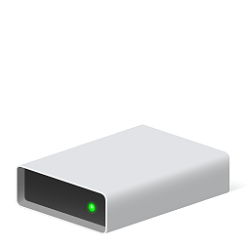
As the Windows Drive icons aren't necessarily exclusive to it, and can be used in any case, here they are.
(including BitLocker versions)
View attachment 31150 View attachment 31151 View attachment 31152
I made the extra Purple version from the theme to use as secondary (D) System drive of a Dual Boot.
You can customize the System Drive title:
This PC > Manage > Disk Management > Select System partition > Properties > Change name in title box >Apply
Careful : This method may not work on Windows 11
Check out updated REG files in case :
Changing Drive Icon
Hi. I was changing drive icon using a steps in this tutorial: https://www.tenforums.com/tutorials/74659-change-drive-icon-windows-10-a.html Unfortunately, it doesn't detect the file so it is only an file icon. I followed the steps of Option 2: Also logoffed. No effect.
Icon set as DLL + Separate icon files


Hi TizianoMad,
Is your Fluent Blue Folder Icon Theme still available somewhere?
My Computer
At a glance
Windows 10 Pro
- OS
- Windows 10 Pro

Hi @Slim08
In fact, I have them ready somewhere.
I just had my PC installed for a few weeks and I haven't worked on them for a whole year !
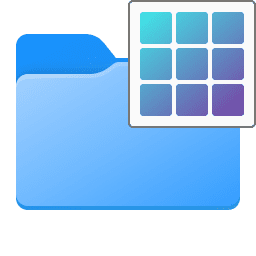
In addition to them, lots of system icons have been updated to fit W11 design, and are supposed to be included in the 7tsp folders (which replaces the original Windows icon files). Many are still missing, but I can just as well make a folder with the ones which are ready, and maybe make and update if I can make more. Meanwhile, I could send you all the ones I have as simple ico files. Then, I'll try to organize them for the 7tsp folders, with the right name and location to enable the switch properly.
Give me a few days, and I'll get this done.
See you soon !
Hi TizianoMad,
Is your Fluent Blue Folder Icon Theme still available somewhere?
In fact, I have them ready somewhere.
I just had my PC installed for a few weeks and I haven't worked on them for a whole year !
In addition to them, lots of system icons have been updated to fit W11 design, and are supposed to be included in the 7tsp folders (which replaces the original Windows icon files). Many are still missing, but I can just as well make a folder with the ones which are ready, and maybe make and update if I can make more. Meanwhile, I could send you all the ones I have as simple ico files. Then, I'll try to organize them for the 7tsp folders, with the right name and location to enable the switch properly.
Give me a few days, and I'll get this done.
See you soon !
My Computers
-
At a glance
Windows 10 & 11 LTSC 3xBoot 1809 21H2 24H2Intel Core i5-2550K8 GBNVIDIA GeForce GTS 450- OS
- Windows 10 & 11 LTSC 3xBoot 1809 21H2 24H2
- Computer type
- PC/Desktop
- Manufacturer/Model
- Self-made 2013
- CPU
- Intel Core i5-2550K
- Motherboard
- Intel DH67CL
- Memory
- 8 GB
- Graphics Card(s)
- NVIDIA GeForce GTS 450
- Sound Card
- EmuPMX
- Monitor(s) Displays
- 16/9 Samsung + 4/3 iiyama
- Screen Resolution
- 1360 x 768 + 1024 x 768
- Hard Drives
- Main SSD: Samsung 250 Gb
Secondary HDDs: Western Digital
(Purple 4 Tb + Blue 2 Tb) x2
+ Green 0.5 Tb
- Case
- Antec
- Keyboard
- Dell
- Mouse
- Advance
- Browser
- Brave
- Antivirus
- Windows Security
- Other Info
- + Portable Cleanup Utilities :
AdwCleaner
ZHP Cleaner (+Diag)
Kaspersky Virus Removal Tool
CCleaner
-
At a glance
Windows 11 Home- Operating System
- Windows 11 Home
- Computer type
- Laptop
- Manufacturer/Model
- HP
- Other Info
- Using W11 OS on customers' computers more and more often, and sometimes on my mum's new laptop.

bluishminty
Member
- Local time
- 2:17 PM
- Posts
- 10
- OS
- Windows 10
hello! new here! i was wondering how can i make gradient folders (eg. red-white, blue-green, etc.). can someone give me some blank folders with color gradients please? thank you!
My Computer
At a glance
Windows 10
- OS
- Windows 10
- Computer type
- PC/Desktop
- Local time
- 1:17 PM
- Posts
- 15
- OS
- Windows 10 Pro
My Computer
At a glance
Windows 10 Pro
- OS
- Windows 10 Pro
Latest Support Threads
-
 Solved bootmgr file appeared on the root of my 'C' drive
- Started by thecaretaker
- Replies: 24
-
Windows Update pulled this Intel System Update, and it's now downloaded
- Started by fleurdemer
- Replies: 7
-
Can I make a windows shortcut to a folder on a drive shared by WIN and Linux Mint?
- Started by CalypsoArt
- Replies: 6
-
How do I put the volume control button in the bottom panel!
- Started by DoraSmith
- Replies: 3
Latest Tutorials
-

-
 Browsers and Mail Enable or Disable Ask Before Closing window with Pinned Tabs in Edge
- Started by Brink
- Replies: 0
-
 Browsers and Mail Enable or Disable On-device Generative AI models in Microsoft Edge on Windows 11
- Started by Brink
- Replies: 0
-
 Apps Enable or Disable Energy Saver for Copilot Web Browsing in Windows 11
- Started by Brink
- Replies: 0
-
 Accessibility Enable or Disable Magnifier Win + Plus Keyboard Shortcut in Windows 11
- Started by Brink
- Replies: 6