- Local time
- 1:18 PM
- Posts
- 1
- OS
- windows 11
Hi everyone,
I’ve been dealing with frequent Driver Power State Failure (0x9F) BSODs for over 6 months now. Despite multiple clean reinstalls, BIOS resets, and every workaround I could find, the issue keeps coming back.
The BSOD occurs completely randomly but commonly in these situations:
The error shown is:
DRIVER_POWER_STATE_FAILURE (0x9F)
Every crash analyzed using BlueScreenView and WinDbg consistently shows:
I saw a Reddit post suggesting to give Full Control to users for this file:
C:\Windows\System32\drivers\_____\nvlddmkm.sys
Once I did that:
So it helped, but the root issue still exists.
About 6 months ago, I had Hackintosh (macOS) installed temporarily. I’ve since:
Still, I suspect this may have left behind firmware or ACPI issues possibly affecting the GPU or power state management.
I’ve attached the V2 log collector zip from my system:
 Google Drive Link (No login required)
I’m open to all advice, including advanced troubleshooting. I’ve reached my limit with this bug, and I appreciate any help from the experts here
Thanks in advance!
I’ve been dealing with frequent Driver Power State Failure (0x9F) BSODs for over 6 months now. Despite multiple clean reinstalls, BIOS resets, and every workaround I could find, the issue keeps coming back.
 System Information:
- Laptop: Lenovo IdeaPad Gaming 3
- CPU: AMD Ryzen 5 4600H
- GPU: NVIDIA GTX 1650 (Mobile)
- iGPU: AMD Radeon Graphics (Integrated)
- RAM: 16GB
- Storage: 512GB NVMe SSD
- OS: Windows 11 Version 24H2 (OS Build 26100.1742)
- Power Supply: OEM Lenovo Charger
- System Age: ~3 years
- Warranty: Expired
- System Language: English (US)
- No overclocking used
 The Issue:
The BSOD occurs completely randomly but commonly in these situations:
- Right after booting into Windows (post-Welcome screen)
- During shutdown or restart
- Every time Windows updates (feature or cumulative)
- Sometimes during idle or just browsing
The error shown is:
DRIVER_POWER_STATE_FAILURE (0x9F)
 Crash Dump Analysis:
Every crash analyzed using BlueScreenView and WinDbg consistently shows:
- ntoskrnl.exe
- pci.sys
- Most importantly: 0x9F_3_nvlddmkm_IMAGE_pci.sys
→ indicating the NVIDIA display driver (nvlddmkm.sys) is a key suspect.
 Steps Already Taken:
- Performed full clean Windows installs (at least 3–4 times)
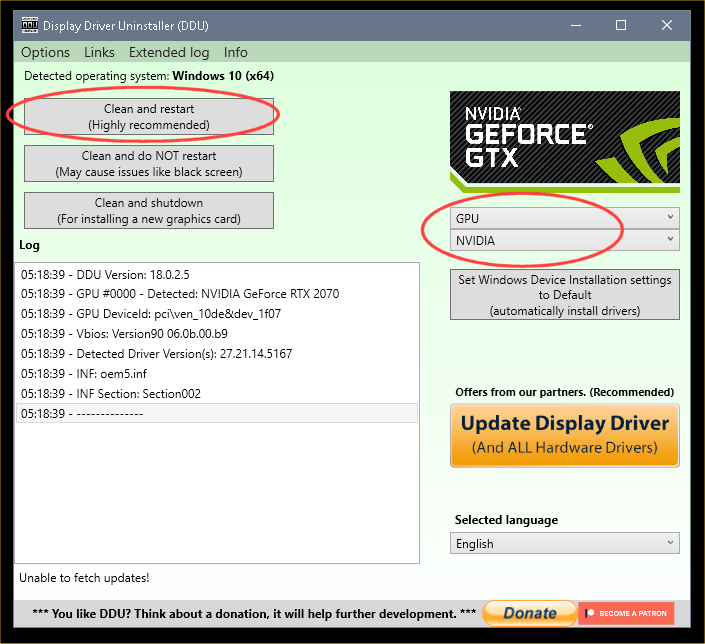
- Used DDU in Safe Mode to uninstall NVIDIA drivers before reinstall
- Tried:
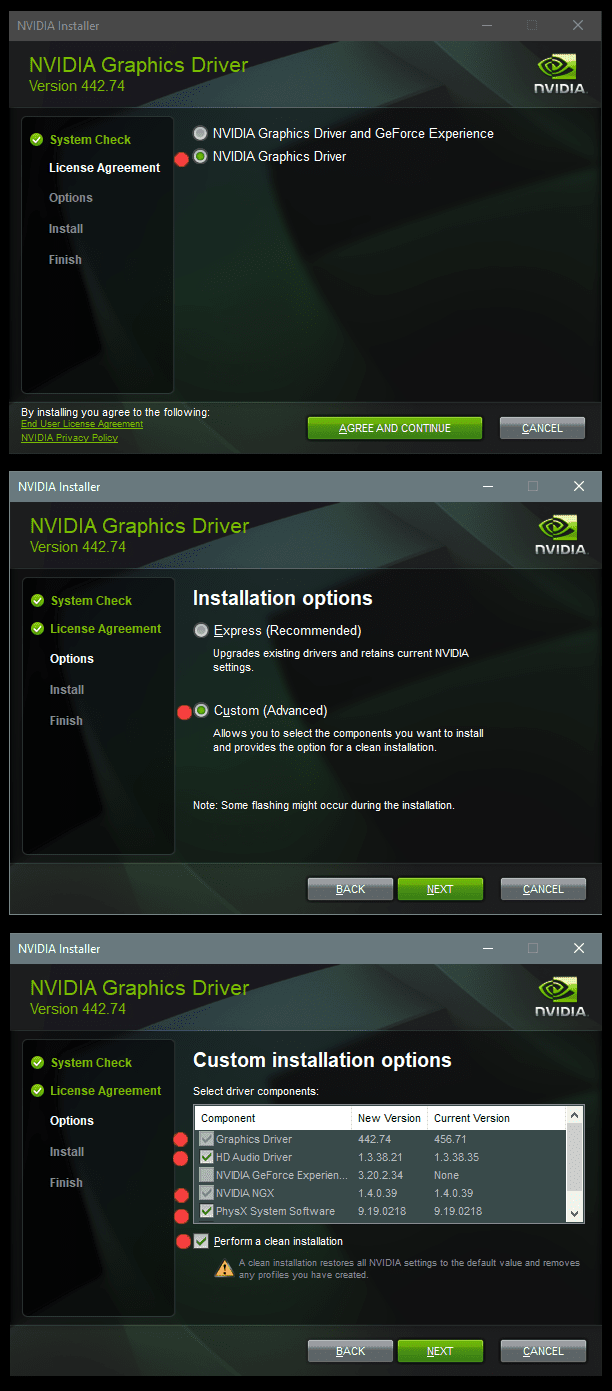
- Latest NVIDIA drivers from GeForce
- Lenovo OEM NVIDIA drivers
- Mixing both (OEM → latest, or vice versa)
- Reflashed BIOS and reset to defaults
- EC Reset
- Disabled Fast Startup and Hibernate
- Ran DISM + SFC (no issues found)
- Memory and SSD tested OK
- No malware or tampering involved
 One Workaround That Helped:
I saw a Reddit post suggesting to give Full Control to users for this file:
C:\Windows\System32\drivers\_____\nvlddmkm.sys
Once I did that:
- The random BSODs after boot or during idle reduced drastically
- BUT: Windows updates always crash with BSOD again
So it helped, but the root issue still exists.
 Important Background:
About 6 months ago, I had Hackintosh (macOS) installed temporarily. I’ve since:
- Fully removed macOS
- Fully formatted all drives
- Reinstalled clean Windows multiple times
Still, I suspect this may have left behind firmware or ACPI issues possibly affecting the GPU or power state management.
 V2 Log Collector:
I’ve attached the V2 log collector zip from my system:
Google Drive Link (No login required) What I Need Help With:
- Is this a driver bug, ACPI problem, or hardware fault?
- Can any logs confirm if it’s safe to continue using the NVIDIA GPU?
- Is there a proper fix, not just a permission workaround?
- Should I consider disabling the dGPU or is there a better long-term solution?
I’m open to all advice, including advanced troubleshooting. I’ve reached my limit with this bug, and I appreciate any help from the experts here
Thanks in advance!
- Windows Build/Version
- Windows 11 Version 24H2 (OS Build 26100.1742)
My Computer
At a glance
windows 11RYZEN 5 4600H16GBGTX1650
- OS
- windows 11
- Computer type
- Laptop
- Manufacturer/Model
- Lenovo Ideapad Gaming 3 Ryzen 5 4600H GTX1650
- CPU
- RYZEN 5 4600H
- Motherboard
- NA
- Memory
- 16GB
- Graphics Card(s)
- GTX1650
- Sound Card
- REALTEK
- Monitor(s) Displays
- NA
- Screen Resolution
- 1920x1080
- Hard Drives
- WDC