Accounts Enable or Disable Administrator Protection for Admin Approval Mode in Windows 11

  • Thread starter Thread starter Brink
  • Start date Published: Start date Updated Updated:
  • Tags Tags
    uac

Administrator_Protection_banner.webp

This tutorial will show you how to enable or disable Administrator Protection for admin approval mode elevations in Windows 11.

Starting with Windows 11 build 26220.7961 (Beta 25H2) and build 26300.7965 (Dev 25H2), Administrator protection is being gradually re-enabled and aims to protect free floating admin rights for administrator users, allowing them to still perform all admin functions with just-in-time admin privileges. This feature is OFF by default and can be enabled via OMA-URI in Intune or via group policy.

Starting with Windows 11 build 26220.8138 (Beta 25H2), build 26300.8142 (Dev 25H2), and build 2812.2242 (Experimental 26H1), after resuming the rollout of Administrator Protection as enabled by IT admins, we are also now rolling out the ability to enable Administrator Protection in Settings under Privacy & security > Windows Security > Account protection and switching the toggle to on. A restart will be required.

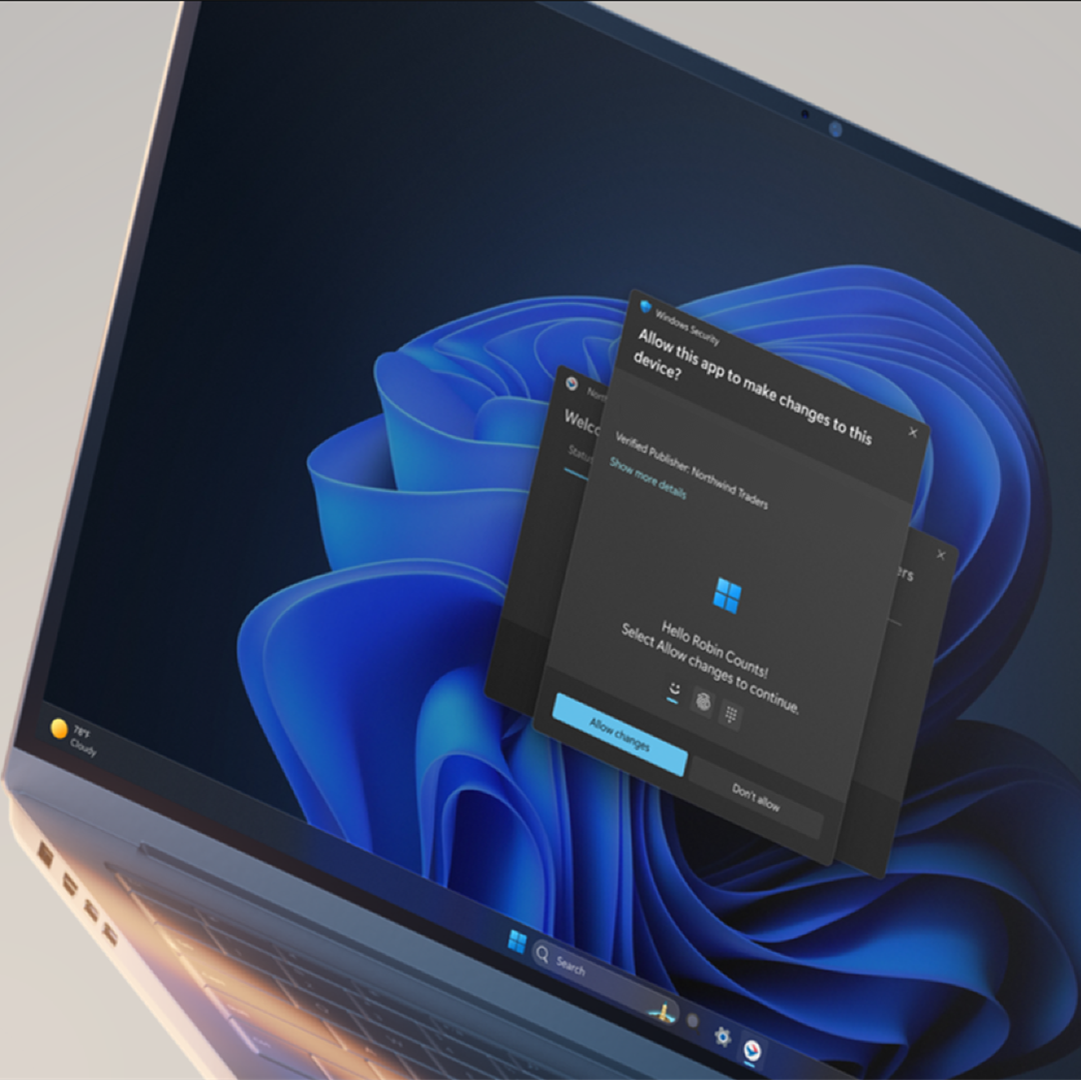
You can enable Administrator Protection to use for Admin Approval Mode (aka: elevated rights) instead of User Account Control (UAC).

Administrator Protection is an upcoming platform security feature in Windows 11, which aims to protect free floating admin rights for administrator users allowing them to still perform all admin functions with just-in-time admin privileges. This feature is off by default and needs to be enabled via group policy. Microsoft plans to share more details about this feature at Microsoft Ignite.

Administrator protection requires that a user verify their identity with Windows Hello integrated authentication before allowing any action that requires administrator privileges. These actions include installing software, changing system settings like the time or the registry, and accessing sensitive data. Administrator protection minimizes the risk of the user making a system-level change by mistake, and, more importantly, helps prevent malware from making silent changes to the system without the user knowing.

At its core, Administrator protection operates on the principle of least privilege. The user is issued the deprivileged user token when they sign in to Windows. However, when admin privileges are needed, Windows will request that the user authorize the operation. Once the operation is authorized, Windows uses a hidden, system-generated, profile-separated user account to create an isolated admin token. This token is issued to the requesting process and is destroyed once the process ends. This ensures that admin privileges do not persist. The whole process is repeated when the user tries to perform another task that requires admin privileges.

Administrator protection introduces a new security boundary with our support to fix any reported security bugs. It should not be confused with User Account Control (UAC), which is more of a defense-in-depth feature. The architectural changes mentioned above help ensure that any access to or tampering with the code or data of elevated session cannot be done without authorization.

Benefits of Administrator protection:
  • Enhanced security: By requiring explicit authorization for every administrative task, Administrator protection protects Windows from accidental changes by users and changes by malware. It helps ensure that users are aware of potentially harmful actions before they occur, which provides an additional layer of defense against cyber threats.
  • The user is always in control: Administrator protection allows users to manage admin rights, granting or restricting access granularly to individual apps. This helps ensure that only authorized apps can make system changes, reducing the risk of accidental or malicious modifications.
  • Malware reduction: Malicious software often relies on admin privileges to change device settings and execute harmful actions. Administrator protection breaks the attack kill chain since malware will no longer be able to silently acquire admin privileges.
Admin Approval Mode runs in legacy mode by default, and uses User Account Control (UAC) for elevation approval.

If you enable Administrator Protection, Admin Approval Mode uses Windows Security for a more secure elevation approval instead of User Account Control (UAC). A C:\Users\ADMIN_<OriginalAdminProfileFolderName> profile folder (ex: "ADMIN_Brink") will be created by the system to use for Administrator Protection.

References:
You must be signed in as an administrator to enable or disable Administrator Protection.


If you don't have the Administrator Protection feature available yet in the builds above and would like to try it now, then you can enable it using the ViVeTool command below.

vivetool.exe /enable /id:60288851


Contents

  • Option One: Enable or Disable Administrator Protection for Admin Approval Mode in Windows Security
  • Option Two: Enable or Disable Administrator Protection for Admin Approval Mode in Local Security Policy
  • Option Three: Enable or Disable Administrator Protection for Admin Approval Mode using REG file


EXAMPLE: Administrator Protection enabled (Windows Security) and disabled (UAC)

UAC.png
Administrator_Protection_with_Windows_Security-1.png
Administrator_Protection_with_Windows_Security-2.webp


Option One

Enable or Disable Administrator Protection for Admin Approval Mode in Windows Security


1 Open Windows Security, and click/tap on Account protection. (see screenshot below)

Administrator_Protection_mode_Windows_Security-1.webp

2 Click/tap on the Administrator protection settings link under Administrator protection. (see screenshot below)

Administrator_Protection_mode_Windows_Security-2.webp

3 Turn on or off (default) Administrator protection for what you want. (see screenshot below)

Administrator_Protection_mode_Windows_Security-3.webp

4 Restart the computer to apply. (see screenshot below)

Administrator_Protection_mode_Windows_Security-4.webp


Option Two

Enable or Disable Administrator Protection for Admin Approval Mode in Local Security Policy


Local Security Policy is only available in the Windows 11 Pro, Enterprise, and Education editions.

All editions can use Option One or Option Three to change the same policy.


1 Open Local Security Policy (secpol.msc).

2 Perform the following actions: (see screenshot below)
  1. Expand open the Local Policies folder in the left pane.
  2. Click/tap on the Security Options subfolder in the left pane.
  3. Double click/tap on the User Account Control: Configure type of Admin Approval Mode policy in the right pane.
Administrator_Protection_secpol-1.png

3 In the Local Security Setting tab, select Legacy Admin Approval Mode (Default) (disable) or Admin Approval Mode with Administrator protection (enable) for what you want in the drop menu, and click/tap on OK. (see screenshot below)

Administrator_Protection_secpol-2.png


Option Three

Enable or Disable Administrator Protection for Admin Approval Mode using REG file


1 Do step 2 (enable) or step 3 (disable) below for what you would like to do.

2 Enable Administrator Protection for Admin Approval Mode

A) Click/tap on the Download button below to download the file below, and go to step 4 below.​

Enable_Administrator_Protection_for_Admin_Approval_Mode.reg


(Contents of REG file for reference)
Code:
Windows Registry Editor Version 5.00

[HKEY_LOCAL_MACHINE\SOFTWARE\Microsoft\Windows\CurrentVersion\Policies\System]
"TypeOfAdminApprovalMode"=dword:00000002

3 Disable Administrator Protection for Admin Approval Mode

This is the default setting.


A) Click/tap on the Download button below to download the file below, and go to step 4 below.​

Disable_Administrator_Protection_for_Admin_Approval_Mode.reg


(Contents of REG file for reference)
Code:
Windows Registry Editor Version 5.00

[HKEY_LOCAL_MACHINE\SOFTWARE\Microsoft\Windows\CurrentVersion\Policies\System]
"TypeOfAdminApprovalMode"=dword:00000001

4 Save the .reg file to your desktop.

5 If you have Smart App Control turned on, you will need to unblock the downloaded REG file.

6 Double click/tap on the downloaded .reg file to merge it.

7 When prompted, click/tap on Run, Yes (UAC), Yes, and OK to approve the merge.

8 Restart the computer to apply.

9 You can now delete the downloaded .reg file if you like.


That's it,
Shawn Brink


Attachments

Last edited:
I used secpol to enable it, but then I could not open my preferred browser, Brave. Downloading it again did not help. I had to run setup.exe from the already installed Brave software folder.
 

My Computers

System One System Two

  • OS
    Windows 11 Pro 25H2 26200.8524
    Computer type
    Laptop
    Manufacturer/Model
    Acemagic LX15PRO
    CPU
    AMD Ryzen 7 5825U with Radeon Graphics
    Memory
    16GB
    Screen Resolution
    1920 x 1080
    Hard Drives
    SSD 2TB
    Internet Speed
    30 Mbps
    Browser
    Brave
    Antivirus
    Webroot Secure Anywhere
    Other Info
    System 3

    Acer Swift SF114-34 laptop
    OS Windows 11 Pro 26200.8524
    CPU Pentium Silver N6000
    RAM 4GB
    SSD Samsung 970 EVO Plus SSD 2TB (an upgrade)
  • Operating System
    Windows 11 Pro 23H2 22631.2506
    Computer type
    Laptop
    Manufacturer/Model
    HP Mini 210-1090NR PC (bought in late 2009!)
    CPU
    Atom N450 1.66GHz
    Memory
    2GB
    Browser
    Brave
    Antivirus
    Webroot
I used secpol to enable it, but then I could not open my preferred browser, Brave. Downloading it again did not help. I had to run setup.exe from the already installed Brave software folder.
This tells me a lot of Apps just aren't going to be ready!
 

My Computer

System One

  • OS
    Windows 11 Pro
    Computer type
    Laptop
    Manufacturer/Model
    Microsoft Surface Laptop 7
    Memory
    16GB
    Hard Drives
    512GB
thats what uac does on its highest setting as well.
But only intending to End Task something in Task Manager is too OTT to require credentials.

I guess the theory is you may be able to End Task another Account's open apps but there's way to ensure you can only End Task your own apps.

And even if your the only one running a computer, using an admin account isnt safe, despite having uac set to its highest setting.
I assumed when Administration Protection is fully rolled out it'll apply to Standard User Accounts too?

In the main running under an Administrator account isn't normal, you login to do a task and then logout again.
 
Last edited:

My Computer

System One

  • OS
    Windows 11 Pro
    Computer type
    Laptop
    Manufacturer/Model
    Microsoft Surface Laptop 7
    Memory
    16GB
    Hard Drives
    512GB
But only intending to End Task something in Task Manager is too OTT to require credentials.

I guess the theory is you may be able to End Task another Account's open apps but there's way to ensure you can only End Task your own apps.


I assumed when Administration Protection is fully rolled out it'll apply to Standard User Accounts too?

In the main running under an Administrator account isn't normal, you login to do a task and then logout again.
I filed feedback about this recently and they either saw it or the devs had the same idea, because in a recent Insider build they updated Task Manager to launch unelevated by default with a button to "Run as administrator". I'm not certain if this is only the case when AP is turned on, or if it's always like this by default now.
1760565823629.webp
 

My Computer

System One

  • OS
    Windows 11
    Computer type
    PC/Desktop
    Manufacturer/Model
    HP Victus Gaming Laptop 15-fb3xxx
    CPU
    AMD Ryzen 7 7445HS
    Graphics Card(s)
    Nvidia GeForce RTX 4050 Laptop GPU, AMD Radeon 740M iGPU
    Screen Resolution
    1920 x 1080p
    Hard Drives
    Samsung SSD 970 Evo Plus 1TB
    Browser
    Firefox
    Antivirus
    Windows Security
I filed feedback about this recently and they either saw it or the devs had the same idea, because in a recent Insider build they updated Task Manager to launch unelevated by default with a button to "Run as administrator". I'm not certain if this is only the case when AP is turned on, or if it's always like this by default now.
Thanks. This is good to see in general, as no one likes Admin prompts when they're not even necessary in general daily usage.
 

My Computer

System One

  • OS
    Windows 11 Pro
    Computer type
    Laptop
    Manufacturer/Model
    Microsoft Surface Laptop 7
    Memory
    16GB
    Hard Drives
    512GB
I filed feedback about this recently and they either saw it or the devs had the same idea, because in a recent Insider build they updated Task Manager to launch unelevated by default with a button to "Run as administrator". I'm not certain if this is only the case when AP is turned on, or if it's always like this by default now.View attachment 149145
Thats very cool
 

My Computers

System One System Two

  • OS
    Windows 11 Pro
    Computer type
    PC/Desktop
    Manufacturer/Model
    Custom Built
    CPU
    Ryzen 7 5700 X3D
    Motherboard
    MSI MPG B550 GAMING PLUS
    Memory
    64 GB DDR4 3600mhz Gskill Ripjaws V
    Graphics Card(s)
    RTX 4070 Super , 12GB VRAM Asus EVO Overclock
    Monitor(s) Displays
    Gigabyte M27Q (rev. 2.0) 2560 x 1440 @ 170hz HDR
    Hard Drives
    2TB Samsung nvme ssd
    4TB Western Digital nvme ssd
    PSU
    CORSAIR RMx SHIFT Series™ RM750x 80 PLUS Gold Fully Modular ATX Power Supply
    Case
    CORSAIR 3500X ARGB Mid-Tower ATX PC Case – Black
    Cooling
    ID-COOLING FROSTFLOW X 240 CPU Water Cooler
    Keyboard
    Logitech G213
    Mouse
    Logitech G203
    Internet Speed
    1.2gbps Fiber 😎
  • Operating System
    Chrome OS
    Computer type
    Laptop
    Manufacturer/Model
    HP Chromebook
    CPU
    Intel Pentium Quad Core
    Memory
    4GB LPDDR4
    Monitor(s) Displays
    14 Inch HD SVA anti glare micro edge display
    Hard Drives
    64 GB emmc
Hopefully they do the same with regedit. I shouldn't need admin rights to edit HKEY_CURRENT_USER.
 

My Computer

System One

  • OS
    Windows 11 Pro 25H2
    Computer type
    PC/Desktop
    Manufacturer/Model
    Intel NUC12WSHi7
    CPU
    12th Gen Core i7-1260P
    Motherboard
    NUC12WSBi7
    Memory
    64 GB Micron PC4-25600
    Graphics Card(s)
    Intel Iris Xe Graphics
    Sound Card
    on-board Realtek HD Audio
    Monitor(s) Displays
    Dell U3219Q
    Screen Resolution
    3840 x 2160
    Hard Drives
    Samsung SSD 990 PRO 1TB
    Crucial MX500 2 TB
    Antivirus
    Microsoft Defender
Is anyone else having this problem? I've restarted several times.

Screenshot 2025-10-16 114206.webp
 

My Computer

System One

  • OS
    Windows 11 Pro 25H2
    Computer type
    PC/Desktop
    CPU
    Intel Core i5 12th generation
    Motherboard
    GIGABYTE
    Memory
    16GB
    PSU
    750W
Is anyone else having this problem? I've restarted several times.

View attachment 149251
Historically if you Sign-Out and then Restart (from the login page) it also causes apps to not remain loaded in memory.

/It looks like a bug though.
 

My Computer

System One

  • OS
    Windows 11 Pro
    Computer type
    Laptop
    Manufacturer/Model
    Microsoft Surface Laptop 7
    Memory
    16GB
    Hard Drives
    512GB
Hopefully they do the same with regedit. I shouldn't need admin rights to edit HKEY_CURRENT_USER.
No!

I now need to be in oddly, some HKEY_CURRENT_USER locations, but not others in HKEY_CURRENT_USER, on my Work PC, which may not be related of course.
 

My Computer

System One

  • OS
    Windows 11 Pro
    Computer type
    Laptop
    Manufacturer/Model
    Microsoft Surface Laptop 7
    Memory
    16GB
    Hard Drives
    512GB
No!

I now need to be in oddly, some HKEY_CURRENT_USER locations, but not others in HKEY_CURRENT_USER, on my Work PC, which may not be related of course.
You what, mate? I can't make any sense of that sentence.
 

My Computer

System One

  • OS
    Windows 11 Pro 25H2
    Computer type
    PC/Desktop
    Manufacturer/Model
    Intel NUC12WSHi7
    CPU
    12th Gen Core i7-1260P
    Motherboard
    NUC12WSBi7
    Memory
    64 GB Micron PC4-25600
    Graphics Card(s)
    Intel Iris Xe Graphics
    Sound Card
    on-board Realtek HD Audio
    Monitor(s) Displays
    Dell U3219Q
    Screen Resolution
    3840 x 2160
    Hard Drives
    Samsung SSD 990 PRO 1TB
    Crucial MX500 2 TB
    Antivirus
    Microsoft Defender
You what, mate? I can't make any sense of that sentence.
No worries. I probably didn't phrase it the clearest.

No you shouldn't need to have Admin rights to change HKEY_CURRENT_USER.

I now need to have Admin rights on my Work PC to change HKEY_CURRENT_USER, but oddly not all keys in HKEY_CURRENT_USER. Which may not be related of course.
 

My Computer

System One

  • OS
    Windows 11 Pro
    Computer type
    Laptop
    Manufacturer/Model
    Microsoft Surface Laptop 7
    Memory
    16GB
    Hard Drives
    512GB
No worries. I probably didn't phrase it the clearest.

No you shouldn't need to have Admin rights to change HKEY_CURRENT_USER.

I now need to have Admin rights on my Work PC to change HKEY_CURRENT_USER, but oddly not all keys in HKEY_CURRENT_USER. Which may not be related of course.
that'd be why
 

My Computer

System One

  • OS
    Windows 11 Pro
Historically if you Sign-Out and then Restart (from the login page) it also causes apps to not remain loaded in memory.

/It looks like a bug though.
I did not log out before restarting, I tried use shut down, but I am still experiencing the same issue.
it seems that the protection works well, so I agree that it is a bug.
 

My Computer

System One

  • OS
    Windows 11 Pro 25H2
    Computer type
    PC/Desktop
    CPU
    Intel Core i5 12th generation
    Motherboard
    GIGABYTE
    Memory
    16GB
    PSU
    750W
I did not log out before restarting, I tried use shut down, but I am still experiencing the same issue.
it seems that the protection works well, so I agree that it is a bug.
If you have "Fast Startup" enabled (which it is by default), simply shutting down the traditional way then turning your computer back on doesn't fully refresh Windows, as it still saves some core system services' running states to the disk. Using "Restart" does a full reboot of Windows and all system processes, so try that if you haven't.
 

My Computer

System One

  • OS
    Windows 11
    Computer type
    PC/Desktop
    Manufacturer/Model
    HP Victus Gaming Laptop 15-fb3xxx
    CPU
    AMD Ryzen 7 7445HS
    Graphics Card(s)
    Nvidia GeForce RTX 4050 Laptop GPU, AMD Radeon 740M iGPU
    Screen Resolution
    1920 x 1080p
    Hard Drives
    Samsung SSD 970 Evo Plus 1TB
    Browser
    Firefox
    Antivirus
    Windows Security
So, instead of clicking yes to user control, you need to type (desktop) at least 4 digit pin? :unsure: :oops:
 

My Computer

System One

  • OS
    Windows 11 Education
    Computer type
    PC/Desktop
    CPU
    Intel® Core™ i9-13900K Desktop Processor 16 (8P+8E)
    Motherboard
    Asus TUF Gaming Z790-PLUS WIFI D4
    Memory
    G.Skill Ripjaws V Series 32gb (2x16gb) DDR4 3600mhz
    Graphics Card(s)
    Asus Dual Geforce Rtx™ 3060 TI Edition 8gb Gddr6
    Monitor(s) Displays
    BenQ EW3270U 31.5” 3840x2160 UHD 16:9 HDR LED 4K LG 27UK850-W 27'' 4K UHD IPS LED Monitor with HDR10
    Screen Resolution
    3840x2160
    Hard Drives
    Samsung 990 with heatsink PRO PCIe 4.0 Gen 4 NVMe® SSD 1TB
    WD_BLACK SN850X NVMe M.2 2280 1TB PCI-Express 4.0
    Crucial T500 2TB Gen4
    Samsung 970 Evo M.2 2280 2tb Pcie Gen3. X4
    PSU
    Corsair AXi Series AX860i Digital 860W 80 PLUS PSU
    Case
    Fractal Meshify C ATX Mid Tower Case
    Keyboard
    Logi MX Keys
    Mouse
    Logi M705
    Internet Speed
    400 mbs
    Browser
    Firefox
    Antivirus
    Eset NOD32
    Other Info
    Love fast boots
So, instead of clicking yes to user control, you need to type (desktop) at least 4 digit pin? :unsure: :oops:

Hey mate, :alien:

It basically will have you approve with one of your available Windows Hello sign-in options instead.
 

My Computers

System One System Two

  • OS
    Windows 11 Pro for Workstations
    Computer type
    PC/Desktop
    Manufacturer/Model
    Custom self build
    CPU
    Intel i7-8700K 5 GHz
    Motherboard
    ASUS ROG Maximus XI Formula Z390
    Memory
    64 GB (4x16GB) G.SKILL TridentZ RGB DDR4 3600 MHz (F4-3600C18D-32GTZR)
    Graphics Card(s)
    ASUS ROG-STRIX-GTX1080TI-O11G-GAMING (11GB GDDR5X)
    Sound Card
    Integrated Digital Audio (S/PDIF)
    Monitor(s) Displays
    2 x Samsung Odyssey G75 27"
    Screen Resolution
    2560x1440
    Hard Drives
    1TB Samsung 990 PRO M.2,
    4TB Samsung 990 PRO M.2,
    TerraMaster F8 SSD Plus NAS
    PSU
    Seasonic Prime Titanium 850W
    Case
    Thermaltake Core P3 wall mounted
    Cooling
    Corsair Hydro H115i
    Keyboard
    Amazon Basics Wired Full Keyboard MD005
    Mouse
    Logitech MX Master 4
    Internet Speed
    2 Gbps Download and 100 Mbps Upload
    Browser
    Chrome and Edge
    Antivirus
    Microsoft Defender
    Other Info
    Logitech Z625 speaker system,
    Logitech BRIO 4K Pro webcam,
    HP Color LaserJet Pro MFP M477fdn,
    CyberPower CP1500PFCLCD
    Galaxy S23 Plus phone
  • Operating System
    Windows 11 Pro
    Computer type
    Laptop
    Manufacturer/Model
    Surface Laptop 7 Copilot+ PC
    CPU
    Snapdragon X Elite (12 core) 3.42 GHz
    Memory
    16 GB LPDDR5x-7467 MHz
    Monitor(s) Displays
    15" HDR
    Screen Resolution
    2496 x 1664
    Hard Drives
    1 TB SSD
    Internet Speed
    Wi-Fi 7 and Bluetooth 5.4
    Browser
    Chrome and Edge
    Antivirus
    Microsoft Defender
So, instead of clicking yes to user control, you need to type (desktop) at least 4 digit pin? :unsure: :oops:
You don't need to type desktop. Not sure what you mean here.

From a user interface pov you could do this already (in the background it worked differently previously), although it wasn't enabled by default and it still isn't.
 

My Computer

System One

  • OS
    Windows 11 Pro
    Computer type
    Laptop
    Manufacturer/Model
    Microsoft Surface Laptop 7
    Memory
    16GB
    Hard Drives
    512GB
From a user interface pov you could do this already (in the background it worked differently previously), although it wasn't enabled by default and it still isn't.
I can't make any sense of this sentence.
 

My Computer

System One

  • OS
    Windows 11
    Computer type
    Laptop
You don't need to type desktop. Not sure what you mean here.

From a user interface pov you could do this already (in the background it worked differently previously), although it wasn't enabled by default and it still isn't.
Yep, that's a confusing follow-up. I meant that usually for an admin task you need to approve user control. I was saying why change that choice using your user 4 digit pin to approve. I mean it's like 4 quarters for a dollar. Same method different option.
 
Last edited:

My Computer

System One

  • OS
    Windows 11 Education
    Computer type
    PC/Desktop
    CPU
    Intel® Core™ i9-13900K Desktop Processor 16 (8P+8E)
    Motherboard
    Asus TUF Gaming Z790-PLUS WIFI D4
    Memory
    G.Skill Ripjaws V Series 32gb (2x16gb) DDR4 3600mhz
    Graphics Card(s)
    Asus Dual Geforce Rtx™ 3060 TI Edition 8gb Gddr6
    Monitor(s) Displays
    BenQ EW3270U 31.5” 3840x2160 UHD 16:9 HDR LED 4K LG 27UK850-W 27'' 4K UHD IPS LED Monitor with HDR10
    Screen Resolution
    3840x2160
    Hard Drives
    Samsung 990 with heatsink PRO PCIe 4.0 Gen 4 NVMe® SSD 1TB
    WD_BLACK SN850X NVMe M.2 2280 1TB PCI-Express 4.0
    Crucial T500 2TB Gen4
    Samsung 970 Evo M.2 2280 2tb Pcie Gen3. X4
    PSU
    Corsair AXi Series AX860i Digital 860W 80 PLUS PSU
    Case
    Fractal Meshify C ATX Mid Tower Case
    Keyboard
    Logi MX Keys
    Mouse
    Logi M705
    Internet Speed
    400 mbs
    Browser
    Firefox
    Antivirus
    Eset NOD32
    Other Info
    Love fast boots
Back
Top Bottom