This tutorial will show you how to turn on or off Copilot personalization and memory usage for your Microsoft account.
Microsoft Copilot is an AI-powered digital assistant designed to help you with a range of tasks and activities.
When you sign in to Copilot with your Microsoft account Copilot uses your Microsoft account to provide personalized assistance and access by default to a wide range of features. For example, saving and syncing your Copilot chat history on all devices you sign in to Copilot with the same Microsoft account.
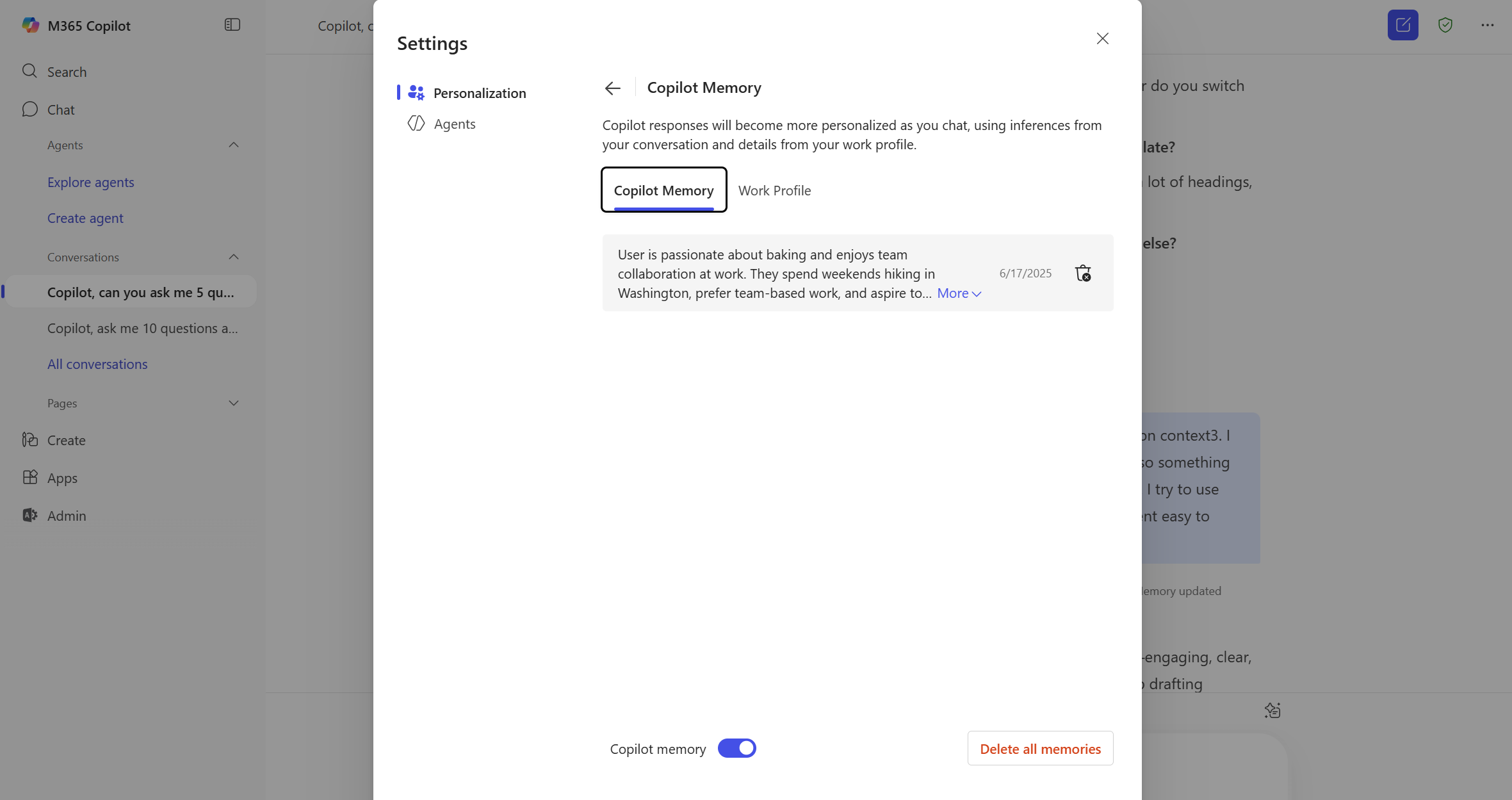
If you turn on personalization and memory, memory from conversations, Bing and MSN activity, and any inferred interests will be used to personalize your experience with Copilot. Copilot picks up on important details from your conversations, like “I prefer Python for data science” or “I’m working on Project Alpha,” and remembers them. Users can also tell Copilot "please remember I like using bullet points in my writing" and Copilot will log this as a memory. With memory, Copilot becomes more than just a helpful assistant—it becomes your assistant. It reduces repetitive input, speeds up task completion, and tailors its responses to your unique needs.
Personalization and memory is turned on by default, but you can turn on or off personalization and memory at any time.
When you turn off personalization and memory, Copilot is stopped from applying saved memories to the chat, but doesn't delete saved memories.
References:
Introducing Copilot Memory: A More Productive and Personalized AI for the Way You Work | Microsoft Community Hub
At Microsoft, we believe AI should work for you—not the other way around. That’s why we’re introducing memory in Copilot, a new capability that makes your...
 techcommunity.microsoft.com

Manage Copilot personalization and memory
This article details how to use the personalization and memory settings in Microsoft 365 Copilot
learn.microsoft.com
Manage Copilot Memory in Microsoft 365 Copilot | Microsoft Support
Learn how to manage and delete saved memories from Copilot Memory in Microsoft 365 Copilot
 support.microsoft.com
Personalize what Microsoft 365 Copilot remembers | Microsoft Support
Learn how to personalize what Microsoft 365 Copilot remembers about you and your preferences
support.microsoft.com
Microsoft Copilot privacy controls | Microsoft Support
Learn about privacy controls available in Microsoft Copilot.
support.microsoft.com
Contents
- Option One: Enable or Disable Copilot Personalization and Memory from Copilot app and web
- Option Two: Enable or Disable Copilot Personalization and Memory from Microsoft Edge
1 Open the copilot.microsoft.com site or Copilot app on Windows 11.
2 Sign in to Copilot with your Microsoft account if not already.
3 While in full view (app only), click/tap on the Account button on the sidebar, and click/tap on Memory. (see screenshot below)
4 Turn on (default) or off Personalization and memory for what you want. (see screenshot below step 5)
5 If you turned on Personalization and memory, turn on (default) or off Microsoft usage data for what you want. (see screenshot below)
1 Open Microsoft Edge.
2 Sign in to Microsoft Edge with your Microsoft account if not already.
3 Click/tap on the Copilot icon on the toolbar. (see screenshot below step 4)
4 Click/tap on the More options (3 dots) button, and click/tap on Settings. (see screenshot below)
5 Click/tap on Privacy. (see screenshot below)
6 Click/tap on Manage personalization and memory. (see screenshot below)
7 Turn on (default) or off Personalization and memory for what you want. (see screenshots below)
8 If you turned on Personalization and memory, turn on (default) or off Microsoft usage data for what you want.
9 You can now back out of and close Copilot settings if you like.
That's it,
Shawn Brink
Related Tutorials
- Save Information to Copilot Memory
- Delete Copilot Memory
- Uninstall or Reinstall Copilot app in Windows 11 and Windows 10
- Open Copilot in Windows 11 and Windows 10
- Sign in or Sign out of Copilot
- Enable or Disable Context Clues for Copilot in Microsoft Edge
- Enable or Disable Model Training in Copilot on Web, Windows 11, and Windows 10
- Clear All Copilot Activity History Data for Microsoft Account
- Enable or Disable Diagnostic Data Sharing in Copilot app in Windows 11
- Enable or Disable Personalized Ads in Copilot app on Windows 11
- Enable or Disable Personalized Experiences on Microsoft Store app in Windows 11
- Enable or Disable Personalized Ads and Offers for Microsoft Account
Last edited: