This tutorial will show you how to turn on or off core isolation memory integrity in Windows 11.
Core isolation is a security feature of Microsoft Windows that protects important core processes of Windows from malicious software by isolating them in memory. It does this by running those core processes in a virtualized environment.
Memory integrity, also known as Hypervisor-protected Code Integrity (HVCI) is a Windows security feature that makes it difficult for malicious programs to use low-level drivers to hijack your computer. It is designed to prevent attacks from inserting malicious code into high-security processes.
A driver is a piece of software that lets the operating system (Windows in this case) and a device (like a keyboard or a webcam, for two examples) talk to each other. When the device wants Windows to do something it uses the driver to send that request.
Memory integrity works by creating an isolated environment using hardware virtualization.
In most cases memory integrity is on by default in Windows 11.
Beginning in October 2026, Microsoft will expand memory integrity protection across eligible devices, helping you and your organization benefit from stronger kernel-level protection from sophisticated attacks by default with little or no additional configuration. This change reduces security complexity while helping you establish a stronger security baseline across your environment.
References:

Expanding memory integrity protection across Windows devices - Windows IT Pro Blog
 techcommunity.microsoft.com
Device Security in the Windows Security App | Microsoft Support
 support.microsoft.com

Enable memory integrity

Microsoft Releases HVCI Memory Integrity Compatibility Check Tool
 www.elevenforum.com
Why do incompatible drivers prevent using Memory integrity? | Microsoft Support
support.microsoft.com
Virtualization-based Security (VBS)
You must be signed in as an administrator to turn on or off core isolation memory integrity.
Core isolation memory integrity requires CPU virtualization turned on.
- Option One: Turn On or Off Core Isolation Memory Integrity in Windows Security
- Option Two: Turn On or Off Core Isolation Memory Integrity using REG file
1 Open Windows Security.
2 Click/tap on Device security on the left side, and click/tap on the Core isolation details link on the right side. (see screenshot below)
3 Turn on (default) or off Memory integrity for what you want. (see screenshot below)
If the Memory integrity setting is grayed out with a This setting is managed by your administrator message, change the Locked DWORD value to 0 instead of 1 in the registry key below, then close and reopen Windows Security.
HKEY_LOCAL_MACHINE\SYSTEM\CurrentControlSet\Control\DeviceGuard\Scenarios\HypervisorEnforcedCodeIntegrity
If memory integrity fails to turn on it may tell you that you have an incompatible device driver already installed. Check with the manufacturer of the device to see if they have an updated driver available. If they don’t have compatible driver available, you might be able to remove the device or app that uses that incompatible driver. Otherwise, you can uninstall any incompatible drivers.
Uninstall Driver in Windows 11
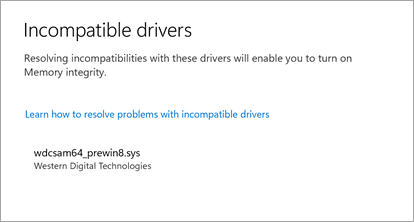
Note: If you try to install a device with an incompatible driver after turning on memory integrity, you may see the same message. If so, the same advice applies - check with the device manufacturer to see if they have an updated driver you can download, or don’t install that particular device until a compatible driver is available.
4 If prompted by UAC, click/tap on Yes to approve.
5 Restart the computer to apply. (see screenshots below)
1 Do step 2 (on) or step 3 (off) below for what you want.
This is the default setting.
(Contents of REG file for reference)
Windows Registry Editor Version 5.00

[HKEY_LOCAL_MACHINE\SYSTEM\CurrentControlSet\Control\DeviceGuard\Scenarios\HypervisorEnforcedCodeIntegrity]
"Enabled"=dword:00000001(Contents of REG file for reference)
Windows Registry Editor Version 5.00

[HKEY_LOCAL_MACHINE\SYSTEM\CurrentControlSet\Control\DeviceGuard\Scenarios\HypervisorEnforcedCodeIntegrity]
"Enabled"=dword:00000000
4 Save the .reg file to your desktop.
5 If you have Smart App Control turned on, you will need to unblock the downloaded REG file.
6 Double click/tap on the downloaded .reg file to merge it.
7 When prompted, click/tap on Run, Yes (UAC), Yes, and OK to approve the merge.
8 Restart the computer to apply.
9 You can now delete the downloaded .reg file if you like.
That's it,
Shawn Brink