This tutorial will show you how to enable or disable open Game Bar using the Xbox button on a Xbox game controller for your account in Windows 11.
You can open the Game Bar to take control of all your favorite gaming activities while playing on your Windows 11 device.
When you open Game Bar, a variety of Xbox gaming activities are at your fingertips. Select a feature from the Widget Menu and it’ll pop up as a widget. Many of these can be moved, resized, or pinned to your screen.
Xbox Game Bar has customization options that let you quickly jump between your game and favorite activities.
Starting with Windows 11 build 22616, Windows Insiders who like to game on their PCs with an Xbox Controller on the latest Insider Preview builds in the Dev and Beta Channels can try out the new controller bar feature.
Reference:

Windows Insiders can now try out an early preview of controller bar
Windows Insiders can now try out an early preview of a feature called controller bar. Controller bar is a preview of a new view of Xbox Game Bar that provides easy, controller-friendly access to recently played games and game launchers. [caption id=
 blogs.windows.com
Contents
- Option One: Turn On or Off Open Game Bar using Xbox button on Game Controller in Settings
- Option Two: Turn On or Off Open Game Bar using Xbox button on Game Controller in Game Bar Settings
- Option Three: Turn On or Off Open Game Bar using Xbox button on Game Controller using REG file
EXAMPLE: Xbox button on Xbox Game Controller and Controller Bar
1 Open Settings (Win+I).
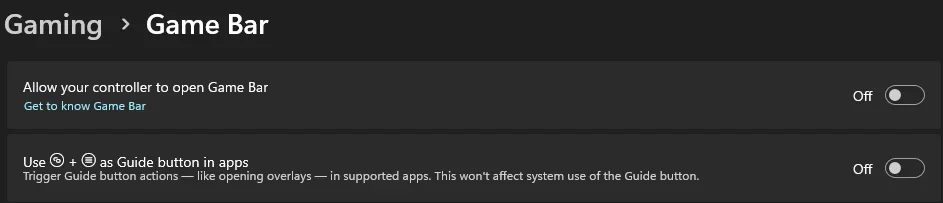
2 Click/tap on Gaming on the left side, and click/tap on Game Bar on the right side. (see screenshot below)
3 Turn On or Off (default) Allow your controller to open Game Bar for what you want. (see screenshot below)
4 You can now close Settings if you like.
1 Open the Game Bar (Win+G).
2 Click/tap on the Settings (gear) icon on the Home Bar, and click/tap on More settings in Settings. (see screenshot below)
3 Click/tap on Shortcuts in More settings. (see screenshot below)
4 Under Controller, turn on (default) or off Open Game Bar using
1 Do step 2 (on) or step 3 (off) below for what you want.
2 Turn On Open Game Bar using Xbox button on Game Controller
A) Click/tap on the Download button below to download the REG file below, and go to step 4 below.
Turn_ON_open_Xbox_Game_Bar_using_Xbox_button_on_game_controller.reg
Download
(Contents of REG file for reference)
Code:
Windows Registry Editor Version 5.00

[HKEY_CURRENT_USER\SOFTWARE\Microsoft\GameBar]
"UseNexusForGameBarEnabled"=dword:00000001
3 Turn Off Open Game Bar using Xbox button on Game Controller
This is the default setting.
A) Click/tap on the Download button below to download the REG file below, and go to step 4 below.
Turn_OFF_open_Xbox_Game_Bar_using_Xbox_button_on_game_controller.reg
Download
(Contents of REG file for reference)
Code:
Windows Registry Editor Version 5.00

[HKEY_CURRENT_USER\SOFTWARE\Microsoft\GameBar]
"UseNexusForGameBarEnabled"=dword:00000000
4 Save the .reg file to your desktop.
5 If you have Smart App Control turned on, you will need to unblock the downloaded REG file.
6 Double click/tap on the downloaded .reg file to merge it.
7 When prompted, click/tap on Run, Yes (UAC), Yes, and OK to approve the merge.
8 You can now delete the downloaded .reg file if you like.
That's it,
Shawn Brink
Attachments

Last edited: