This tutorial will show you how to turn on or off showing the battery indicator percentage in Xbox mode for your account in Windows 11.
Starting with Windows 11 build 26100.8328 (24H2) and build 26200.8328 (25H2), Xbox mode is now available on Windows 11 PCs, including laptops, desktops, and tablets.
Xbox mode is a console inspired, dedicated gaming experience that gives players a controller-optimized way to navigate and play on Windows. When using Xbox mode, Windows will start your gaming home app to use as a launcher for your games and apps and games will be run full screen.
You can decide to hide (off) or show (on) the battery percentage for your Windows 11 device on Xbox mode.
References:
Windows Gaming: Full screen experience | Microsoft Support
Windows Gaming: Full screen experience
 support.microsoft.com
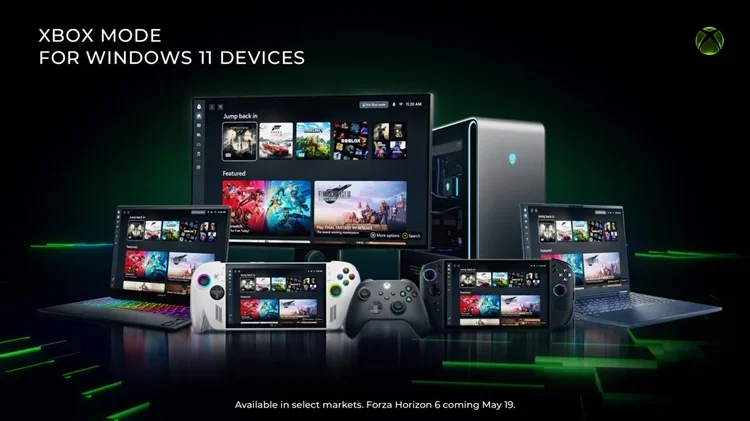
Xbox Mode Begins Rolling Out to Players on Windows 11 PCs
Xbox Wire: Beginning today, we’re excited to share that Xbox mode will begin rolling out in select markets to Windows 11 PCs, including laptops, desktops, and tablets, bringing a console-inspired Xbox experience to more players than ever. Whether you’re playing on a high-performance desktop, a...
 www.elevenforum.com
EXAMPLE: Show battery indicator percentage on and off for Xbox Full Screen Experience
,od
Here's How:
1 Open the Xbox app.
2 Click/tap on the user Profile button, and click/tap on Settings. (see screenshot below)
3 Click/tap on App in the left pane of Settings. (see screenshot below step 4)
4 Under General settings, turn on or off (default) Show battery indicator percentage for what you want. (see screenshot below)
It is required to turn on Compact mode to change this Show battery indicator percentage setting, but you can turn off Compact mode afterwards if wanted and still have Show battery indicator percentage turned on or off.
5 You can now close Settings if you like.
That's it,
Shawn Brink
Last edited: