ffmeg.exe has stopped working


Ed McCauley

Well-known member
Member
Local time
6:14 AM
Posts
166
OS
Windows 11 Pro 25H2
Win ver 25H2

While running VideoProc Converter AI, AI Video Enhancer or Topaz Video AI, the programs fail as soon as the enhancement process commences, the error "ffmeg.exe has stopped working" is displayed. I reinstalled the program ffmeg.exe, and added the path variable: setx /m PATH "c:\ffmpeg\bin;%PATH%."

I continue to get the same error...

I have reported this problem to the makers of the above programs, but have not received a helpful reply.

Any suggestions will be greatly appreciated.

Tom
 

My Computers My Computers

  • At a glance

    Windows 11 Pro 25H2Intel i7 2.60Ghz16GBNvidia Quadro P620 + Intel UHD Graphics 630
    OS
    Windows 11 Pro 25H2
    Computer type
    Laptop
    Manufacturer/Model
    Dell/Precision 3541
    CPU
    Intel i7 2.60Ghz
    Motherboard
    Dell 0y8h01
    Memory
    16GB
    Graphics Card(s)
    Nvidia Quadro P620 + Intel UHD Graphics 630
    Sound Card
    Realtek
    Monitor(s) Displays
    Laptop screen only
    Screen Resolution
    1920x1080p
    Hard Drives
    1TB
    Mouse
    Logitech Gaming Mouse G600
    Browser
    DuckDuckGo
    Antivirus
    BitDefender
  • At a glance

    Win 11AMD Ryzen 9950X3DCorsair Dominator DDR5 32GBnVidia RTX 5080
    Operating System
    Win 11
    Computer type
    PC/Desktop
    CPU
    AMD Ryzen 9950X3D
    Motherboard
    Asus ROG Crosshair X870E
    Memory
    Corsair Dominator DDR5 32GB
    Graphics card(s)
    nVidia RTX 5080
    Hard Drives
    2 Samsung NVMe M.2 SSD 9100 4TB
    PSU
    Seasonic GX-1200W
    Case
    LanCool 216
    Keyboard
    Steelseries Apex Pro Gen 3
Note on Command Syntax
If you ran setx /m PATH "c:\ffmpeg\bin;%PATH%" in Command Prompt, double-check that your System Path didn't get truncated or corrupted, as setx limits PATH length to 1024 characters. Checking via Environment Variables in Step 3 ensures the path is clean.


Update Graphics Card Drivers:
Most common cause.
  1. Download and install the latest studio or game-ready drivers directly from your GPU manufacturer's website (NVIDIA, AMD, or Intel).
  2. During installation, select Clean Install to completely reset display settings and drivers.
  3. Restart your PC and test video processing again.
Change AI Hardware Acceleration Settings:
Isolate hardware encoder.
  1. Open the preferences/settings menu in VideoProc or Topaz Video AI.
  2. Locate the Hardware Acceleration or AI Processor options.
  3. Switch the AI processor from Auto/GPU to CPU, or switch the encoder engine (e.g., from NVENC to main software).
  4. If it works on CPU, your GPU is running out of VRAM or hitting an unsupported hardware feature.

Fix System PATH Syntax:
Fix potential variable corruption.
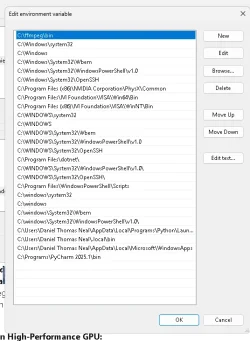
  1. Press Win + R, type sysdm.cpl, and press Enter.
  2. Go to the Advanced tab and click Environment Variables.
  3. Under System variables, select Path and click Edit.
  4. Check that C:\ffmpeg\bin points directly to the folder containing ffmpeg.exe without extra trailing quotes or corrupt characters.
  5. Move C:\ffmpeg\bin to the top of the list so applications prioritize your custom FFmpeg build over bundled ones.

Force FFmpeg to Run on High-Performance GPU:
Windows 11 Graphics Settings.
  1. Open Settings (Win + I) > System > Display > Graphics.
  2. Click Browse and locate ffmpeg.exe (either in C:\ffmpeg\bin or inside the installation folder of VideoProc/Topaz).
  3. Click on the added ffmpeg.exe, select Options, and set it to High performance (your dedicated GPU).
 

My Computer My Computer

At a glance

Windows 11
OS
Windows 11
Computer type
PC/Desktop
Manufacturer/Model
Custom Built
Fix System PATH Syntax:
Fix potential variable corruption.
  1. Press Win + R, type sysdm.cpl, and press Enter.
  2. Go to the Advanced tab and click Environment Variables.
  3. Under System variables, select Path and click Edit.
  4. Check that C:\ffmpeg\bin points directly to the folder containing ffmpeg.exe without extra trailing quotes or corrupt characters.
  5. Move C:\ffmpeg\bin to the top of the list so applications prioritize your custom FFmpeg build over bundled ones.
See attached files depicting my Path variables settings...
 

Attachments

  • EDIT SysVar.webp
    EDIT SysVar.webp
    41.9 KB · Views: 2
  • SysVar.webp
    SysVar.webp
    29.2 KB · Views: 2

My Computers My Computers

  • At a glance

    Windows 11 Pro 25H2Intel i7 2.60Ghz16GBNvidia Quadro P620 + Intel UHD Graphics 630
    OS
    Windows 11 Pro 25H2
    Computer type
    Laptop
    Manufacturer/Model
    Dell/Precision 3541
    CPU
    Intel i7 2.60Ghz
    Motherboard
    Dell 0y8h01
    Memory
    16GB
    Graphics Card(s)
    Nvidia Quadro P620 + Intel UHD Graphics 630
    Sound Card
    Realtek
    Monitor(s) Displays
    Laptop screen only
    Screen Resolution
    1920x1080p
    Hard Drives
    1TB
    Mouse
    Logitech Gaming Mouse G600
    Browser
    DuckDuckGo
    Antivirus
    BitDefender
  • At a glance

    Win 11AMD Ryzen 9950X3DCorsair Dominator DDR5 32GBnVidia RTX 5080
    Operating System
    Win 11
    Computer type
    PC/Desktop
    CPU
    AMD Ryzen 9950X3D
    Motherboard
    Asus ROG Crosshair X870E
    Memory
    Corsair Dominator DDR5 32GB
    Graphics card(s)
    nVidia RTX 5080
    Hard Drives
    2 Samsung NVMe M.2 SSD 9100 4TB
    PSU
    Seasonic GX-1200W
    Case
    LanCool 216
    Keyboard
    Steelseries Apex Pro Gen 3
Honestly, I copy/pasted the suggestions from AI. You can maybe ask AI about what you did, and see what it suggests. =)
 

My Computer My Computer

At a glance

Windows 11
OS
Windows 11
Computer type
PC/Desktop
Manufacturer/Model
Custom Built
I reinstalled the program ffmeg.exe, and added the path variable: setx /m PATH "c:\ffmpeg\bin;%PATH%."
Did you then log out and log back in, or restart the computer, so that the changes would take effect for the applications that were already running?
 

My Computer My Computer

At a glance

Windows 11 Insider Experimental (26H2)Intel Core i5-1140032Gb (DDR4 SDRAM)Intel(R) UHD Graphics 730
OS
Windows 11 Insider Experimental (26H2)
Computer type
PC/Desktop
Manufacturer/Model
Gigabyte Technology Co., Ltd.
CPU
Intel Core i5-11400
Motherboard
Z590 AORUS PRO AX
Memory
32Gb (DDR4 SDRAM)
Graphics Card(s)
Intel(R) UHD Graphics 730
Sound Card
Realtek USB Audio
Monitor(s) Displays
LG 27US500-W 4K UHD UltraFine™
Screen Resolution
3840x2160
Hard Drives
Samsung SSD 980 PRO 1TB
WDC WD7501AALS
PSU
Montech CENTURY, 650W, 80+ Gold
Case
Cougar Airface ECO RGB
Cooling
ID-COOLING SE-224-XTS BLACK
Keyboard
Microsoft SideWinder X6 Keyboard
Mouse
Microsoft SideWinder Mouse
Internet Speed
Internet speed of 1 Gbit/s
Browser
Vivaldi browser
Antivirus
Windows Defender
Did you then log out and log back in, or restart the computer, so that the changes would take effect for the applications that were already running?
I restarted. Same error. Can you confirm that this Path Variable (path variable: setx /m PATH "c:\ffmpeg\bin;%PATH%.") is correct? As a reminder, the popup stated "ffmeg.exe has stopped working"; "not unable to find ffmeg.exe" - but, of course I want to ensure that the program can be located via the Path.

I also advised the app owner, VideoProc Converter AI. They responded requesting additional info which I supplied. No further response after 6 weeks...
 

My Computers My Computers

  • At a glance

    Windows 11 Pro 25H2Intel i7 2.60Ghz16GBNvidia Quadro P620 + Intel UHD Graphics 630
    OS
    Windows 11 Pro 25H2
    Computer type
    Laptop
    Manufacturer/Model
    Dell/Precision 3541
    CPU
    Intel i7 2.60Ghz
    Motherboard
    Dell 0y8h01
    Memory
    16GB
    Graphics Card(s)
    Nvidia Quadro P620 + Intel UHD Graphics 630
    Sound Card
    Realtek
    Monitor(s) Displays
    Laptop screen only
    Screen Resolution
    1920x1080p
    Hard Drives
    1TB
    Mouse
    Logitech Gaming Mouse G600
    Browser
    DuckDuckGo
    Antivirus
    BitDefender
  • At a glance

    Win 11AMD Ryzen 9950X3DCorsair Dominator DDR5 32GBnVidia RTX 5080
    Operating System
    Win 11
    Computer type
    PC/Desktop
    CPU
    AMD Ryzen 9950X3D
    Motherboard
    Asus ROG Crosshair X870E
    Memory
    Corsair Dominator DDR5 32GB
    Graphics card(s)
    nVidia RTX 5080
    Hard Drives
    2 Samsung NVMe M.2 SSD 9100 4TB
    PSU
    Seasonic GX-1200W
    Case
    LanCool 216
    Keyboard
    Steelseries Apex Pro Gen 3
Gyan Doshi's FFmpeg worked well for us.
 

My Computer My Computer

At a glance

Windows 11 Pro 25H2
OS
Windows 11 Pro 25H2
Computer type
Laptop
Manufacturer/Model
Toshiba
@Ed McCauley Try adding the internal path to PATH: Instead of c:\ffmpeg\bin, add the path to the original FFmpeg folder from Topaz Labs to the PATH system variable (for example: C:\Program Files\Topaz Labs LLC\Topaz Video AI\ or the internal subdirectory ...\share\ffmpeg). This will help the program pull in the correct dependent .dll files (CONCRT140.dll, ucrtbase.dll), which often cause the process to crash.
 

My Computer My Computer

At a glance

Windows 11 Insider Experimental (26H2)Intel Core i5-1140032Gb (DDR4 SDRAM)Intel(R) UHD Graphics 730
OS
Windows 11 Insider Experimental (26H2)
Computer type
PC/Desktop
Manufacturer/Model
Gigabyte Technology Co., Ltd.
CPU
Intel Core i5-11400
Motherboard
Z590 AORUS PRO AX
Memory
32Gb (DDR4 SDRAM)
Graphics Card(s)
Intel(R) UHD Graphics 730
Sound Card
Realtek USB Audio
Monitor(s) Displays
LG 27US500-W 4K UHD UltraFine™
Screen Resolution
3840x2160
Hard Drives
Samsung SSD 980 PRO 1TB
WDC WD7501AALS
PSU
Montech CENTURY, 650W, 80+ Gold
Case
Cougar Airface ECO RGB
Cooling
ID-COOLING SE-224-XTS BLACK
Keyboard
Microsoft SideWinder X6 Keyboard
Mouse
Microsoft SideWinder Mouse
Internet Speed
Internet speed of 1 Gbit/s
Browser
Vivaldi browser
Antivirus
Windows Defender

Latest Support Threads

Back
Top Bottom