This tutorial will show you how to search to find a setting within the Settings app in Windows 11.
Microsoft designed Settings to be beautiful, easy to use and inclusive of all your Microsoft experiences in Windows 11. Settings has left-handed navigation that persists between pages, and Microsoft has added breadcrumbs as you navigate deeper into Settings to help you know where you are and not lose your place. Settings pages are also all new, with new hero controls at the top that highlight key information and frequently used settings for you to adjust as you need. These new hero controls span across several category pages like System, Bluetooth & devices, Network & Internet, Personalization, Accounts, and Windows Update. Microsoft also have added expandable boxes for pages with a lot of settings.
The Settings app makes it easy to find a specific setting when you don't know where to find it in Settings.
Starting with Windows 11 build 26100.4770 (24H2), Microsoft is adding an AI agent to Settings. Microsoft announced a change to Settings designed to help solve one of the most common frustrations we heard: finding and changing settings on your PC. With this update to Settings, you will be able to simply describe what you need help with like, “how to control my PC by voice” or “my mouse pointer is too small” and the agent will recommend the right steps you can take to address the issue. An agent uses AI on your PC to understand your intent and with your permission, automate and execute tasks on your behalf. This experience is rolling out to Windows Insiders on Snapdragon-powered Copilot+ PCs with support for AMD- and Intel™-powered PCs coming soon. Please note that this experience works if your primary display language is set to English.
Snapdragon-powered Copilot+ PCs with the new agent experience in Settings, Microsoft made some improvements to make the search box at the top of Settings more centered. On non-Copilot+ PCs, the search box in Settings will now be located at the top center to deliver a more consistent and better search experience.
Starting with Windows 11 build 2610.5074 (24H2), as part of the Copilot+ PC experience, the agent in Settings helps you quickly find and change settings. Initially available on Snapdragon®-powered Copilot+ PCs, agent in Settings now supports AMD- and Intel™-powered Copilot+ PCs.
Starting with Windows 11 build 262100.6725 (24H2), Microsoft is providing a direct navigation link to the corresponding settings page from the agent search results on Copilot+ PCs.
Starting with Windows 11 build 26220.6780 (Dev 25H2), build 26120.6780 (Beta 24H2), build 26100.7296 (24H2 RP), and build 26200.7296 (25H2 RP), on Copilot+ PCs, Microsoft is introducing new experiences to make it easier to modify settings in search settings. Search now show more available results in the search fly out to discover what you’re looking for and to allow you to quickly modify those settings. In cases where the settings can’t be adjusted further, a dialog lets you know why and provides an option to modify the settings as needed.
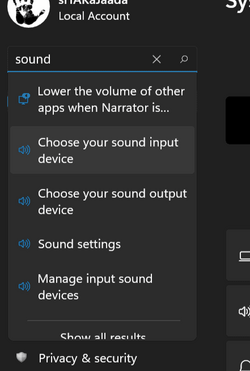
Starting with Windows 11 build 26100.7309 (24H2) and build 26200.7309 (25H2), the search results menu displays more available results, making it easier to quickly find and modify your settings. A scroll bar lets you view all search results.
The agent in Windows Settings experience currently works only if your primary display language is set to English.
Starting with Windows 11 build 26100.7019 (24H2) and build 26200.7019 (25H2), the new agent in Settings experience now supports French.
References:

Introducing Mu language model and how it enabled the agent in Windows Settings
We are excited to introduce our newest on-device small language model, Mu. This model addresses scenarios that require inferring complex input-output relationships and has been designed to operate efficiently, delivering high performance while runnin
 blogs.windows.com

Configure the agent in Windows Settings
Learn how to configure the agent in Windows Settings.
learn.microsoft.com
Here's How:
1 Open Settings (Win+I).
2 Type the keyword(s) (ex: "desktop") of the setting you want to search for in the Find a setting box at the top left corner of Settings to start seeing search results as you type. (see screenshot below)
You may need to try different keywords until you find the setting you want.
3 If you see the setting you want in the search results, click/tap on the setting to open it. (see screenshots below)
4 If you do not see the setting you want in the search results, click/tap on Show all results to see all search results. (see screenshot below)
5 If you find the setting you want in all search results, click/tap on the setting to open it. (see screenshot below)
6 If you still cannot find the setting you want, then post a reply below with the setting you are trying to find. We will help you find it.
That's it,
Shawn Brink
Last edited:


 ?!?
?!?