Getting my head around different types of backups


Witterings

Member
Local time
6:54 AM
Posts
36
OS
Windows 11
I'm trying to get my head around different types of backs and how far they go ... I have googled "what's the difference between a system and a disk / partition backup" but the answers are slightly unclear so just wanted to make sure.

Replies infer that a system back copied everything so you'd think you were completely covered but then ..... reading on is says "this is a great way to get to get your OS up and running again" it then suggests not all user data may be included which would be a concern for me
Disk / partition backs seems to suggest it's full but there's a risk that you may omit a partition by mistake .... have I understood this correctly?

I don't need to backup my whole machine often as my work files / folders which change on a daily basis are stored elsewhere and backed up on a regular basis HOWEVER if I did have a complete failure I'd like to be able to restore my machine to exactly how it was before, including files, folders and their content, user names / passwords in things like Chrome and Apps an to automatically re-install all my Software / Apps with any saved preferences in settings.
I'm guessing disk / partition is my best option and choosing disk which then automatically includes all the partitions on that disk .... am I right?

I'm using Hasleo in case that makes any difference.
 

My Computers

System One System Two

  • OS
    Windows 11
    Computer type
    Laptop
    Manufacturer/Model
    Lenovo Yoga 7 Gen10
    CPU
    Intel(R) Core(TM) Ultra 7 258V (2.20 GHz)
    Memory
    32gb
    Hard Drives
    1tb
  • Operating System
    Windows 11 Pro
    Computer type
    PC/Desktop
    Manufacturer/Model
    Dell Optiplex 7090
    CPU
    Intel i7
    Memory
    Currently 16gb ... may upgrade to 32gb+
    Hard Drives
    NVME 512gb
    Internet Speed
    1tb
    Browser
    Chrome
    Antivirus
    Windows Defender
Can you tell us how many disks you have, is it a default install - in other words are your documents etc in their default folders?
This will determine your backup procedure.
 

My Computer

System One

  • OS
    Win 11 Pro
    Computer type
    PC/Desktop
    Manufacturer/Model
    N/A
    CPU
    AMD Ryzen 7 9700X
    Motherboard
    ASUS Crosshair Viii Hero Wi Fi
    Memory
    G.Skill Trident Z5 Neo RGB 64GB Kit (2x32GB) DDR5-6000 C30
    Graphics Card(s)
    PowerColor Radeon RX 9060 XT Reaper GDDR6 16GB
    Sound Card
    USB Out NAD M51 DAC with Adams A8 powered speakers
    Monitor(s) Displays
    Dell 3219Q
    Screen Resolution
    3840 x 2160
    Hard Drives
    5 x WD_BLACK SN850x PCIe Gen4 NVMe M.2 SSD - 4TB
    PSU
    be quiet! DARK POWER 13 1000W Titanium PCIe 5.0 ATX Modular PSU
    Case
    Fractal Design Define 7 Full Tower Case (Black)
    Cooling
    Noctua NH-D15 G2 LBC - High Performance Multi-Socket PWM CPU Cooler
    Keyboard
    Razer Huntsman V2
    Mouse
    Razer Viper Ultimate
    Internet Speed
    Starlink 94Mbps down 20Mbps up
    Browser
    Brave
    Antivirus
    ESET

My Computers

System One System Two

  • OS
    Win 11 Home ♦♦♦26200.8457 ♦♦♦♦♦♦♦25H2
    Computer type
    PC/Desktop
    Manufacturer/Model
    Built by Ghot® [May 2020]
    CPU
    AMD Ryzen 7 3700X
    Motherboard
    Asus Pro WS X570-ACE (BIOS 5302)
    Memory
    G.Skill (F4-3200C14D-16GTZKW)
    Graphics Card(s)
    EVGA RTX 2070 (08G-P4-2171-KR)
    Sound Card
    Realtek ALC1220P / ALC S1220A
    Monitor(s) Displays
    Dell U3011 30"
    Screen Resolution
    2560 x 1600
    Hard Drives
    2x Samsung 860 EVO 500GB,
    WD 4TB Black FZBX - SATA III,
    WD 8TB Black FZBX - SATA III,
    DRW-24B1ST CD/DVD Burner
    PSU
    PC Power & Cooling 750W Quad EPS12V
    Case
    Cooler Master ATCS 840 Tower
    Cooling
    CM Hyper 212 EVO (push/pull)
    Keyboard
    Ducky DK9008 Shine II Blue LED
    Mouse
    Logitech Optical M-100
    Internet Speed
    300/300
    Browser
    Firefox (latest)
    Antivirus
    Bitdefender Total Security
    Other Info
    Speakers: Klipsch Pro Media 2.1
  • Operating System
    Windows XP Pro 32bit w/SP3
    Computer type
    PC/Desktop
    Manufacturer/Model
    Built by Ghot® (not in use)
    CPU
    AMD Athlon 64 X2 5000+ (OC'd @ 3.2Ghz)
    Motherboard
    ASUS M2N32-SLI Deluxe Wireless Edition
    Memory
    TWIN2X2048-6400C4DHX (2 x 1GB, DDR2 800)
    Graphics card(s)
    EVGA 256-P2-N758-TR GeForce 8600GT SSC
    Sound Card
    Onboard
    Monitor(s) Displays
    ViewSonic G90FB Black 19" Professional (CRT)
    Screen Resolution
    up to 2048 x 1536
    Hard Drives
    WD 36GB 10,000rpm Raptor SATA
    Seagate 80GB 7200rpm SATA
    Lite-On LTR-52246S CD/RW
    Lite-On LH-18A1P CD/DVD Burner
    PSU
    PC Power & Cooling Silencer 750 Quad EPS12V
    Case
    Generic Beige case, 80mm fans
    Cooling
    ZALMAN 9500A 92mm CPU Cooler
    Keyboard
    Logitech Classic Keybooard 200
    Mouse
    Logitech Optical M-BT96a
    Internet Speed
    300/300
    Browser
    Firefox 3.x ??
    Antivirus
    Symantec (Norton)
    Other Info
    Still assembled, still runs. Haven't turned it on for 15 years?
I'm trying to get my head around different types of backs and how far they go ... I have googled "what's the difference between a system and a disk / partition backup" but the answers are slightly unclear so just wanted to make sure.

Replies infer that a system back copied everything so you'd think you were completely covered but then ..... reading on is says "this is a great way to get to get your OS up and running again" it then suggests not all user data may be included which would be a concern for me
Disk / partition backs seems to suggest it's full but there's a risk that you may omit a partition by mistake .... have I understood this correctly?

I don't need to backup my whole machine often as my work files / folders which change on a daily basis are stored elsewhere and backed up on a regular basis HOWEVER if I did have a complete failure I'd like to be able to restore my machine to exactly how it was before, including files, folders and their content, user names / passwords in things like Chrome and Apps an to automatically re-install all my Software / Apps with any saved preferences in settings.
I'm guessing disk / partition is my best option and choosing disk which then automatically includes all the partitions on that disk .... am I right?

I'm using Hasleo in case that makes any difference.
System backups usually only copy the C drive and appropriate hidden partitions.
Only these partitions are affected on a restore - others are not.

A disk / partition backup works in two ways:

a) Disk backup - You simply backup everything including any other partitions than the ones a system backup does.
A restore restores all partitions.

b) Partition - You can select 1 or more of any partition and back them up.
Note: with Hasleo (and quit a few other tools) you can only restore 1 partition (or all) at a time. If you had say 5 partitions and only want to restore 2, you have to do them one by one.

The easiest method is to do a disk backup so you do not forget to include important hidden partitions.

Note: Warning, if you change the partition layout after you have done backups, restore can get tangled up. Always redo backups if you change the partition layout.
 

My Computer

System One

  • OS
    Windows 11 Pro + Win11 Canary VM.
    Computer type
    Laptop
    Manufacturer/Model
    ASUS Zenbook 14
    CPU
    I9 13th gen i9-13900H 2.60 GHZ
    Motherboard
    Yep, Laptop has one.
    Memory
    16 GB soldered
    Graphics Card(s)
    Integrated Intel Iris XE
    Sound Card
    Realtek built in
    Monitor(s) Displays
    laptop OLED screen
    Screen Resolution
    2880x1800 touchscreen
    Hard Drives
    1 TB NVME SSD (only weakness is only one slot)
    PSU
    Internal + 65W thunderbolt USB4 charger
    Case
    Yep, got one
    Cooling
    Stella Artois (UK pint cans - 568 ml) - extra cost.
    Keyboard
    Built in UK keybd
    Mouse
    Bluetooth , wireless dongled, wired
    Internet Speed
    900 mbs (ethernet), wifi 6 typical 350-450 mb/s both up and down
    Browser
    Edge
    Antivirus
    Defender
    Other Info
    TPM 2.0, 2xUSB4 thunderbolt, 1xUsb3 (usb a), 1xUsb-c, hdmi out, 3.5 mm audio out/in combo, ASUS backlit trackpad (inc. switchable number pad)

    Macrium Reflect Home V8
    Office 365 Family (6 users each 1TB onedrive space)
    Hyper-V (a vm runs almost as fast as my older laptop)
system and a disk / partition
A system image is what we call an image that includes the disk or partition that the OS is installed on.
An image of any other disk or partition is referred to merely as a disk image or partition image.


Denis
 
Last edited:

My Computer

System One

  • OS
    Windows 11 Home x64 Version 25H2 Build 26200.8037
I also find the terminology confusing on some of these programs :-) "Disk" does suggest everything on the disk but it would be nice if that was spelled out! "System" is definitely vague unless you know what they're talking about.
 

My Computers

System One System Two

  • OS
    Windows 11 Home 25H2
    Computer type
    Laptop
    Manufacturer/Model
    HP Pavilion 14-ce3606sa
    CPU
    Core i5-1035G1
    Memory
    32gb
    Hard Drives
    Samsung 870 evo sata ssd
    Cooling
    Could be better
    Internet Speed
    50 mbps Starlink
    Browser
    Firefox
    Other Info
    Originally came installed with a 500gb H10 Optane ssd
  • Operating System
    Windows 11 Home
    Computer type
    Laptop
    Manufacturer/Model
    HP Pavilion ce3606sa
    CPU
    Intel Core i5-1035G1
    Memory
    16gb
    Hard Drives
    Hynix Gold P31 2TB
    Internet Speed
    200mbps Starlink
    Browser
    Firefox
    Antivirus
    Defender
I've got to be honest, I've read the replies and have absolutely no more understanding before my post ... I know this is simple for people with lots of computer experience but someone relatively new, who's only just beginning to get their head round what partitions actually are .... I'm no the wiser as it replicates the responses from my Google search.

Any chance someone can spoon feed me, I think I gave a fairly clear outline what my objectives were in my opening post??

Can you tell us how many disks you have, is it a default install - in other words are your documents etc in their default folders?
This will determine your backup procedure.

It has 2 disks, one of which hasn't been used at all yet and sometimes some external drives attached .... my primary concern is the main C drive which has the OS and everything else on the computer including all the programs and files / folders which may contain family photos I'd want to protect.

The 2nd disk, whilst not currently in use, I'm thinking about encrypting it with bitlocker and using it as a backup location for my encrypted work files that are stored on my NAS .... this part is a nice to have as opposed to a must as I have other alternatives where to back it up to.

A large part of the reason for me asking, I've had to move my old Windows 10 computers to Win 11, whilst I probably could have cloned the Win 10 and installed on the new machine then updated to Win 11 a lot of people advised against it .... it's taken me so long to setup the new machines and re-install all the software I previously had it's been a complete pain in the backside and taken me absolutely hours and 3 weeks in I still keep finding things I don't currently have.
 

My Computers

System One System Two

  • OS
    Windows 11
    Computer type
    Laptop
    Manufacturer/Model
    Lenovo Yoga 7 Gen10
    CPU
    Intel(R) Core(TM) Ultra 7 258V (2.20 GHz)
    Memory
    32gb
    Hard Drives
    1tb
  • Operating System
    Windows 11 Pro
    Computer type
    PC/Desktop
    Manufacturer/Model
    Dell Optiplex 7090
    CPU
    Intel i7
    Memory
    Currently 16gb ... may upgrade to 32gb+
    Hard Drives
    NVME 512gb
    Internet Speed
    1tb
    Browser
    Chrome
    Antivirus
    Windows Defender
Hi. So have you done a clean install of Windows 11 onto your new machine then? And got all your programs and files back on? (And yes it is slow and tedious!) And now you're wondering about making a system image of that, is that right?

I tend to make one image after installing Windows and doing all the settings and then another image after installing all the programs (that one can always be a kind of factory reset with all programs on) and then I add all my personal files back. I do separate backups of my personal files by just copying them and pasting them onto an external drive.

It sounds like you want to maybe make sure you've got all the programs and settings done that you want first before doing a system image.

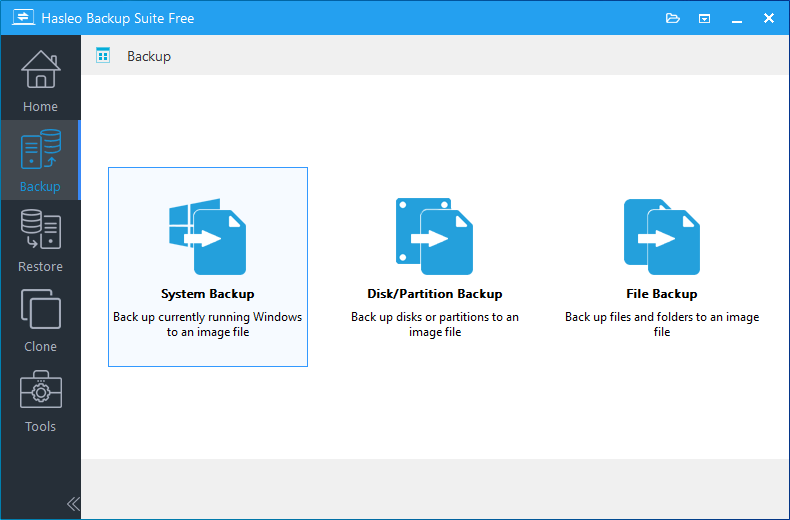
Then when you want to make it, choose the Disk/Partition back up and select the disk with your C Drive on - there's a guide here showing it - from Hasleo. That disk backup/image will contain everything on your C Drive. Maybe just ignore the second drive for now. Then select where you want it saved to and select your external usb hard drive.

Once you're done you're done! And yes cloning it and updating to windows 11 "might" have been easier, but who knows and at least this way you know you've started without any gremlins that might have been hanging around in Windows 10. A clean install is at least a clean start.

So as per the diagrams on this guide, once you've selected the middle option Disk/partition backup - on the next section you select ALL the partitions (ie all four) for that drive - so it's a full disk backup.

There is also the built in "Windows 7 backup and restore" that makes an image, which is very easy to use - but I probably shouldn't recommend that. It's in control panel.


My Computers

System One System Two

  • OS
    Windows 11 Home 25H2
    Computer type
    Laptop
    Manufacturer/Model
    HP Pavilion 14-ce3606sa
    CPU
    Core i5-1035G1
    Memory
    32gb
    Hard Drives
    Samsung 870 evo sata ssd
    Cooling
    Could be better
    Internet Speed
    50 mbps Starlink
    Browser
    Firefox
    Other Info
    Originally came installed with a 500gb H10 Optane ssd
  • Operating System
    Windows 11 Home
    Computer type
    Laptop
    Manufacturer/Model
    HP Pavilion ce3606sa
    CPU
    Intel Core i5-1035G1
    Memory
    16gb
    Hard Drives
    Hynix Gold P31 2TB
    Internet Speed
    200mbps Starlink
    Browser
    Firefox
    Antivirus
    Defender
Any chance someone can spoon feed me
A system image is what we call an image that includes the disk or partition that the OS is installed on.
An image of any other disk or partition is referred to merely as a disk image or partition image.


Denis
 

My Computer

System One

  • OS
    Windows 11 Home x64 Version 25H2 Build 26200.8037
If you just want to create a system image, use Veeam Agent. You don’t need any spoon feeding. Just watch this video.


My Computer

System One

  • OS
    Win 7,8.1,10,11, Mint, Kde Plasma, Debian
    Computer type
    Laptop
    Manufacturer/Model
    Dell
    CPU
    Intel(R) Core(TM) i7-6500U CPU @ 2.50GHz
    Memory
    16 GB
    Graphics Card(s)
    Intel(R) HD Graphics 520/Nvidia GeForce 930M
    Sound Card
    Intel(R) Display Audio/RealtekAudio
    Monitor(s) Displays
    Generic Pnp Monitor
    Screen Resolution
    1366 X 768
    Hard Drives
    ST2000LM024-1EJ164
    Keyboard
    Eng (US)
    Mouse
    Sanwa Supply
    Browser
    Firefox
    Antivirus
    Avast One
    Other Info
    Too many laptops with different system specifications.
someone relatively new, who's only just beginning to get their head round what partitions actually are

A partition is an area on a disk that is set up to behave as though it was a separate disk.
- Please don't feel insulted by this simplistic analogy - it's like having a room with a partition wall down the middle. You can treat each partitioned-off area as a separate room even though you know that it's really one big room with four solid walls around it.
- I have a separate partition on my disk on which I keep all my own files [Excel, Word, ...] and it has its own drive letter, D:\.
- The main partiton, C:\, is on the same disk and it's where I installed Windows & all my applications.

If we could all have as many disks in our computers as we wanted, we'd probably never even talk about partitions.

The reason it is worth us talking about them now is that it has a significant effect on our decisions about backups.
- When I used to have a computer with all the OS, applications & my own files on the same partition I never made system images because, when I once tried to, it took 3 hours and was 300GB big [so it took up half of what I thought was my huge external backup disk].
- Then I split the disk into partitions - 100GB for the C:\ drive [OS & applications], 400GB for the D:\ drive [my own files - Excel, Word, a bucketload of mp3 audio files, quite a few videos, ...]
- When I next made a system image of my C:\ drive [100GB partiiton, about 60GB used up], the system image only took about 30 mins and was only about 40GB big. That was much easier to store away on my huge external backup disk. It was so much easier that I made a new system image every month & always kept the last two of them; the older ones I deleted one by one over time]
- I used simple file copying to make backups of my own files onto the same external backup disk. I do that every day / week / hour as it suits me. It doesn't take long because only a few my files change each day and my backup script [list of commands] skip unchanged files.

The upshot all this is that, for the first time ever, I had the ability to restore my system image, my whole installation [OS, applications], if it had got corrupted and/or unbootable.
Even if the disk itself failed & had to be replaced, I could restore that system image of the C:\ then recreate my D:\ drive partition & copy back my own files onto it.

That is why we bother with partitions.


I also have a couple of computers that have two disks so, on those computers, I can have one for my C:\ drive and one for my D:\ drive without any need for creating partitions.
I do not not use my second disk for backups, other than temporary ones, because if the computer melts then so will all its disks.


If you look at Disk mgmt [C:\Windows\System32\diskmgmt.msc]:-
- You'll see that Windows also creates a small number of very small partitions that it uses for specific purposes. One day, you might even want to learn about them but it is not essential.
- You might also see that your PC maker has created a 16GB partition that might be referred to as the 'factory restore partition' or 'factory image' partition. They'll no doubt explain about that in their user manual or on their support website but it will be, in essance, a built-in system image of Windows as it was the day they made the computer. Many people delete that*** when they have updated to the next Windows Version, rendering the factory image useless, then they can re-use the space for other files.

[*** I wanted to avoid diversions in this explanation but, if you ever decide to delete a factory image, do backup all your device drivers first because they also form part of that factory image so you'll want your own backup of them - Backup and Restore Device Drivers - ElevenForumTutorials]

Please ask any other questions you have about partitions & images so you have a firm base from which to progress to the other topics you want to discuss.


All the best,
Denis
 
Last edited:

My Computer

System One

  • OS
    Windows 11 Home x64 Version 25H2 Build 26200.8037
If it makes you feel any better, Veeam Agent for Microsoft may be free, but its commercial version, Veeam Data Platform (advanced) costs $3,369.00 per pack per year.
 

My Computer

System One

  • OS
    Win 7,8.1,10,11, Mint, Kde Plasma, Debian
    Computer type
    Laptop
    Manufacturer/Model
    Dell
    CPU
    Intel(R) Core(TM) i7-6500U CPU @ 2.50GHz
    Memory
    16 GB
    Graphics Card(s)
    Intel(R) HD Graphics 520/Nvidia GeForce 930M
    Sound Card
    Intel(R) Display Audio/RealtekAudio
    Monitor(s) Displays
    Generic Pnp Monitor
    Screen Resolution
    1366 X 768
    Hard Drives
    ST2000LM024-1EJ164
    Keyboard
    Eng (US)
    Mouse
    Sanwa Supply
    Browser
    Firefox
    Antivirus
    Avast One
    Other Info
    Too many laptops with different system specifications.
A partition is an area on a disk that is set up to behave as though it was a separate disk.
- Please don't feel insulted by this simplistic analogy - it's like having a room with a partition wall down the middle. You can treat each partitioned-off area as a separate room even though you know that it's really one big room with four solid walls around it.
- I have a separate partition on my disk on which I keep all my own files [Excel, Word, ...] and it has its own drive letter, D:\.
- The main partiton, C:\, is on the same disk and it's where I installed Windows & all my applications.

If we could all have as many disks in our computers as we wanted, we'd probably never even talk about partitions.

The reason it is worth us talking about them now is that it has a significant effect on our decisions about backups.
- When I used to have a computer with all the OS, applications & my own files on the same partition I never made system images because, when I once tried to, it took 3 hours and was 300GB big [so it took up half of what I thought was my huge external backup disk].
- Then I split the disk into partitions - 100GB for the C:\ drive [OS & applications], 400GB for the D:\ drive [my own files - Excel, Word, a bucketload of mp3 audio files, quite a few videos, ...]
- When I next made a system image of my C:\ drive [100GB partiiton, about 60GB used up], the system image only took about 30 mins and was only about 40GB big. That was much easier to store away on my huge external backup disk. It was so much easier that I made a new system image every month & always kept the last two of them; the older ones I deleted one by one over time]
- I used simple file copying to make backups of my own files onto the same external backup disk. I do that every day / week / hour as it suits me. It doesn't take long because only a few my files change each day and my backup script [list of commands] skip unchanged files.

The upshot all this is that, for the first time ever, I had the ability to restore my system image, my whole installation [OS, applications], if it had got corrupted and/or unbootable.
Even if the disk itself failed & had to be replaced, I could restore that system image of the C:\ then recreate my D:\ drive partition & copy back my own files onto it.

That is why we bother with partitions.


I also have a couple of computers that have two disks so, on those computers, I can have one for my C:\ drive and one for my D:\ drive without any need for creating partitions.
I do not not use my second disk for backups, other than temporary ones, because if the computer melts then so will all its disks.


If you look at Disk mgmt [C:\Windows\System32\diskmgmt.msc]:-
- You'll see that Windows also creates a small number of very small partitions that it uses for specific purposes. One day, you might even want to learn about them but it is not essential.
- You might also see that your PC maker has created a 16GB partition that might be referred to as the 'factory restore partition' or 'factory image' partition. They'll no doubt explain about that in their user manual or on their support website but it will be, in essance, a built-in system image of Windows as it was the day they made the computer. Many people delete that*** when they have updated to the next Windows Version, rendering the factory image useless, then they can re-use the space for other files.

[*** I wanted to avoid diversions in this explanation but, if you ever decide to delete a factory image, do backup all your device drivers first because they also form part of that factory image so you'll want your own backup of them - Backup and Restore Device Drivers - ElevenForumTutorials]

Please ask any other questions you have about partitions & images so you have a firm base from which to progress to the other topics you want to discuss.


All the best,
Denis

Thank you for that, a very comprehensive, useful and easy to understand explanation.
 

My Computers

System One System Two

  • OS
    Windows 11
    Computer type
    Laptop
    Manufacturer/Model
    Lenovo Yoga 7 Gen10
    CPU
    Intel(R) Core(TM) Ultra 7 258V (2.20 GHz)
    Memory
    32gb
    Hard Drives
    1tb
  • Operating System
    Windows 11 Pro
    Computer type
    PC/Desktop
    Manufacturer/Model
    Dell Optiplex 7090
    CPU
    Intel i7
    Memory
    Currently 16gb ... may upgrade to 32gb+
    Hard Drives
    NVME 512gb
    Internet Speed
    1tb
    Browser
    Chrome
    Antivirus
    Windows Defender
Thank you for that, a very comprehensive, useful and easy to understand explanation.
it's taken me so long to setup the new machines and re-install all the software I previously had it's been a complete pain in the backside and taken me absolutely hours and 3 weeks in I still keep finding things I don't currently have.

I think that now is the time to ask, "What's stopping you making a system image onto one of the external discs you mentioned before?".


Denis
 

My Computer

System One

  • OS
    Windows 11 Home x64 Version 25H2 Build 26200.8037
I think that now is the time to ask, "What's stopping you making a system image onto one of the external discs you mentioned before?".


Denis

No nothing .... as mentioned above I've 2 new machines, I did a partition backup of my laptop which was ready a week or so before starting this thread and then whilst researching best backup software I saw a post that made me question if that was the best option .... whilst this was going on I was doing a system image of my new PC.

The post "implied" that a system image didn't back up your files and folders which concerned me and hence why I started the post as I was suddenly unsure as to exactly what each one was and if things like pictures saved in a folder on your desktop would be included.

As I'm now believe they are I'm happy to do a system backup once every couple of months on both machines.

Longer term I may look at partitioning / reducing the size of the C drive on the laptop and creating a new drive / partition for folders etc. and sync those as backups as it's so much quicker and is what I use for my works folders on my NAS.

People generally don't like changing how they do things and I'm so in the habit of creating folders on my desktop and putting photos etc. in there and these have always been part of the C drive, is there a way to change it so any folders created on the desktop would be on say a newly created D drive?
 

My Computers

System One System Two

  • OS
    Windows 11
    Computer type
    Laptop
    Manufacturer/Model
    Lenovo Yoga 7 Gen10
    CPU
    Intel(R) Core(TM) Ultra 7 258V (2.20 GHz)
    Memory
    32gb
    Hard Drives
    1tb
  • Operating System
    Windows 11 Pro
    Computer type
    PC/Desktop
    Manufacturer/Model
    Dell Optiplex 7090
    CPU
    Intel i7
    Memory
    Currently 16gb ... may upgrade to 32gb+
    Hard Drives
    NVME 512gb
    Internet Speed
    1tb
    Browser
    Chrome
    Antivirus
    Windows Defender
a system image didn't back up your files and folders
A system image include only those folders & files that are on the system drive.
If, like me, you have a separate partition or disc for your own Excel, Word, ... files then they would not be included in that image.

Longer term I may look at partitioning / reducing the size of the C drive on the laptop and creating a new drive / partition for folders etc
I did that and I've never regreted the decision.
If I'm on a computer that can have extra discs then my data files go on a separate disc but, if not, they are at least on a separate partition.

is there a way to change it so any folders created on the desktop would be on say a newly created D drive
Yes, it's called relocating user folders.
All my user folders are on my D:\ drive - Desktop, Documents, Pictures, Video, ....
I imagine there's a tutorial about it. If not I can certainly dig out some decent guidance.


Denis
 

My Computer

System One

  • OS
    Windows 11 Home x64 Version 25H2 Build 26200.8037
Backup Types for Windows

File-Level Backups

• Targets individual files and folders (e.g., Documents, Pictures, etc.)
• Ideal for preserving personal data without system overhead
• Tools: File History, Robocopy scripts, third-party sync apps e.g., FreeFileSync <— Great free opensource app.

System Image Backups
• Creates a full snapshot of your OS, installed programs, settings, and files
• Useful for disaster recovery or migrating to a new drive
• Tools: Windows Backup (Control Panel), Hasleo <— Backup tute for Hasleo.. Macrium Reflect, Acronis True Image

Incremental Backups (Using Hasleo etc)
• Backs up only the changes since the last backup
• Faster and space-efficient compared to full backups
• Often used in professional backup suites (e.g., Veeam, EaseUS)

Differential Backups (Using Hasleo etc)
• Captures changes since the last full backup (not the last differential)
• Larger than incremental, but simpler to restore
• Best for setups with weekly full backups and daily differentials

Cloud Backups
• Stores files offsite for remote access and redundancy
• Great for syncing across devices or protecting against local hardware failure
• Tools: OneDrive, Google Drive, Dropbox, Backblaze

Bare-Metal Backups
• Allows full restoration to a new machine or drive — even if hardware differs
• Includes boot sector, system partitions, and all data
• Tools: Macrium Reflect (with Redeploy), Acronis Universal Restore

Versioned Backups
• Keeps multiple versions of the same file over time
• Useful for undoing accidental edits or deletions
• Tools: File History, cloud sync services with versioning enabled

Offline Backups
• Stored on external drives or NAS devices, disconnected from the internet
• Immune to ransomware and remote threats
• Best practice: rotate multiple drives and store one offsite

Advised:

• Always test your restore process — a backup is only as good as its recovery
• Use at least two backup types (e.g., local image + cloud file sync)
• Label your backups clearly and automate where possible
 

My Computers

System One System Two

  • OS
    Windows 11 Pro 25H2 Build 26200.8524
    Computer type
    PC/Desktop
    Manufacturer/Model
    Sin-built 2013
    CPU
    Intel(R) Core(TM) i7-4770K CPU @ 3.50GHz
    Motherboard
    ASUS ROG Maximus VI Formula
    Memory
    32.0 GB of I forget and the box is in storage.
    Graphics Card(s)
    Gigabyte nVidia GeForce GTX 1660 Super OC 6GB
    Sound Card
    Onboard thingy
    Monitor(s) Displays
    5 x LG 25MS500-B - 1 x 24MK430H-B - 1 x Wacom Pro 22" Touch Screen Tablet
    Screen Resolution
    All over the place
    Hard Drives
    Too many to list.
    OS on Samsung 1TB 870 QVO SATA
    PSU
    Silverstone 1500
    Case
    NZXT Phantom 820 Full-Tower Case
    Cooling
    Noctua NH-D15 Elite Class Dual Tower CPU Cooler / 6 x EziDIY 120mm / 2 x Corsair 140mm somethings / 1 x 140mm Thermaltake something / 2 x 200mm Corsair.
    Keyboard
    Corsair K95 / Logitech diNovo Edge Wireless
    Mouse
    Logitech: G402 / G502 / Mx Masters / Mx Air Cordless
    Internet Speed
    2000/500Mbps
    Browser
    All sorts
    Antivirus
    Kaspersky Premium
    Other Info
    ㅤㅤㅤㅤㅤㅤㅤㅤㅤㅤㅤㅤㅤㅤㅤㅤㅤㅤㅤㅤㅤㅤㅤㅤㅤㅤㅤㅤㅤㅤㅤㅤㅤㅤㅤㅤㅤㅤㅤㅤ⠀⠀⠀⠀⠀⠀⠀⠀⠀⠀
    TP-Link BE9300 WiFi 7 Bluetooth 5.4 (Archer TBE550E)
    TP-Link TX201 V1 2.5GB Lan

    Grandstream HT812 - VoIP
    ASUS DSL-AX82U - Mesh
    ASUS RT-AC68U - Mesh
    ASUS RT-BE88U Router

    Brother MFC-L2880DW Printer

    I’m on a horse.
  • Operating System
    Windows 11 Pro 25H2 Build 26200.8524
    Computer type
    Laptop
    Manufacturer/Model
    LENOVO Yoga 7 14IRL8 - 7i EVO OLED 14" Touchscreen i5 12 Core 16GB/512GB
    CPU
    Intel Core 12th Gen i5-1240P Processor (1.7 - 4.4GHz)
    Memory
    16GB LPDDR5 RAM
    Graphics card(s)
    Intel Iris Xe Graphics Processor
    Sound Card
    Optimized with Dolby Atmos®
    Screen Resolution
    QHD 2880 x 1800 OLED
    Hard Drives
    M.2 512GB
    Antivirus
    Defender / Malwarebytes
    Other Info
    …still on a horse.
Back
Top Bottom