Personalization Hide or Show Notification Icons on Taskbar System Tray in Windows 11


Tasbar_corner_banner.png

This tutorial will show you how to show or hide notification icons that appear in the taskbar corner overflow menu or system tray for your account in Windows 11.

The taskbar corner overflow menu (Show hidden icons menu) in Windows 11 shows the hidden notification icons on the system tray for apps.

You can turn on or off system tray icons to appear either on the system tray (on) or in the taskbar corner overflow menu (off).

If you turn off an app's notification icon, its icon will show in the taskbar corner overflow menu and not on the taskbar system tray.

If you turn on an app's notification icon, its icon will show on the taskbar system tray and not in the taskbar corner overflow menu.

Starting with Windows 11 build 22621.1344, you can move icons to rearrange them in the “Show hidden icons” flyout menu.


Contents

  • Option One: Hide System Tray Icons in Taskbar Corner Overflow Menu via Drag and Drop
  • Option Two: Show System Tray Icons in Taskbar Corner Overflow Menu via Drag and Drop
  • Option Three: Hide or Show System Tray Icons in Taskbar Corner Overflow Menu in Settings


EXAMPLE: System tray icons and taskbar corner overflow menu

Taskbar_corner_notification_icons_Windows11.png
Taskbar_corner_notification_icons_off_Windows11.png


Option One

Hide System Tray Icons in Taskbar Corner Overflow Menu via Drag and Drop


1 Drag a system tray icon you want to move to the overflow menu above the taskbar, and drop the icon. (see screenshot below)

Drag-2.png


Option Two

Show System Tray Icons in Taskbar Corner Overflow Menu via Drag and Drop


1 Click/tap on the overflow menu arrow to open it. (see screenshot below).

2 Drag an icon from the overflow menu to the taskbar system tray, and drop the icon on the system tray.

Drag-1.png


Option Three

Hide or Show System Tray Icons in Taskbar Corner Overflow Menu in Settings


1 Open Settings (WIn+I).

2 Click/tap on Personalization on the left side, and click/tap on Taskbar on the right side. (see screenshot below)


Taskbar_corner_overflow_Windows11-1.png

3 Click/tap on Other system tray icons on the right side to expand it open. (see screenshot below step 4)

4 Turn On (show) or Off (hide) notification icons for apps you want. (see screenshot below)

These settings are saved to the registry key below:

HKEY_CURRENT_USER\Control Panel\NotifyIconSettings\<ID for app>

IsPromoted
DWORD

0 = Off
1 = On
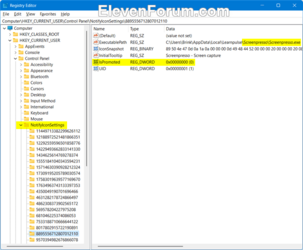
IsPromoted.png


Taskbar_corner_overflow_Windows11-2.png

5 You can now close Settings if you like.


That's it,
Shawn Brink


Last edited:
No. AIMP (audio player) has the same behaviour. Both of them have the option "Minimize to tray", and I always use it to minimize them to "Tray" instead of "Taskbar". I didn't have this problem in Win 7 or 10 (my Tray icons were in "always show" mode, I like them to be always shown). In 11 they just made it more complicated. Always show the icons or not, that's it, nothing more is needed there (IMO).
 

My Computer My Computer

At a glance

Win 11 Enterprisei7
OS
Win 11 Enterprise
Computer type
Laptop
CPU
i7
Hard Drives
SSD
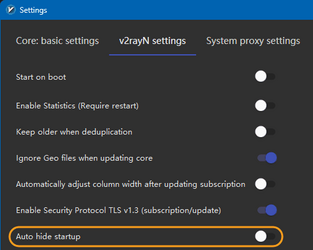
As I realized, any app that has a tray setting will hide after every reboot. I have set all apps below to "Minimize to Tray" except the "v2rayN", which has no such option (it automatically closes to tray).

AIMP:
s1.png


NP++:
s3.png


FSCaptur:
s4.png


v2rayN:
s2.png


After any reboot, I have to go to Settings and toggle their button "On" again (or drag them out of the tray arrow)! I don't know if this behaviour is a bug or is on purpose. It's a headache. I don't know what I have to do.

s5.png
 

Attachments

  • s2.png
    s2.png
    7.5 KB · Views: 79

My Computer My Computer

At a glance

Win 11 Enterprisei7
OS
Win 11 Enterprise
Computer type
Laptop
CPU
i7
Hard Drives
SSD
After any reboot, I have to go to Settings and toggle their button "On" again (or drag them out of the tray arrow)! I don't know if this behaviour is a bug or is on purpose. It's a headache. I don't know what I have to do.
Not sure, but you could see if resetting notification icons like below may refresh them to work properly again.


My Computers My Computers

  • At a glance

    Windows 11 Pro for WorkstationsIntel i7-8700K 5 GHz64 GB (4x16GB) G.SKILL TridentZ RGB DDR4 3600...ASUS ROG-STRIX-GTX1080TI-O11G-GAMING (11GB GD...
    OS
    Windows 11 Pro for Workstations
    Computer type
    PC/Desktop
    Manufacturer/Model
    Custom self build
    CPU
    Intel i7-8700K 5 GHz
    Motherboard
    ASUS ROG Maximus XI Formula Z390
    Memory
    64 GB (4x16GB) G.SKILL TridentZ RGB DDR4 3600 MHz (F4-3600C18D-32GTZR)
    Graphics Card(s)
    ASUS ROG-STRIX-GTX1080TI-O11G-GAMING (11GB GDDR5X)
    Sound Card
    Integrated Digital Audio (S/PDIF)
    Monitor(s) Displays
    2 x Samsung Odyssey G75 27"
    Screen Resolution
    2560x1440
    Hard Drives
    1TB Samsung 990 PRO M.2,
    4TB Samsung 990 PRO M.2,
    TerraMaster F8 SSD Plus NAS
    PSU
    Seasonic Prime Titanium 850W
    Case
    Thermaltake Core P3 wall mounted
    Cooling
    Corsair Hydro H115i
    Keyboard
    Amazon Basics Wired Full Keyboard MD005
    Mouse
    Logitech MX Master 4
    Internet Speed
    2 Gbps Download and 100 Mbps Upload
    Browser
    Chrome and Edge
    Antivirus
    Microsoft Defender
    Other Info
    Logitech Z625 speaker system,
    Logitech BRIO 4K Pro webcam,
    HP Color LaserJet Pro MFP M477fdn,
    CyberPower CP1500PFCLCD
    Galaxy S23 Plus phone
  • At a glance

    Windows 11 ProSnapdragon X Elite (12 core) 3.42 GHz16 GB LPDDR5x-7467 MHz
    Operating System
    Windows 11 Pro
    Computer type
    Laptop
    Manufacturer/Model
    Surface Laptop 7 Copilot+ PC
    CPU
    Snapdragon X Elite (12 core) 3.42 GHz
    Memory
    16 GB LPDDR5x-7467 MHz
    Monitor(s) Displays
    15" HDR
    Screen Resolution
    2496 x 1664
    Hard Drives
    1 TB SSD
    Internet Speed
    Wi-Fi 7 and Bluetooth 5.4
    Browser
    Chrome and Edge
    Antivirus
    Microsoft Defender
Hello Mr @Brink ,

Many Thanks :thumbsup: . I applied your BAT file, and it didn't work. I noticed it got worse! The v2ray app automatically goes hidden in the tray menu on startup!!!

1. I did run the BAT file and reboot.
2. I Opened the apps, set their toggle button to "On" (in Windows Tray Settings) and did a reboot.
3. All the apps toggle buttons automatically are on "Off" mode (in Windows Tray Settings).

s1.png
 

My Computer My Computer

At a glance

Win 11 Enterprisei7
OS
Win 11 Enterprise
Computer type
Laptop
CPU
i7
Hard Drives
SSD
Hello Mr @Brink ,

Many Thanks :thumbsup: . I applied your BAT file, and it didn't work. I noticed it got worse! The v2ray app automatically goes hidden in the tray menu on startup!!!
1. I did run the BAT file and reboot.
2. I Opened the apps, set their toggle button to "On" (in Windows Tray Settings) and did a reboot.
3. All the apps toggle buttons automatically are on "Off" mode (in Windows Tray Settings).

In that case, you might send a bug report to Microsoft via the Feedback Hub app. :(
 

My Computers My Computers

  • At a glance

    Windows 11 Pro for WorkstationsIntel i7-8700K 5 GHz64 GB (4x16GB) G.SKILL TridentZ RGB DDR4 3600...ASUS ROG-STRIX-GTX1080TI-O11G-GAMING (11GB GD...
    OS
    Windows 11 Pro for Workstations
    Computer type
    PC/Desktop
    Manufacturer/Model
    Custom self build
    CPU
    Intel i7-8700K 5 GHz
    Motherboard
    ASUS ROG Maximus XI Formula Z390
    Memory
    64 GB (4x16GB) G.SKILL TridentZ RGB DDR4 3600 MHz (F4-3600C18D-32GTZR)
    Graphics Card(s)
    ASUS ROG-STRIX-GTX1080TI-O11G-GAMING (11GB GDDR5X)
    Sound Card
    Integrated Digital Audio (S/PDIF)
    Monitor(s) Displays
    2 x Samsung Odyssey G75 27"
    Screen Resolution
    2560x1440
    Hard Drives
    1TB Samsung 990 PRO M.2,
    4TB Samsung 990 PRO M.2,
    TerraMaster F8 SSD Plus NAS
    PSU
    Seasonic Prime Titanium 850W
    Case
    Thermaltake Core P3 wall mounted
    Cooling
    Corsair Hydro H115i
    Keyboard
    Amazon Basics Wired Full Keyboard MD005
    Mouse
    Logitech MX Master 4
    Internet Speed
    2 Gbps Download and 100 Mbps Upload
    Browser
    Chrome and Edge
    Antivirus
    Microsoft Defender
    Other Info
    Logitech Z625 speaker system,
    Logitech BRIO 4K Pro webcam,
    HP Color LaserJet Pro MFP M477fdn,
    CyberPower CP1500PFCLCD
    Galaxy S23 Plus phone
  • At a glance

    Windows 11 ProSnapdragon X Elite (12 core) 3.42 GHz16 GB LPDDR5x-7467 MHz
    Operating System
    Windows 11 Pro
    Computer type
    Laptop
    Manufacturer/Model
    Surface Laptop 7 Copilot+ PC
    CPU
    Snapdragon X Elite (12 core) 3.42 GHz
    Memory
    16 GB LPDDR5x-7467 MHz
    Monitor(s) Displays
    15" HDR
    Screen Resolution
    2496 x 1664
    Hard Drives
    1 TB SSD
    Internet Speed
    Wi-Fi 7 and Bluetooth 5.4
    Browser
    Chrome and Edge
    Antivirus
    Microsoft Defender
Thanks. Microsoft won't care about it (Feedback). They are focused on CoPilot and AI stuff!

s3.png
 

My Computer My Computer

At a glance

Win 11 Enterprisei7
OS
Win 11 Enterprise
Computer type
Laptop
CPU
i7
Hard Drives
SSD
I dont have a Taskbar Corner Overflow Menu option.
 

My Computer My Computer

At a glance

Win117800X3D32gb G.Skill4070 Ti Super
OS
Win11
Computer type
PC/Desktop
Manufacturer/Model
Mine 1.5
CPU
7800X3D
Motherboard
ASUS B650 Tuf with wifi.
Memory
32gb G.Skill
Graphics Card(s)
4070 Ti Super
Monitor(s) Displays
1x Nixeus NX_EDG27, 2x Dell S2440L (16:9)
Screen Resolution
1440p
Hard Drives
C:\NVME (500GB), D:\Seagate (2TB), E:\ & F:\ SSD 990EVO (1TB)
PSU
Corsair HX1000i
Case
Phanteks Enthoo Primo w/10 140mm SP Fans
Cooling
Artic TF2 420
Keyboard
Corsair 1000
Mouse
Steel Series Prime Wireless
Internet Speed
20 MB/s
Browser
Firefox 64
Antivirus
not telling!
Other Info
https://i.imgur.com/aoz3vWY.jpg?2
I dont have a Taskbar Corner Overflow Menu option.

Hello, :alien:

Do you have a Hidden icon menu setting below to turn on?


1753797239754.webp
 

My Computers My Computers

  • At a glance

    Windows 11 Pro for WorkstationsIntel i7-8700K 5 GHz64 GB (4x16GB) G.SKILL TridentZ RGB DDR4 3600...ASUS ROG-STRIX-GTX1080TI-O11G-GAMING (11GB GD...
    OS
    Windows 11 Pro for Workstations
    Computer type
    PC/Desktop
    Manufacturer/Model
    Custom self build
    CPU
    Intel i7-8700K 5 GHz
    Motherboard
    ASUS ROG Maximus XI Formula Z390
    Memory
    64 GB (4x16GB) G.SKILL TridentZ RGB DDR4 3600 MHz (F4-3600C18D-32GTZR)
    Graphics Card(s)
    ASUS ROG-STRIX-GTX1080TI-O11G-GAMING (11GB GDDR5X)
    Sound Card
    Integrated Digital Audio (S/PDIF)
    Monitor(s) Displays
    2 x Samsung Odyssey G75 27"
    Screen Resolution
    2560x1440
    Hard Drives
    1TB Samsung 990 PRO M.2,
    4TB Samsung 990 PRO M.2,
    TerraMaster F8 SSD Plus NAS
    PSU
    Seasonic Prime Titanium 850W
    Case
    Thermaltake Core P3 wall mounted
    Cooling
    Corsair Hydro H115i
    Keyboard
    Amazon Basics Wired Full Keyboard MD005
    Mouse
    Logitech MX Master 4
    Internet Speed
    2 Gbps Download and 100 Mbps Upload
    Browser
    Chrome and Edge
    Antivirus
    Microsoft Defender
    Other Info
    Logitech Z625 speaker system,
    Logitech BRIO 4K Pro webcam,
    HP Color LaserJet Pro MFP M477fdn,
    CyberPower CP1500PFCLCD
    Galaxy S23 Plus phone
  • At a glance

    Windows 11 ProSnapdragon X Elite (12 core) 3.42 GHz16 GB LPDDR5x-7467 MHz
    Operating System
    Windows 11 Pro
    Computer type
    Laptop
    Manufacturer/Model
    Surface Laptop 7 Copilot+ PC
    CPU
    Snapdragon X Elite (12 core) 3.42 GHz
    Memory
    16 GB LPDDR5x-7467 MHz
    Monitor(s) Displays
    15" HDR
    Screen Resolution
    2496 x 1664
    Hard Drives
    1 TB SSD
    Internet Speed
    Wi-Fi 7 and Bluetooth 5.4
    Browser
    Chrome and Edge
    Antivirus
    Microsoft Defender
Hello, :alien:

Do you have a Hidden icon menu setting below to turn on?


View attachment 140763
well yea but that doesnt toggle the system icons, network, sound, etc
 

My Computer My Computer

At a glance

Win117800X3D32gb G.Skill4070 Ti Super
OS
Win11
Computer type
PC/Desktop
Manufacturer/Model
Mine 1.5
CPU
7800X3D
Motherboard
ASUS B650 Tuf with wifi.
Memory
32gb G.Skill
Graphics Card(s)
4070 Ti Super
Monitor(s) Displays
1x Nixeus NX_EDG27, 2x Dell S2440L (16:9)
Screen Resolution
1440p
Hard Drives
C:\NVME (500GB), D:\Seagate (2TB), E:\ & F:\ SSD 990EVO (1TB)
PSU
Corsair HX1000i
Case
Phanteks Enthoo Primo w/10 140mm SP Fans
Cooling
Artic TF2 420
Keyboard
Corsair 1000
Mouse
Steel Series Prime Wireless
Internet Speed
20 MB/s
Browser
Firefox 64
Antivirus
not telling!
Other Info
https://i.imgur.com/aoz3vWY.jpg?2
well yea but that doesnt toggle the system icons, network, sound, etc

Ok. That would be for Quick Settings instead then?

If so, You can see if resetting Quick Settings below may help.


My Computers My Computers

  • At a glance

    Windows 11 Pro for WorkstationsIntel i7-8700K 5 GHz64 GB (4x16GB) G.SKILL TridentZ RGB DDR4 3600...ASUS ROG-STRIX-GTX1080TI-O11G-GAMING (11GB GD...
    OS
    Windows 11 Pro for Workstations
    Computer type
    PC/Desktop
    Manufacturer/Model
    Custom self build
    CPU
    Intel i7-8700K 5 GHz
    Motherboard
    ASUS ROG Maximus XI Formula Z390
    Memory
    64 GB (4x16GB) G.SKILL TridentZ RGB DDR4 3600 MHz (F4-3600C18D-32GTZR)
    Graphics Card(s)
    ASUS ROG-STRIX-GTX1080TI-O11G-GAMING (11GB GDDR5X)
    Sound Card
    Integrated Digital Audio (S/PDIF)
    Monitor(s) Displays
    2 x Samsung Odyssey G75 27"
    Screen Resolution
    2560x1440
    Hard Drives
    1TB Samsung 990 PRO M.2,
    4TB Samsung 990 PRO M.2,
    TerraMaster F8 SSD Plus NAS
    PSU
    Seasonic Prime Titanium 850W
    Case
    Thermaltake Core P3 wall mounted
    Cooling
    Corsair Hydro H115i
    Keyboard
    Amazon Basics Wired Full Keyboard MD005
    Mouse
    Logitech MX Master 4
    Internet Speed
    2 Gbps Download and 100 Mbps Upload
    Browser
    Chrome and Edge
    Antivirus
    Microsoft Defender
    Other Info
    Logitech Z625 speaker system,
    Logitech BRIO 4K Pro webcam,
    HP Color LaserJet Pro MFP M477fdn,
    CyberPower CP1500PFCLCD
    Galaxy S23 Plus phone
  • At a glance

    Windows 11 ProSnapdragon X Elite (12 core) 3.42 GHz16 GB LPDDR5x-7467 MHz
    Operating System
    Windows 11 Pro
    Computer type
    Laptop
    Manufacturer/Model
    Surface Laptop 7 Copilot+ PC
    CPU
    Snapdragon X Elite (12 core) 3.42 GHz
    Memory
    16 GB LPDDR5x-7467 MHz
    Monitor(s) Displays
    15" HDR
    Screen Resolution
    2496 x 1664
    Hard Drives
    1 TB SSD
    Internet Speed
    Wi-Fi 7 and Bluetooth 5.4
    Browser
    Chrome and Edge
    Antivirus
    Microsoft Defender
Back
Top Bottom