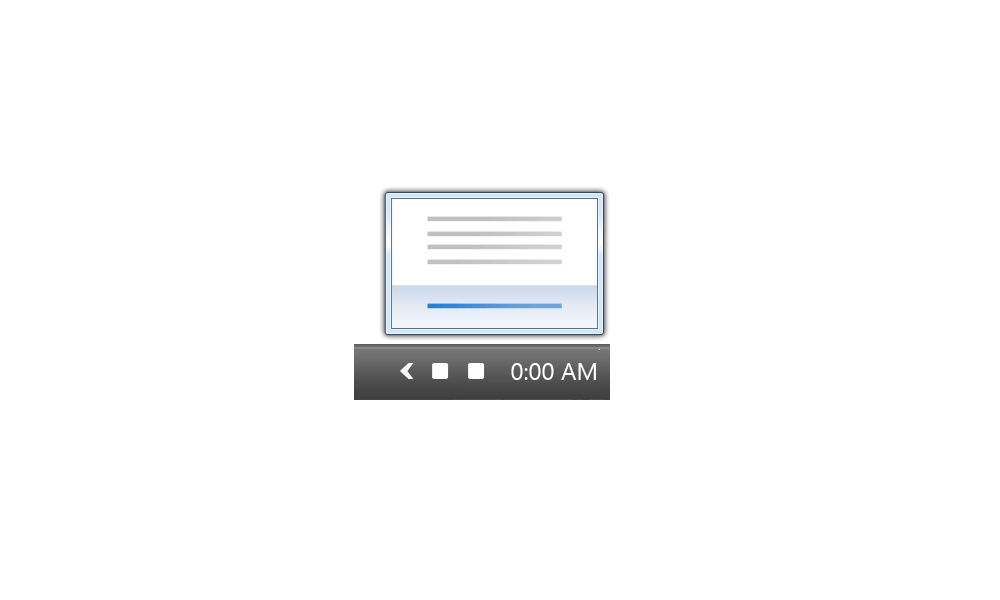
This tutorial will show you how to show or hide notification icons that appear in the taskbar corner overflow menu or system tray for your account in Windows 11.
The taskbar corner overflow menu (Show hidden icons menu) in Windows 11 shows the hidden notification icons on the system tray for apps.
You can turn on or off system tray icons to appear either on the system tray (on) or in the taskbar corner overflow menu (off).
If you turn off an app's notification icon, its icon will show in the taskbar corner overflow menu and not on the taskbar system tray.
If you turn on an app's notification icon, its icon will show on the taskbar system tray and not in the taskbar corner overflow menu.
Starting with Windows 11 build 22621.1344, you can move icons to rearrange them in the “Show hidden icons” flyout menu.
Contents
- Option One: Hide System Tray Icons in Taskbar Corner Overflow Menu via Drag and Drop
- Option Two: Show System Tray Icons in Taskbar Corner Overflow Menu via Drag and Drop
- Option Three: Hide or Show System Tray Icons in Taskbar Corner Overflow Menu in Settings
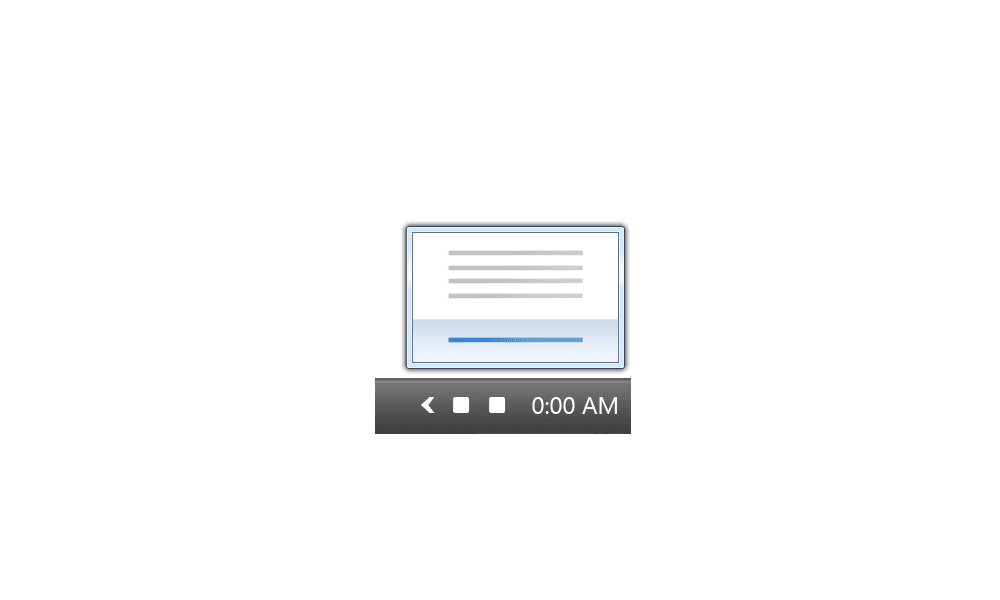
EXAMPLE: System tray icons and taskbar corner overflow menu
1 Drag a system tray icon you want to move to the overflow menu above the taskbar, and drop the icon. (see screenshot below)
1 Click/tap on the overflow menu arrow to open it. (see screenshot below).
2 Drag an icon from the overflow menu to the taskbar system tray, and drop the icon on the system tray.
1 Open Settings (WIn+I).
2 Click/tap on Personalization on the left side, and click/tap on Taskbar on the right side. (see screenshot below)
3 Click/tap on Other system tray icons on the right side to expand it open. (see screenshot below step 4)
4 Turn On (show) or Off (hide) notification icons for apps you want. (see screenshot below)
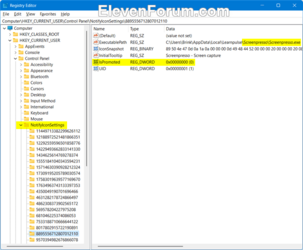
These settings are saved to the registry key below:
HKEY_CURRENT_USER\Control Panel\NotifyIconSettings\<ID for app>
IsPromoted DWORD
0 = Off
1 = On
5 You can now close Settings if you like.
That's it,
Shawn Brink
Related Tutorials
- Turn On or Off Hidden Icon Menu on Taskbar System Tray in Windows 11
- Stack Notification Icons on Taskbar System Tray in Windows 11
- Reset Notification Icons on Taskbar System Tray in Windows 11
- Add or Remove Microsoft Teams Icon on Taskbar System Tray in Windows 11
- Add or Remove Bluetooth Notification Icon on Taskbar in Windows 11
- Add or Remove Windows Security Notification Icon in Windows 11
- Enable or Disable Hide Terminal in Notification Area when Minimized in Windows 11
- Enable or Disable Always Show Terminal Icon in Notification Area in Windows 11
- Rearrange Taskbar Icons in Windows 11
- Add or Remove Mouse Keys Icon on Taskbar in Windows 11
- Enable or Disable Minimize Xbox app to Taskbar System Tray on Close in Windows 11
- Add or Remove NVIDIA Settings Notification Icon on Taskbar in Windows 11
- Add or Remove NVIDIA GPU Activity Notification Icon on Taskbar in Windows 11
Last edited:

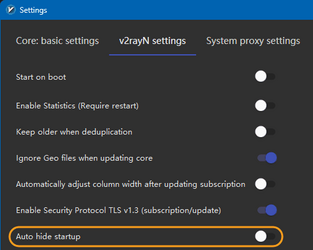


 . I applied your BAT file, and it didn't work. I noticed it got worse! The v2ray app automatically goes hidden in the tray menu on startup!!!