How do I move back a lost 'find and replace' dialogue box that went off screen?


Madrona

Member
Local time
7:34 AM
Posts
43
OS
Windows 11 Pro. Version 25H2 (build 26200.7462)
I use the find and replace (Ctrl F) feature in Excel a lot. Often it will start drifting off screen, mostly starting to disappear its top edge underneath the ribbon -- and I don't know how to move it back without restarting Excel.

I know how to move back a lost window, but it doesn't seem to work with a small dialogue box (find and replace doesn't have its own icon in the task bar)

Is there a way to do this?

Thanks.
 

My Computers

System One System Two

  • OS
    Windows 11 Pro. Version 25H2 (build 26200.7462)
    Computer type
    Laptop
    Manufacturer/Model
    Lenovo T16 AMD Gen 2
  • Operating System
    Windows 11
    Computer type
    PC/Desktop
    Manufacturer/Model
    Old HTPC custom build (2009)
    Memory
    8GB
    Graphics card(s)
    onboard
One way is to use the show-desktops tab (Windows + Tab). This should show the app. Right click on the image of the app and click "snap right" or "snap left" in the drop down menu. This works in all cases for me. Older methods no longer work.
 
Last edited:

My Computers

System One System Two

  • OS
    Windows 11 Pro x64
    Computer type
    PC/Desktop
    Manufacturer/Model
    📷🔈🎧 🪛 DIY Photoshop/Audio/Game/tinker
    CPU
    i9 14900K P/E 5.8/4.5 GHz, cache 5.0 GHz
    Motherboard
    Asus ROG Maximus Z790 Dark Hero
    Memory
    🐏 96GB (2x48) G.skill Ripjaws 6800 MT/s
    Graphics Card(s)
    Asus ROG Strix 4070 Ti OC
    Sound Card
    🔊Bowers & Wilkins 606 S3 speakers; Audiolabs 7000a integrated amp; RSL 10S Mk2 sub; Creative Pebble Pro Minimilist
    Monitor(s) Displays
    🖥️🖥️ Eizo CG2730 ColorEdge, ViewSonic VP2768
    Screen Resolution
    🖥️🖥️ 2560 x 1440p x 2
    Hard Drives
    💾 WDC SN850X 4TB nvme, SN850 1TB nvme, SK-Hynix 2 TB P41 nvme,. Sabrent USB-C DS-SC5B 5-bay docking station: 6TB WDC Black, 6TB Ironwolf Pro; 2x 2TB WDC Black HDD
    PSU
    ⚡️ 850W Seasonic Vertex PX-850 ATX 3.0/PCI-E 5.0
    Case
    Fractal Design North XL Mesh, Black Walnut
    Cooling
    ❄️ EK Nucleus black 360 AIO w/Phanteks T30-120 fans, 2 Noctua NF-A14 Chromax case fan, 1 T30-120 fan cooling memory
    Keyboard
    ⌨️ Keychron Q3 Max TKL with custom GMK Redsuns Red Samuri keycaps, TX Stabs
    Mouse
    🖱️ Logitech G305 wireless gaming
    Internet Speed
    ⬇️ 500 Mb/s ⬆️ 12 Mb/s
    Browser
    🔥🦊 Firefox
    Antivirus
    🦺 Defender, Macrium Reflect X 🏆
    Other Info
    Phangkey Amaterasu V2 Desk Mat
  • Computer type
    Laptop
    Manufacturer/Model
    💻 Apple 13" Macbook Pro 2020 (m1)
    CPU
    Apple M1
    Screen Resolution
    2560x1600
    Browser
    Firefox
Press Ctrl + F (Find) or Ctrl + H (Replace) to bring up the dialog box. If it's off-screen, follow the steps below.
  1. Activate the System Menu: With the dialog box (or any window) off-screen, press Alt + Spacebar. This will open the system menu for that window.
  2. Select Move: Press the M key. This activates the "Move" command on the system menu.
  3. Move the Window: Use the arrow keys (Up, Down, Left, Right) to move the dialog box. The box will move in the direction of the arrow key you press. Watch the screen as you move the dialog box, and stop when it becomes visible.
  4. Confirm: Press Enter to confirm the new position of the dialog box.
P.S., when the box or window in question becomes visible (or partially visible) in Step 3 above, normally you should also be able to move it with your mouse by simply moving your mouse (not drag-and-drop). Then confirm the new position with just a single left-click.
 
Last edited:

My Computers

System One System Two

  • OS
    11 Home
    Computer type
    Laptop
    Manufacturer/Model
    Asus TUF Gaming F16 (2024)
    CPU
    i7 13650HX
    Memory
    16GB DDR5
    Graphics Card(s)
    GeForce RTX 4060 Mobile
    Sound Card
    Eastern Electric MiniMax DAC Supreme; Emotiva UMC-200; Astell & Kern AK240
    Monitor(s) Displays
    Sony Bravia XR-55X90J
    Screen Resolution
    3840×2160
    Hard Drives
    512GB SSD internal
    37TB external
    PSU
    Li-ion
    Cooling
    2× Arc Flow Fans, 4× exhaust vents, 5× heatpipes
    Keyboard
    Logitech K800
    Mouse
    Logitech G402
    Internet Speed
    30Mbit/s up, 500Mbit/s down
    Browser
    FF
    Antivirus
    What's an antivirus?
  • Operating System
    11 Home
    Computer type
    Laptop
    Manufacturer/Model
    Medion S15450
    CPU
    i5 1135G7
    Memory
    16GB DDR4
    Graphics card(s)
    Intel Iris Xe
    Sound Card
    Eastern Electric MiniMax DAC Supreme; Emotiva UMC-200; Astell & Kern AK240
    Monitor(s) Displays
    Sony Bravia XR-55X90J
    Screen Resolution
    3840×2160
    Hard Drives
    2TB SSD internal
    37TB external
    PSU
    Li-ion
    Keyboard
    Logitech K800
    Mouse
    Logitech G402
    Internet Speed
    30Mbit/s up, 500Mbit/s down
    Browser
    FF
Neither of those suggestions seemed to work. They move the window but not the dialogue box. I should say, they move the window WITH the dialogue box which is still stuck in its position.

I can't seem to replicate the situation on my home computer using Excel 2021 (Professional Plus). The find and replace dialogue box doesn't get stuck underneath the ribbon. It always stays on top of the background and floats free, unless I move it completely off the screen.

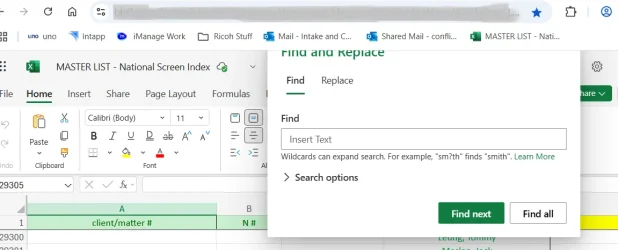
The problem arises at work when using Excel 365 on Sharepoint. You can see how it creeps up behind the ribbon. Whichever method I employ to pry it loose, it moves the whole Excel window, not the dialogue box.

Thought there might be an easy fix, but maybe not.


Excel find and replace.webp
 

My Computers

System One System Two

  • OS
    Windows 11 Pro. Version 25H2 (build 26200.7462)
    Computer type
    Laptop
    Manufacturer/Model
    Lenovo T16 AMD Gen 2
  • Operating System
    Windows 11
    Computer type
    PC/Desktop
    Manufacturer/Model
    Old HTPC custom build (2009)
    Memory
    8GB
    Graphics card(s)
    onboard
Back
Top Bottom